Back to Help Center
Help CenterProducts & Import
How do I add a backup supplier and set a Max Supplier Price for a variant?
7 min readProducts > the product > Variants, Linked tab (web dashboard); Orders for a blocked order
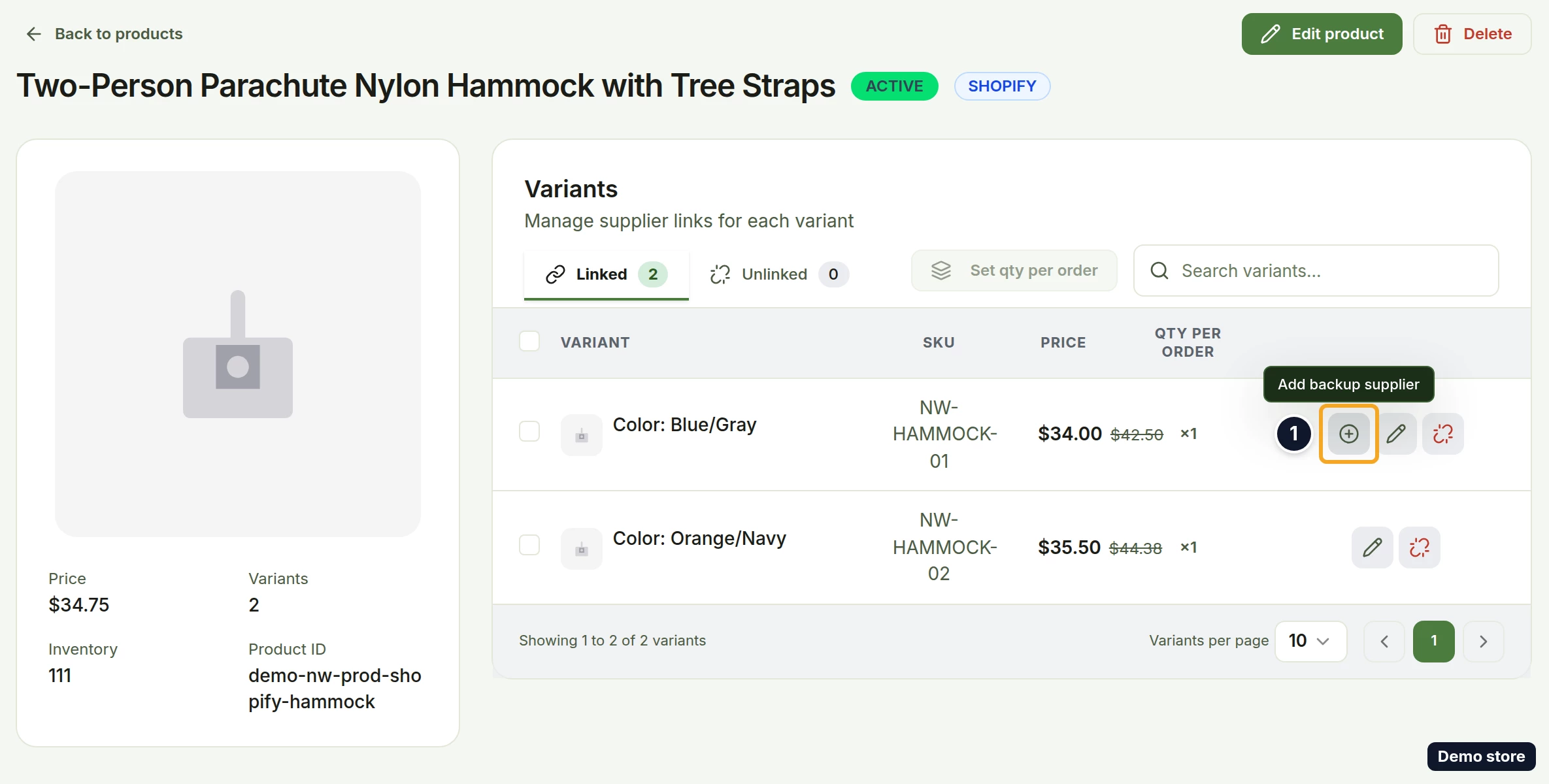
Both live on the variant's link, on the product's Linked tab: the plus icon Add backup supplier adds one backup, and the pencil icon Edit link changes Max Supplier Price, the supplier link or the backup. The backup is used only when an AliExpress primary cannot be bought for that order (out of stock, or not offered for the destination country), and only for that order. An order whose supplier cost is over the Max Supplier Price is blocked until you raise the max or change the link; the backup is not tried for price.
Steps
Add a backup supplier
- Click Products in the sidebar.
- Open the product.
- In Variants, open the Linked tab.
- On the variant's row, click the plus icon (tooltip Add backup supplier). It shows only while the variant has no backup yet.
- The Add backup supplier panel opens on Supplier Info (the stepper reads Select Variant, Supplier Info, Link). The product's title, a price in USD and the variant's options show at the top, and the X Close link flow closes the panel.
- Max Supplier Price (marked optional) comes prefilled with the variant's current ceiling. Change it only if you want a new ceiling: it is one value for the whole variant, shared by the primary and the backup.
- Paste the backup's product link or product ID in Secondary Supplier Link * ("Fallback supplier when primary is out of stock. Paste the full product URL or product ID from AliExpress"). The backup must come from the same supplier platform as the primary.
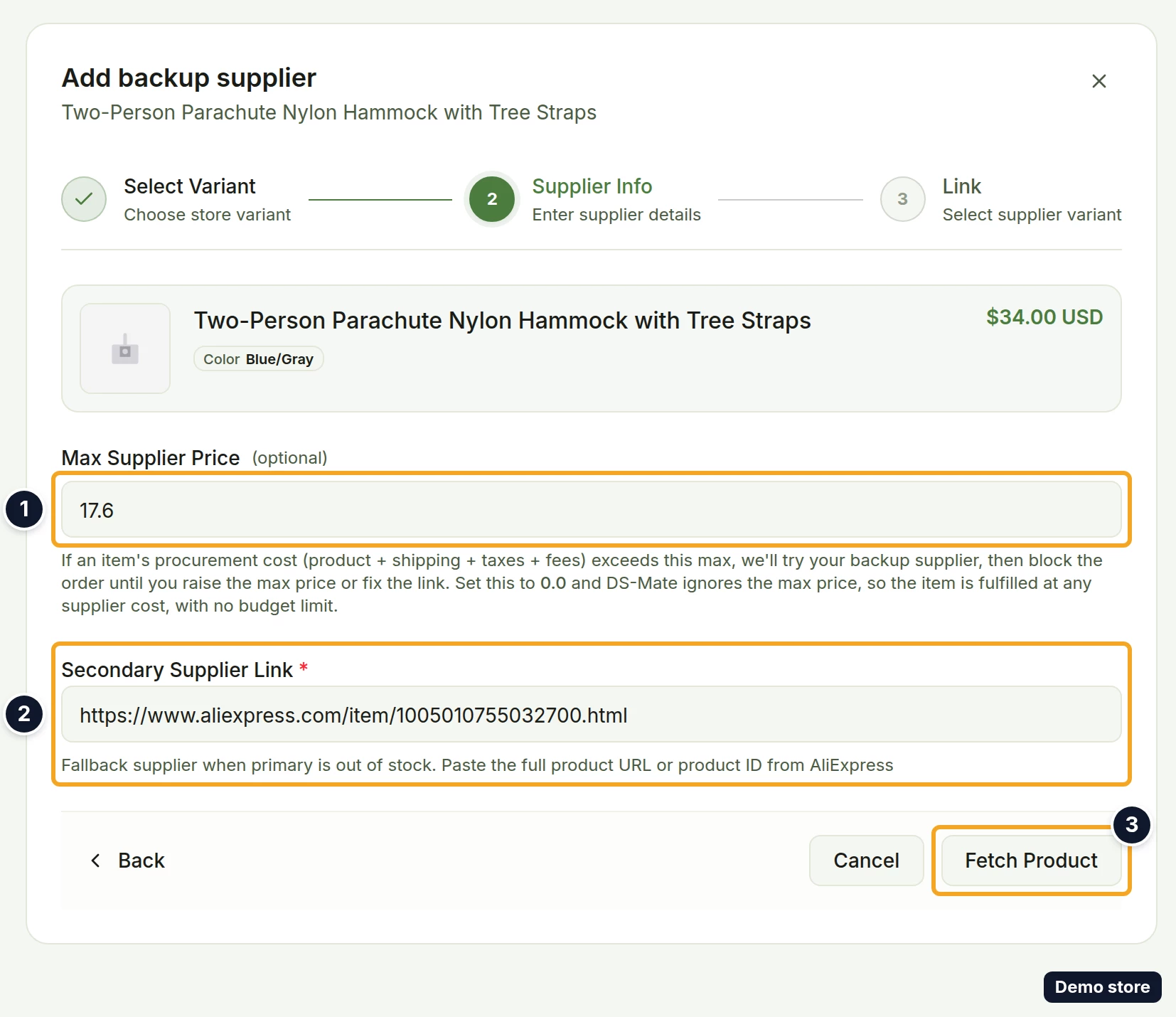
- Click Fetch Product. It is disabled while the field is empty. The toast "Product fetched successfully!" confirms it; an unreadable ID gives "Could not extract product ID from input".
- Under Select Secondary Variant, click the backup's variant. Out-of-stock rows cannot be picked.
- Under Shipping Options, click the backup's shipping option. Until you do, the footer reads "Please select a shipping option".
- Click Add Secondary Link. It is enabled only once an in-stock variant and a shipping option are picked.
- The toast "Secondary link added successfully!" confirms it, and the panel closes. The row no longer shows the plus icon.
Change the Max Supplier Price of a linked variant
- On the Linked tab, click the pencil icon (tooltip Edit link). The Edit variant link panel opens on Supplier Info with the primary link, the backup link, the shipping preferences and Max Supplier Price prefilled.
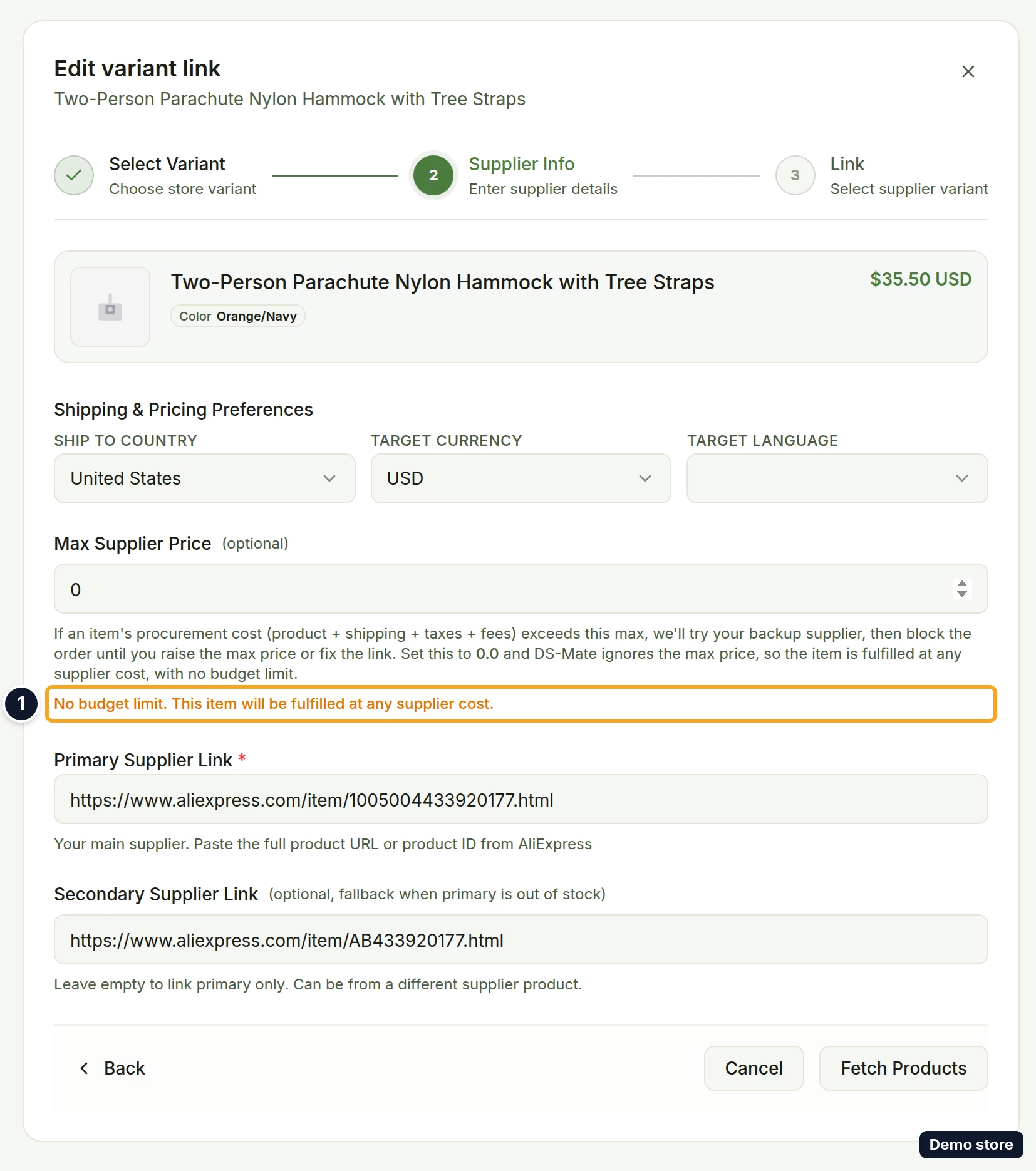
- Change Max Supplier Price. Type 0 to remove the limit; the line "No budget limit. This item will be fulfilled at any supplier cost." then shows. Clearing the field does not remove the limit: the field fills again with the saved value at once.
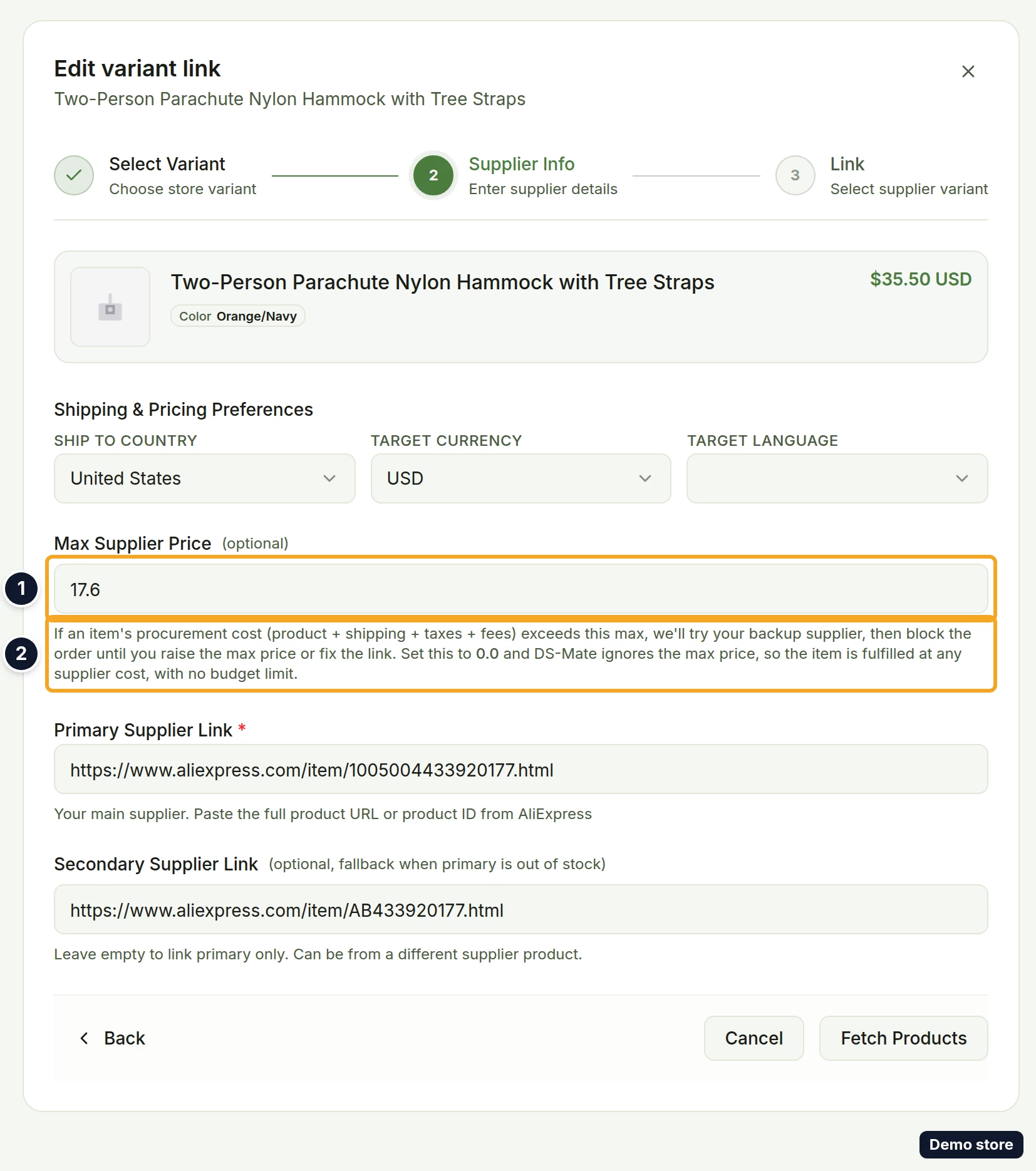
- Click Fetch Products (it reads Fetch Product when the variant has no backup).
- Check the supplier variants. Your previous picks are preselected if they are still in stock.
- If Select Primary Variant * has no variant picked, click the matching one.
- Click a shipping option under Primary Shipping (it reads Shipping Options when the variant has no backup). It is not picked for you unless there is only one option, and the hint "Please select a shipping option" shows until you pick.
- If the variant has a backup, click a shipping option under Secondary Shipping.
- Click Update Link. The toast reads "Primary and secondary links created!" when a backup variant is picked as you click, otherwise "Variant linked successfully!". A backup variant that is now out of stock is not preselected, so a variant with a backup can also get "Variant linked successfully!".
Replace the backup
- On the Linked tab, click Edit link.
- Overwrite Secondary Supplier Link with the new backup's link or product ID.
- Click Fetch Products.
- If Select Primary Variant * has no variant picked, click the matching one.
- Click a shipping option under Primary Shipping. Update Link stays disabled until the primary has a variant and a shipping option.
- Under "Secondary fallback: ships when the primary variant is out of stock or unavailable.", click the variant in Select Secondary Variant.
- Click a shipping option under Secondary Shipping.
- Click Update Link. The new backup replaces the old one.
Raise the max price from a blocked order
- Click Orders in the sidebar.
- Open the blocked order.
- In the item's Max field, type the new ceiling. Next to it, change product (when the item is linked) or link product (when it is not) lets you change the item's link instead.
- Click Save & re-check. It saves the value and re-checks the order. Save only stores the value, confirms with "Max prices saved." and does not re-check the order; it stays disabled until you edit a value.
Remove a link
- On the Linked tab, click the unlink icon (tooltip Unlink variant). It acts at once, with no confirmation.
- The toast "Variant unlinked successfully" confirms it. A variant with a backup stays on Linked: its backup becomes the primary. A variant without a backup moves to Unlinked and appears on Unmapped.
Good to know
- Max Supplier Price is a per-unit ceiling. Right before DS-Mate places the supplier order, it compares the item's cost (the supplier product cost times the quantity bought, plus the real shipping quote, plus DS-Mate's processing fee, without tax) with Max Supplier Price times that same quantity. The quantity bought is the order quantity times the variant's Qty per order.
- Over the max, the order is blocked and no supplier order is created. The order page and the orders list read, with your amounts, "The supplier cost ($12.40) exceeded your max price limit ($10.00). Please increase the max price on your product link or switch to a different supplier." The second amount is your max times the quantity bought. The backup is not tried for an over-budget order.
- Raising or removing the max in Edit link re-checks the waiting orders for that variant on its own. On the order page, Save does not re-check; use Save & re-check.
- What an order does when the primary is out of stock: for an AliExpress primary, DS-Mate switches to the backup for that one order and does not save the switch. With no backup, the order is blocked with the status Out of Stock and the message "One or more items in this order are currently out of stock with the supplier." Only an AliExpress primary falls back to its backup.
- When AliExpress does not offer the variant for the destination country and the variant has no backup, or the backup lacks the supplier's variant data, the order is blocked with "This product is currently unavailable from the supplier." instead.
- One backup per variant, and it must come from the same supplier platform as the primary. A different one is refused with "Cannot mix different suppliers as primary/secondary on the same variant".
- There is no control that removes only a backup. Clearing Secondary Supplier Link in Edit link does not remove it. To get rid of a backup, replace it with another one, or unlink the variant (which makes the backup the primary).
- The Linked tab shows neither the backup nor the max price. A row without the plus icon is a variant that has a backup; open Edit link to see the links and the ceiling.
- If the saved backup can no longer be fetched, Edit link cannot move past Supplier Info, and the fetch error stays on screen until you clear Secondary Supplier Link.
- Plan limit: at your plan's linked-variant limit (Free 200, Starter 2,000, Growth 10,000, counted for the owner's whole account), Add backup supplier and Edit link stay clickable but saving is refused with "You have reached the maximum number of variants you can link".
- Each save in Add backup supplier or Edit link raises the Linked Variants count on Plan & Billing until the next recount: by 1, or by 2 when Edit link also saves a backup variant.
On the Shopify app
The backup dialog is titled Add Secondary Supplier and the edit dialog Edit Variant Link. The buttons are Fetch Product, Add Secondary Link and Update Link; in Edit Variant Link the fetch button reads Fetch Products when a backup link is filled. The toast reads "Secondary link added successfully!".
Related Articles
Still have questions?
Our support team is ready to help. Reach out and we'll get back to you as soon as possible.