Back to Help Center
Help CenterProducts & Import
What happens when I reach my plan's product limit, and how do I free up room?
5 min readSettings > Plan & Billing (web dashboard) shows the counts; the import page and the product's Unlinked tab are where a limit stops you
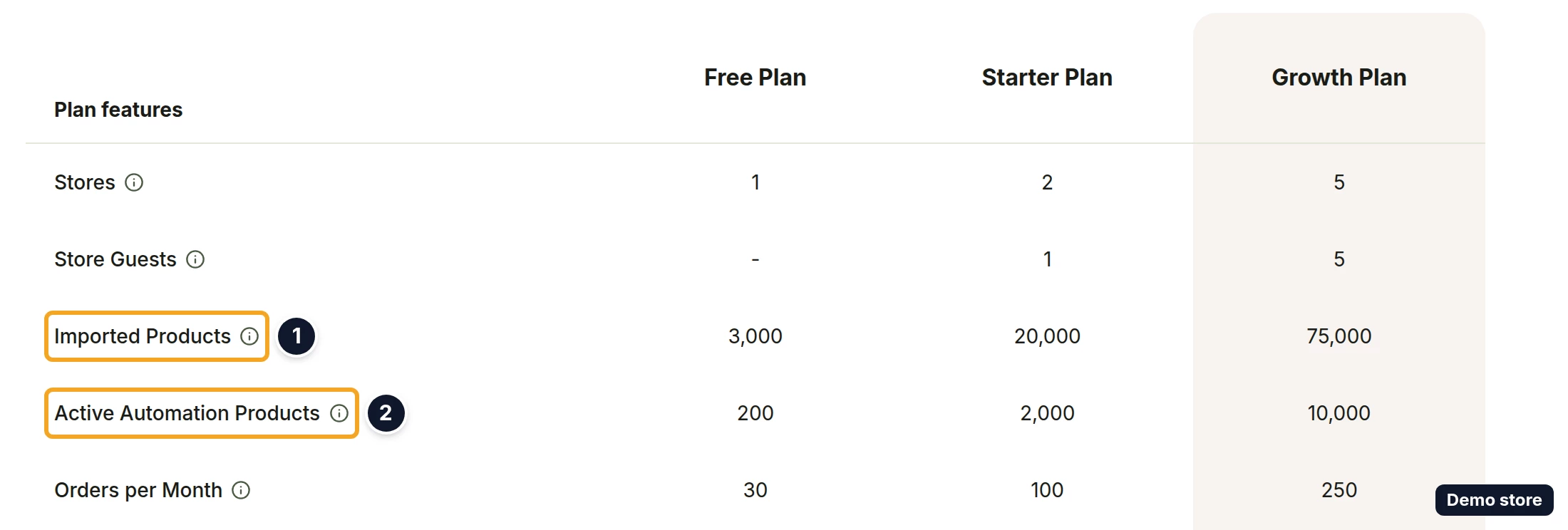
At the imported-products limit a new import fails with "You have reached the maximum number of imported products for your plan", and at the linked-variants limit the buttons that link a variant are disabled. The limits are 3,000, 20,000 and 75,000 imported products and 200, 2,000 and 10,000 linked variants on Free, Starter and Growth; the pricing page calls linked variants products on active monitoring. Both are counted for the store owner's whole account, across all of the owner's stores, including what guests do in them.
Steps
See where you stand
- Click Settings at the bottom of the sidebar.
- Click Plan & Billing. The page is headed Billing ("Manage your subscription and monitor usage").
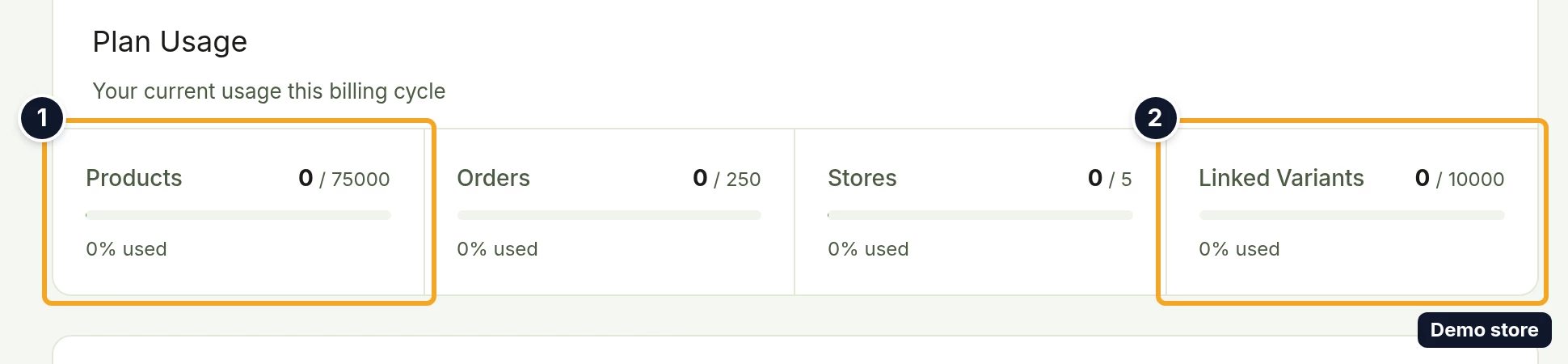
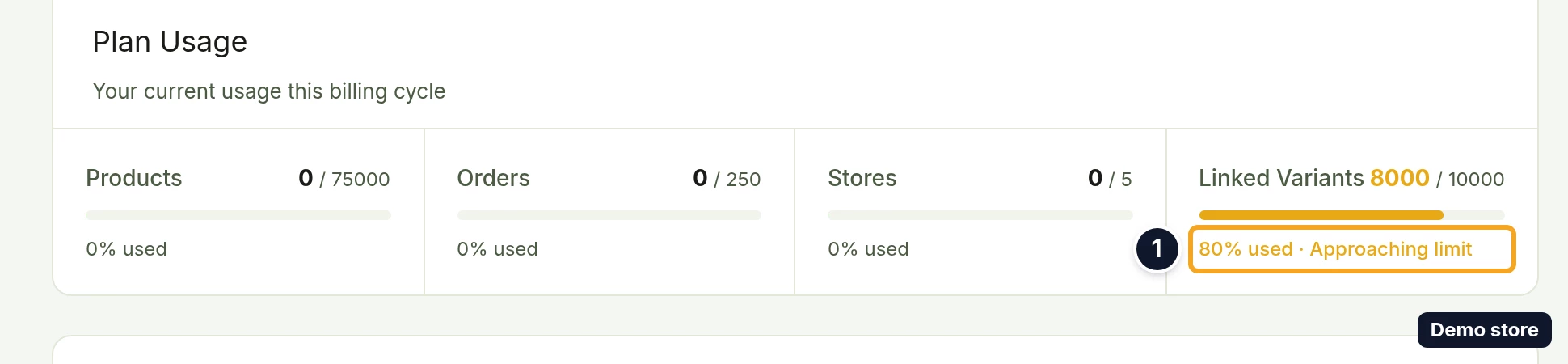
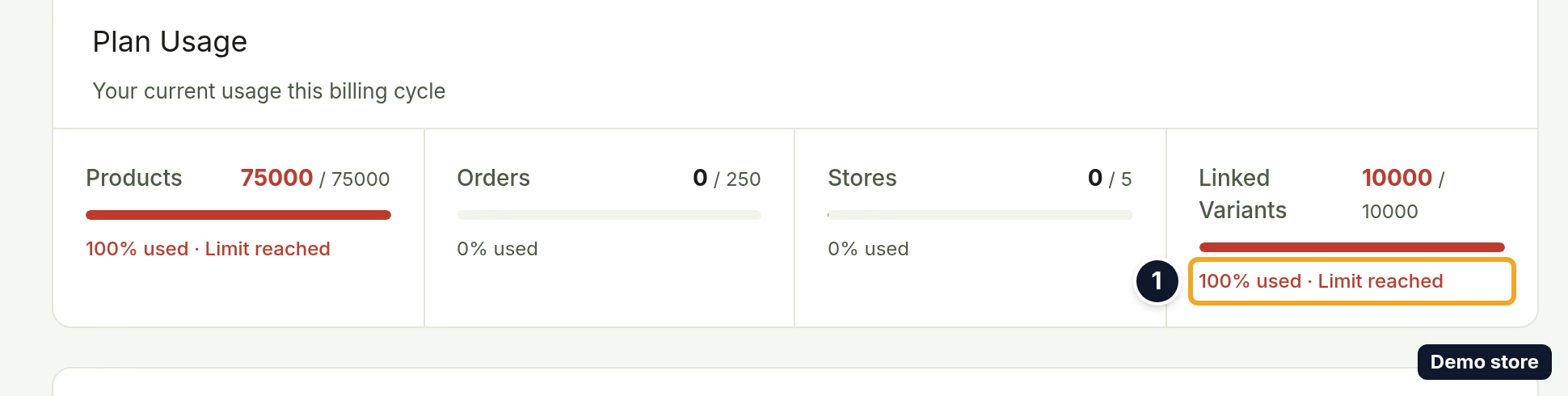
- In Plan Usage ("Your current usage this billing cycle"), read the Products and Linked Variants tiles. Each shows used out of limit, a bar and "N% used" with your percentage. At 80% the tile adds "Approaching limit", at 100% "Limit reached".
What you see at the imported-products limit
- Click Import Product on the import page.
- With one store, a red alert Import Failed reads "Product import failed for all stores", then a line with the store's name and "You have reached the maximum number of imported products for your plan". The same sentence repeats under "Attribute errors:" ("eBay errors:" or "Temu validation errors:" for those channels), and the button now reads Retry Import.
- With several stores, where some accepted the product, an amber panel Some stores could not be imported shows, and the toast reads "Product imported to 1 of 2 store(s)" with your counts.
What you see at the linked-variants limit
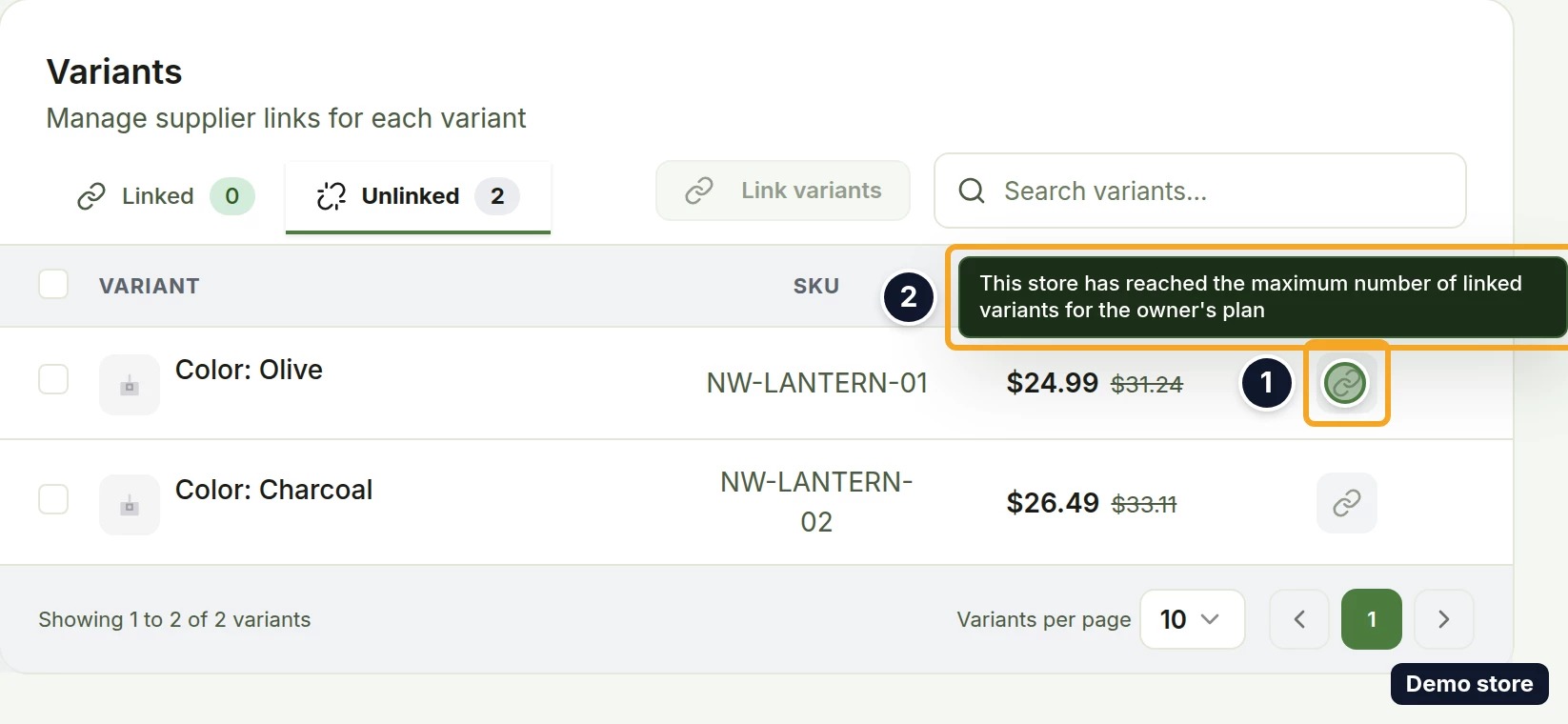
- On the product's Unlinked tab, every Link variant icon and the Link variants button are disabled. Hovering shows "This store has reached the maximum number of linked variants for the owner's plan".
- Add backup supplier and Edit link stay clickable, but saving is refused with the toast "You have reached the maximum number of variants you can link".
- A batch of variants that crosses the limit finishes with the rows over the limit listed as failed on Link results, each ending with the code "PLAN_LIMIT_REACHED".
- Auto-link at import stops at the limit, and the sync notification reads "Auto-linked 2 of 4 variants. Upgrade your plan to link the remaining 2." with your counts.
Free up linked-variant room
- On the product's Linked tab, click Unlink variant on the variant's row. The count drops at once. A variant with a backup stays linked, because its backup becomes the primary, and the next recount counts it again.
Free up imported-product room
This works only for Amazon stores. On the web dashboard, other channels have no archive control.
- With your Amazon store selected, click Products in the sidebar.
- Open the view selector. It reads Store Products.
- Pick Import Requests.
- On a synced row, click the archive icon. Its tooltip reads Archive on Amazon.
- In the confirmation dialog, click Archive listing.
- The toast reads "Archive enqueued on Amazon". The row moves to Archived, and the listing stops counting at the next recount, not at once.
Get a higher limit
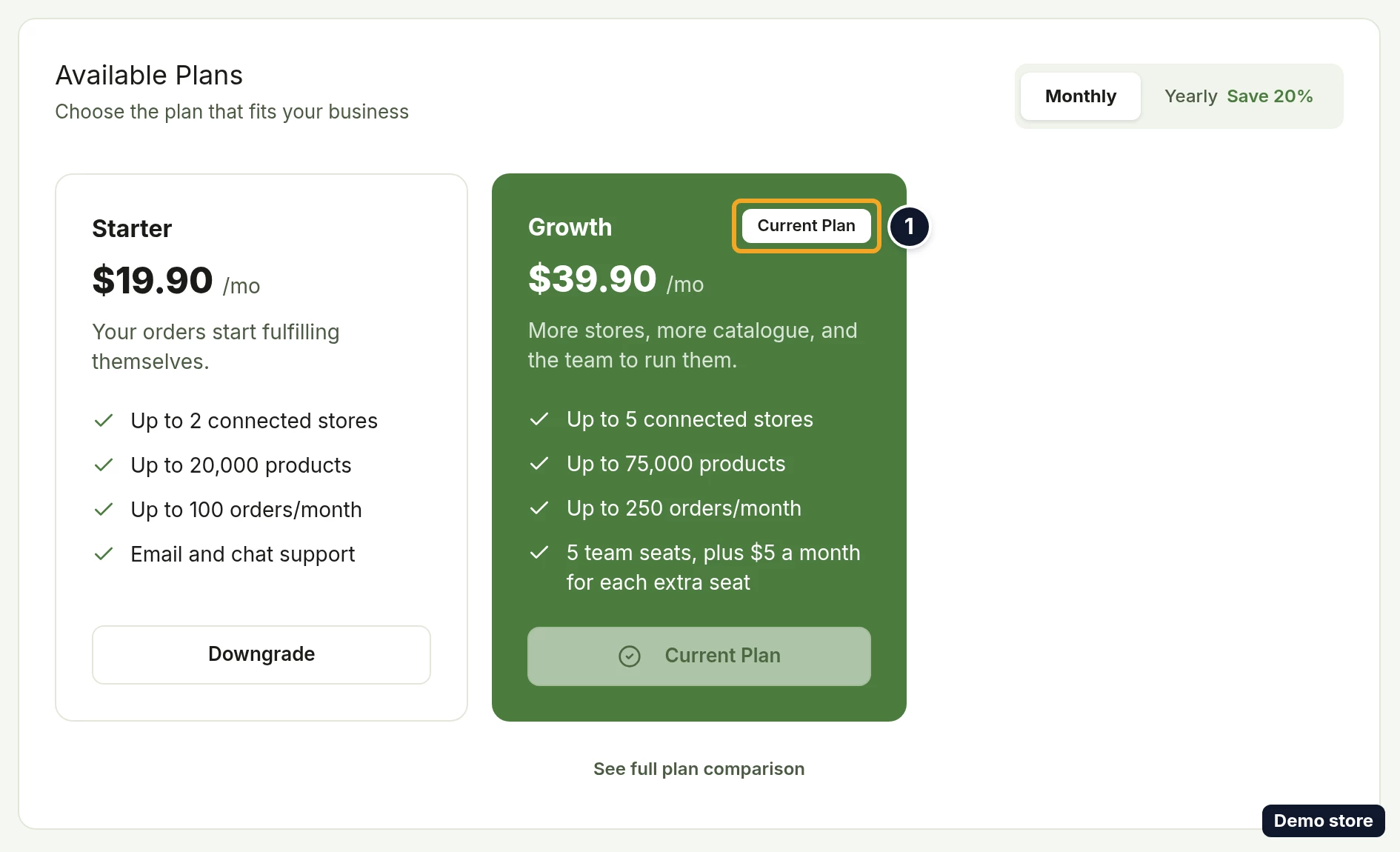
- On Plan & Billing, find Available Plans ("Choose the plan that fits your business"). The Monthly and Yearly (Save 20%) switch changes only the prices shown on the cards.
- Click Upgrade to Starter or Upgrade to Growth. It opens the pricing page. See full plan comparison opens the same page; the comparison table (Compare our plans) is further down it. Growth is the top plan, so a Growth account has nothing to upgrade to.
- The higher limits apply as soon as the plan changes. The counts themselves do not change. If your bank asks you to confirm the payment, or the card is declined, the plan and its limits change only once that payment goes through.
Good to know
- Both counts belong to the store owner and cover all of the owner's stores. A guest's imports and links count against the owner's plan.
- Products counts one per store per import, so importing one product to three stores uses three. Archiving an Amazon listing frees its slot at the next recount.
- Linked Variants counts one per linked variant, not per product: a product with four linked variants uses four. Each save in Add backup supplier or Edit link raises the count until the next recount (by 1, or by 2 when Edit link also saves a backup variant); the recount sets it back to one per linked variant.
- The pricing page calls this limit "products on active monitoring", and the comparison row Active Automation Products carries the tooltip "Products DS-Mate actively monitors, syncs, and fulfils for you". The unit counted is the linked variant.
- Some imports, such as SHEIN and WooCommerce ones, show as in progress at once. For those, a refusal at the limit arrives later as a failure notification instead of the Import Failed alert.
- The link buttons also show the plan-limit tooltip while your usage is loading, or if it fails to load, so you can see it without being at the limit.
- Neither limit can be extended with an add-on. A higher plan is the only way to raise it.
- Downgrading asks you to choose what stays within the lower plan's limits for stores, guests and linked variants (Unlink Excess Variants). Imported products are not part of that choice.
On the Shopify app
The Billing page shows the same four tiles in a card titled Resource Usage, under "This Month", and each tile shows a short description. A tile reads "Near limit" at 80% and "At limit" at 100%.
Related Articles
Still have questions?
Our support team is ready to help. Reach out and we'll get back to you as soon as possible.