Back to Help Center
Help CenterProducts & Import
Why is a variant on the Unmapped page, and how do I link it?
4 min readUnmapped (sidebar), web dashboard
Unmapped lists every active variant of an active product in the selected store that has no supplier link, and the fix is to link it. Click the Link variant icon on its row and the product page opens straight on the quantity step for that variant. Once the link is saved, the variant leaves the list and its orders that were waiting are re-checked on their own.
Steps
- Pick the store in the top bar. Without one, the page reads "No Store Selected" and "Please select a store from the header to view unmapped variants."
- Click Unmapped in the sidebar. The page is headed Unmapped Variants ("View all product variants that are not linked to any supplier product").
- Find the variant with the search box "Search variants by name, SKU, or product name...". It matches the variant name, the SKU and the product title.
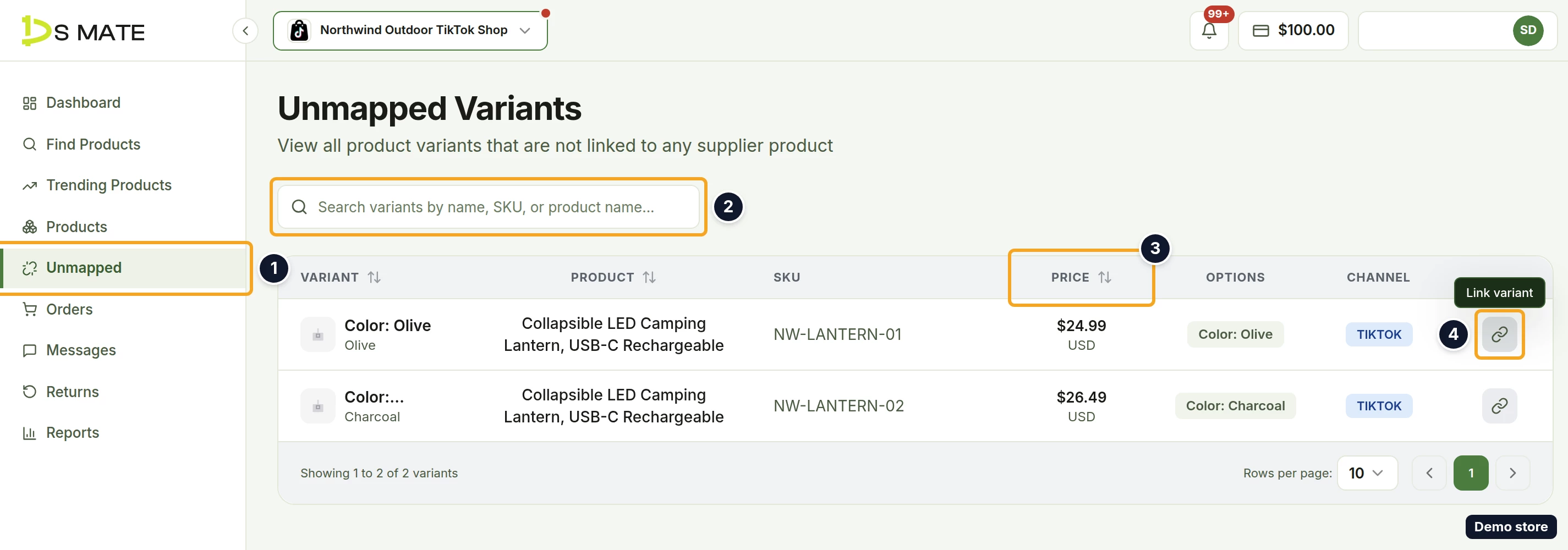
- Click the icon at the end of the row (tooltip Link variant). The product page opens on the Unlinked tab at Set qty per order (step 2 of 3) for that one variant.
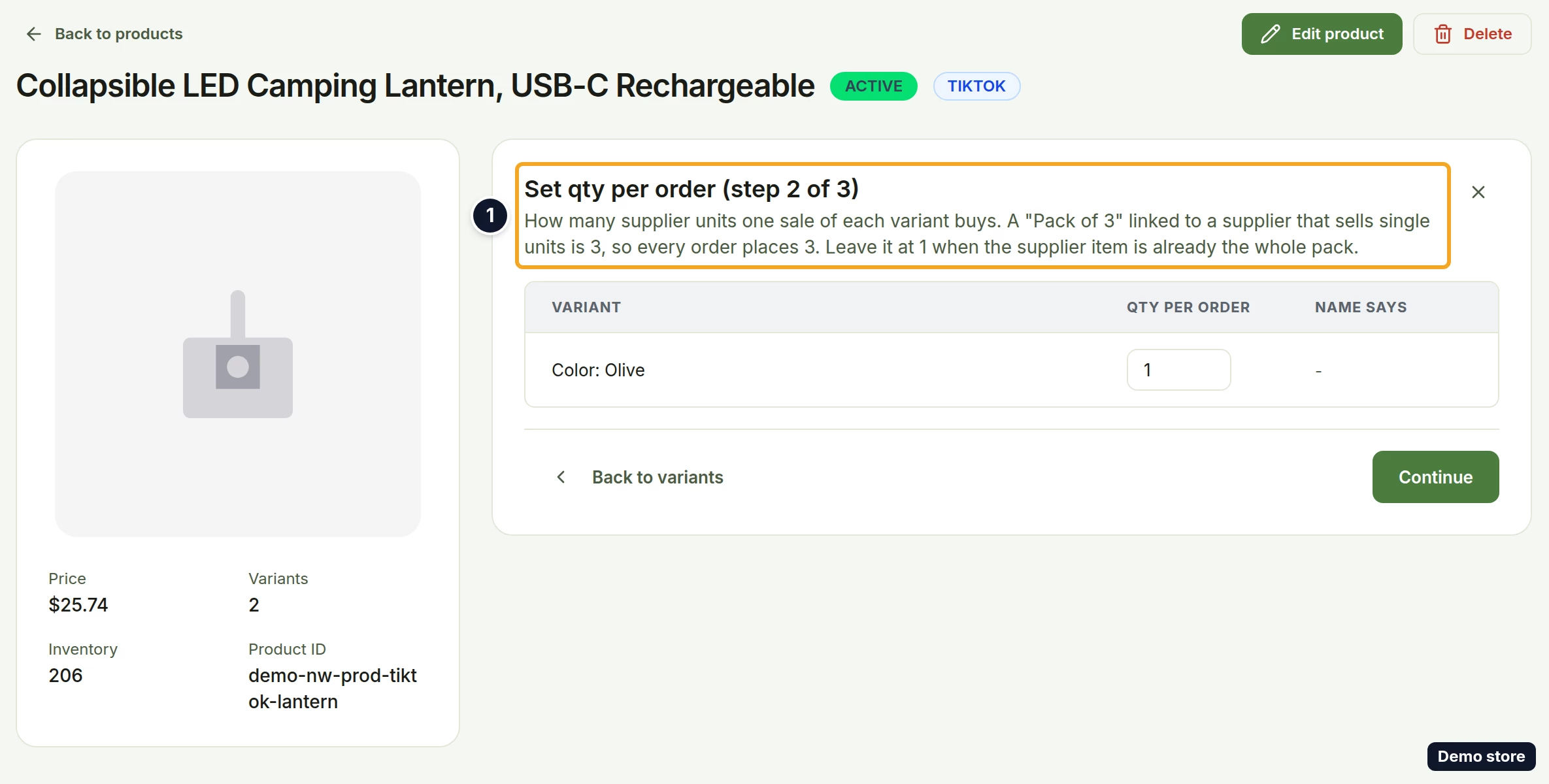
- Type in Qty per order how many supplier units one sale of the variant buys. Leave it at 1 when the supplier item is already the whole pack.
- Click Continue.
- On Choose the supplier item (step 3 of 3), paste the supplier product link or product ID in Primary Supplier Link *. Leave Secondary Supplier Link empty; this screen does not save it.
- Click Fetch product. The toast "Product fetched successfully!" confirms it.
- Under Select Primary Variant *, click the supplier variant that matches yours.
- Under Shipping Options, click a shipping option.
- Click Link 1 variant.
- On the Link results panel ("Linked 1 of 1 variant."), click Done.
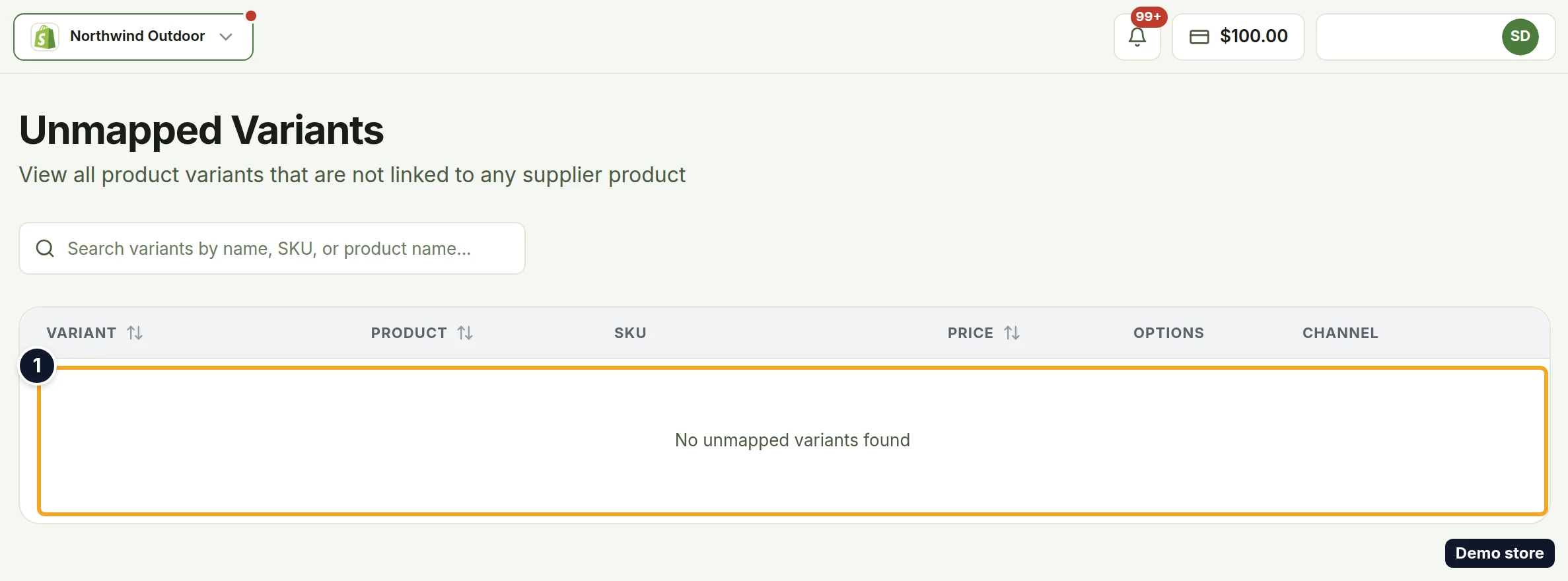
- Click Unmapped in the sidebar. The variant is no longer listed. When nothing is left, the page reads "No unmapped variants found".
Good to know
- A variant is listed when all three hold: its product is active in DS-Mate (draft, archived and pending-review products are left out), the variant itself is active (hidden or deleted variants are left out), and no active supplier link matches its variant or its SKU. A variant whose primary link was removed but whose backup took over is not listed, because it is still linked.
- Each row shows Variant (image, name and options), Product, SKU, Price (shown in USD), Options chips such as "Color: Blue", and Channel. Click Variant, Product or Price to sort.
- Clicking a row opens the product page without starting a link. The link starts only from the Link variant icon.
- The page has no filters, no checkboxes and no bulk action, so you link one variant at a time from here. To link several variants of one product in one go, open the product from Products instead (see the linking question below).
- An order that contains an unlinked variant waits with the chip "Needs attention" (tooltip "This order needs you to fix something before we can fulfill it."), and the item reads "Not linked to supplier". When the missing link is the order's only problem, the order page's notice reads "This order isn't linked to a supplier product yet" with the steps "Click Link product next to the item below", "Paste the AliExpress product link and pick a variant" and "We'll link it and re-check the order automatically". You can link from there as well.
- If the product was never imported into DS-Mate, or the variant is missing from DS-Mate's copy of the product, the order shows a different issue, and Unmapped cannot fix it.
- Plan limit: linking obeys your plan's linked-variant limit (Free 200, Starter 2,000, Growth 10,000, counted for the owner's whole account). At the limit the Link variant icon on the product page is disabled. The icon on Unmapped still opens the quantity step, but the link is refused: Link results lists the variant as failed, ending with the code "PLAN_LIMIT_REACHED".
- When the list has rows, Rows per page: offers 10, 25 or 50. If the list fails to load, the page reads "Could not load unmapped variants." with Try again. If the variant was removed from the product meanwhile, the toast "That variant no longer exists on this product" appears.
On the Shopify app
The page is also titled Unmapped Variants, but the row button is a text button Link. It opens the dialog Link Variant to Supplier directly on the supplier information: there is no quantity step, and its Secondary Supplier Link field is saved. The final button is Link Variant, with the toast "Variant linked successfully!" or "Primary and secondary links created!". Clicking a row opens a variant detail dialog rather than the product page. Without a store, the page reads "No Store Connected" and "Unable to determine the current Shopify store."
Related Articles
Still have questions?
Our support team is ready to help. Reach out and we'll get back to you as soon as possible.