Back to Help Center
Help CenterProducts & Import
How do I link a product's variants to their supplier product?
8 min readProducts > the product > Variants, Unlinked tab (web dashboard)
You link variants from the product's page in Products: on the Unlinked tab you pick the variants, set how many supplier units one sale buys, paste the supplier product link, then choose the matching supplier variant and a shipping option. Every variant you tick in one go points at the same supplier product, each with its own quantity. An order for a variant that is not linked waits until you link it, and DS-Mate re-checks that order on its own once the link is saved.
Steps
Open the product's variants
- Pick the store in the top bar.
- Click Products in the sidebar.
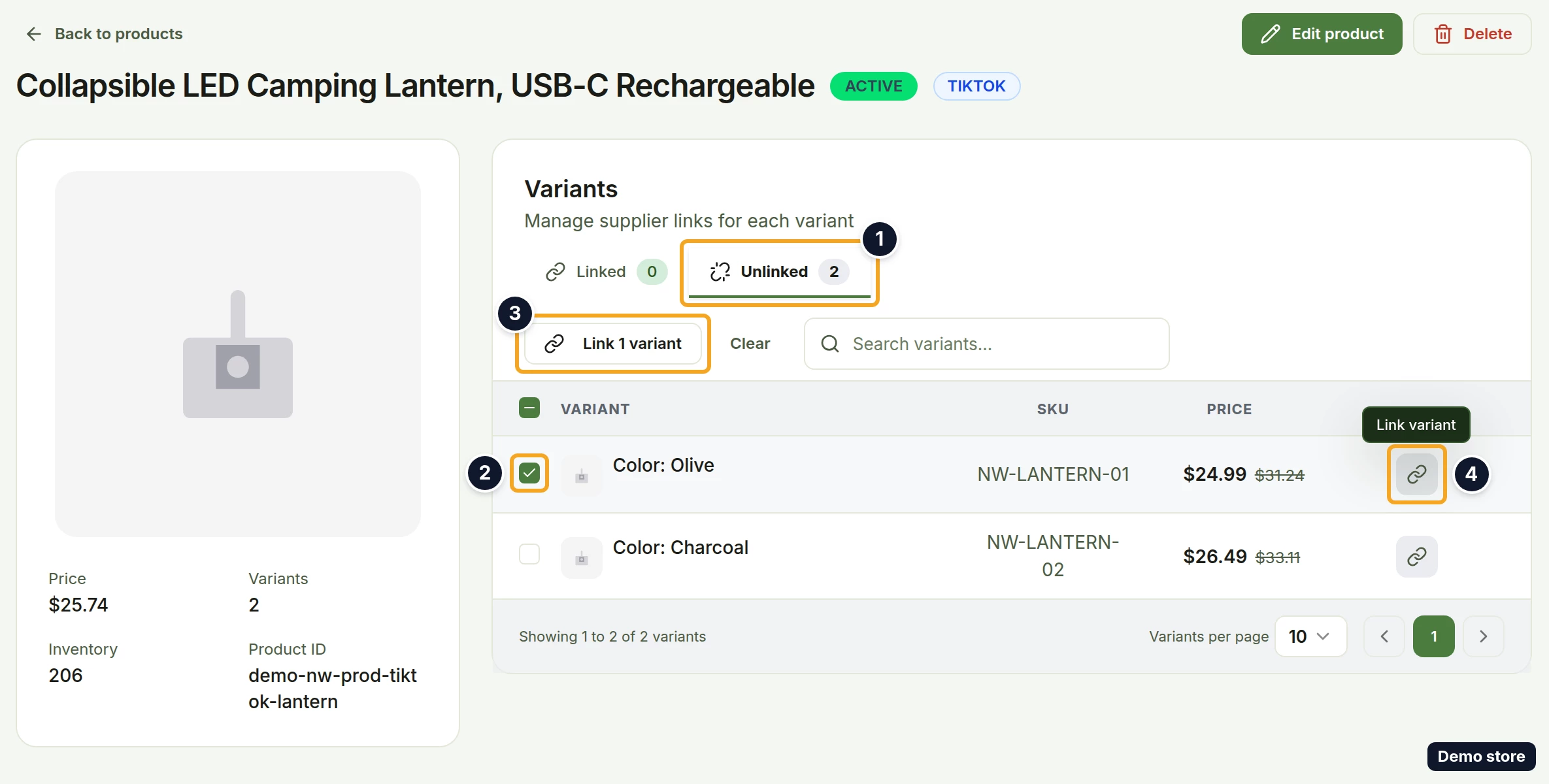
- Click the product's row. The product page opens on the Unlinked tab of Variants ("Manage supplier links for each variant"). The Linked and Unlinked tabs each show their count, and "Search variants..." filters the list.
- To link a single variant, click the icon at the end of its row (tooltip Link variant), then continue with "Set the quantity per order" below.
- To link several variants to one supplier product, tick their checkboxes. You can tick up to 50 at a time, a cap you can only pass when the table shows 100 rows per page. Above 50 the button is disabled, and its tooltip reads "Select up to 50 variants at a time."
- Click the button above the table. It reads Link variants while nothing is ticked, then counts the ticked rows, for example Link 3 variants. Clear next to it unticks everything.
- With more than one variant ticked, a dialog asks "Link 3 variants to the same supplier item?" (with your count) and explains "All 3 variants will point at one supplier product. Next you set how many supplier units each one buys, then you pick that product once for the whole batch." Click Set quantities.
Set the quantity per order
- On Set qty per order (step 2 of 3), type in Qty per order how many supplier units one sale of each variant buys (1 to 1000). The screen's own example: a "Pack of 3" linked to a supplier that sells single units is 3, so every order places 3. Leave it at 1 when the supplier item is already the whole pack.
- Check the Name says column. A row whose name suggests another quantity is tinted amber, and the footer reads "1 row is at a quantity the variant name disagrees with" (with your count).
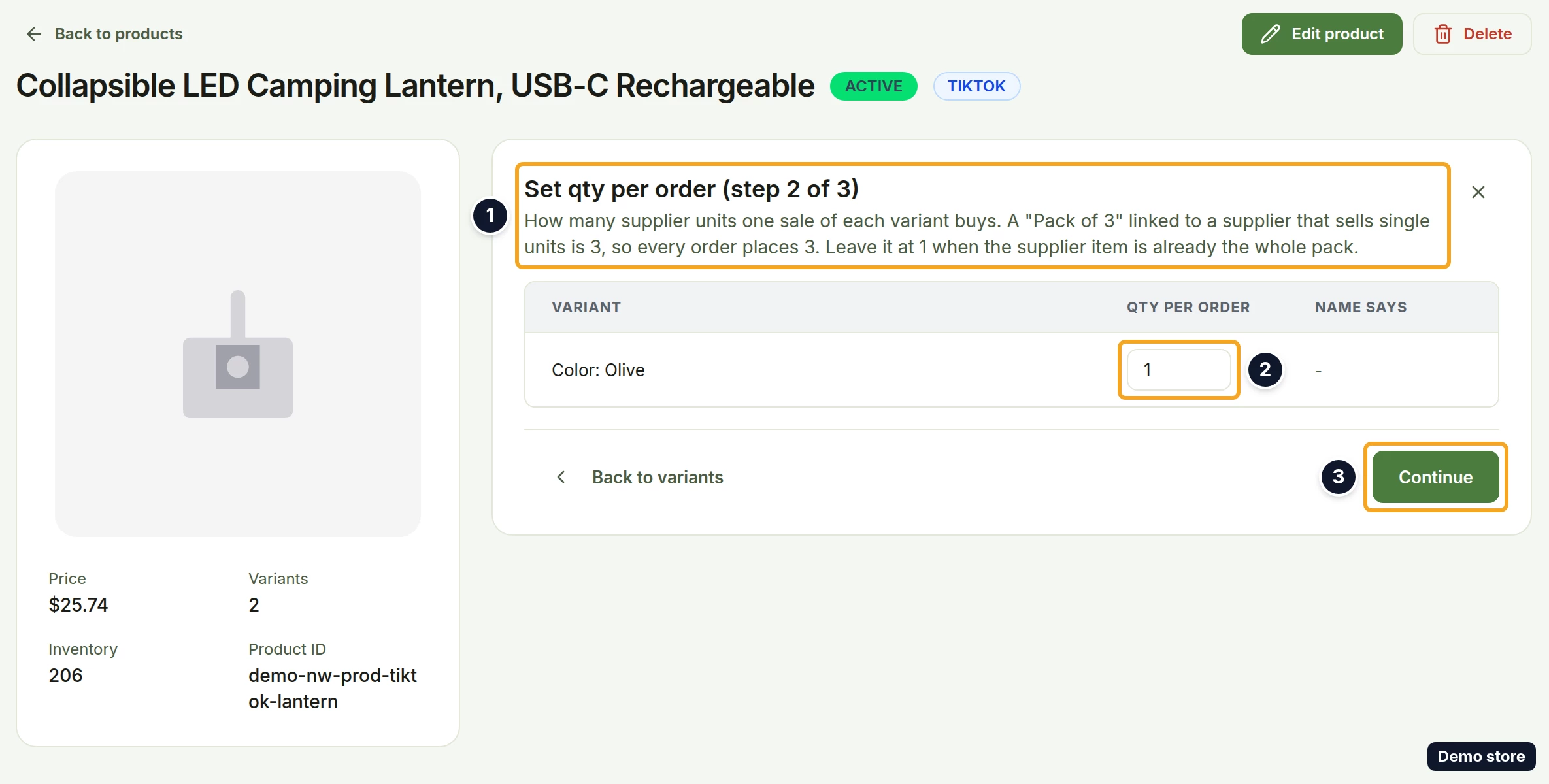
- Click Continue. Back to variants returns to the table.
Choose the supplier item
- On Choose the supplier item (step 3 of 3) ("Linking 1 variant to one supplier item.", with a chip per variant showing its name and quantity), check Shipping & Pricing Preferences: Ship To Country, Target Currency and Target Language. They start on your store's country and currency, otherwise US and USD.
- Leave Max Supplier Price (marked optional) empty unless you want a cost ceiling for this variant. While it is empty or 0, the line "No budget limit. This item will be fulfilled at any supplier cost." shows. The hint under the field mentions trying your backup supplier; DS-Mate does not do that for price, and an order over the max is blocked. What the ceiling does is explained in the backup supplier question below.
- Paste the supplier product link or product ID in Primary Supplier Link * ("Your main supplier. Paste the full product URL or product ID from AliExpress").
- Leave Secondary Supplier Link empty. This screen does not save it. Add a backup afterwards with Add backup supplier on the Linked tab.
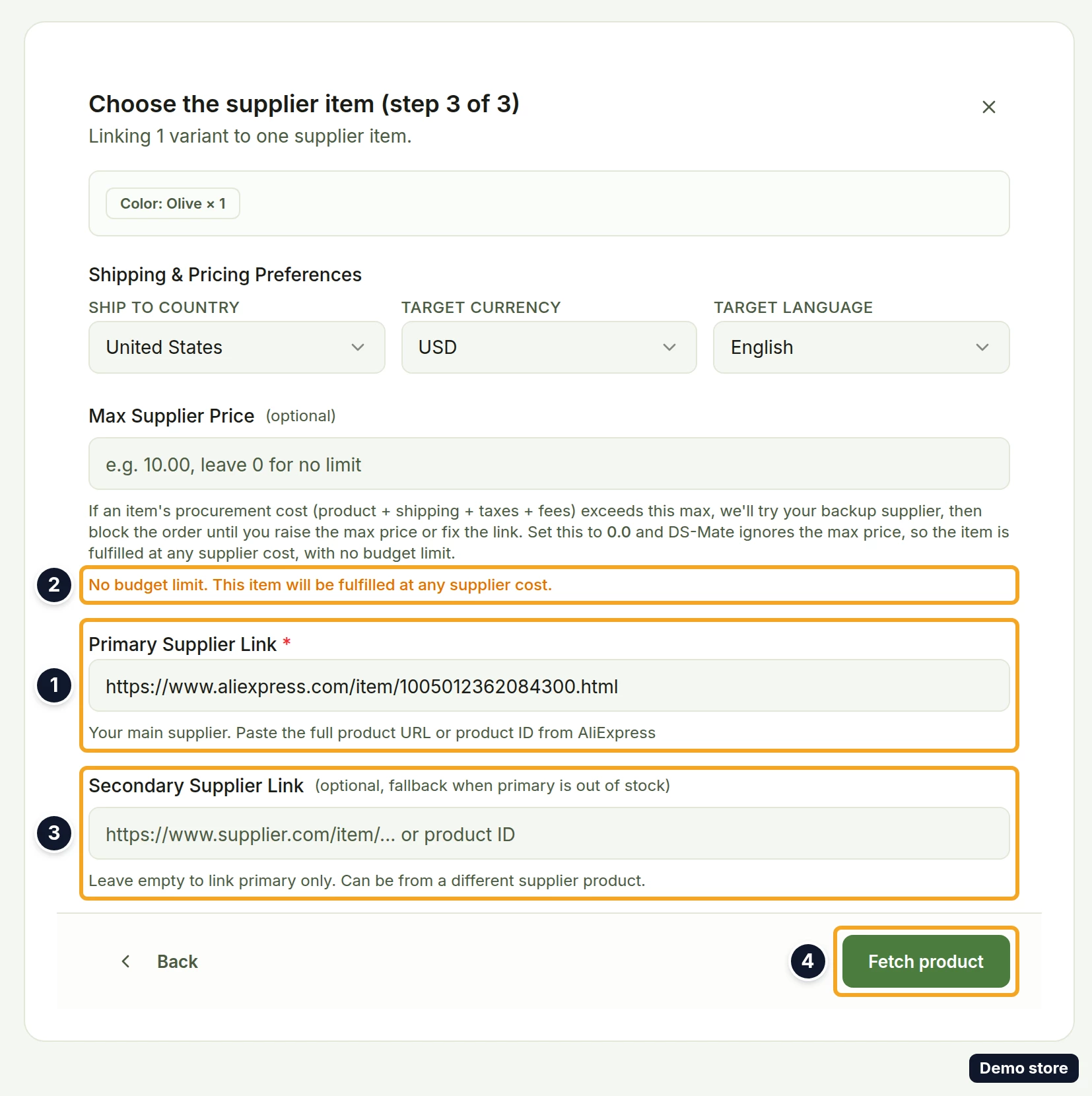
- Click Fetch product. The toast "Product fetched successfully!" confirms it. An empty field shows "Please enter a primary product URL or ID", an unreadable one the toast "Could not extract product ID from input", and a failed fetch a red box with the reason.
Pick the supplier variant and shipping
- The supplier product card is marked "PRIMARY" and shows the supplier's image, title, how many variants are available, delivery days and, when the supplier has one, a rating. When the supplier requires a minimum order, the card also shows it, for example "Min. order: 5 pcs", with an amber note starting "This supplier requires a minimum order of 5 units."
- Under Select Primary Variant *, click the supplier variant that matches yours. Stock reads "25 in stock", "Only 3 left", "Out of stock" or "Stock unknown", with the supplier's own numbers. Out-of-stock rows are dimmed (tooltip "Out of stock at the supplier") and cannot be picked. A zero price shows as a hyphen.
- Under Shipping Options, click the option you want. Each shows the carrier, the delivery line, "Tracked" when the carrier offers tracking, and a price or "Free". A single option is picked for you.
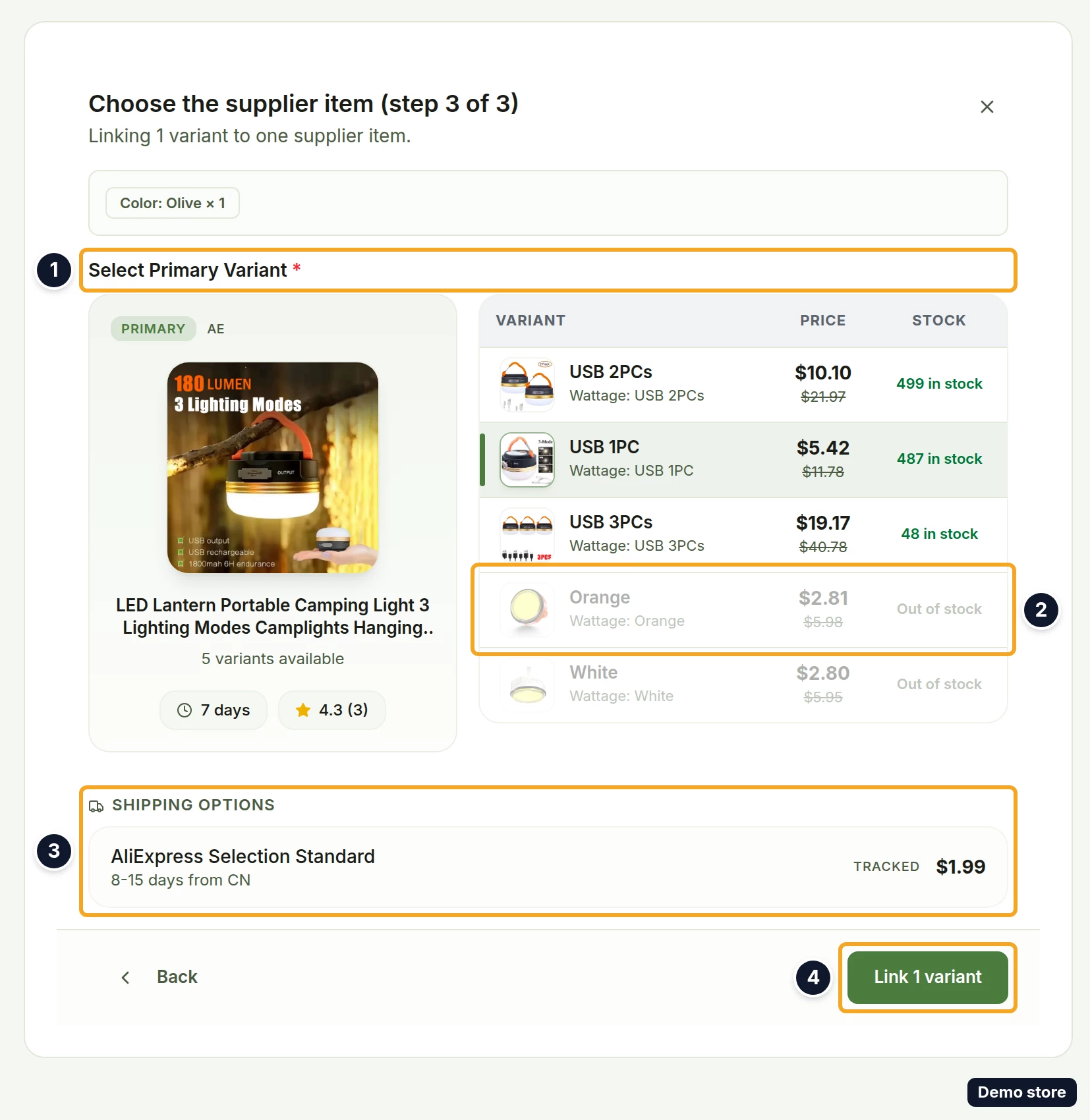
- Click Link 1 variant (or Link 3 variants). It stays disabled until a supplier variant and a shipping option are picked. Back returns to the supplier step.
- The Link results panel reads "Linked 1 of 1 variant." (with your counts). A row that failed is listed with its reason. Click Done.
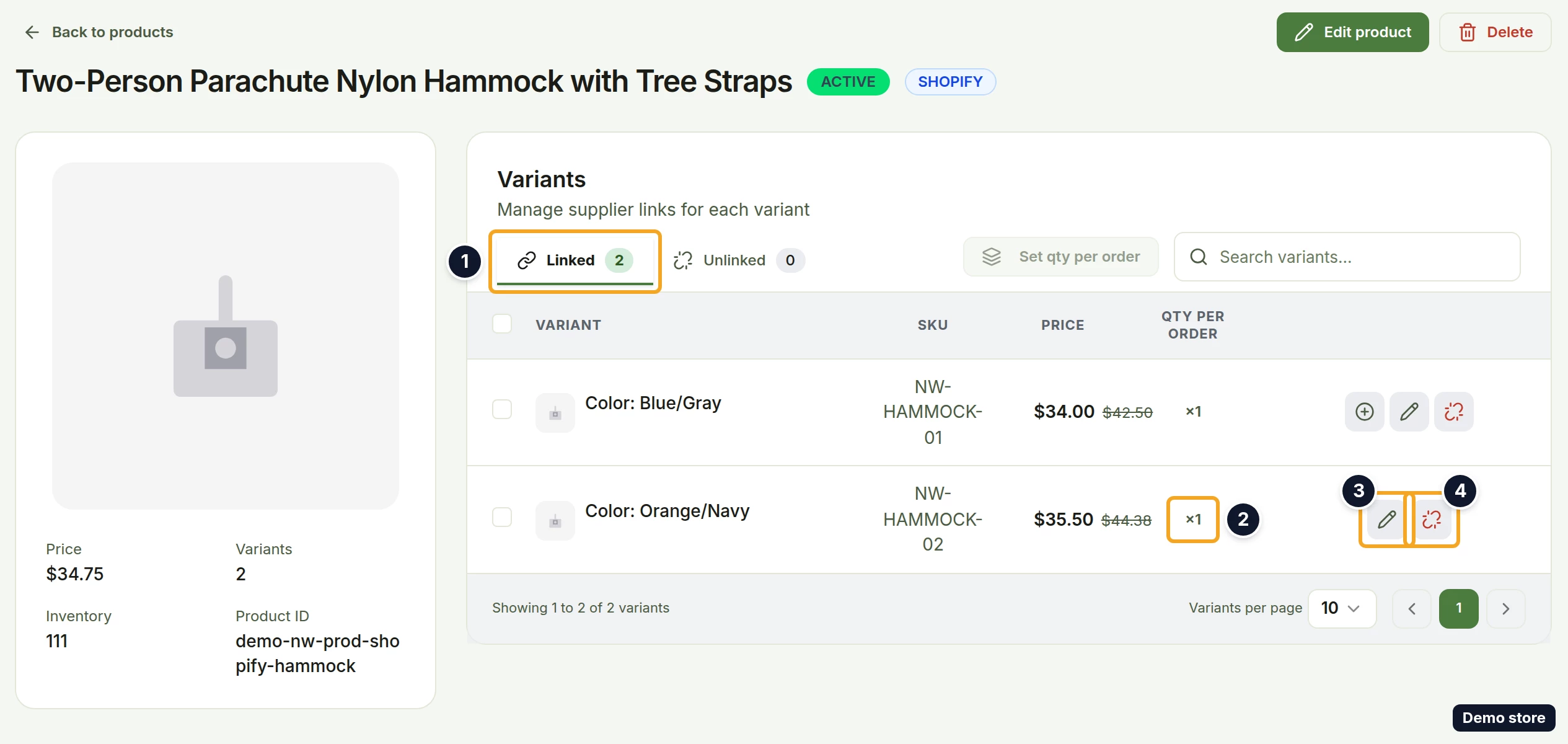
- The variants now sit on the Linked tab. Each row shows Qty per order as a button reading ×1 and the icons Edit link and Unlink variant, plus Add backup supplier while the variant has no backup. On Products, the product's green count under Link Status goes up.
Good to know
- Suppliers: paste an AliExpress, Alibaba or CJDropshipping product link or ID, or a DS-Mate supplier product link. DS-Mate detects the supplier from what you paste, and a bare number on a new link is treated as an AliExpress ID.
- If Alibaba returns no shipping quote, an amber note starts "Alibaba returned no shipping quote for this product to" followed by your country. It ends "You can still link it, but orders may need to be fulfilled manually." Click Continue anyway to go on.
- Out-of-stock supplier variants can never be linked, and Link 1 variant stays disabled until both a supplier variant and a shipping option are picked.
- Shipping problems: "Couldn't load shipping options. Please try again or contact support." means the quote did not load; "Not deliverable to the selected destination. Try a different shipping country or supplier variant." means no option ships to that country.
- Change the quantity later: on the Linked tab click the ×1 cell, or tick rows and click Set qty per order (it counts the rows, for example Set qty per order for 2 variants). The Change qty per order screen opens in the same panel ("Update how many supplier units each linked variant buys per order. This only changes the quantity, the supplier item each variant is linked to stays the same.") with Cancel and Save qty per order. When every row saves, the toast reads "Updated qty per order for 2 variants"; otherwise an Update results panel lists the rows that failed.
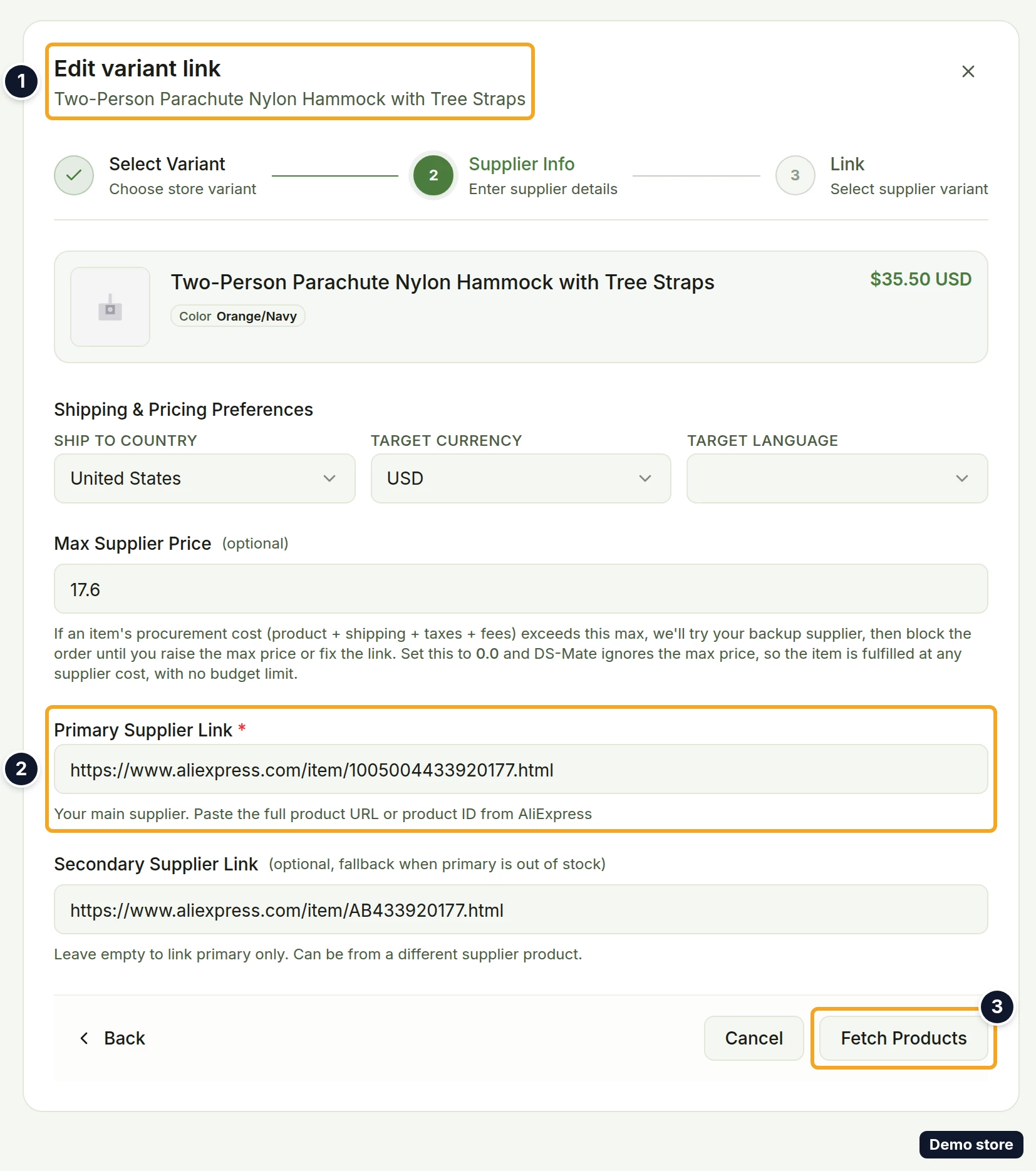
- Change the supplier: click the pencil icon Edit link. The Edit variant link panel opens on Supplier Info with the links, shipping preferences and Max Supplier Price prefilled. Click Fetch Products (or Fetch Product when there is no backup), pick a shipping option, then Update Link. The full steps are in the backup supplier question below.
- Remove the link: click Unlink variant. It acts at once, with no confirmation, and toasts "Variant unlinked successfully". A variant with a backup stays on Linked, because the backup becomes its primary; a variant without one moves back to Unlinked and to Unmapped.
- Auto-link at import: on the import page, the option Auto-link variants to supplier ("Match each variant to its supplier source after sync") is on by default when the product comes from AliExpress, Alibaba, CJ, a DS-Mate partner or your own 4PX stock. For other sources it is greyed with "AliExpress and Alibaba only". Shipping origin offers US warehouse ("Faster delivery, TikTok-friendly") or Cheapest ("Lowest cost, any origin"). After the sync, a link is created only for variants that have none. The sync notification ends with a line such as "Auto-linked all 4 variants to AliExpress." or "Auto-linked 2 of 4 variants. Upgrade your plan to link the remaining 2."
- After any link change, DS-Mate re-checks the orders for that variant that are not yet placed. You do not need to touch the orders.
- Plan limit: linked variants are counted for the store owner's whole account: Free 200, Starter 2,000, Growth 10,000. At the limit the link buttons are disabled. A guest's links count against the owner's plan. See the plan limit question below.
- Two messages you may meet: "This variant has already been mapped. Refresh to see the current link." and "Cannot mix different suppliers as primary/secondary on the same variant", which appears when a backup comes from a different supplier than the primary.
- On a TikTok Shop store, a compliance warning may appear before the link is written.
On the Shopify app
The Shopify app uses the older dialog Link Variant to Supplier. It has no quantity step, and its Secondary Supplier Link field is saved, so you can add the backup in the same go. The final button is Link Variant, and the toast reads "Variant linked successfully!" or "Primary and secondary links created!". Unlinking toasts "Variant unlinked successfully", the same as on the web.
Related Articles
Still have questions?
Our support team is ready to help. Reach out and we'll get back to you as soon as possible.