Back to Help Center
Help CenterGetting Started
How do I choose which supplier fulfills a store's orders, and add a backup supplier?
4 min readSettings > Stores (web dashboard) for the store's supplier; Products for the backup
You choose the supplier account per store with Assign Supplier on the store card in Settings > Stores; only the store's owner sees that button. A backup supplier is separate: you add it per product variant, and it is used for an order when the primary supplier is out of stock, or when the order would go over the variant's Max Supplier Price. There is no single account-wide switch; see "Good to know" for how the default works.
Steps
Choose the supplier for a store
- Click Settings at the bottom of the sidebar.
- Click Stores under Business.
- On the store's card, click Assign Supplier.
- The Assign Supplier dialog opens ("Choose which AliExpress account to use for orders from this store."). If you have no supplier account of your own, there is no dropdown: the dialog tells you to go to Settings > Suppliers to connect one, and Save is disabled.
- Open the select. The first option reads Use default supplier: followed by your default account's name, or Use default supplier: DS-Mate Default if none of your accounts is marked default. Your connected accounts follow, each as its name, (Default) if it is your default, and its status, for example "Active".
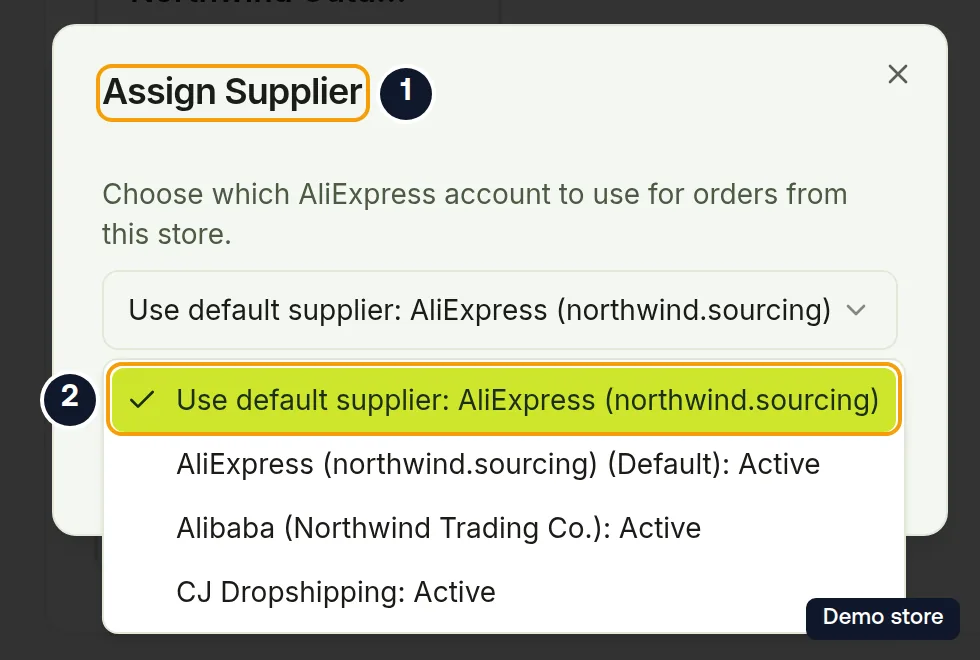
- Pick the account you want this store's orders placed through, or the default option. Use default supplier sends that store's orders to your default account if one is marked, otherwise to the DS-Mate supplier.
- Click Save. It reads Saving… while working.
- The toast "Supplier assignment updated" confirms it. The store card now shows Supplier: with the account's name, or Using default supplier if you chose the default option.
Add a backup supplier to a variant
- Click Products in the sidebar.
- Open the product.
- In the Variants section, open the Linked tab.
- On the variant's row, click the plus icon. Its tooltip reads Add backup supplier. The icon appears only on a variant that is already linked and has no backup yet.
- The Add backup supplier panel opens on the supplier information step.
- Check Max Supplier Price (marked optional). It starts filled in with the variant's current value. It is one ceiling for the whole variant, shared by the primary and the backup.
- In Secondary Supplier Link \* ("Fallback supplier when primary is out of stock. Paste the full product URL or product ID from AliExpress"), paste the supplier product link or product ID.
- Click Fetch Product.
- Pick the matching supplier variant.
- Click Add Secondary Link.
- The toast "Secondary link added successfully!" confirms it. The variant no longer offers Add backup supplier.
Good to know
- The backup is used when the primary is out of stock, or when the primary's cost would go over Max Supplier Price, and only for that order. It is not kept for later orders.
- Max Supplier Price is one ceiling for the whole variant, shared by the primary and the backup, and it starts filled in with the current value. If the estimated cost is above it, DS-Mate tries the backup, and if the cost is still above it, blocks the order until you raise the max price or fix the link.
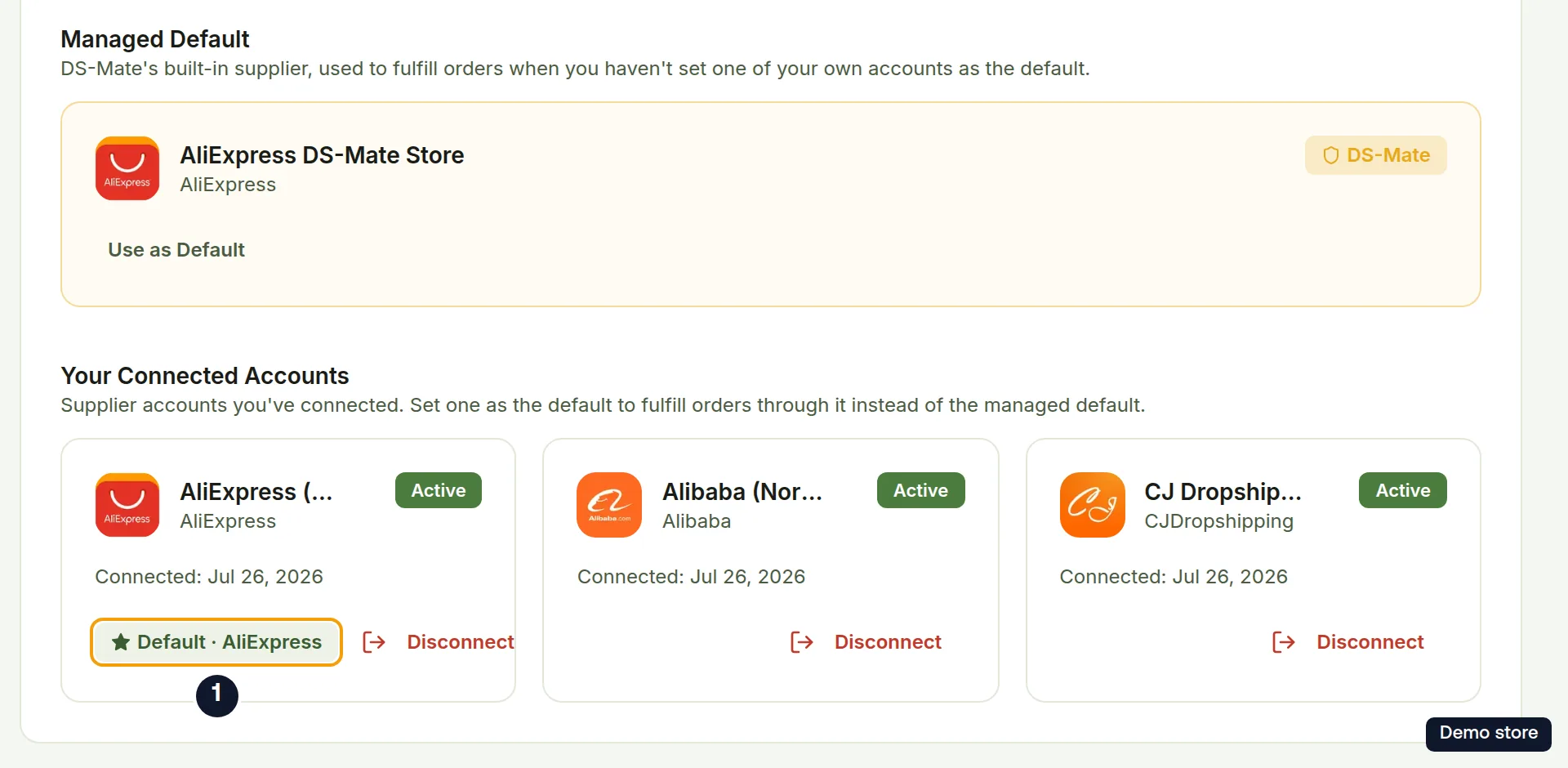
- Your default account is the connected account carrying the badge "Default · AliExpress" on Settings > Suppliers. If none of your own accounts is the default, the Managed Default card AliExpress DS-Mate Store is.
- You cannot pick one of your own accounts as an account-wide default; assign it per store. If an older default is still marked on Settings > Suppliers, Use as Default on the AliExpress DS-Mate Store card moves every store without its own assignment back to the DS-Mate supplier (toast "Switched back to DS-Mate default"), and the dashboard cannot set it back.
- Assign Supplier is shown to the store's owner only. A guest never sees it.
- On the Free plan, Assign Supplier still saves your choice, but every order is placed through the DS-Mate supplier. The account's card on Settings > Suppliers shows the badge "Not used on your plan" and the note "Orders are fulfilled through the DS-Mate supplier on your plan. Upgrade to use this account again."
- The dialog text says "AliExpress account", but the list also includes any Alibaba and CJ accounts you have connected.
- Add Secondary Link stays disabled until you pick a supplier variant that is in stock. Out-of-stock variants are listed but cannot be picked.
On the Shopify app
The Shopify app has no Assign Supplier button; choose a store's supplier from the web dashboard. The per-variant backup flow does exist in the Shopify app, where it is titled Add Secondary Supplier.
Related Articles
Still have questions?
Our support team is ready to help. Reach out and we'll get back to you as soon as possible.