Help CenterOrders & Fulfillment
A buyer asked to cancel on eBay. How do I approve or reject it?
8 min readOrders > the order's page > the banner at the top (web dashboard)
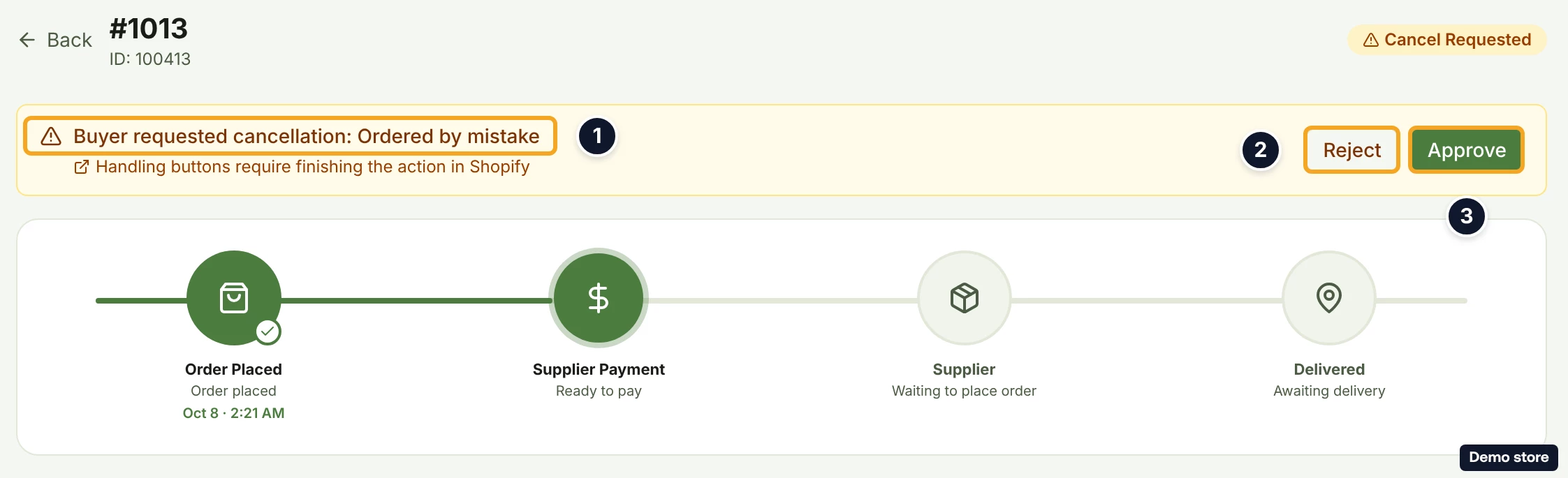
Open the order: a banner at the top reads "Buyer requested cancellation: <reason>" with the buttons Approve and Reject. Approve cancels the order on eBay (eBay refunds the buyer) and marks the DS-Mate order "Cancelled"; Reject sends eBay your reason and the order proceeds. On an order DS-Mate did not fulfil, the buttons need Starter or higher, and the first such action on that order counts as one order of your monthly total (past it, the action is charged at your plan's rate).
Steps
Find the request
- Click Orders in the sidebar.
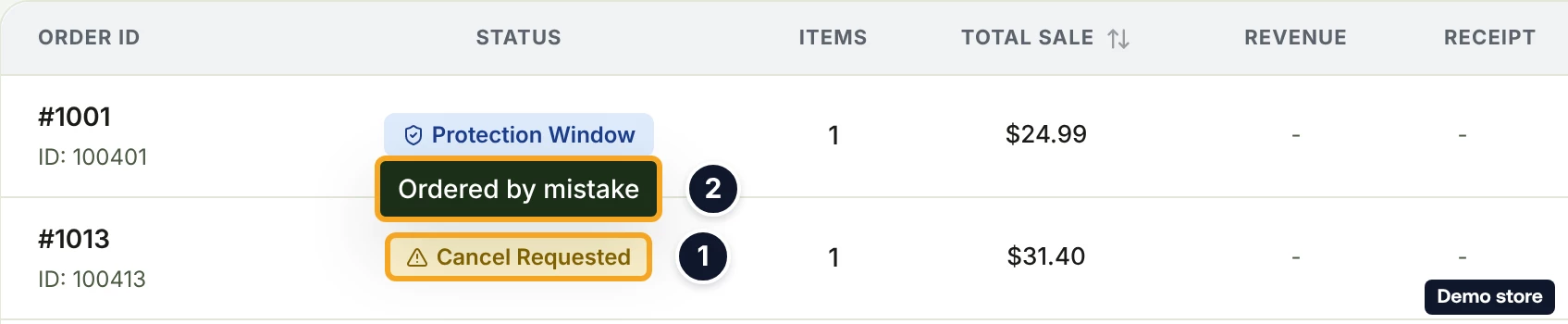
- Look for the amber badge "Cancel Requested" with a warning icon. Its tooltip is the buyer's reason, or "Buyer has requested cancellation of this order." The row has no button for it, and the list has no filter for it. DS-Mate sends no notification for an eBay request, so check the list.
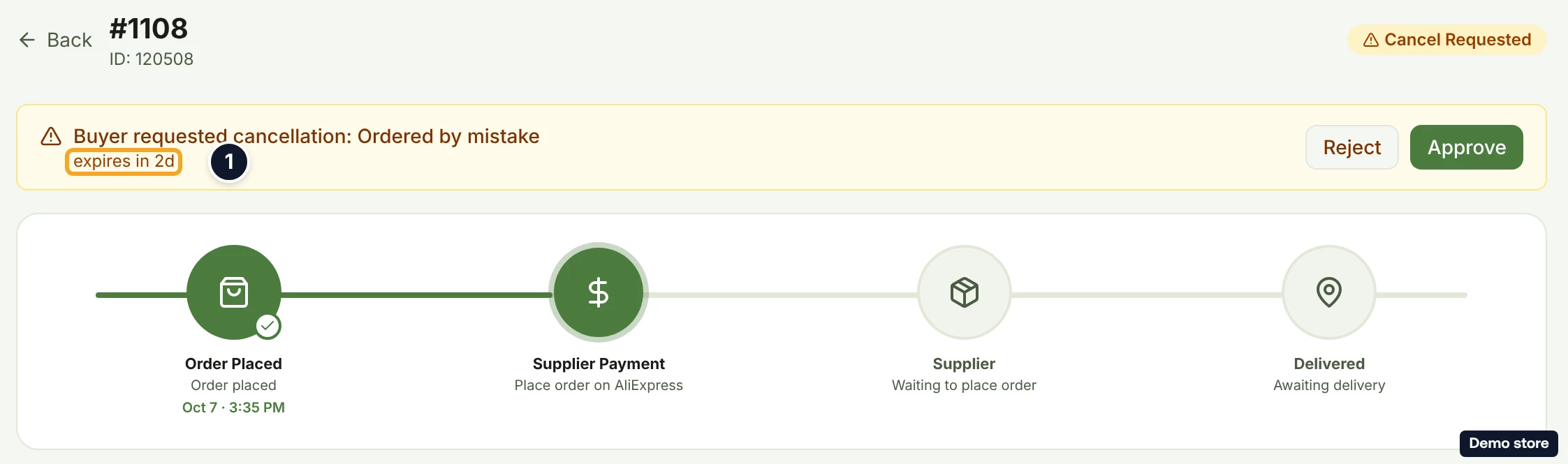
- Open the order. The banner reads "Buyer requested cancellation: <reason>". Under it, the countdown reads "expires in <n>h" or "expires in <n>d" followed by ", eBay auto-rejects after 3 days", or "expired" once the deadline has passed. The deadline is 72 hours from the time of the request.
- If the line reads "Handling buttons require finishing the action in eBay", DS-Mate has no cancellation ID for this request: Approve and Reject send you to eBay Seller Hub to finish there.
- On Free, for an order not fulfilled through DS-Mate, the buttons are replaced by a lock: "Approve or reject this cancellation", "Available on orders not fulfilled through DS-Mate, Starter and above.", with the button Upgrade to Starter (it adds ", <price>" once the price has loaded).
Approve the cancellation
- Click Approve (it reads Approving… while working). There is no "are you sure" step, except the billing dialog in the next step.
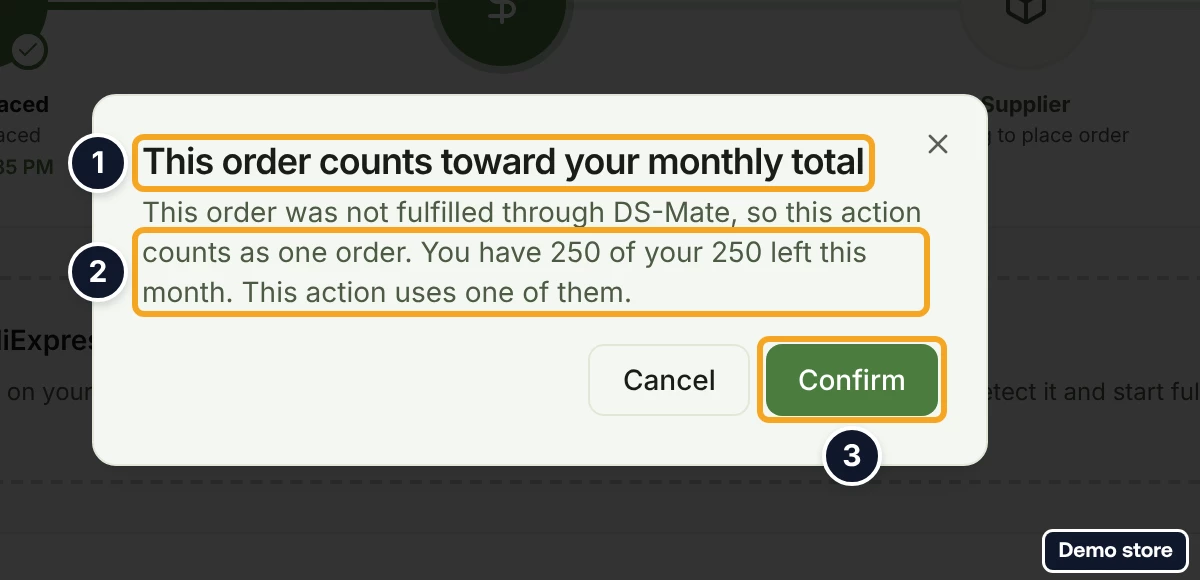
- When the decision counts toward your monthly total, the dialog "This order counts toward your monthly total" reads "This order was not fulfilled through DS-Mate, so this action counts as one order. You have <r> of your <l> left this month. This action uses one of them." Click Confirm to go on, or Cancel to stop.
- The toast "Cancellation approved on eBay" confirms it. If DS-Mate already has a decision recorded for this request (for example, it was decided in another tab), the toast reads "Cancellation was already approved". If eBay refuses access, or DS-Mate has no cancellation ID, the toast reads "Handle this cancellation in eBay, opening eBay seller hub" and a new tab opens on eBay. Nothing is charged in either case and no order of your monthly total is used, even if the billing dialog of step 7 appeared first and you clicked Confirm. A failure shows the server's message, "This action needs to be confirmed first. Try again.", "This action requires the Starter plan or above." or "Failed to approve cancellation".
- After an approval, the banner disappears (it can read "Cancellation approved on eBay." in green until eBay reports the order cancelled). The list and the header read "Cancelled", and the terminal card replaces the tracker. eBay refunds the buyer. When the decision was billed past your allowance, the fee is deducted from your Service Credit.
Reject the cancellation
- Click Reject. The dialog "Reject cancellation request" opens with "Tell eBay why you're rejecting. The buyer is notified of your decision."
- Pick a reason: Order already shipped, I will fulfill anyway (the default) or Other. For Order already shipped, the help line reads "eBay shows the buyer the tracking number as proof." and the box whose placeholder reads "Tracking number" is prefilled from the first item that has tracking; type the number if it is empty.
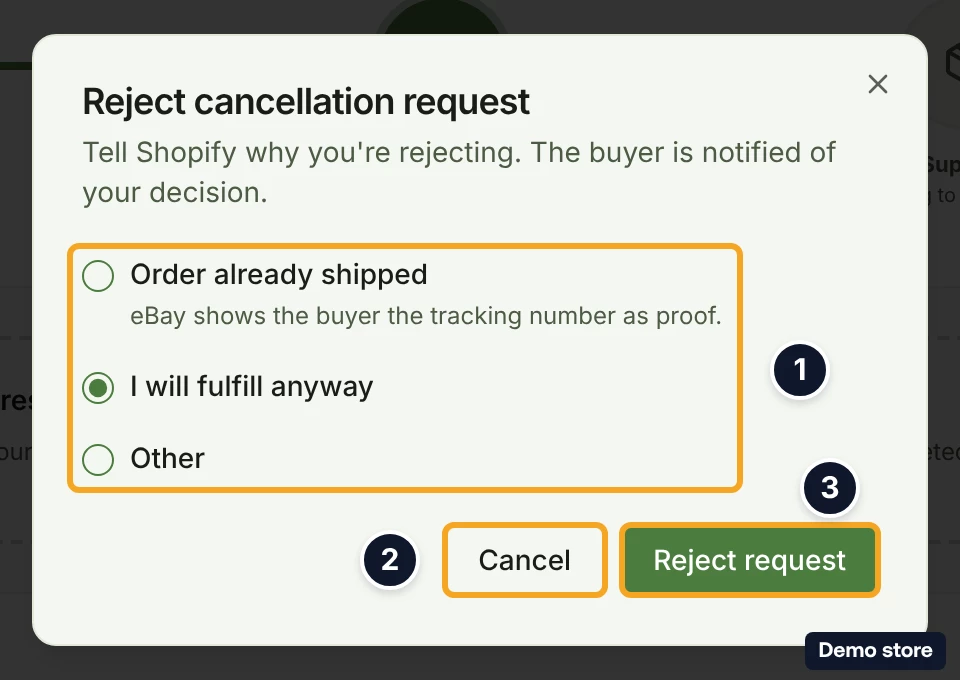
- Click Reject request (it reads Rejecting… while working). It stays disabled while Order already shipped has no number. Cancel closes the dialog. The billing dialog from step 7 applies here too.
- The toast "Cancellation rejected, order will proceed" confirms it. Otherwise it reads "Cancellation was already decided", "Enter a tracking number to reject with 'already shipped'" or "Failed to reject cancellation".
- After a rejection, the banner reads "Cancellation rejected, order will proceed." (grey) and the badge goes back to the order's real status. An order that was waiting for automatic fulfillment is picked up again by the next hourly run, with nothing to click. An order waiting for you to pay shows the "Manual Fulfillment Required" panel again.
Good to know
- Approve has no confirmation of its own: the only dialog is the billing one in step 7, and it opens only when the decision uses one order of your monthly total. Otherwise the click applies at once. It cannot be undone from DS-Mate.
- Neither decision touches the supplier order. If you already placed one, approving does not recall or refund it. A paid parcel on its way turns the order into "Cancelled" with the banner "This order was cancelled on eBay, but the supplier order is <state>". Decide before you pay the supplier when you can.
- While the request is open, auto-fulfillment refuses the order, and "Manual Fulfillment Required" and "Release early" are hidden. The section "Place Order on AliExpress" for your own AliExpress account is still shown; do not place the supplier order while a request is open.
- What happens at the deadline: DS-Mate marks the request expired, and the banner reads "Cancellation request expired with no decision." The list badge still reads "Cancel Requested" after that, and the pay panel stays hidden. A late click on Approve or Reject is refused with "Buyer cancellation request has expired". If eBay later reports the order closed, the regular eBay order sync marks the DS-Mate order "Cancelled". Decide before the countdown ends.
- Billing: on Free the buttons are locked for an order DS-Mate did not fulfil. On Starter or higher, a decision on an order fulfilled through DS-Mate, or already billed, is free; any other decision uses one order of your monthly total. Past the total there is no dialog: the action runs and is charged from Service Credit at your plan's per-order rate (40 cents on Starter, 30 cents on Growth; Pay-As-You-Go counts as Growth), and with too little Service Credit the action is refused.
- Your monthly total is your plan's monthly order allowance plus any referral bonus orders, and the dialog's "<r> of your <l>" is read from it: <l> is that allowance, and <r> is what is left after the orders counted so far across all your stores. The count starts again each month on the day of the month your subscription started, and an upgrade starts a new month from the day you upgrade. The "Orders Fulfilled" card on the Service Credit tab counts something else: completed charges to the wallet you are viewing, in that wallet's currency only, since the 1st of the calendar month. So the two numbers can differ.
- The store must still be connected. Otherwise the server answers "Store is not connected to eBay".
- Other channels: Shopify, TikTok Shop and AliExpress seller stores show the same banner with Approve and Reject. Temu shows Approve only. Amazon is different: both buttons open Seller Central, and Amazon is the only channel that sends a bell, "Buyer cancellation request for order <id>", which links to the orders list. The help line "eBay shows the buyer the tracking number as proof." still names eBay on every channel's reject dialog; the rest of the banner, the dialog and the toasts name the order's channel. On an AliExpress seller store, when DS-Mate falls back to the channel the banner can show nothing after the spinner; handle the request on AliExpress then.
- Requests usually reach DS-Mate within minutes, from eBay's own notification. As a backup, DS-Mate also checks each eBay store: every 30 minutes for a store that had a cancellation in the past week, otherwise about every 2 hours. Click the store's Sync Now to check at once. Only requests the buyer opened, and that are still open, appear.
On the Shopify app
The app shows the same banner and the same Reject cancellation request dialog, but only for the Shopify shop's own orders. An eBay request never appears there: handle it on the web dashboard.
Related Articles
Still have questions?
Our support team is ready to help. Reach out and we'll get back to you as soon as possible.