How do I pay the supplier for an order: with my card or with service credits?
9 min readOrders > the order's page > **Manual Fulfillment Required** card; or the row's **Pay with card** on the orders list (web dashboard)
Steps
The buttons show when the order is ready to fulfill and paid on the channel, DS-Mate's check has finished (the order is not on Checking order…), there is no open buyer cancellation request, and the store has no usable AliExpress or Alibaba account of your own (with one, you place the order yourself: see the own-account question). With no linked item the buttons are disabled; when the supplier cost is over the variant's max price they are hidden (see the backup-supplier question).
Pay with card from the order's page
- Click Orders in the sidebar.
- Click View details on the order. The tracker step Supplier Payment reads "Ready to pay".
- Read the card Manual Fulfillment Required. Under the title it reads "Choose how to pay to validate costs and proceed.", or the estimate's line ("Estimated from the supplier's live price for your customer's shipping address." or "Estimated from the supplier's prices. Some items use the price saved when they were linked.") when an estimate is shown, or "Costs validated with the supplier." once the price is known; then Linked Items with "<n> / <m>".
- Check the cost lines when the price is known: Item cost, Shipping, Taxes & fees and DS-Mate processing fees, then Total as "<amount> by card" and "<amount> with service credits". The card has no Payment processing fees line: the confirm dialog shows it. An estimate shows only Estimated item cost and DS-Mate processing fees, with an Estimate badge, "≈" amounts, no Total and the footer "Excludes shipping, taxes & fees. You see the full amount before you confirm payment." With no figures yet, the amber note reads "The exact cost is confirmed with the supplier when you pay. The final amount may be higher or lower."; right after the protection window ends it can read "Getting the estimated cost from the supplier..." instead. On an order paused because it would lose money, the card shows one figure, Supplier's current price, and the red notice Paused: this order would lose money reads "The supplier now charges <supplier total> for this order, more than the <customer total> your customer paid. Paying it would lose <amount>. Nothing was charged." Either button asks Pay anyway first.
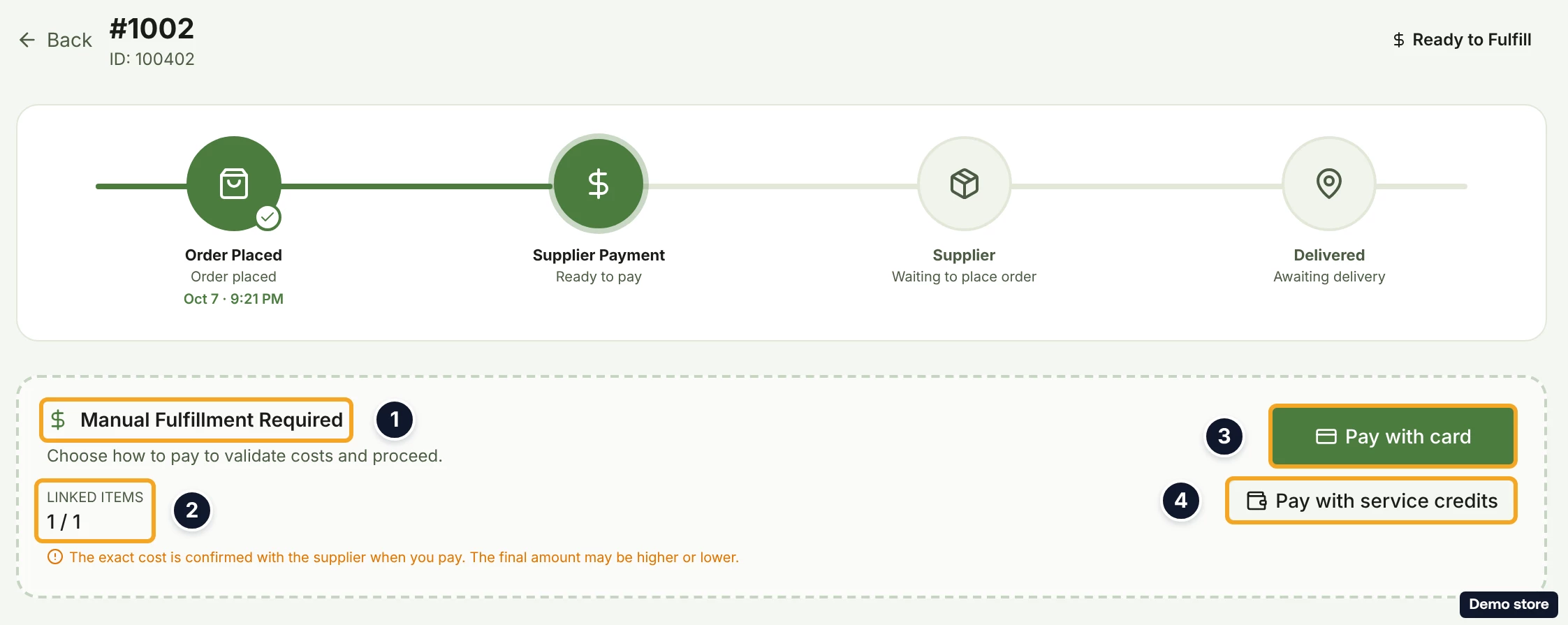
- Click Pay with card (it reads Processing... while working). DS-Mate places the order with the supplier, or reuses the one it already placed, to get the exact price. Nothing is charged at this step. If paying would cost more than your customer paid, the dialog Pay anyway and lose <amount>? opens instead: "The supplier now charges <supplier total> for this order, more than the <customer total> your customer paid. Paying it would lose <amount>." Keep it paused charges nothing. Pay anyway (lose <amount>) gets the price again and continues to the confirm dialog; if the loss has grown in the meantime, it asks again with the new amount.
- The dialog Confirm card payment opens with "We placed this order with the supplier to get the exact price. This is the amount you pay at checkout." It lists Item cost, Shipping, Taxes & fees, Subtotal, Payment processing fees and DS-Mate processing fees, then You pay at checkout with the amount Stripe will charge, and the buttons Cancel and Continue to checkout. If the price moves between this dialog and your Continue to checkout click, the dialog reads "Nothing was charged. This order now costs <new>, not the <old> you confirmed. Check the new total and confirm again." above the cost lines.
- Click Continue to checkout (it reads Getting the exact price... while working; Cancel closes the dialog with nothing charged). Your browser goes to Stripe Checkout, Stripe's own payment page, for the same amount the dialog showed under You pay at checkout.
- Pay on Stripe's page. You return to a DS-Mate page headed Processing Payment ("Please wait while we confirm your order payment"), then Payment Successful ("Your order payment has been processed successfully"). If the order is still being prepared, a Processing Order note reads "Your payment is confirmed. The order is being prepared for fulfillment. This should complete within a few seconds." Below that are Order Details (Order ID, Status, Items, Payment Date), What's Next? and the buttons View Orders and Back to Dashboard.
Pay with service credits
- On the order's page, click Pay with service credits. DS-Mate reserves the order with the supplier and works out the exact amount. If paying would cost more than your customer paid, the same Pay anyway dialog opens first.
- The dialog Confirm payment from service credits opens with "Check the amount below. It will be taken from your service credits as soon as you confirm." It lists the same cost lines, with Payment processing fees at 0.00, then Deducted now with the amount that leaves your balance, and the buttons Cancel and Confirm and pay. If the price moves before you confirm, nothing is deducted and the dialog comes back with the new total (see the question about a Price Changed order).
- Click Confirm and pay (it reads Working out the exact amount... while working; Cancel closes the dialog with nothing taken). The toast "Order fulfilled, paid from your service credits." confirms it.
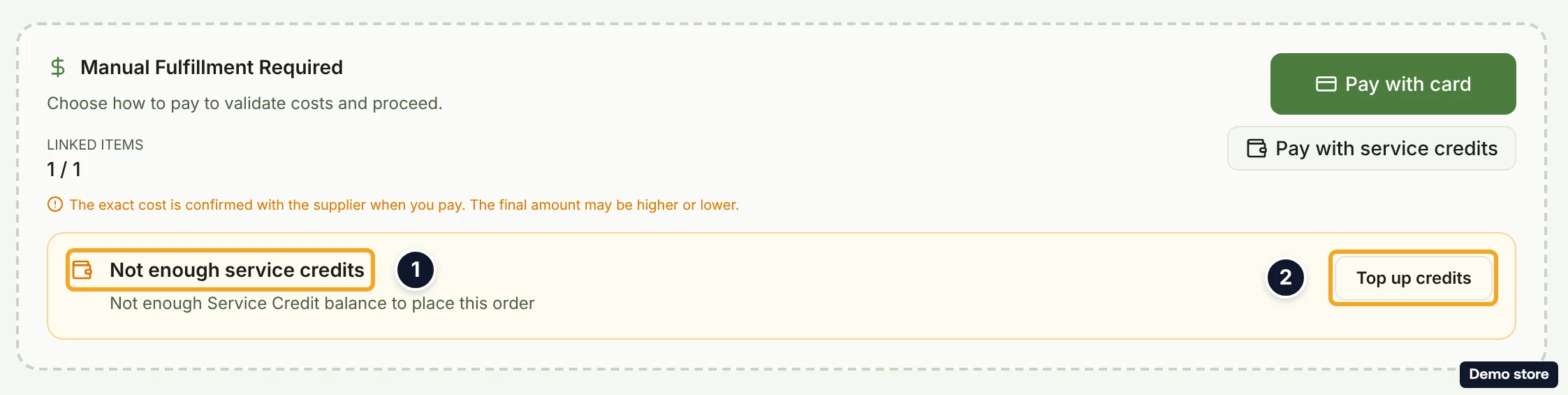
- If your balance is too short, the order's page shows the shortfall card with Top up credits (shown to the store owner); after your own Pay with service credits click is refused, it also shows your balance and Still needed (see the insufficient-balance question).
Pay with card from the orders list
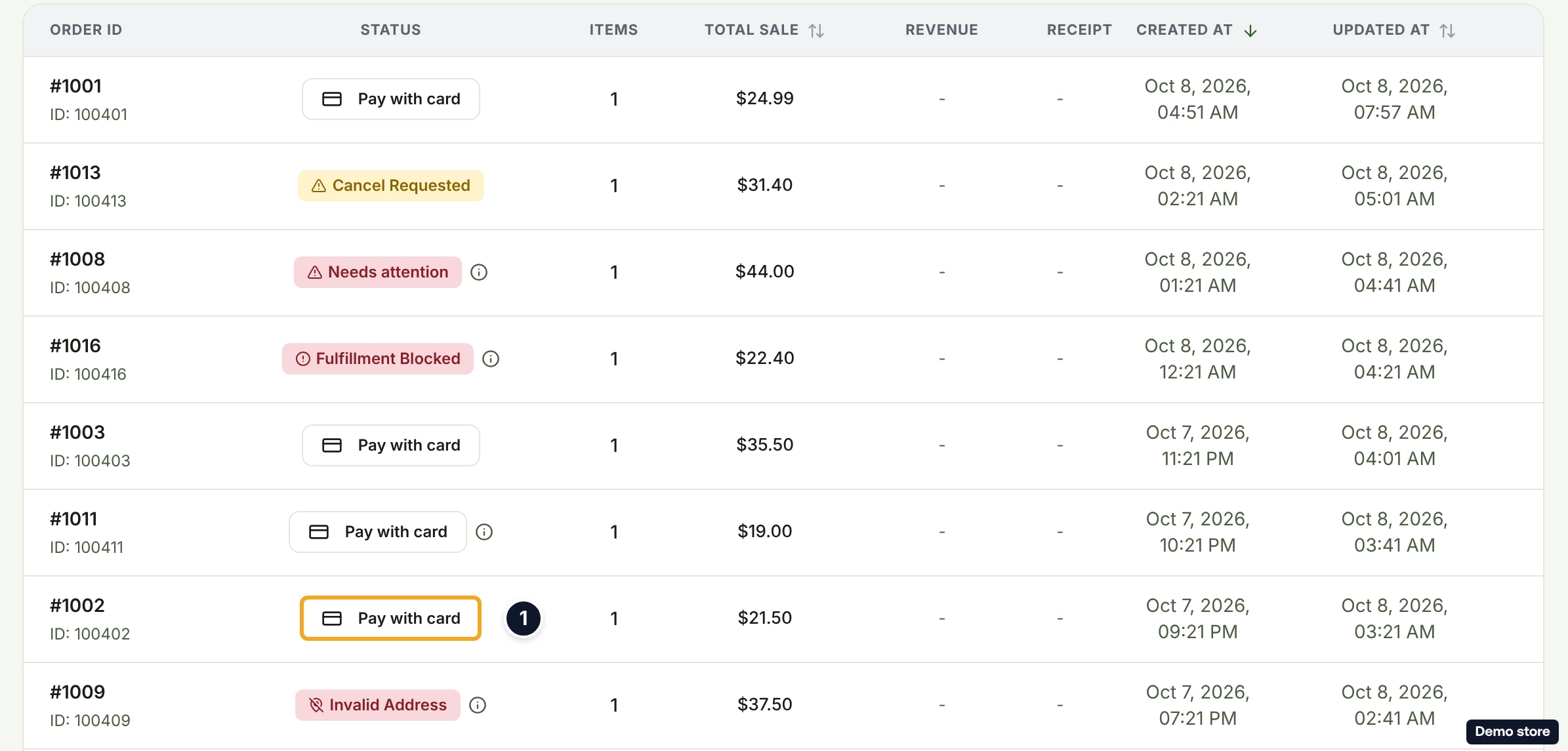
- On Orders, click Pay with card on the row. The toast "Redirecting to payment…" appears and your browser goes straight to Stripe Checkout, with no price confirmation on this path. If paying would cost more than your customer paid, nothing is charged and the row shows an error message instead; open the order to pay it anyway. Continue at step 8.
Good to know
- Card costs more than credits by the flat fee only: 30c (USD) or 24p (GBP) under Payment processing fees in the confirm dialog and on the receipt, which reads 0.00 with credits. The processing markup (3% of the amount collected in USD, 4% in GBP, about 3.1% or 4.2% on top of the subtotal) sits inside Taxes & fees on both. Credits never fall back to your card.
- DS-Mate processing fees applies only once you are past your plan's monthly order allowance (Free 30, Starter 100, Growth 250; each order counts once, whichever way you pay). Past it, Starter adds 30c and Growth 20c per order (or the equivalent in your store's currency), before any discount applied to your store. On Free, a payment past the allowance is refused: the dialog Monthly order limit reached opens with "Monthly order limit reached (<used>/<limit>). Upgrade to continue." and the buttons Upgrade to <next plan> and Not now. On Free, Pay with service credits still shows, but the deduction is refused. Pay-As-You-Go is retired; an account still on it is treated as Growth.
- The list's Pay with card skips the price confirmation the order's page shows. Use the order's page when you want to see the exact amount before Stripe.
- If you leave Stripe without paying, you land back on Orders. The order stays locked to that payment session for up to 30 minutes: the button reads Resume Payment, the card shows "Price locked for this payment session." under the figures (or, when no price is stored, "A payment session is already open for this order. Resume it to finish paying."), the line under the button reads "Payment session expires in <m:ss>", then "This payment session has expired. Click Resume Payment to release it and start a new one.", and Pay with service credits is hidden until the session ends.
- While a teammate holds the payment session, the button reads Payment in progress and is disabled.
- After a card payment, the list and the order's header show Payment Processing, then Placing your order or Queued for processing, then Awaiting shipping; after a credits payment the order goes straight to Placing your order or Queued for processing. The tracker reads "Supplier paid". The receipt appears in the list's Receipt column and on the order's page under Financial Summary > Receipt > View: a card payment opens the Stripe invoice or receipt, a credits payment opens DS-Mate's receipt page (see the receipt question).
- There is no notification for a successful payment. If the supplier order cannot be placed after you pay, the order's page shows it; after a service credits payment the toast reads "Your credits were charged but the supplier order could not be placed, so this order has not moved. Support has been alerted and will place it or refund you." The bell's "Order <storeOrderId> needs your attention" notice is for orders DS-Mate pays automatically from your credits, and is sent before anything is charged.
- A refusal reads one of: "Couldn't process this order. Try again.", "This order switched to auto-fulfillment. It will be paid from your service credits automatically. No manual payment needed.", "Order was cancelled on <Channel>. You can't fulfill it.", "This order is no longer fulfillable on <Channel>. We've refreshed its status.", "This order has already been paid with <card / your service credits>, so nothing was charged. Refresh the page to see its current state." or "There's still something to fix. See the issues above."
- On a store with a usable AliExpress or Alibaba account of your own, DS-Mate refuses both buttons: the order is placed on your account instead (see the own-account question).
On the Shopify app
The order's page shows the same Manual Fulfillment Required card, the same two buttons and the same confirm dialogs. After Stripe, the app returns you to the orders list with one of the toasts "Payment successful! Your order is being processed.", "Payment received. Your order will be processed shortly." or "Payment was cancelled." The own-account path is missing in the Shopify app (see the own-account question).
Related Articles
Still have questions?
Our support team is ready to help. Reach out and we'll get back to you as soon as possible.