Back to Help Center
Help CenterProducts & Import
Can I import one product to more than one store at the same time?
6 min readFind Products (web dashboard), then the import page
Yes, as long as the stores are on the same channel: you tick them in the Add to Store dialog on Find Products, and one import page then sends one set of edits and one price to every store you ticked. Each store gets its own copy of the product and its own import, and each copy counts as one imported product against that store owner's plan. Stores on different channels cannot be ticked together, so a product going to a Shopify store and an Amazon store is two imports.
Steps
- Click Find Products in the sidebar.
- Find the product you want to import (see the search question below).
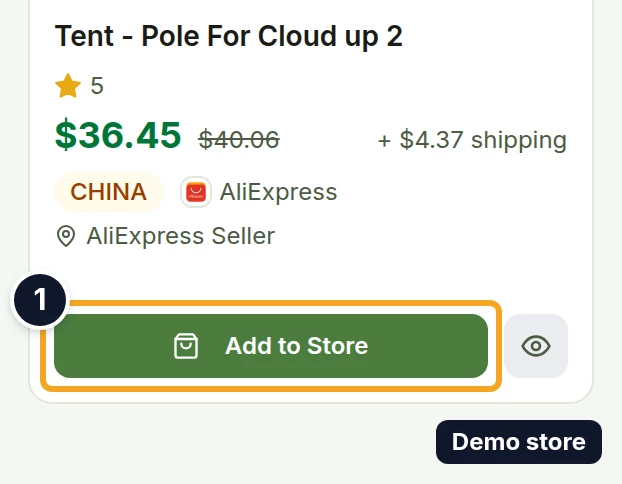
- On the product card, click Add to Store. In list view it is the green shopping-bag icon at the right of the row.
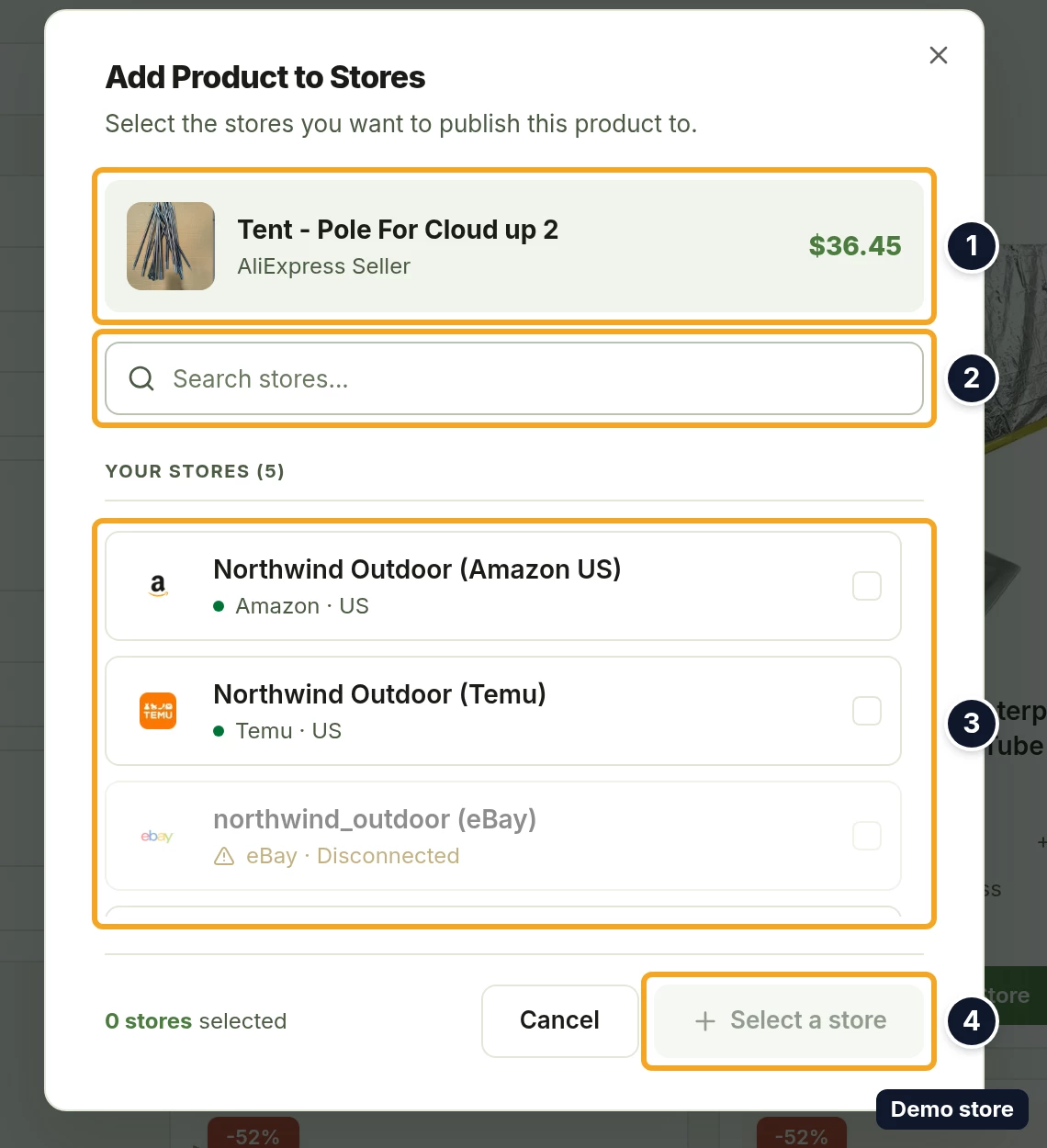
- The Add Product to Stores dialog opens ("Select the stores you want to publish this product to."). At the top it shows the product's image, title, supplier name and price, then the search box Search stores..., then the caption "Your stores" with your store count in brackets. Each row shows the store's name with its channel and country under it, and a row you cannot pick is greyed out.
- Tick the first store. This locks the channel: every store on another channel is greyed out until you clear your selection. The footer reads "1 store selected".
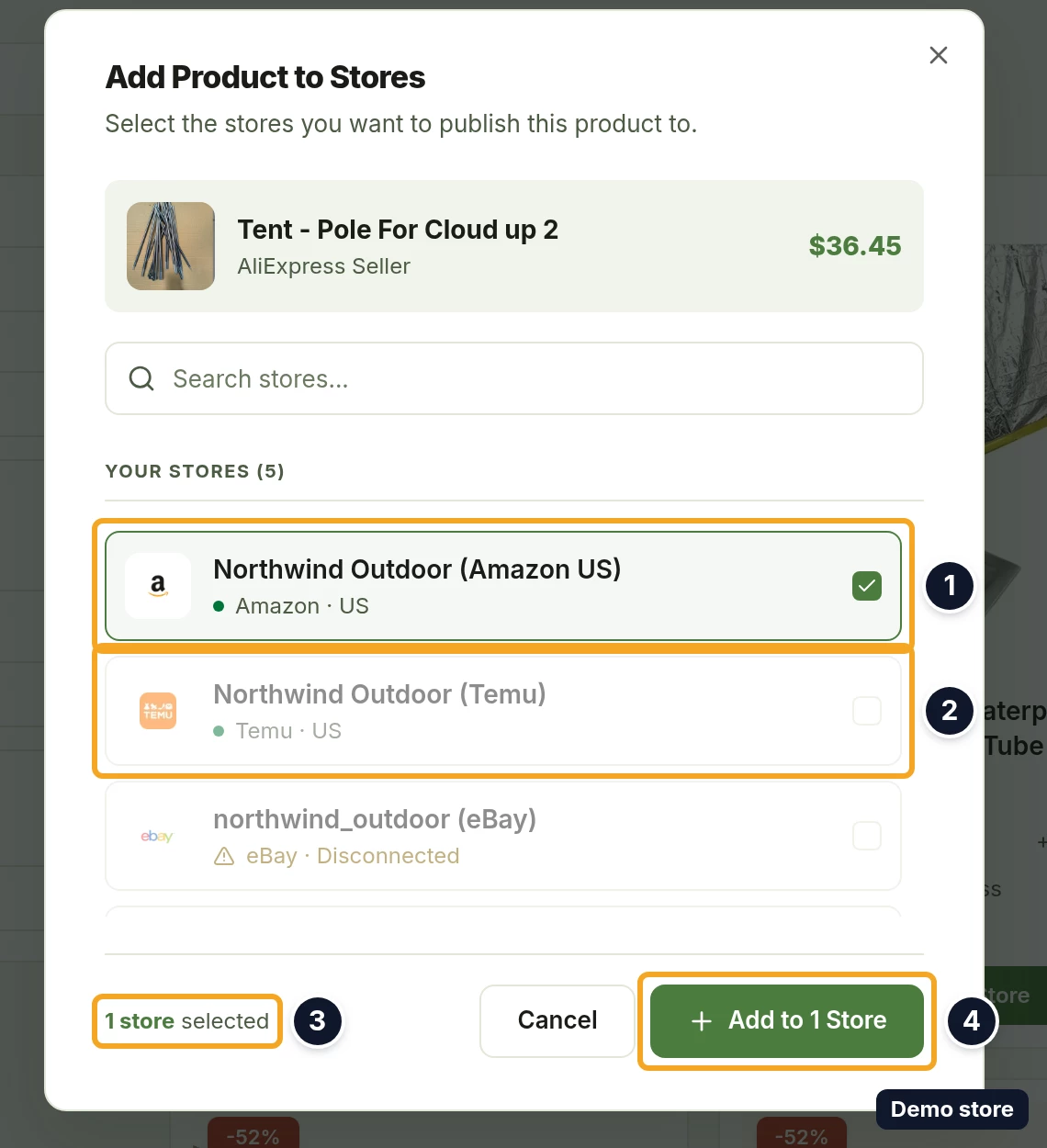
- Tick the other stores on the same channel. The footer counts the stores you have ticked.
- Click Add to 2 Stores. The button carries your own count; it reads Add to 1 Store for a single store, and Select a store, disabled, while nothing is ticked. Cancel closes the dialog.
- The import page opens with the heading Import Product. For several stores the header shows a badge with the store count, such as 2 stores, and a second badge with the channel's code, such as AMAZON. For a single store it shows the store's name and country instead of the store count.
- Make your edits as for a single-store import (see the import question below). Every store you ticked gets the same edits and one price.
- Click Import Product. It reads Importing... while working.
- A toast tells you the result:
- Every store accepted: "Import in progress for" followed by the number of stores. For Amazon: "Your product request has been sent to Amazon and it will appear in your Amazon store soon." Both carry the action View Import Requests.
- Accepted with warnings: an extra warning toast that reads "Imported with" followed by the number of warnings and "See Import Requests for details.", or the warning's own text.
- Some stores refused: a warning toast that reads "Product imported to" followed by the accepted count and the total, and the alert "Some stores could not be imported" listing each store with its reason. The button now reads Retry Import; do not use it here (see "Good to know").
- Every store refused: the alert "Import Failed" with "Product import failed for all stores". The button now reads Retry Import.
- You stay on the import page. Most stores first get their own bell notification, "Product import in progress", saying that the product is being imported to that store. When the import finishes it is replaced by "Product synced", "Product synced, linking needs attention", "Product imported with issues", "Product import failed" or "Product submitted for review". A store the channel refused gets "Product import failed" straight away. A store DS-Mate refused before sending, because your plan's product limit is reached or the store is paused at the channel's listing limit, gets no bell notification; its reason shows only in the alert on the import page. On a SHEIN or WooCommerce store both kinds of refusal come to the bell instead: "Product import in progress" first, then "Product import failed", and the import page shows no alert.
- To see a copy, click Products in the sidebar.
- Pick that store in the top-bar store picker. Products are listed one store at a time. For an Amazon store the copy is also a row under the Import Requests view.
Good to know
- You cannot mix channels in one import. Import once per channel.
- After a result where some stores refused, Retry Import sends the product again to every store you ticked, including the stores that already accepted it. Do not retry. Go back to Find Products and import the product again to the stores that refused it only.
- On a SHEIN or WooCommerce store the toast always reports every store as accepted. A store that refuses the product tells you later, in the bell.
- Store count by plan: Free 1, Starter 2, Growth 5, and Growth can go past 5 with paid extra store slots (not when Growth is billed through Shopify). A multi-store import needs at least two stores on one channel, so for stores you own it needs Starter or higher; on Starter, both of your stores have to be on the same channel.
- The dialog also lists stores you are a guest in. An import to one of those counts against its owner's plan.
- Importing to 3 stores counts as 3 imported products against the store owner's plan: Free 3,000, Starter 20,000, Growth 75,000.
- A store that is not ready stays in the list, greyed out, and shows its channel followed by "Disconnected", "Removed", "Setup incomplete" or "Scheduled for deletion"; hovering it says that the store cannot be used for import. Reconnect a disconnected store in Settings > Stores first.
- If a store you ticked was disconnected in the meantime, DS-Mate skips it without a message: the toast counts only the stores that took the import (on SHEIN and WooCommerce it counts every store you ticked, see above). If every store you ticked was disconnected, the import fails. Reconnect the store in Settings > Stores and import to it again.
- A store that a private supplier catalogue has not been shared with reads "This supplier has not given this store access to their catalogue" on hover. A search with no match reads "No stores match" followed by what you typed.
- One price for every store: the page prices for the market of the first ticked store as the list is ordered, top to bottom, not the store you ticked first.
- The copies are not linked to each other.
- The same Add to Store dialog also opens from a supplier product's own page, and from Trending Products in the sidebar. Trending Products needs Starter or higher; below Starter the item shows a lock, and clicking it opens the page with an Unlock Trending Products upgrade card instead of the products.
- View Import Requests on the toast opens that view only for an Amazon store. For every other channel it lands you on Store Products.
- Cancel on the import page always goes to Find Products; Back returns to the page you came from. Opening the import page with no store selected sends you to Find Products, and with no stores at all to Settings > Stores.
On the Shopify app
The Shopify app imports only to the shop it is installed in, and it has no store picker. To import to several stores at once, use the web dashboard.
Related Articles
Still have questions?
Our support team is ready to help. Reach out and we'll get back to you as soon as possible.