Back to Help Center
Help CenterProducts & Import
What are Hot Products and Trending Products, and which plan do I need for them?
6 min readFind Products (Hot Products, search by image) and Trending Products (web dashboard)
Hot Products is a Growth feature on Find Products, and Trending Products is a separate page for Starter and higher. Hot Products is a DS-Mate list of AliExpress products that shows when the search box is empty and AliExpress is selected, and each card's Search Similar button finds matching products from suppliers by photo. Trending Products searches DS-Mate's own catalogue across suppliers, ranked by proven demand, rating and supplier safety.
Steps
Browse Hot Products (Growth)
- Click Find Products in the sidebar.
- In the top bar, select AliExpress.
- Leave the search box empty. Under the search bar the page reads "N hot products available. Click "Search Similar" to find matching products from suppliers". There is no filter sidebar and no sort here.
- Each card carries a HOT badge, a photo carousel, the title and a Search Similar button. A hot card has no price and no import button.
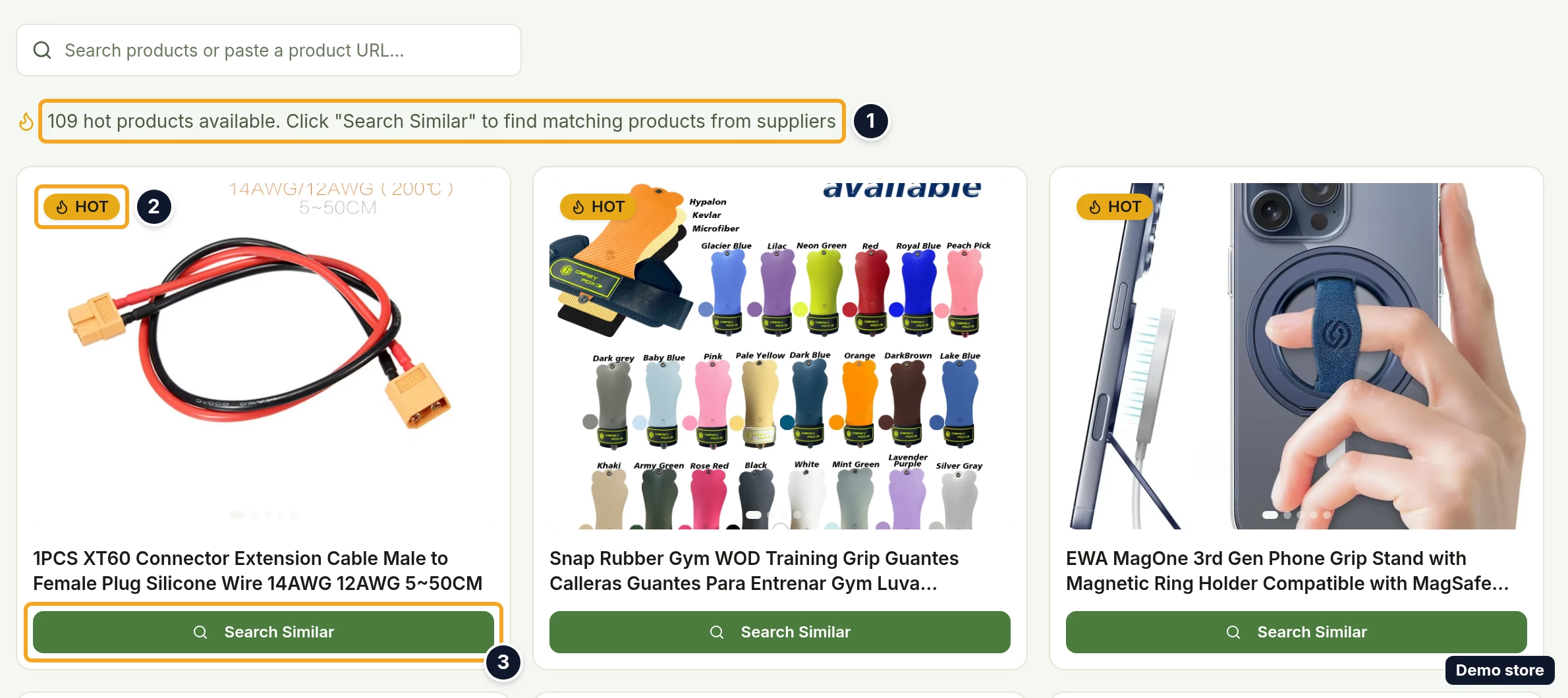
- Move through the hot list with Previous page and Next page.
- On the card you like, use the carousel arrows to pick the photo you want to match.
- Click Search Similar. The button spins, and the other cards are disabled until the search finishes.
- The results read "N similar products found", with Back to Hot Products above normal product cards that each have Add to Store. They come as one list, without pages.
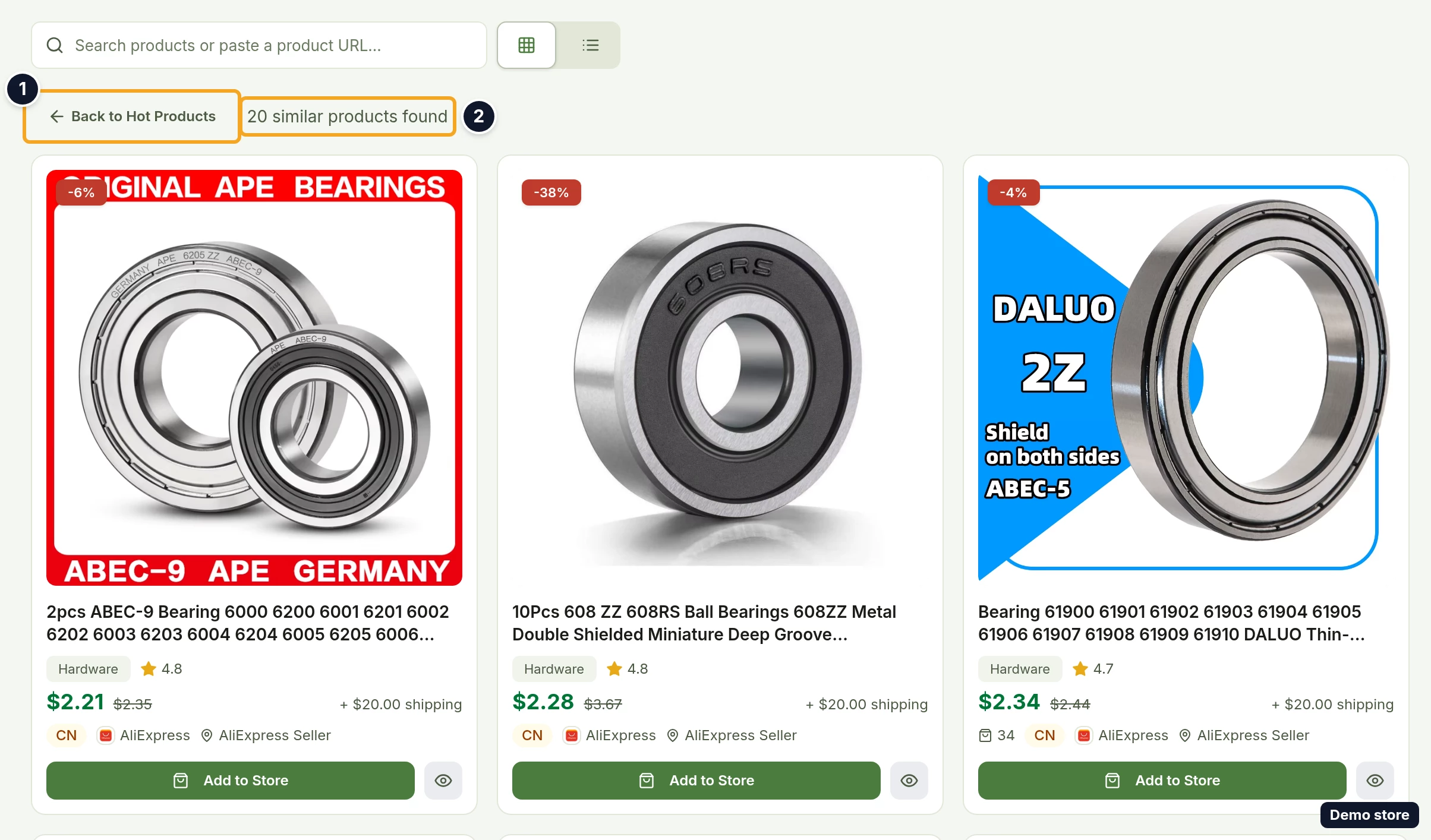
Search with a photo (Growth)
- On Find Products with AliExpress selected, or on Trending Products when image search is enabled there, click Search by image at the top right. The Search by image dialog opens ("Upload an image or paste an image URL to find similar products from suppliers.").
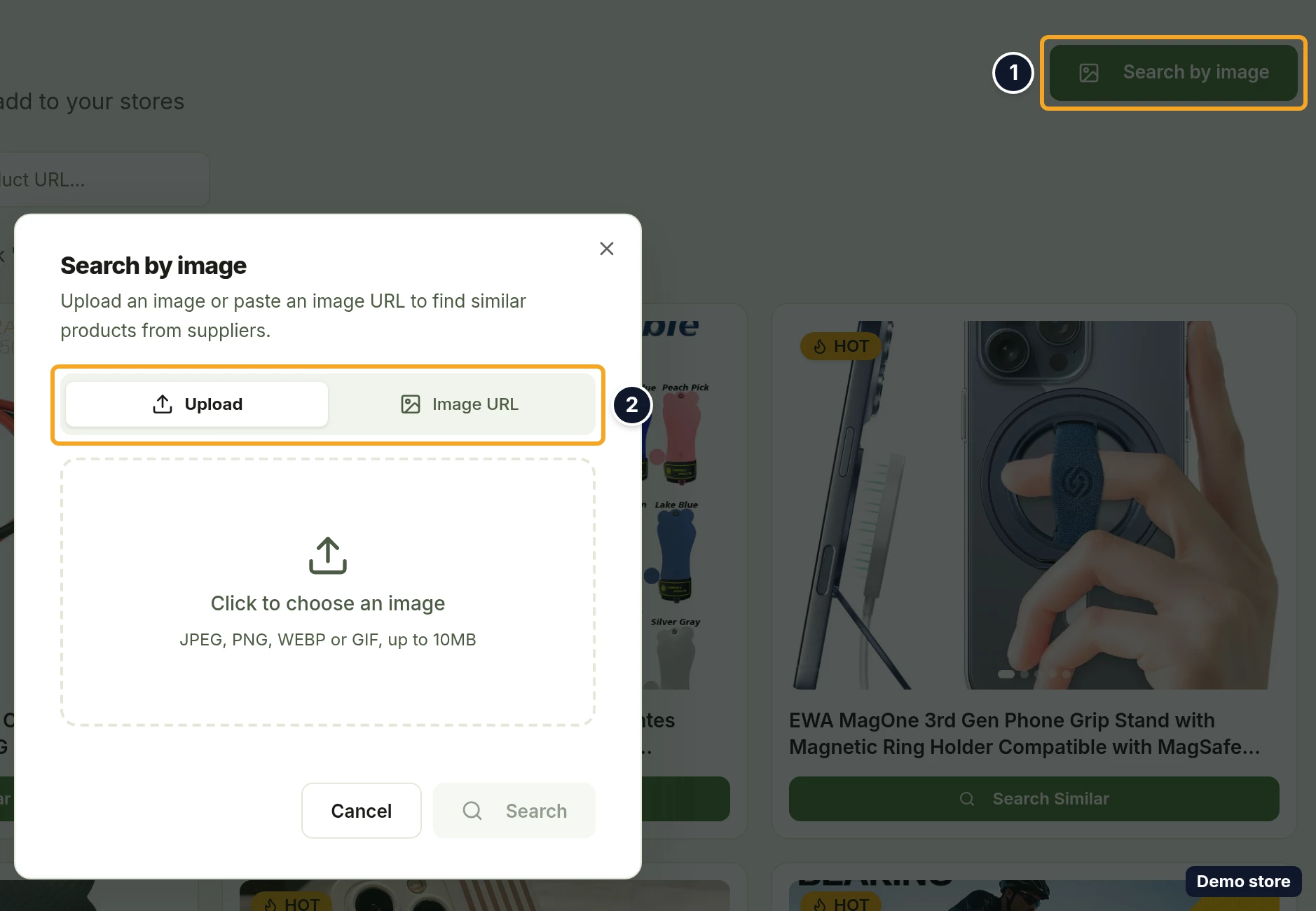
- On the Upload tab, click Click to choose an image ("JPEG, PNG, WEBP or GIF, up to 10MB") and pick a file.
- Or click the Image URL tab.
- Paste a link into Image URL (placeholder "https://example.com/product.jpg", help "Paste a direct, public link to a JPG, PNG, or WEBP image.").
- Click Search. It reads Searching... while it works; Cancel closes the dialog.
- The results show Back to search, the thumbnail you searched with, and "N visually similar products" or "Showing the N closest matches".
Open Trending Products (Starter and higher)
- Click Trending Products in the sidebar. The page is titled Trending Products ("The best-selling, best-rated products across every connected supplier, ranked by proven demand and sourcing confidence") and opens with three intro cards: Every supplier, one list, Rating-weighted and Filter to what you can sell.
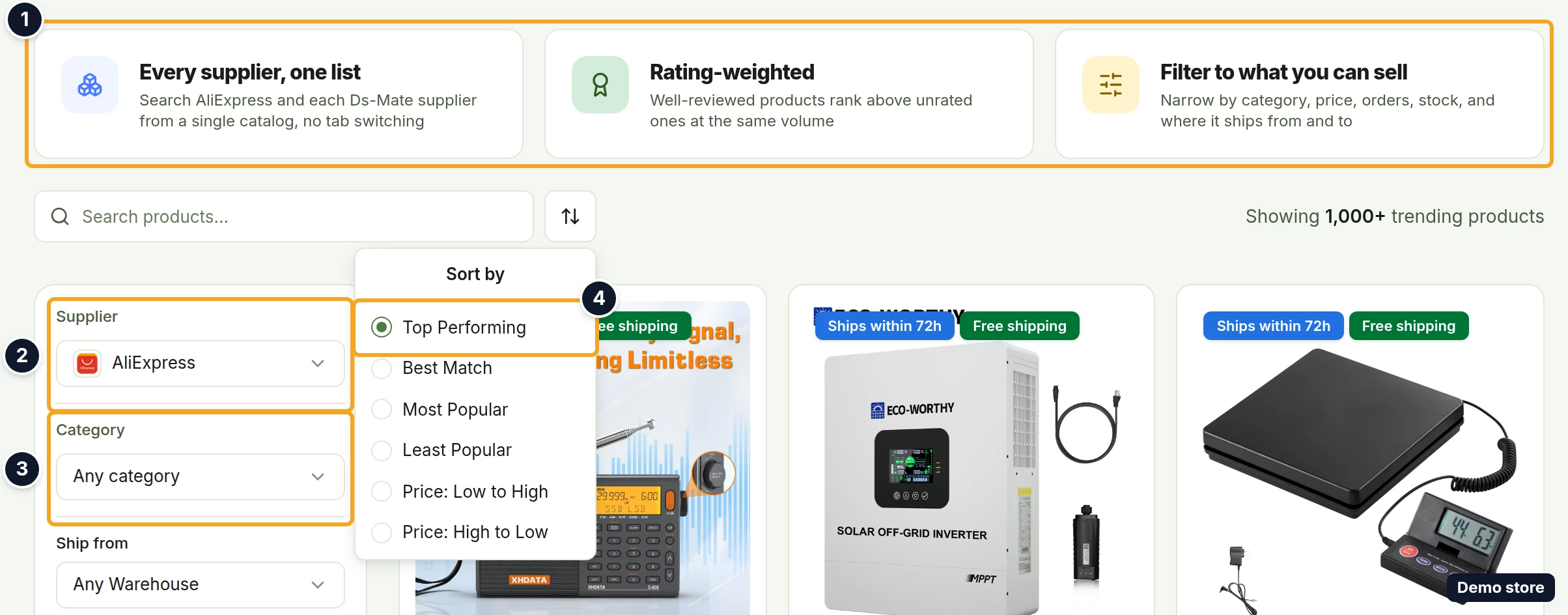
- Leave the search box ("Search products...") empty to list everything, with the toolbar reading "Showing N trending products", or type to search the catalogue.
- Narrow the list with the sidebar:
- Supplier: a searchable list (Select a supplier, search "Search suppliers...", "No suppliers found." when nothing fits) with AliExpress, each Ds-Mate supplier by name, and 4PX (Cainiao) with a Connect tag while it is not connected. A selected supplier with a public page adds the link Visit <name>'s supplier page. Changing the supplier resets every filter but keeps your search text.
- Category: Any category, with the search "Search categories...".
- Ship from: Any Warehouse, United States, United Kingdom, Australia and China.
- Ship to: shown once shipping coverage is available.
- Availability: In stock only, Ships within 72h and Free shipping.
- Price: Min and Max. If Min is higher than Max, the hint "Min is higher than max, so this price filter is not applied." shows and the price range is ignored.
- Ratings: Product rating (0 to 5) and Seller rating (0 to 5), each with Min and Max. Hidden for Ds-Mate suppliers. If a Min is higher than its Max, the hint "Min is higher than max, so this rating filter is not applied." shows and that rating range is ignored.
- Total orders (all time): Min and Max. If Min is higher than Max, the hint "Min is higher than max, so this total orders filter is not applied." shows and that range is ignored.
- Sort with Top Performing (the default), Best Match, Most Popular, Least Popular, Price: Low to High or Price: High to Low.
- Click Add to Store on a card to import it. On a Ds-Mate supplier or 4PX card, View details opens the product's own page inside DS-Mate.
Good to know
- On Free and Starter, an empty search box with AliExpress selected shows the card Unlock Hot Products ("Discover the hottest products from your suppliers! Upgrade to Growth to view hot products and stay ahead of the competition.") with the button View Plans, which opens the pricing page. Below it, Search any product ("Type a product name or paste a product link in the search bar above to see matching products.") reminds you that keyword search still works.
- On Free, the sidebar item Trending Products shows a lock icon and its hover text reads "Trending Products (upgrade required)". Clicking it still opens the Trending Products page, which shows the upgrade card described next.
- On Free, the Trending Products page, whether you open it from the sidebar or by its address, shows Unlock Trending Products, a sentence naming the Starter plan and its price, the button Upgrade to Starter, which opens the pricing page, and 8 blurred sample cards.
- The Search by image button is visible on Find Products on every plan when AliExpress is selected, and on Trending Products when image search is enabled there, but a search only runs on Growth. Below Growth, an uploaded image shows the toast "Image search is available on the Growth plan and above." and an image link shows the toast "Forbidden".
- Image search checks: "Please choose a JPEG, PNG, WEBP, or GIF image.", "Image must be 10MB or smaller.", "Enter a valid image link, e.g. https://example.com/photo.jpg" and "The image link must start with https://". No match reads "No matching products found for this image."; a failed search reads "We couldn't search with that image right now. Please try again."
- Hot Products only shows with AliExpress selected. With Alibaba or CJDropshipping, the empty box shows the keyword prompt instead.
- An empty hot list reads "No hot products available" / "Try searching for products using the search bar above." A failed Search Similar reads "We couldn't load similar products right now. Please try again in a moment."
- With 4PX (Cainiao) selected on Trending Products, the page changes: the subtitle and the three intro cards are replaced, Ship from lists your warehouses, Ship to and some other filters are hidden, and the sort offers Newest First plus stock and name options instead.
- Ships within 72h on Trending Products has an info tip: "Supplier lists this in a 72-hour dispatch feed, an indicator of how fast it leaves the warehouse, not a delivery guarantee".
- Trending Products cards do not show the order count. If the catalogue is unavailable, the page reads "Product search is temporarily unavailable. Please try again shortly".
On the Shopify app
On Growth, Hot Products works the same way in the Shopify app, and the list only includes products with at most 3 option types. On Free and Starter, the empty search box shows Unlock Trending Products ("Upgrade your plan to discover trending and recommended products from top suppliers") with View Plans, which opens the app's billing page. The Shopify app has no Trending Products page.
Related Articles
Still have questions?
Our support team is ready to help. Reach out and we'll get back to you as soon as possible.