Back to Help Center
Help CenterProducts & Import
Can I paste an AliExpress or other supplier link to find one specific product?
5 min readFind Products (web dashboard); Trending Products for Ds-Mate supplier links
You can paste the full product link into the search box on Find Products, and DS-Mate looks that product up instead of running a keyword search. The link has to start with http or https and belong to the supplier selected in the top bar. A bare product ID, or a link without that prefix, is treated as a keyword search.
Steps
Paste a link on Find Products
- Click Find Products in the sidebar.
- In the top bar, check that the selected supplier matches the link: AliExpress for an AliExpress link, Alibaba or CJDropshipping for theirs (these two need Starter or higher).
- Paste the full product link into the search box ("Search products or paste a product URL..."). The search icon turns into a link icon, and the lookup starts on its own; there is no button to press.
- Wait while the product loads; placeholder cards show in the meantime.
- When the product is found, the toast "Product found!" appears, one card shows in the results, and the toolbar reads "Showing 1 products".
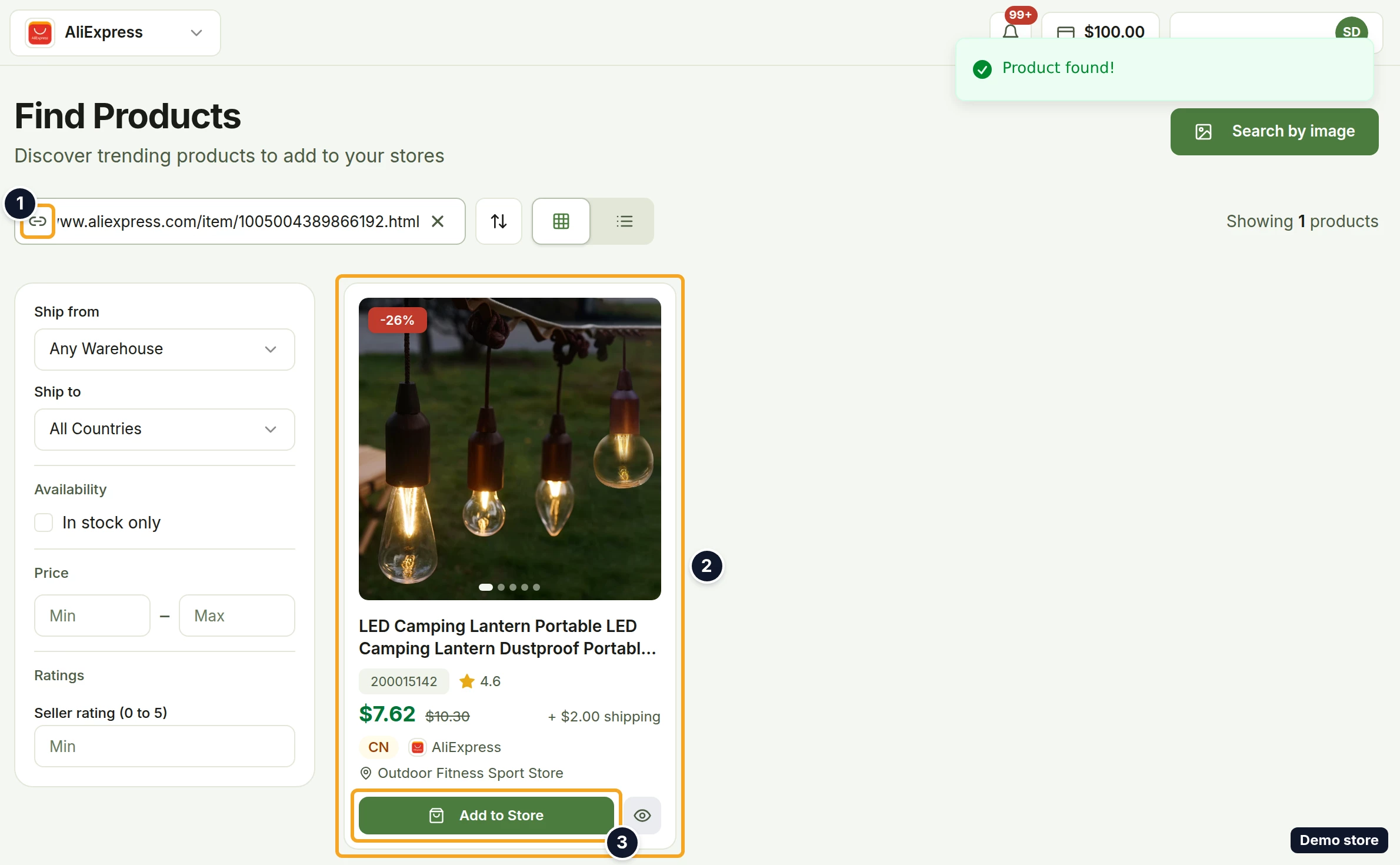
- Click Add to Store on the card to import it, or click View details to open the supplier's own listing in a new tab.
- To go back to keyword search, clear or edit the search box. The pasted product is dropped from the results.
Open a Ds-Mate supplier or 4PX product page
Products from Ds-Mate suppliers and from 4PX have their own page inside DS-Mate. You reach it from Trending Products (Starter and higher). Importing a Ds-Mate supplier or 4PX product needs Starter or higher.
- Click Trending Products in the sidebar.
- On a Ds-Mate supplier or 4PX card, click View details.
- The product page opens with Back to products, the product title, Copy link and Add to Store at the top, then the gallery, Supplier price (a price, or a lowest to highest range) and the shipping line ("Free shipping", "Free shipping over $N", "+ $x shipping", "You buy the shipping label" or "Shipping quoted at import").
- Read the details: Availability ("N in stock" or "Out of stock"), Minimum order ("1 unit" or "N units") and Supplier, plus Ships from, Dispatch and Category when the supplier provides them. Below come the sections Highlights, Description and Specifications when the supplier provides them, and About <supplier> when the supplier has a summary or a public page. The link Visit <supplier>'s supplier page shows only when the supplier has a public page.
- On a product with more than one variant, scroll to the Variants table (its title carries the count) with the columns Option, Price, Stock and Ships from.
- On a Ds-Mate supplier product, click Copy link to copy the product's address for later or for a teammate. It reads Copied and the toast "Link copied" confirms it.
- Click Add to Store to import the product, or Back to products to return to Trending Products.
Good to know
- Recognised links: AliExpress product pages (on aliexpress.com and its country sites), Alibaba product pages, CJDropshipping product pages and Ds-Mate product links. An Amazon link is not recognised.
- A link DS-Mate cannot read shows a toast and the empty state "We could not open that product link", with the reason and "Search by product name instead, or paste a different link." The reasons are "Could not extract product ID from AliExpress URL" (or the Alibaba or CJdropshipping wording) and "URL does not match any supported supplier format".
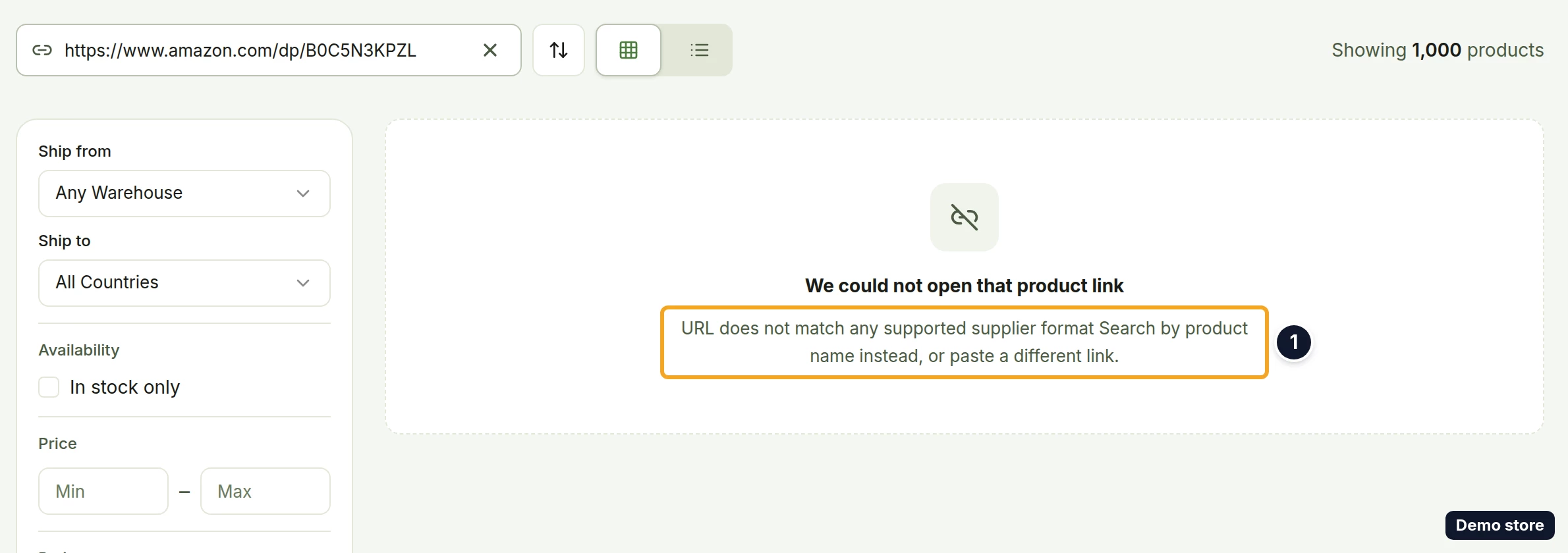
- A link from a different supplier than the one selected in the top bar is refused with a message such as "URL is from Alibaba but expected ae". Switch the top-bar supplier and paste the link again.
- Ds-Mate suppliers are not in the Find Products picker, so a Ds-Mate product link pasted there is refused with "URL is a Ds-Mate product link but expected ae". Paste it on Trending Products instead, with that supplier selected by its own name under Supplier. One card shows; click View details on it to open the product page.
- If an AliExpress listing was removed, the message reads "This product is no longer available from the supplier." A Ds-Mate product link that no longer exists reads "Failed to fetch product. Please check the URL and try again."
- If nothing on the listing can be bought, DS-Mate says so. On AliExpress the message reads "This listing has no variants available to buy right now." or "This listing has no variants available to <country> right now."
- The link points at one of your own store listings: "This product is a listing in one of your own stores, so it cannot be its own supplier. Link the original supplier's product instead."
- Any other failure usually reads "Failed to fetch product. Please check the URL and try again."
- On the supplier product page, a product that is gone reads "This product is not available" / "It may have been withdrawn by the supplier, or the link may be wrong. Try searching for it again.", and one of your own listings reads "This is one of your own listings". If Copy link cannot reach your clipboard, the toast reads "Could not copy the link. Copy it from the address bar."
- Back to products on the supplier product page always returns to Trending Products, whichever page you came from.
On the Shopify app
Find Products in the Shopify app has a separate box for a product link, apart from the keyword search box.
Related Articles
Still have questions?
Our support team is ready to help. Reach out and we'll get back to you as soon as possible.