Back to Help Center
Help CenterProducts & Import
How do I import a product and set my own selling price?
9 min readAdd to Store on a card in Find Products, Trending Products or a supplier product page (web dashboard)
You import from any product card with Add to Store: pick the store, then fill in the Import Product page (title, images and variants) and set your markup in Cost Summary. Each variant's selling price is its supplier price plus your markup, rounded to the cent; shipping and sales tax are not included. Every plan can import, up to the plan's limit of imported products across your stores: Free 3,000, Starter 20,000, Growth 75,000.
Steps
Choose the store
- On a product card, click Add to Store. The Add Product to Stores dialog opens ("Select the stores you want to publish this product to.") with the product at the top, a Search stores... box and the list Your stores with the count.
- Tick the store you want. Once one store is ticked, stores on other channels grey out. A store that cannot take an import is greyed out with the hover text "<reason> store cannot be used for import", where the reason is "Disconnected", "Removed", "Setup incomplete" or "Scheduled for deletion".
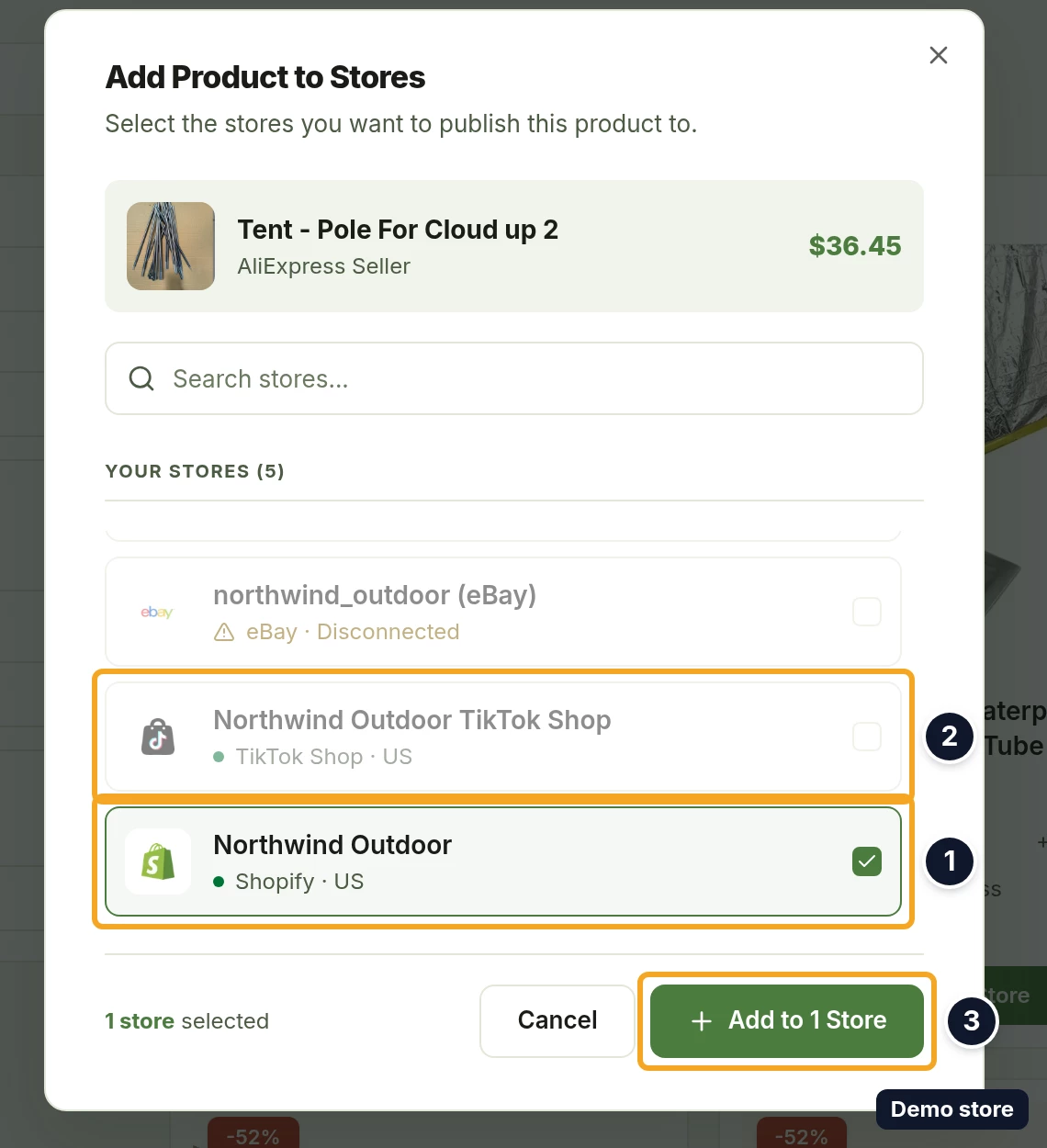
- Click Add to 1 Store (it reads Add to N Stores with several ticked, and Select a store while none is). Cancel closes the dialog.
Fill in the product
- The import page opens with Back, the title Import Product, the product's title, a badge with the store's name and country (or the number of stores) and a badge with the channel.
- On the left, the card Product Details ("Configure the product details for import") has the tabs Basic Info, Images and Variants, plus Amazon Attr for an Amazon store.
- On Basic Info, under Product Information, check Product Title (required; "The product title as it will appear in your store. Make it clear and descriptive.") and Description (required).
- Under Product Status, set Status to Active, Draft or Archived.
- Fill in Product Type ("e.g., Clothing, Electronics, Accessories", with Suggested types:), Vendor ("e.g., Acme Co."), Collections and Tags ("Type a tag and press Enter", with Suggested tags:) as you need them, plus the channel's category field (see Good to know). A Temu store does not show Product Type, Vendor, Collections or Tags.
- On Images, tick the photos to import under Select Images, which shows how many of the available images are selected; Select All and Deselect All do it in one go. At least one image must stay selected ("At least one image must be selected").
- Drag the images into the order you want ("Drag images to reorder. The first selected image becomes the main product image."). The first selected image carries the badge Main.
- On Variants, tick the variants to import. The Variants heading shows how many of the total are selected, and one button switches between Select All and Deselect All.
- On a Shopify store, to drop a whole option group (a colour or a size range), click Exclude on it; Include brings it back.
- Check each row of the price table: Variant, Item cost (on 4PX it is Your cost, and you type it yourself: "Enter your cost"), Shipping when a quote exists, Qty where the channel needs one, Sale price (Supply price on a Temu store), which you can edit, and Profit in green or red ("excl. shipping" when there is no quote). The footnote reads "Profit is sale price minus item cost and shipping. Sales tax is not included." when the table has a Shipping column, "Profit is sale price minus item cost and shipping, each row using the shipping for the market it can reach. Sales tax is not included." when a row is priced with a second market's shipping, and "Profit is sale price minus item cost. Shipping and sales tax are not included." when there is no Shipping column.
Set your price
- In the right column, check the Supplier card at the top: the supplier's name, the platform, the link icon (View on supplier site), the star rating and the country, with As Described, Communication and Shipping Speed ratings when the supplier has them.
- Below it, in Cost Summary, type your Default Markup (%). It starts at 30 and the minimum is 5 ("Markup is applied to each variant's supplier price. Shipping and sales tax are not included. Variants with manually edited prices won't be affected."). The rows Supplier Price:, Markup:, Selling Price: and Margin before shipping: update as ranges across your selected variants.
- To price one variant by hand, edit its Sale price (Supply price on a Temu store) in the Variants table. A later change to Default Markup (%) leaves that variant alone and reprices the others.
Import
- In the actions card, decide whether to use Auto-link variants to supplier ("Match each variant to its supplier source after sync"; it reads "AliExpress and Alibaba only" when the supplier does not support it).
- For an AliExpress or Alibaba product, choose the Shipping origin: US warehouse ("Faster delivery, TikTok-friendly") or Cheapest ("Lowest cost, any origin"). It is dimmed while Auto-link variants to supplier is off.
- On an Amazon store, click Check Listing before importing (it reads Checking..., then Re-check Listing). On a Temu store, click Validate Listing (it reads Validating..., then Re-validate Listing).
- Click Preview if you want to see the listing first.
- Click Import Product. It reads Importing..., then the toast "Import in progress for 1 store." (or "N stores") appears with the action View Import Requests. On Amazon the toast reads "Your product request has been sent to Amazon and it will appear in your Amazon store soon."
- The page stays open. The product is not live yet: the final result arrives in the notification bell, and the product appears on Products once the channel sync has written it. View Import Requests opens Products. On an Amazon store it opens the import requests view.
Good to know
- Why Import Product is greyed out: hover it and the tooltip names the reason, for example "Enter a product title (at least 3 characters)", "Select at least one variant to import", "No variants ship from the selected country", "This product has N option types, but Shopify supports max 3. Exclude an option group below, or switch to Amazon or another channel, to import it.", "N variants selected, max M. Deselect K variants first." (with the numbers), "Select a product type first" and "Check listing before importing" (Amazon), "Select a category first" and "Checking category…" (eBay), "Select a Temu category first", "Select a Temu shipping template first", "Select a Temu import designation first" and "Pre-flight validation found errors. Fix the highlighted fields and re-validate." (Temu), or "This supplier has made their catalogue private and has not given this store access. Ask them for access, or import this product from another supplier." On eBay, while DS-Mate looks up the recommended category, the button itself reads Finding recommended category… with a spinner.
- If the button is enabled but a field is still wrong, a toast names the first problem and the page switches to its tab: "Description must be at least 10 characters", "Please select at least one image" (only when the supplier product has no images) or "Please fix the highlighted fields before importing".
- If every variant you picked is out of stock at the supplier, the Variants tab shows "Every selected variant is out of stock at the supplier. Choose an option with available stock." Nothing in that selection can be imported, so Import Product is greyed out with "Select at least one variant to import".
- A markup under 5% is reset to 5% when you leave the field.
- Product limit: the import page does not warn you before you click. If you have reached your plan's limit, on a Shopify, Amazon, eBay, TikTok Shop, Temu or AliExpress Seller store Import Product ends in the red alert Import Failed with "Product import failed for all stores" and "<Store>: You have reached the maximum number of imported products for your plan". On a Shopify store the sentence repeats under Attribute errors:, followed by "Please review the error details and try again."; on Amazon, eBay and Temu the lines below it are worded for that channel. On a WooCommerce or SHEIN store the import shows the toast "Import in progress for 1 store." and the refusal arrives later as a notification. The alert has no upgrade link; to import more, move to a higher plan (see the product limit question). Free allows 3,000 imported products, Starter 20,000 and Growth 75,000.
- One import to several stores counts once per store against that limit. A guest can import to a store they were invited to; the owner's plan and limit apply.
- Alibaba, CJDropshipping and Ds-Mate supplier products need Starter or higher.
- With no store connected, the dialog reads No stores connected with a Connect Store button to Settings > Stores. A private Ds-Mate supplier's product shows "This supplier has not given this store access to their catalogue" on a store it does not cover.
- Channel fields on Basic Info: Shopify has Shopify Category (search "Search categories (e.g. Shirts, Electronics)..."; at most 3 option types). Amazon has Amazon Category with Product Type, the Amazon Attr tab and Check Listing ("Listing check passed, ready to import!" or "Listing check found N error(s). Fix them before importing."). eBay has eBay Listing Options with Free Shipping and Max Quantity Per Buyer ("No limit (defaults to available quantity)"), plus a sidebar card eBay Listing Options with Postage policy (DS-Mate policy (default)) and Handling time (days). TikTok Shop has TikTok Shop Category and asks for certificates when the category needs them. Temu has Temu Listing Options with Category, Shipping template and Import designation.
- If the supplier's listing is gone when the page loads, the page reads "This product is no longer available" with "Taking you back to pick another product…", then the toast "That product is no longer available. Please pick another one." A sold-out product reads "No variants available to buy right now" with Check again and Pick another product. Any other load failure reads "We could not load this supplier product" with Try again and Pick another product.
- If some of the chosen stores refuse the import, you get a warning toast and the alert Some stores could not be imported.
- Import Product stays enabled after a successful import, and clicking it again sends a second import of the same product. Leave the page with Back instead.
- Cancel always returns to Find Products; Back returns to the page you came from.
- Save as Draft (it reads Saving...) keeps the form for later; see the draft question.
On the Shopify app
In the Shopify app, Import Product on a card opens the import page straight away; there is no store dialog. The reasons for a disabled button differ, for example "Too many variants (max N)" or "Too many images (max N)". At your plan's product limit, the search page disables import before you open the form. The selling price is worked out the same way.
Related Articles
Still have questions?
Our support team is ready to help. Reach out and we'll get back to you as soon as possible.