Back to Help Center
Help CenterGetting Started
How do I connect my Shopify store from the web dashboard?
4 min readSettings > Stores (web dashboard)
You connect a Shopify store from Settings > Stores. Any signed-in user can do it, and the store is created under the account that connects it, so connect it from the account that should own it. How many stores you can connect depends on your plan: Free 1, Starter 2, Growth 5.
Steps
- Click Settings at the bottom of the sidebar. It opens on Profile.
- Click Stores under Business.
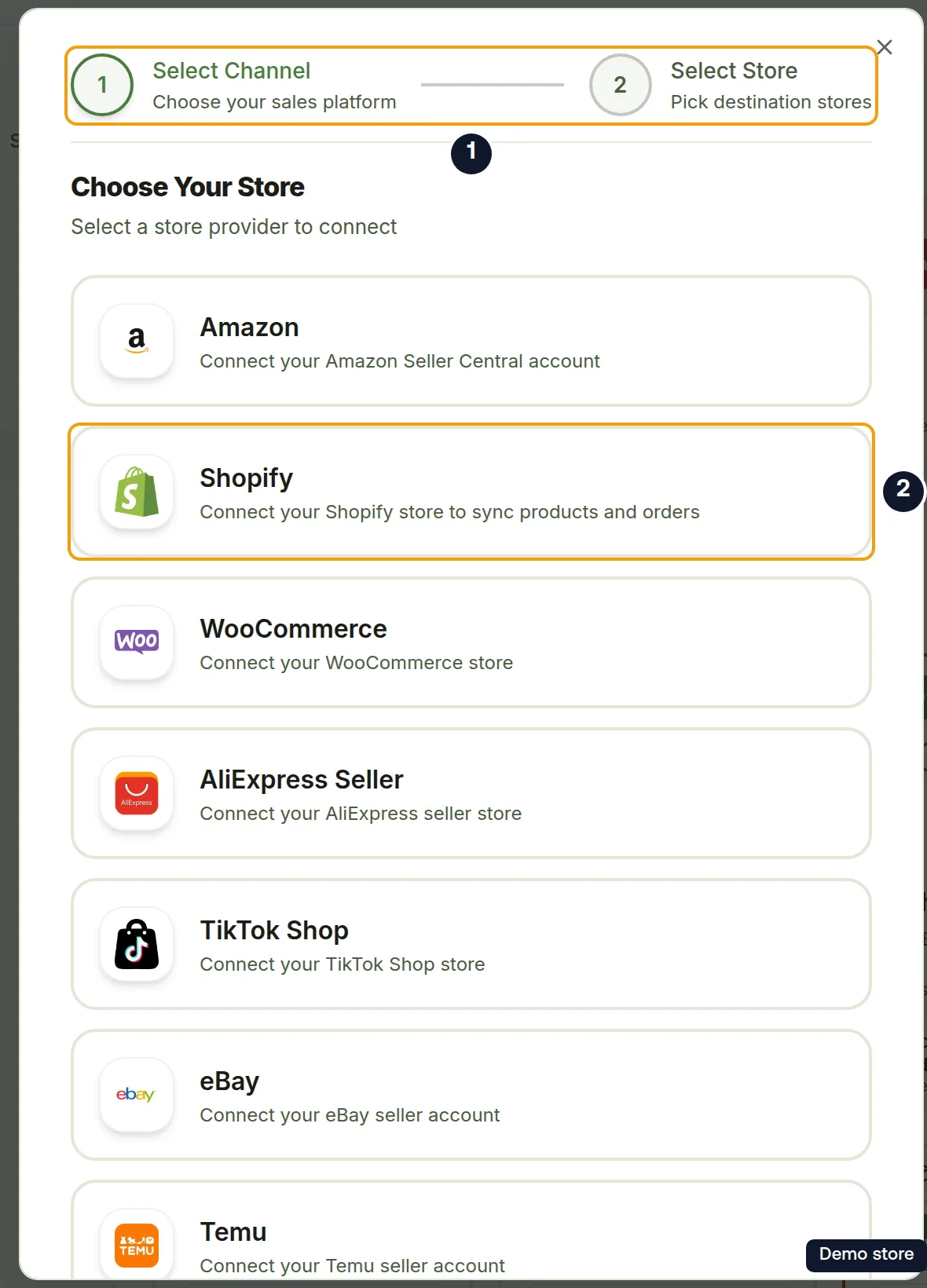
- In Connected Stores ("Manage your connected stores and their settings"), click Connect Store. The Choose Your Store dialog opens on the Select Channel step ("Choose your sales platform").

- Click the Shopify tile ("Connect your Shopify store to sync products and orders"). The dialog moves straight to the next step.
- On the Connect Shopify step ("You will be redirected to authorize access"), type your store domain in Shop Domain \*, in the format my-store.myshopify.com.
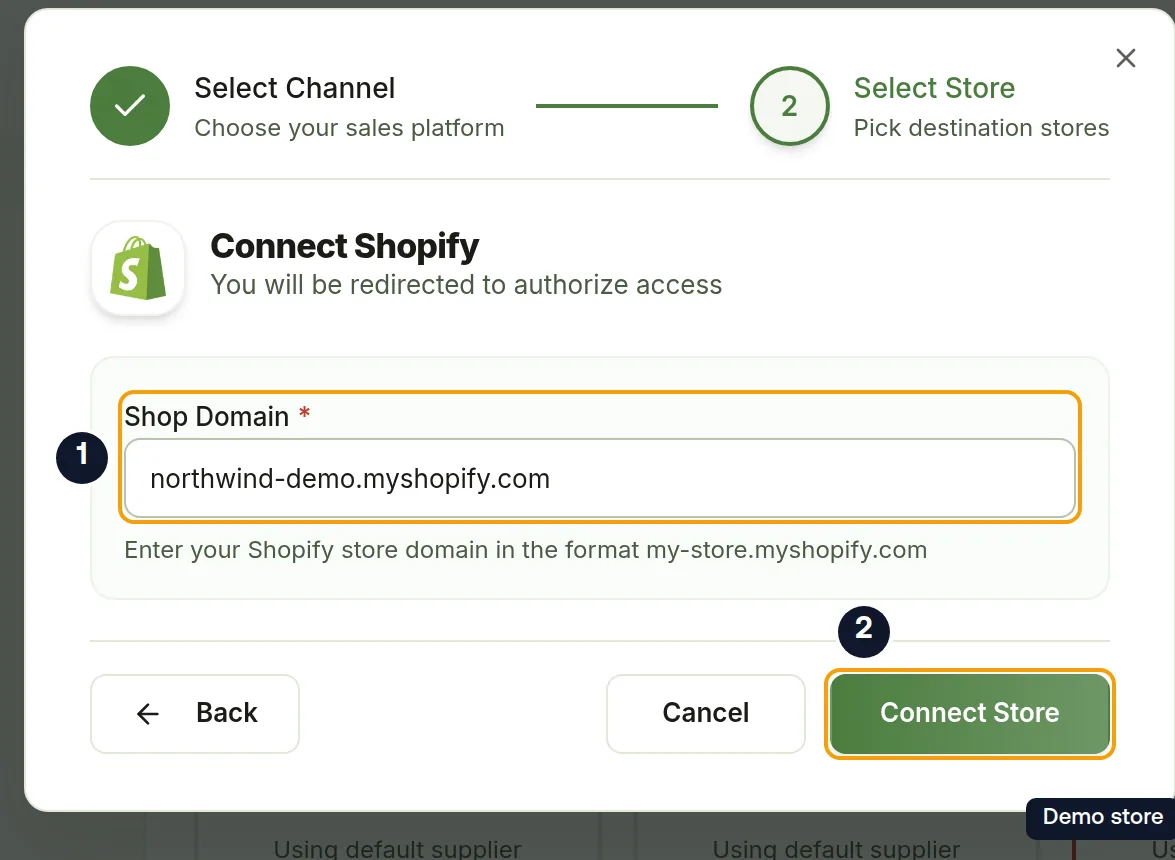
- Click Connect Store. The button reads Connecting... and a toast says "Redirecting to Shopify authorization...".
- Approve the connection on Shopify's page.
- Back on DS-Mate you see Connecting your store... ("Please wait while we complete the authorization and set up your store."), then Authorization received and Exchanging tokens....
- The toast "Successfully connected 1 Shopify store!" confirms it, and you are back on Settings > Stores.
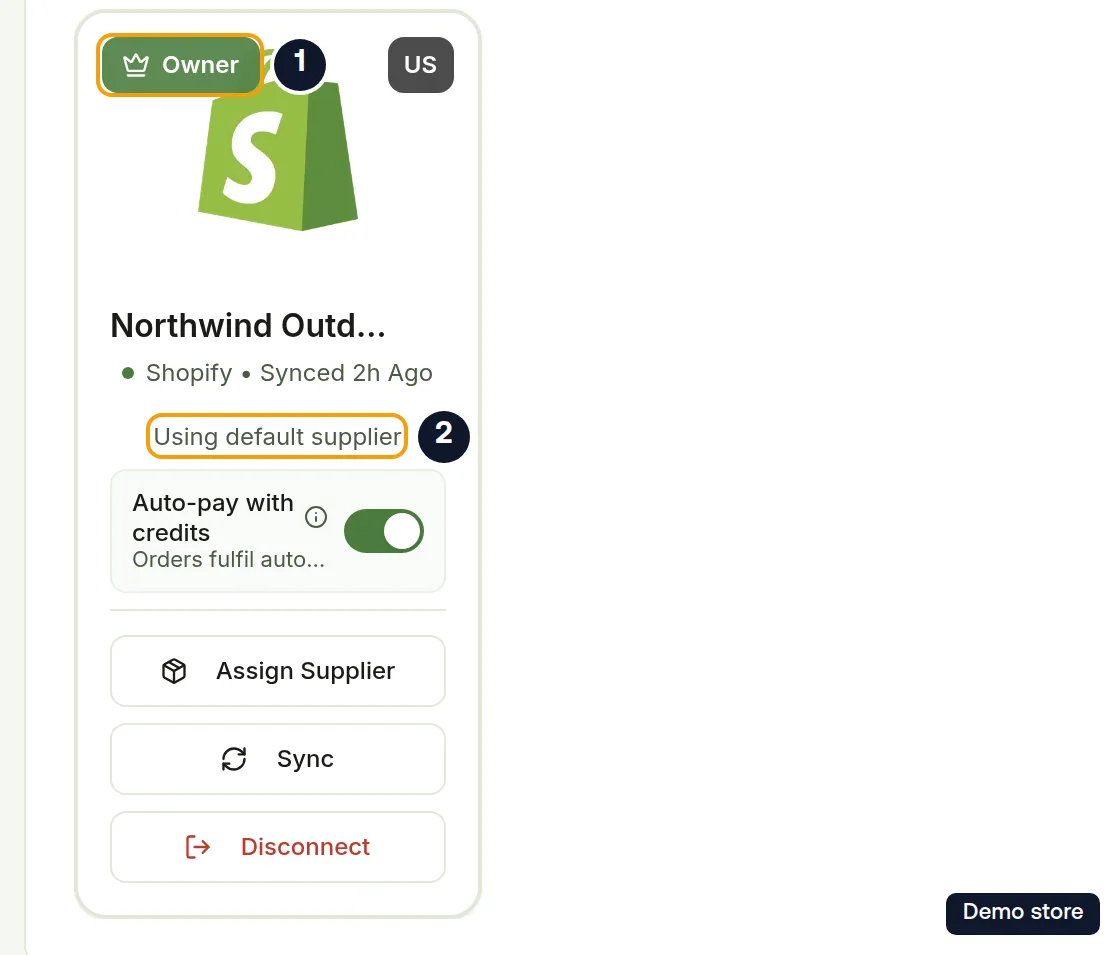
- Your new card in Connected Stores shows the Owner badge, the Shopify logo, your store name, "Shopify • Connected" with the time, and Using default supplier. Once the first sync has run, the line changes to "Synced".
Good to know
- Domain format: a bare handle such as "my-store" is completed to my-store.myshopify.com for you. A custom domain such as "mystore.com" is refused with "That doesn't look like a Shopify store domain. Please enter it in the format mystore.myshopify.com." (as a toast and a red alert in the dialog). Leave the field empty and you get "Shop Domain is required" and the toast "Please fill in all required fields".
- If you type the full my-store.myshopify.com domain, DS-Mate checks the store before sending you to Shopify:
- Store already on your account: the toast "This store is already connected to your account." appears and the dialog closes. There is nothing to reconnect. If a store's card shows SUSPENDED, click Reauthorize on that card to reconnect it.
- Store already connected by someone else: DS-Mate shows "This store is already connected by another user. Please ask the store's owner on DS-Mate to invite you to this store." Ask the owner to invite you instead (see the invitation questions below).
- Store limit: Free 1, Starter 2, Growth 5. What happens at the limit depends on your plan and how you are billed:
- On the Growth plan, billed by DS-Mate (not through Shopify, and not a trial started without a card): Connect Store opens the Extra store dialog instead of the wizard. It reads "You have reached your plan's limit." and shows the prorated amount charged today, then the slot's price per billing cycle ($5 a month, or $60 a year on yearly billing). Choose Cancel or Confirm. After the toast "Extra store added", the Choose Your Store dialog opens on its own so you can connect the store. During a trial the dialog reads differently: "Buying an extra store slot ends your trial today.", then it says your plan's own price starts being charged now, then it gives the slot's price.
- Everyone else at the limit (Free, Starter, Growth billed through Shopify, or a trial started without a card): Connect Store is disabled, with the tooltip "You have reached the maximum number of stores you can connect".
- If you have a store slot scheduled for release and the new store would need that slot, clicking Connect Store in the dialog first asks you to confirm: Cancel or Keep the slot and connect.
- Two shortcuts open the same dialog: Connect Store in the top-bar store picker when you have no stores yet, and Connect Store in the No Stores Connected message on the Dashboard.
On the Shopify app
Installing DS-Mate from the Shopify App Store connects that shop on its own; there is no Connect Store dialog. The embedded app may instead show Store already connected with your pending invitations, or a store-limit screen.
Related Articles
Still have questions?
Our support team is ready to help. Reach out and we'll get back to you as soon as possible.