Help CenterOrders & Fulfillment
My order says Price Changed. What happened, and how do I pay the new price?
5 min readOrders > an order's page > the pay dialogs, or the card "Supplier price changed" (web dashboard)
In Orders, this hold shows the badge Price Changed with an info icon and a Pay with card button in the row; on the order page the tracker step Supplier Payment reads "Supplier price changed", and a card titled Supplier price changed offers Review & pay new price. The other holds look different: an address hold reads Awaiting address, Address needed or Invalid Address; an item with no supplier link reads Needs attention; an order parked for service credits has no badge, only Pay with card and an info icon. Price Changed only appears on older orders: today, when a supplier's price moves between the quote and your confirmation, DS-Mate refuses the charge and asks you to confirm the new total inside the pay dialog, so nothing is paid at a price you did not see.
Steps
If the price moved while you were paying
- On a Ready to Fulfill order, click Pay with card or Pay with service credits. DS-Mate places or reuses the supplier order and returns a quote; the price is fixed only when you confirm. If paying would cost more than your customer paid, the Pay anyway dialog described in step 3 opens first.
- Check the total in the dialog: Confirm card payment with the button Continue to checkout, or Confirm payment from service credits with the button Confirm and pay.
- Click Continue to checkout or Confirm and pay. If the supplier's price moved in between, nothing is charged. With card, the dialog stays open and shows the new total under You pay at checkout. With service credits, the dialog closes for a moment while DS-Mate gets the new price, then opens again with the new total under Deducted now. Either way, an amber line above the cost lines reads "Nothing was deducted. This order now costs <new>, not the <old> you confirmed. Check the new total and confirm again." for service credits, or for card payment "Nothing was charged. This order now costs <new>, not the <old> you confirmed. Check the new total and confirm again." In that line, <new> is the order's new total and <old> is the total you confirmed. If the order now costs more than your customer paid for it, a dialog titled "Pay anyway and lose <amount>?" opens instead, reading "The supplier now charges <supplier total> for this order, more than the <customer total> your customer paid. Paying it would lose <amount>." Nothing is charged unless you click Pay anyway (lose <amount>); Keep it paused closes it.
- Check the new total, then click Continue to checkout or Confirm and pay again.
- If you were paying by card and DS-Mate could not get the new price, the dialog closes and a message reads "Nothing was charged. The price of this order changed, and we could not get the new price. Click Pay with card to try again." Click Pay with card to start again.
If the order shows Price Changed
- Click Orders in the sidebar. The quick filter Awaiting your action lists this hold.
- Find the row with the badge Price Changed, its info icon and the Pay with card button. The tooltip reads today "We couldn't process this order with the supplier. Please try again later or contact support." whenever the order carries a stored message; "Supplier price has changed. Please review and re-authorize payment." shows only when it has none. On most stores the row's Pay with card works like Review & pay new price: DS-Mate places the supplier order and opens the card checkout page, with no confirm dialog.
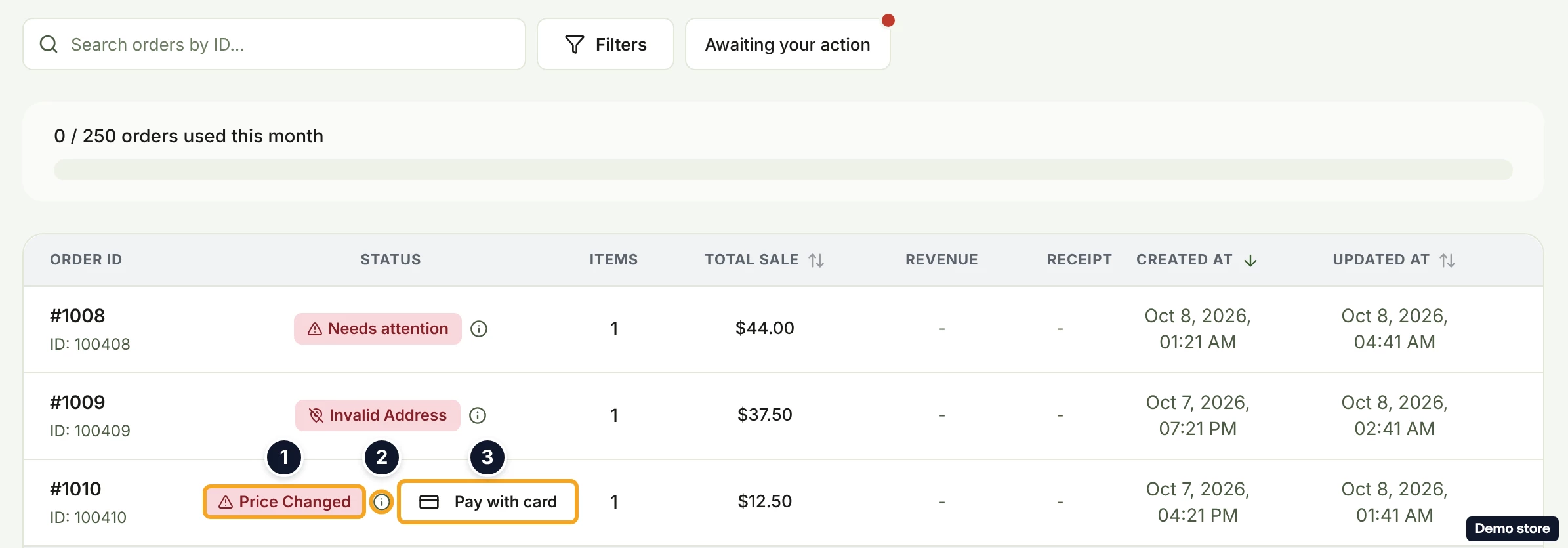
- Click the eye icon View details. In the tracker, the step Supplier Payment reads "Supplier price changed".
- Read the card Supplier price changed: "The supplier's price changed since this order was validated. Review the new price and pay to continue fulfilling."
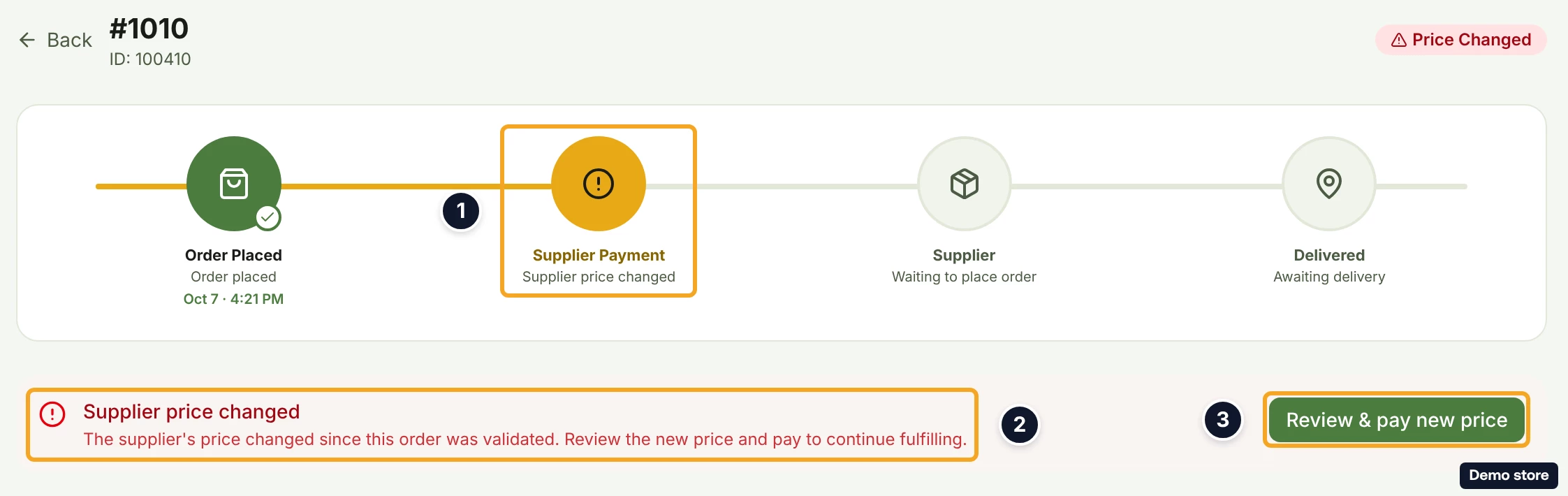
- Click Review & pay new price. It reads Processing... while it works, the toast "Redirecting to payment…" shows, and DS-Mate places the supplier order and opens the card checkout page. There is no confirm dialog and no price shown before the checkout page.
- Pay on the checkout page. What happens when you return, and Resume Payment, are covered in the question on fulfilling an order and paying the supplier. If the request is refused, the reason shows as a message.
Good to know
- When you pay from the order page's dialogs, a moved price is never taken silently: nothing is charged or deducted until you confirm the new total. An order paid by Auto-pay with credits has no confirm step: it is paid at the supplier's price at that moment.
- Price Changed is a legacy label. New orders do not get it; a moved price shows inside the pay dialog instead. A supplier cost above your max price is a different hold, Fulfillment Blocked (see the backup supplier and max price question).
- Review & pay new price goes straight to card checkout. A Price Changed order has no button to pay from service credits.
- No plan gate applies: any plan that can pay by card or by service credits sees this.
- No notification bell entry is raised for this hold.
- Telling the four holds apart: a moved supplier price reads Price Changed with a Pay with card button; address holds read Awaiting address, Address needed or Invalid Address; an item with no supplier link reads Needs attention; an order parked for service credits has no badge, only Pay with card and an info icon.
On the Shopify app
The list mirrors the web dashboard, including the row's Pay with card, which goes straight to card checkout. The order page shows a card titled Supplier Price Changed reading "The supplier's price has changed. Re-validate before fulfillment." with no button. To pay, use the row's Pay with card, or open the order on the web dashboard.
Related Articles
Still have questions?
Our support team is ready to help. Reach out and we'll get back to you as soon as possible.