Back to Help Center
Help CenterProducts & Import
How do I search for products to sell, and filter the results?
5 min readFind Products (web dashboard)
You search from Find Products in the sidebar: pick a supplier in the top bar, type at least 2 characters in the search box, and the results update as you type. The filter sidebar narrows them by where a product ships from and to, stock, price and seller rating, and the sort button orders them. Every plan can search AliExpress; Alibaba and CJDropshipping need Starter or higher.
Steps
- Click Find Products in the sidebar. The page is titled Find Products ("Discover trending products to add to your stores").
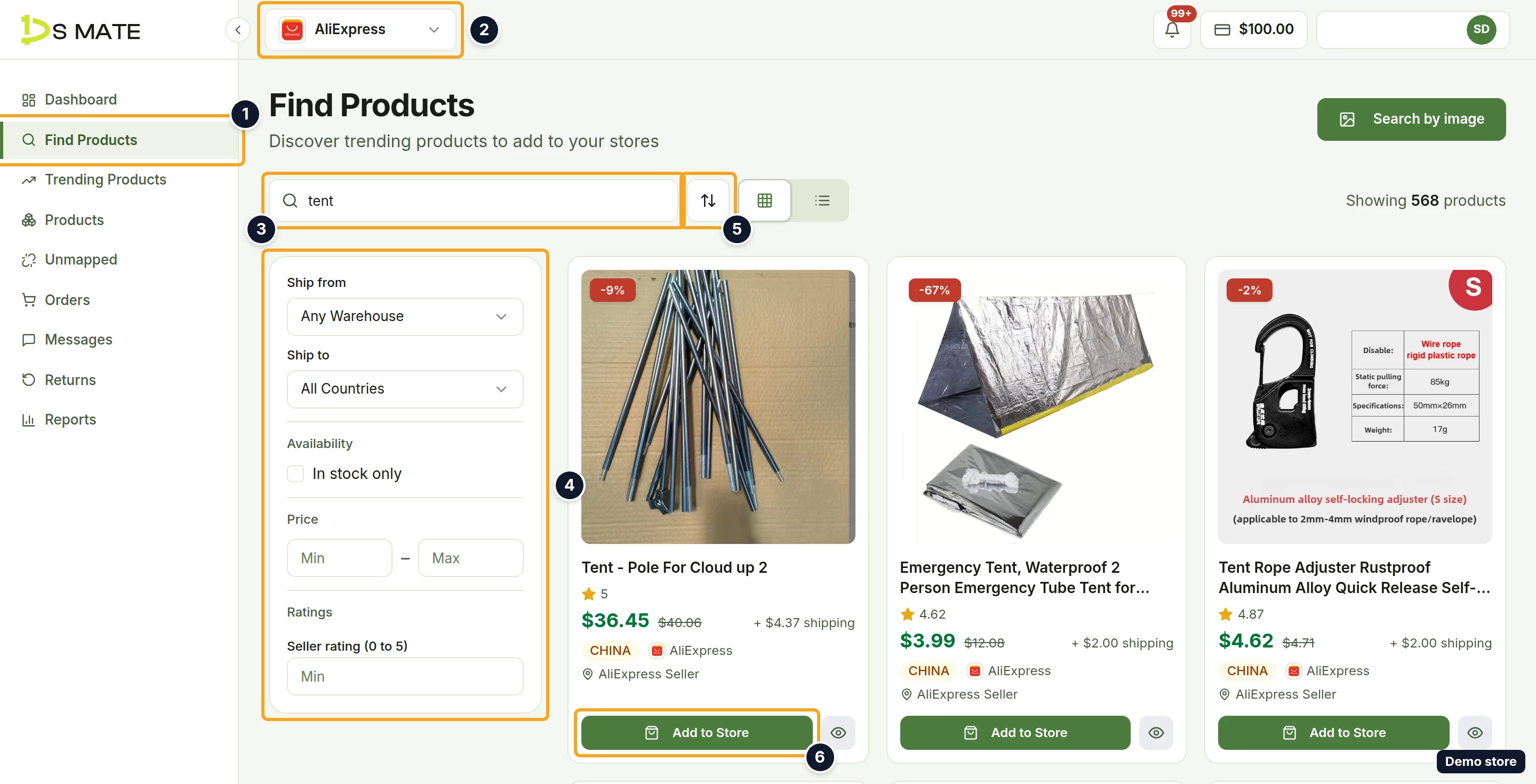
- In the top bar, open the supplier picker (it starts on AliExpress). The options are AliExpress, Alibaba and CJDropshipping, with the ones you can use listed first. A supplier your plan does not include shows its name followed by (Upgrade to Starter) and cannot be picked; a supplier not yet enabled for your account shows its name followed by (Coming Soon).
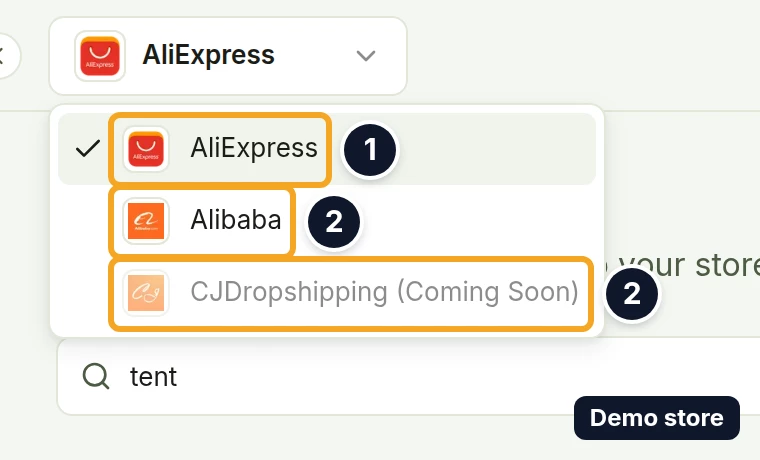
- Pick the supplier you want to search. If you switch from one supplier to another, any filter the new supplier cannot use is cleared, and a toast tells you how many, for example "1 filter isn't supported by Alibaba and was cleared".
- Type what you are looking for in the search box ("Search products or paste a product URL..."). The search runs on its own once you have typed at least 2 characters and paused for half a second. On Free, a single character shows "Keep typing to search".
- Press Enter to run the search at once instead of waiting.
- Read the count in the toolbar, which shows after every search: "Showing N products", capped at "1,000+", with 20 products per page.
- Narrow the results with the filter sidebar on the left. A section with an active filter shows a red dot on its title.
- Ship from: a searchable list (search box Search, "No match" when nothing fits) with Any Warehouse, United States, United Kingdom, Australia, Germany, France and China.
- Ship to: All Countries, United States, United Kingdom, Germany, France, Spain, Brazil, Canada and Australia.
- Availability: the checkbox In stock only.
- Price: a Min box and a Max box. If Min is higher than Max, the hint "Min is higher than max, so this price filter is not applied." shows and the price range is ignored.
- Ratings: Seller rating (0 to 5) with a Min box.
- Click the sort icon button next to the search box to open the Sort by menu.
- Pick Best Match (the default), Most Popular, Least Popular, Price: Low to High or Price: High to Low. On CJDropshipping the menu also offers Newest First and Oldest First.

- Switch between cards and rows with the view toggle (Grid view and List view). The list has the columns Product, Orders, Ships from and Price.

- Move between pages with the Previous page and Next page arrow buttons. There are no page numbers. On AliExpress and CJDropshipping, once you set a price or seller rating filter, the arrows are replaced by Load more (it reads Loading… while it works, and "No more matching products" when you have seen them all).
- On a card, click Add to Store to import the product, or click the eye icon (View details) to open the product's listing on that supplier's site in a new tab.
Good to know
- What a card shows: the photos with badges when they apply (the discount percentage, "You buy the label", "Ships within 72h", "Free shipping" or "Free shipping over $N"), the title (click it to read the description), a category badge, a star with the seller rating, the price or price range plus "+ $x shipping" when a quote exists, the order count, the ships-from flag, the sourcing platform and the seller name. An Alibaba card shows "from $x" and "Priced by quantity tier, since your cost depends on how many you buy."
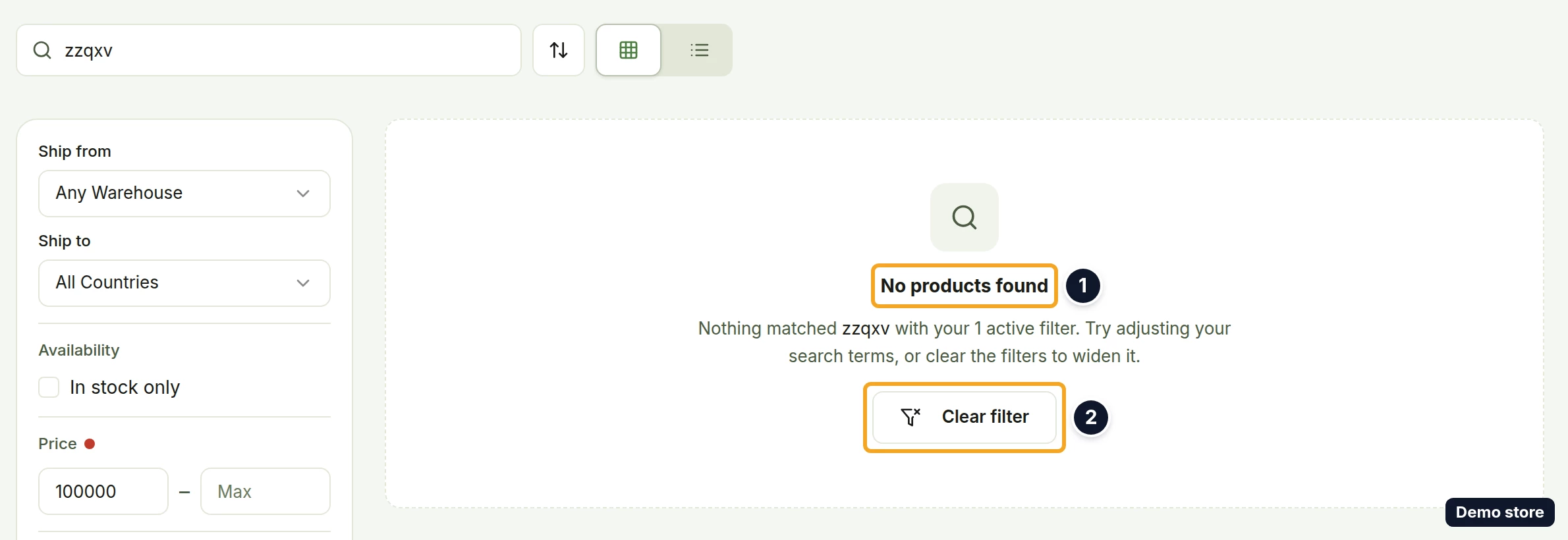
- Nothing found: the results area reads "No products found", then "Nothing matched <your term>. Try adjusting your search terms. A shorter or more general phrase usually finds more." With filters on, the message ends "...with your N active filters. Try adjusting your search terms, or clear the filters to widen it." and offers Clear filter (or Clear N filters, with the count).
- A filter the selected supplier cannot use is greyed out with the hint "Not available for <Supplier>". On Alibaba every filter except Ship to is greyed out, and the sort button is disabled with the tooltip "Not available for Alibaba". CJDropshipping cannot use the seller rating only.
- The Ship from list is the same for every supplier on this page.
- A search that fails shows a red banner with the reason and a Try again button.
- With AliExpress selected and the search box empty, Growth sees Hot Products, and Free and Starter see the Unlock Hot Products card (see the Hot Products question). With Alibaba or CJDropshipping and an empty box, the page reads "Search Alibaba by keyword" / "Enter a product name in the search bar above to find products on Alibaba." (with the supplier's name).
- With AliExpress selected, your search term, filters, sort and page are kept in the page address, so a result set survives a refresh and can be shared as a link. An Alibaba or CJDropshipping search opened again from its link or after a refresh comes back on AliExpress.
- Amazon is not a supplier you can search here.
On the Shopify app
Find Products in the Shopify app has its own page. The card button is Import Product, and it opens the import page straight away with no store dialog. When you have reached your plan's product limit, the button is disabled with the tooltip "You have reached the limit of product imports. Upgrade your plan to import more." The Shopify app has no Trending Products page.
Related Articles
Still have questions?
Our support team is ready to help. Reach out and we'll get back to you as soon as possible.