Back to Help Center
Help CenterGetting Started
How do I connect an Amazon, eBay, TikTok Shop or Temu store?
4 min readSettings > Stores (web dashboard)
Marketplace stores connect from the same place as Shopify: Settings > Stores > Connect Store. Pick the channel tile, choose your marketplace or shop region, then approve the connection on the channel's own page. TikTok Shop and Temu connect US shops only today. Each store uses one store slot on your plan (Free 1, Starter 2, Growth 5).
Steps
- Click Settings at the bottom of the sidebar.
- Click Stores under Business.
- Click Connect Store.
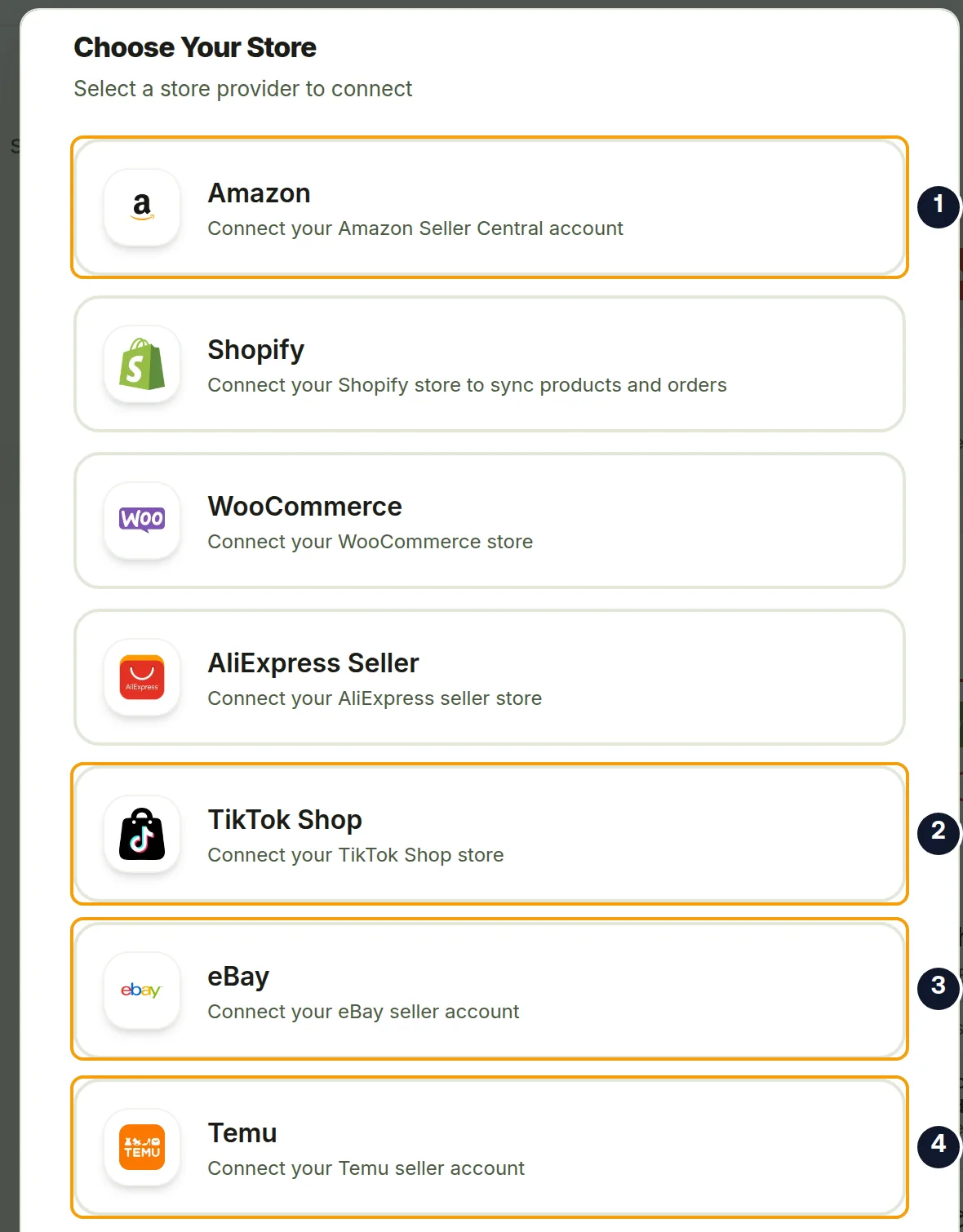
- In the Choose Your Store dialog, click the tile for your channel: Amazon, eBay, TikTok Shop or Temu.
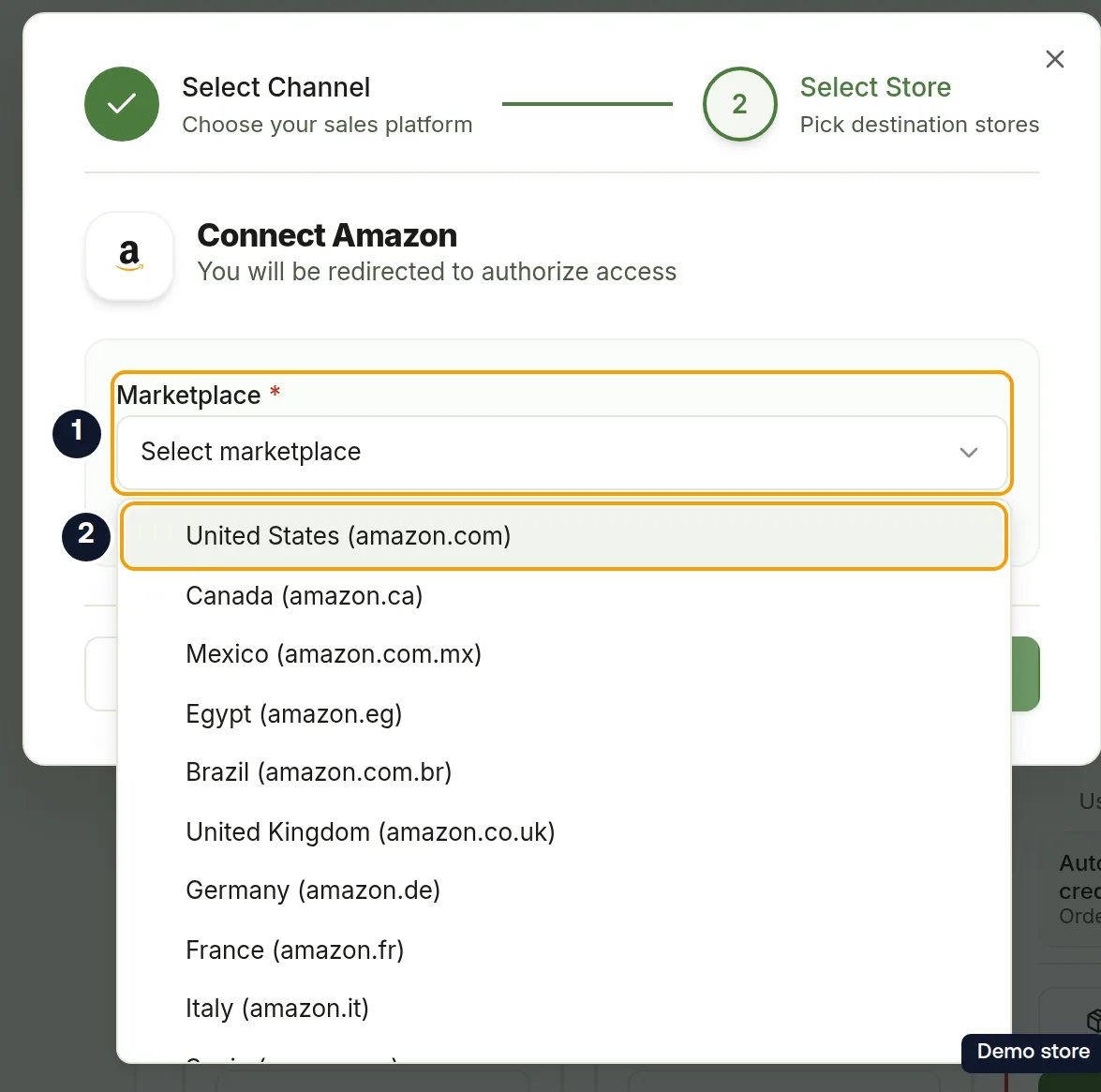
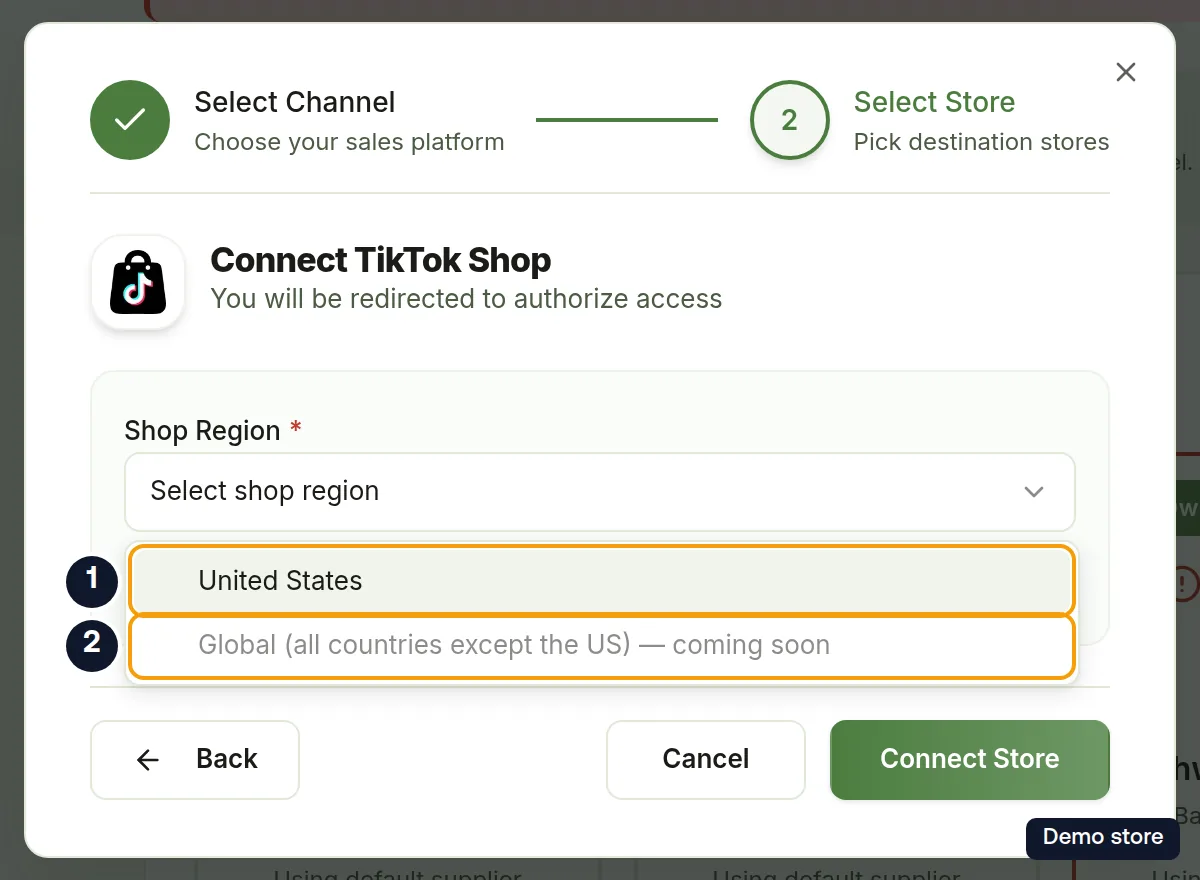
- On the Connect Amazon, Connect eBay, Connect TikTok Shop or Connect Temu step ("You will be redirected to authorize access"), fill in the one field for your channel. See "What to fill in" below.
- Click Connect Store. A toast says "Redirecting to Amazon authorization...", "Redirecting to eBay authorization...", "Redirecting to TikTok Shop authorization..." or "Redirecting to Temu authorization...", and the browser goes to the channel.
- Approve the connection on the channel's page.
- Back on DS-Mate, eBay and TikTok Shop briefly show Redirecting...; then every channel shows Connecting your store... while the connection is finished.
- A toast confirms it, for example "Successfully connected 1 Amazon store!", and you are back on Settings > Stores.
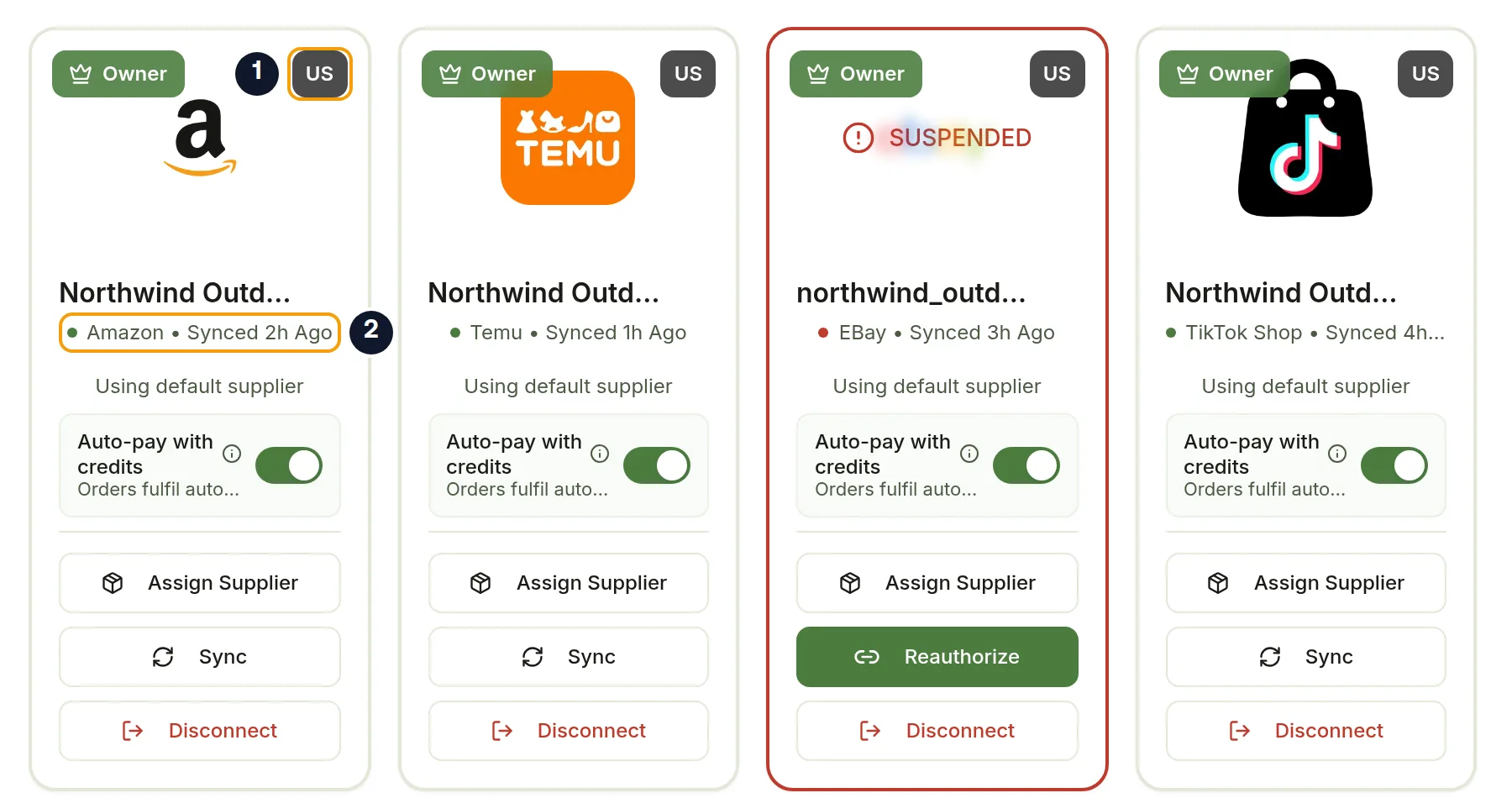
- Your new card shows the channel logo, a region badge when the store has a country, the channel name with "Connected" and the time, and Using default supplier.
What to fill in
Amazon
- Marketplace \* ("Select your Amazon marketplace region"). Pick the marketplace you sell on, for example United States (amazon.com). 23 marketplaces are listed.
eBay
- Marketplace \* ("Select your eBay marketplace region"). Pick your marketplace, for example United States (ebay.com).
TikTok Shop
- Shop Region \* ("Pick where your TikTok Shop is registered. US connects today; non-US markets are coming soon."). Choose United States. The other option is greyed out and cannot be selected.
Temu
- Shop Region \* ("Select where your Temu shop is registered. Only US shops can be connected right now."). Choose United States. The Europe and Global options are greyed out and cannot be selected.
AliExpress Seller
- The dialog also lists an AliExpress Seller tile ("Connect your AliExpress seller store"). It has no field to fill: the step reads "Click Connect to proceed with authorization." After you authorize, DS-Mate shows Connecting your AliExpress seller store... and the toast "Successfully connected 1 AliExpress seller store!". You then land on the Dashboard; open Settings > Stores to see your new store card. If it shows Connection Failed, go to Settings > Stores from the sidebar and try again.
Good to know
- AliExpress Seller is a sales channel, not a supplier account. To place orders through your own AliExpress account, see How do I connect my AliExpress account as a supplier?.
- If you decline on the channel's page, you come back to Settings > Stores with no message shown. Nothing was connected; click Connect Store to try again.
- TikTok Shop and Temu: only US shops connect today. Shops outside the US (TikTok Shop) and in Europe or Global (Temu) are refused.
- Store already connected by someone else: you only find out after authorizing. DS-Mate shows Connection Failed with "This store is already connected by another user. Please contact the store Admin/Owner on DS-Mate to invite you to this store." and a Return to Stores button. Ask that person to invite you instead.
- Store limit: the same rules as for Shopify apply. On the Growth plan, billed by DS-Mate (not through Shopify, and not a trial started without a card), Connect Store opens the Extra store dialog: it shows the prorated amount charged today, then the slot's price per billing cycle ($5 a month, or $60 a year on yearly billing). During a trial it instead warns that buying the slot ends your trial today and your plan's own price starts being charged now. After the toast "Extra store added", the Choose Your Store dialog opens on its own. Everyone else at the limit, including a trial started without a card, sees Connect Store disabled, with the tooltip "You have reached the maximum number of stores you can connect".
On the Shopify app
The Shopify app has no connect dialog for other channels. Use the web dashboard to connect Amazon, eBay, TikTok Shop or Temu.
Related Articles
Still have questions?
Our support team is ready to help. Reach out and we'll get back to you as soon as possible.