What do the statuses on my orders list mean, and how do I find the orders that need me?
10 min readOrders in the sidebar > the orders list (web dashboard)
Steps
Pick the store and the period
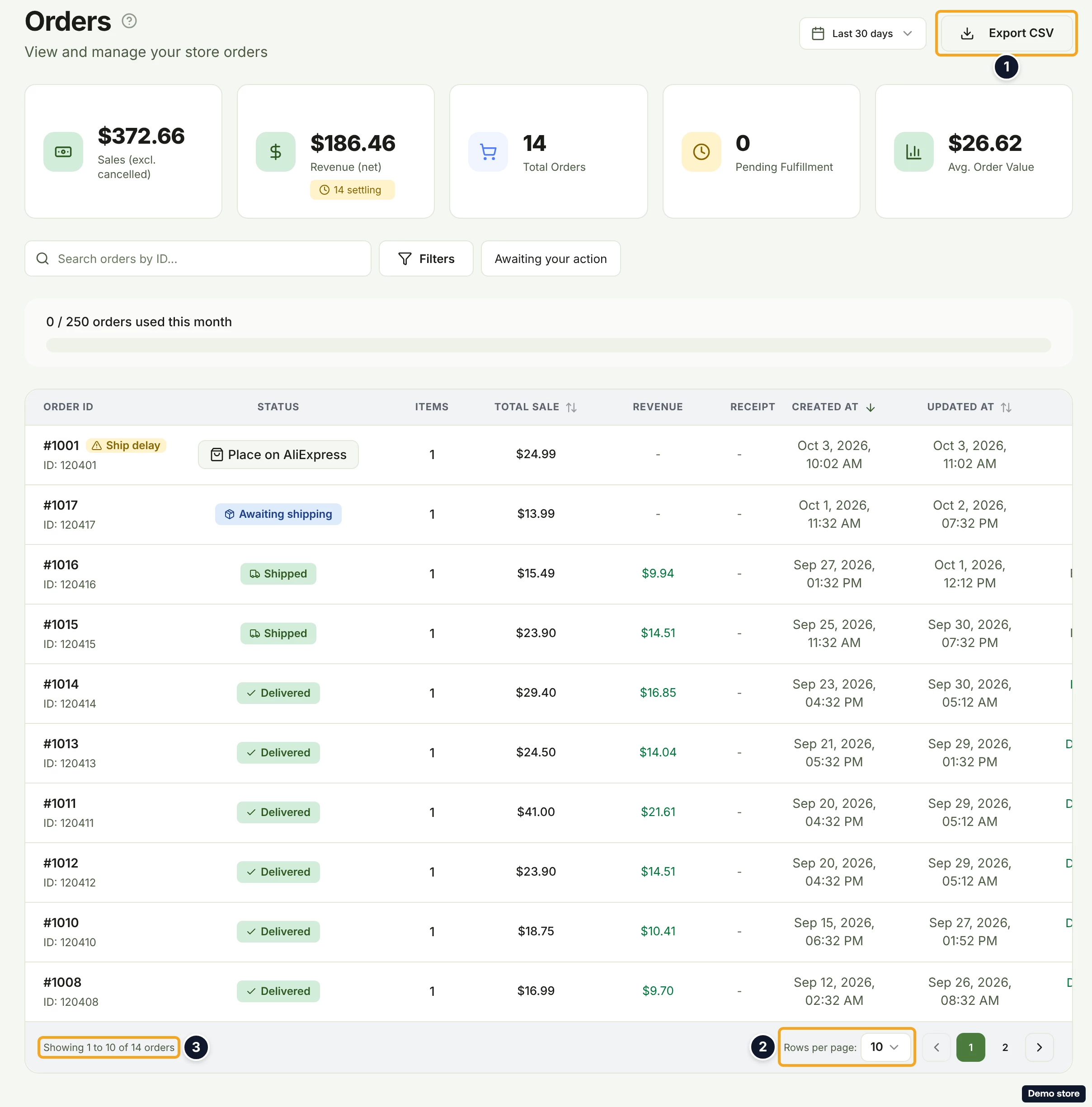
- Click Orders in the sidebar. The page is headed Orders with "View and manage your store orders".
- Pick the store in the top-bar store picker. The list is per store. With no store picked, the page reads "No Store Selected" and "Please select a store from the header to view and manage your orders."
- Pick the period in the period selector: All time, Last 7 days, Last 30 days (the default) or Last 90 days.
- Read the summary cards: Sales (excl. cancelled), Revenue (net) (with a pill reading "<n> settling" or "All settled"), Total Orders, Pending Fulfillment and Avg. Order Value. The cards follow the period and ignore the search box and the other filters.
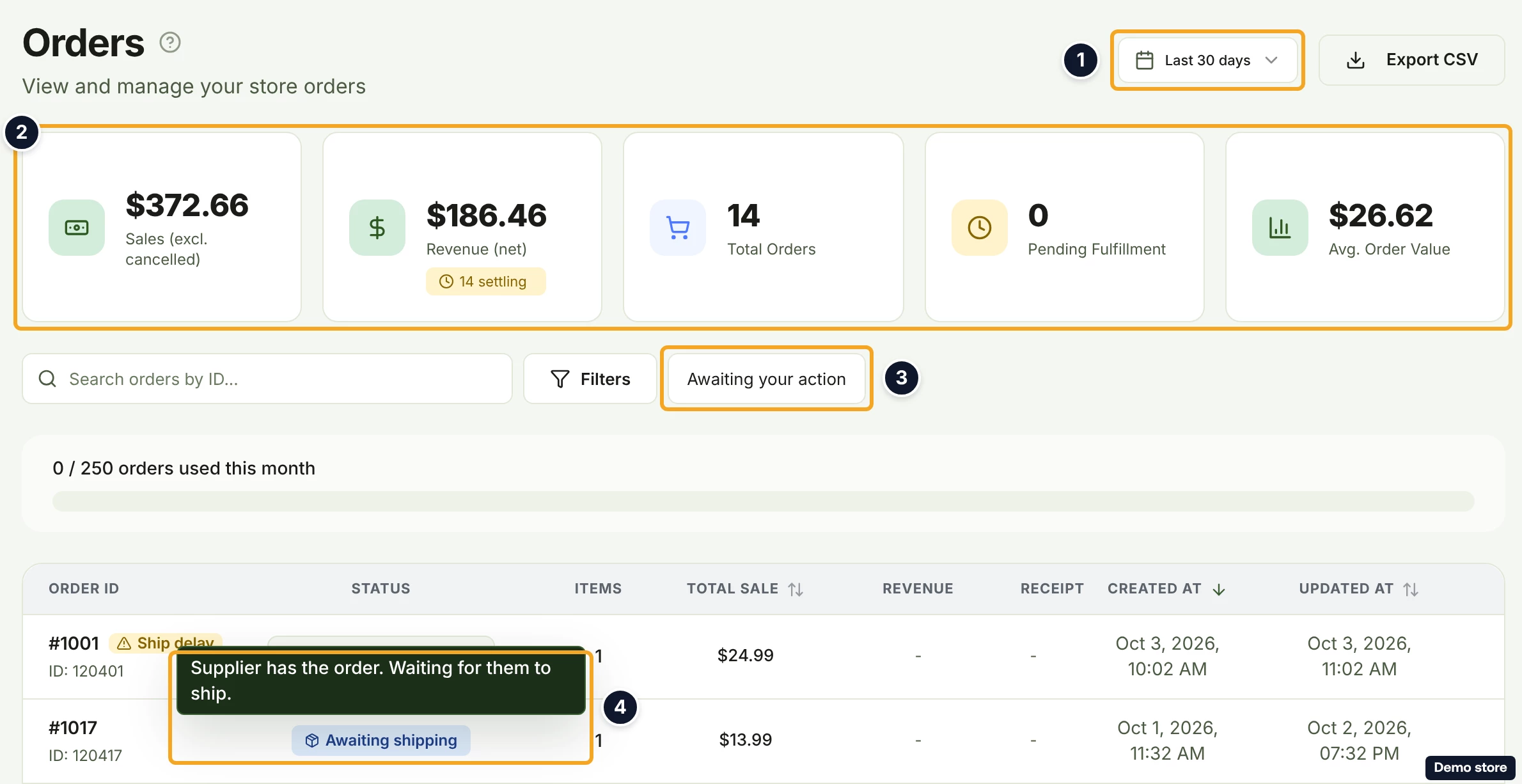
- When your plan has a monthly order cap, the meter reads "<used> / <limit> orders used this month". At the cap it shows your plan's sentence (on Free: "You've used your monthly order allowance. Upgrade to keep going.") and, on Free and Starter, the button Upgrade to <next plan>. Growth shows no button: its sentence says orders past the allowance are charged your plan's per order rate.
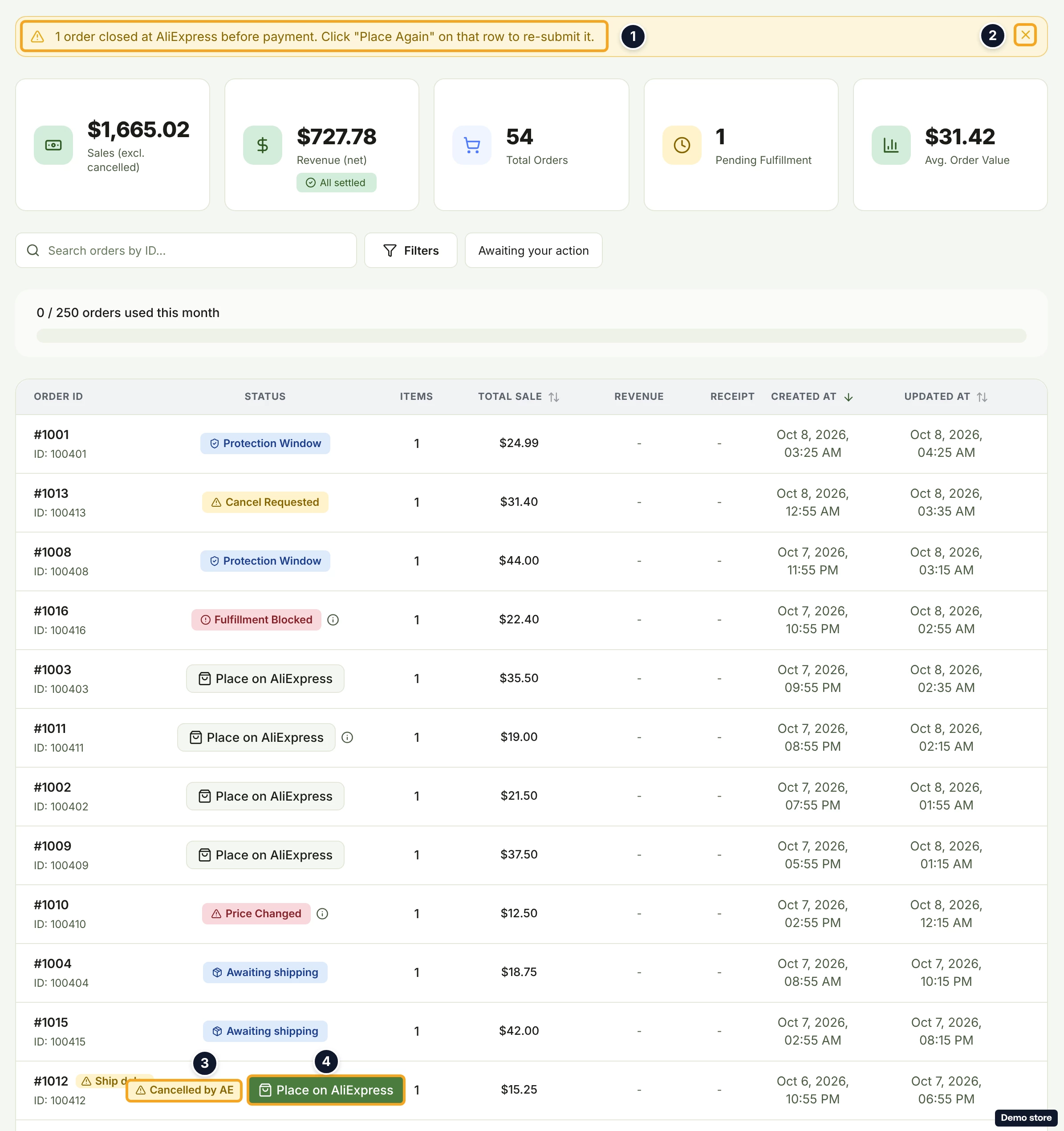
- When they apply, banners show above the cards: a supplier re-authorization banner with Re-authorize, and after an AliExpress closure "1 order closed at AliExpress before payment. Click "Place Again" on that row to re-submit it." (the row's button reads Place on AliExpress or Pay with card; with a plural form; it counts only the closed orders on this page), which the X (Dismiss) closes for this visit; the banner comes back when you reload the page.
Find the orders that need you
- Click the pill Awaiting your action. The list narrows to the orders waiting on you. With the search box empty and no filter on, Pending Fulfillment counts the same orders as this pill.
- To search, type in Search orders by ID.... It matches the store order id, the order name and supplier order ids. It does not match tracking numbers.
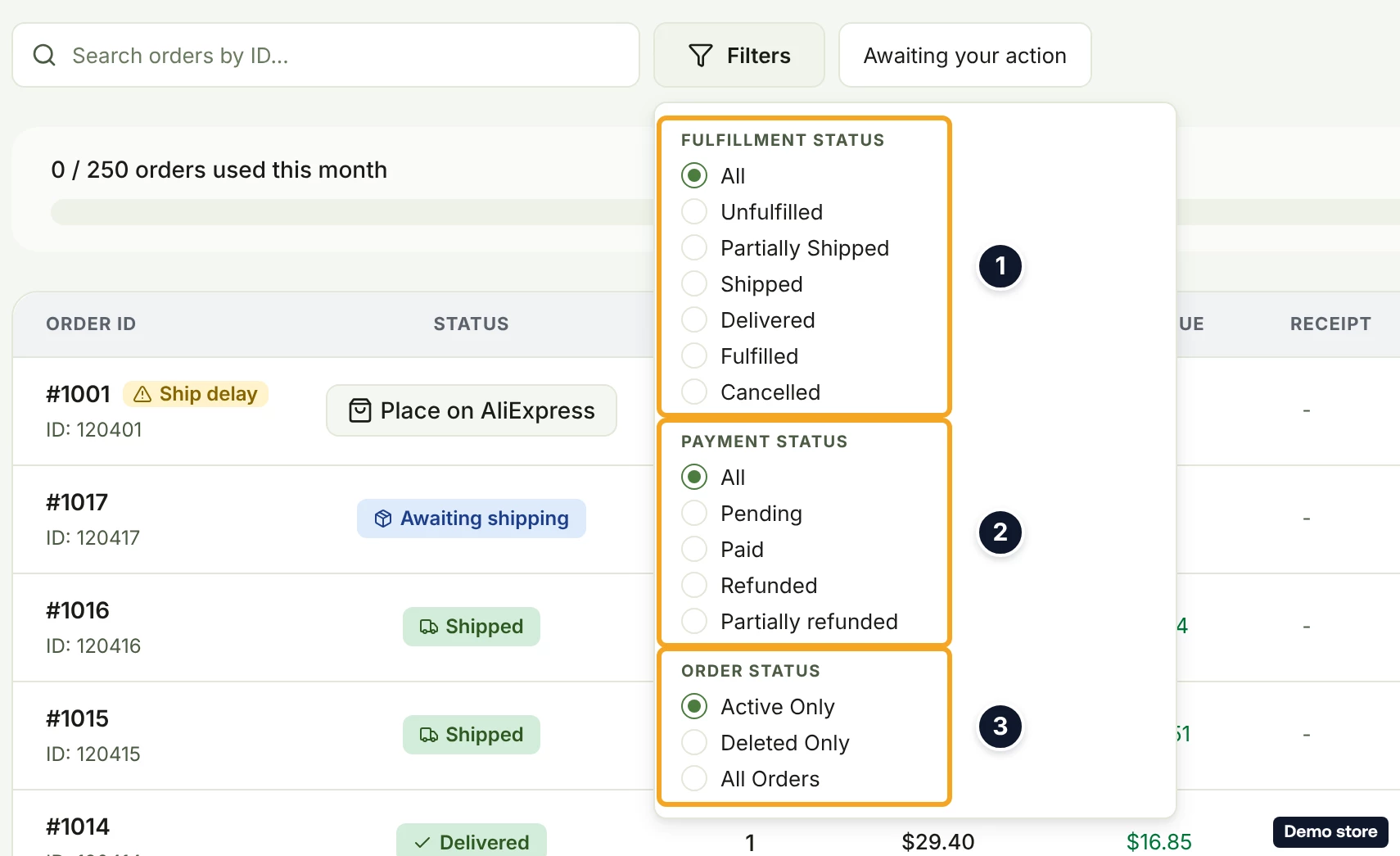
- To filter, click Filters.
- Pick from Fulfillment Status (All, Unfulfilled, Partially Shipped, Shipped, Delivered, Fulfilled, Cancelled), Payment Status (All, Pending, Paid, Refunded, Partially refunded) and Order Status (Active Only, the default, Deleted Only or All Orders). Clear all filters appears once a filter is on and resets them.
Read a row
- Read the columns: Order ID (the order name, then "ID: <id>"), Status, Items, Total Sale, Revenue ("-" until revenue exists), Receipt (an external-link icon, or "-"), Created At, Updated At and Delivery (a date with a "Delivered", "Est." or "Supplier delivered" prefix). Total Sale, Created At and Updated At sort when you click them.
- Under Order ID, the badges Deleted, Replacement, Has Replacement, FBA (tooltip "Fulfilled by Amazon. Amazon ships this order from its own warehouse."), Ship delay (tooltip "Hasn't started shipping in 30+ hours. Store owner and guests have been notified by email.") and Cancelled · shipping show when they apply.
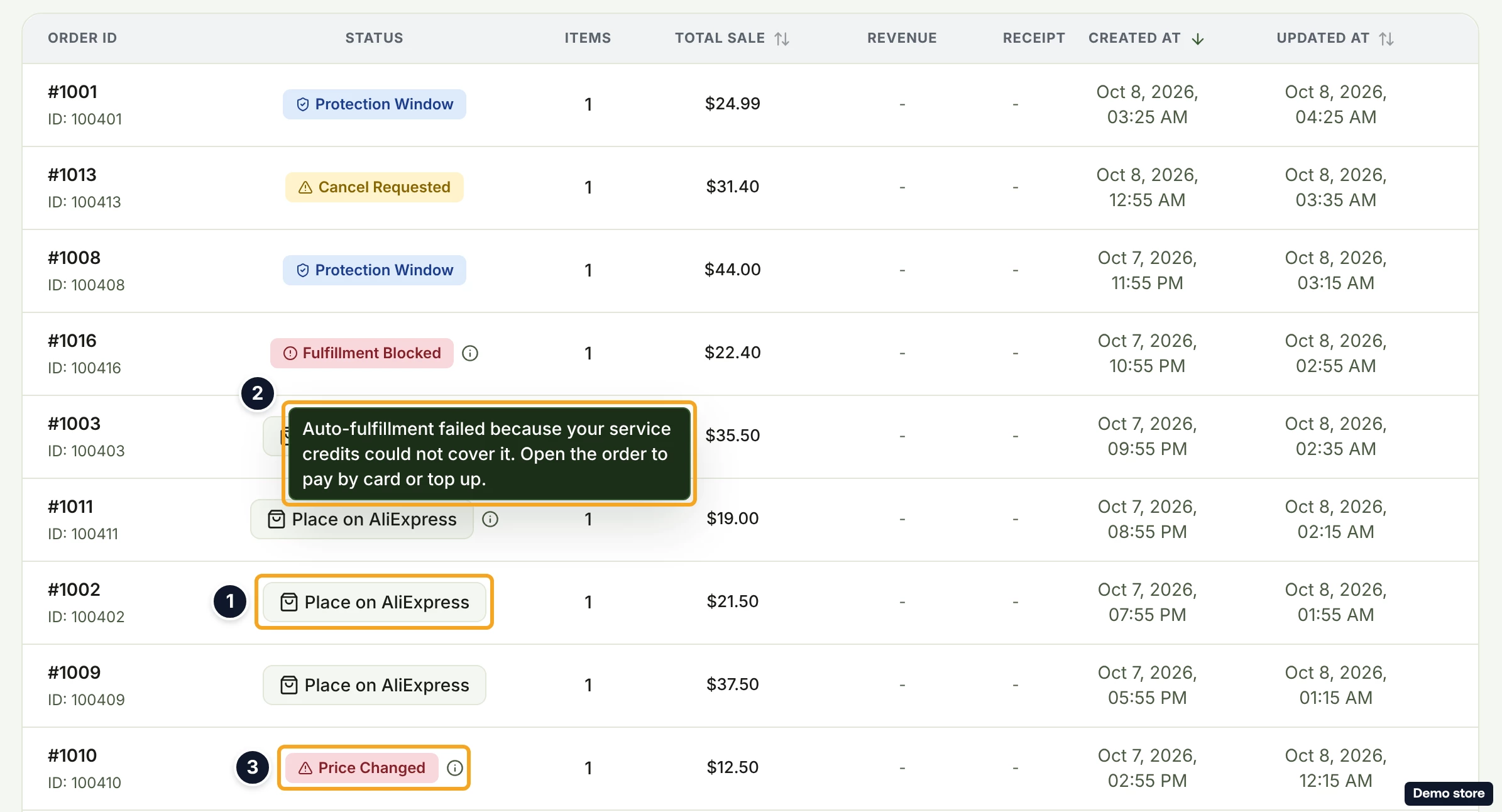
- In Status, read the badge and hover it for its tooltip (the table under Good to know lists them). A badge for a hold has an info icon beside it instead; hover the icon for its message, and open the order for the details. An order that is ready for you shows no badge: a button takes its place, with an info icon when there is a reason, for example "Auto-fulfillment failed because your service credits could not cover it. Open the order to pay by card or top up." or "Credit-based auto-fulfillment is not available on your current plan."
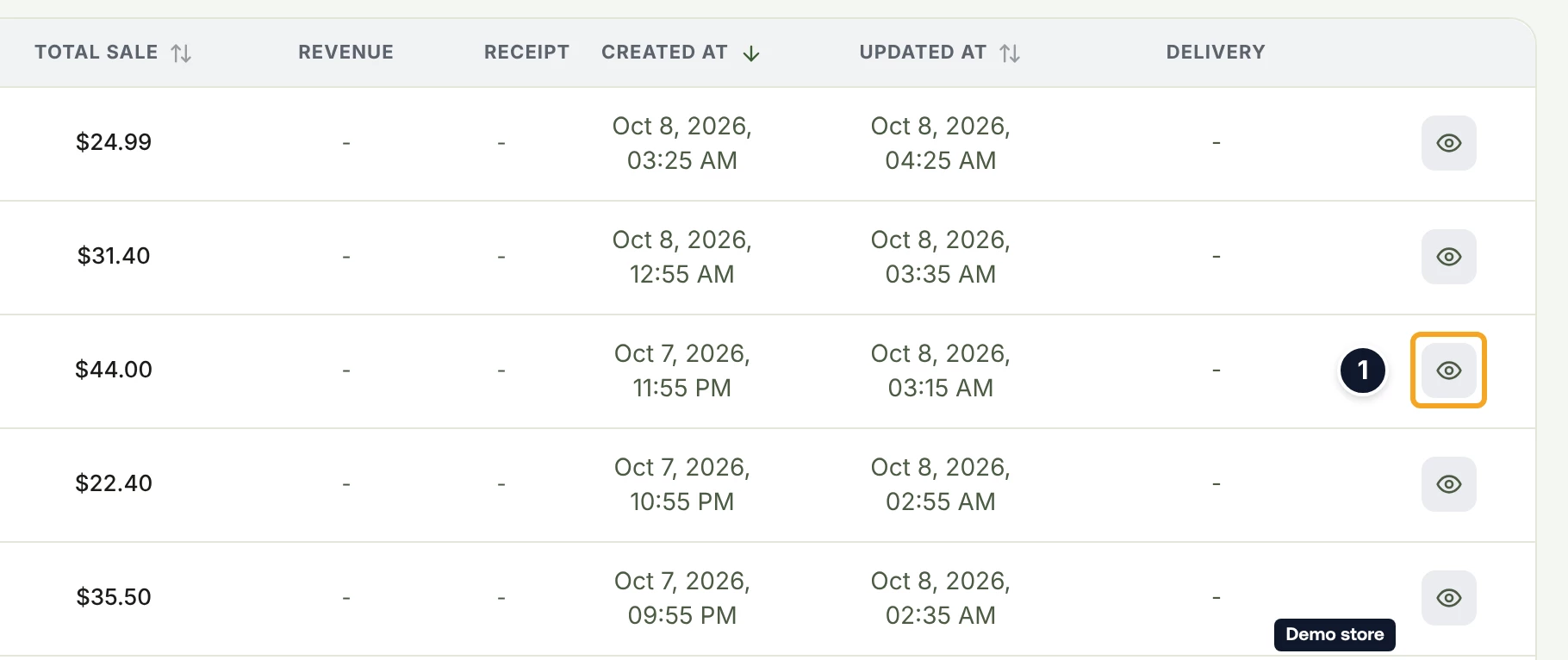
- To open an order, click the eye icon View details at the end of the row; scroll the table sideways if the eye icon is past the right edge. The badge in the order page's header is the same as the one on the list, except that a ready order's header reads Ready to Fulfill where the list shows a button.
- To see more rows, use Rows per page: (10, 25 or 50). The footer reads "Showing <from> to <to> of <n> orders". With nothing to show, the table reads "No orders found"; if the list fails to load, it reads "Could not load your orders." with Try again.
- To export, click Export CSV. It downloads `orders-export-YYYY-MM-DD.csv` with one row per item, and the toast "Exported <n> orders to CSV" counts the orders on the page. The button is disabled while the page is empty.
Good to know
- Orders are per store: switch store in the top bar to see another store's orders.
- A ready order shows a button, not a Ready to Fulfill badge. On a store with a usable AliExpress or Alibaba account of your own, a ready order shows Place on AliExpress or Place on Alibaba (see the own-account question); otherwise it shows Pay with card (see the pay-the-supplier question).
- Export CSV exports only the page you are looking at, not the whole filtered list; the toast counts the orders on the page, not the rows written. Raise Rows per page: before exporting, or export page by page.
- The period selector and the summary cards count from when DS-Mate stored the order, not from the Created At date shown in the row, so an order can sit outside the period its date suggests.
- With no search and no filter on, Pending Fulfillment counts the orders Awaiting your action shows: the orders ready for you and the holds you can fix (Price Changed, Invalid Address, Needs attention and others). An order on Awaiting AE Payment is not among them: pay it on AliExpress.
- A refunded order whose channel status is cancelled shows Cancelled, not Refunded: the cancelled rule runs first.
- The list refreshes itself every few seconds only while an order is on Checking order…, being re-checked or being placed. Nothing in the notification bell comes from reading the list.
The badges, one line each:
- Protection Window: The buyer can still cancel; the order waits until its window ends (see the Protection Window question).
- Checking order…: "We're checking this order before you pay. This updates automatically."
- Re-checking: "We're re-checking this order. This updates automatically."
- Awaiting Payment from <Channel>: "Waiting for customer payment from <Channel>".
- Unfulfilled: DS-Mate has not started on this order yet.
- Awaiting your action: "A supplier order requires your action before it can proceed."
- Payment Processing: "Payment received. Order is being queued for fulfillment."
- Placing your order: "Checks passed. We're paying the supplier and placing this order now."
- Queued for processing: "Sending your order to the supplier."
- Awaiting shipping: "Supplier has the order. Waiting for them to ship."
- In transit: "Supplier shipped. Waiting for carrier tracking confirmation."
- Shipped: Shipped on the channel, or by the supplier ("Shipped by supplier, awaiting channel update."). See the tracking question.
- Partially Shipped: "Some items have been shipped".
- Delivered: Delivered on the channel or by the supplier.
- Awaiting AE Payment: The order is on your own AliExpress account and waits for your payment there; the badge links to it. Alibaba reads Payment pending. See the own-account question.
- Cancelled by AE / Expired at AE: AliExpress closed the order (Expired at AE: its payment window ran out). The button next to the badge places it again. While AliExpress is still cancelling it, the tooltip reads "AliExpress is cancelling this order. Nothing to do until it finishes." and there is no button. See the supplier-cancels question.
- Cancel Requested: The buyer asked to cancel; the tooltip is the buyer's reason, or "Buyer has requested cancellation of this order." See the eBay cancellation question.
- Cancelled: Cancelled on the channel. While a parcel is already moving: "Cancelled on the sales channel, but the supplier parcel is already shipping."
- Refunded / Partially refunded: Refunded on the channel; partial reads "Part of this order was refunded on <Channel>."
- Supplier refunded: While support still owes your refund: "The supplier refunded this order. Only the item cost is refunded: shipping, taxes and fees, the DS-Mate processing fee and the payment processing fee are not refunded. Contact us if you haven't received your refund yet." When the item cost already went back to your service credits: "The supplier refunded this order. We returned the item cost, <amount>, to your service credits. Only the item cost is refunded: shipping, taxes and fees, the DS-Mate processing fee and the payment processing fee are not refunded."
- Returned: The order was returned (see "How do I request a return for an order item, and track it?").
- Address needed / Awaiting address: The shipping address is missing. See the missing-address question.
- Needs attention: Something on the order must be fixed before it can be fulfilled, for example an item with no supplier link. Open the order to see what. See the unlinked-item question.
- Price Changed: The supplier's price changed after the order was checked. Open the order to review the new price and pay. See the price-changed question.
- Invalid Address, Unsupported Region, Out of Stock, Failed: Held for that reason. See the missing-address question and the backup-supplier question.
- Fulfillment Blocked: Held; the info icon carries the error message when there is one (with no stored message there is no icon), and there is no button.
- Any other label: The channel's own status, shown as it came, with underscores shown as spaces.
The row buttons, one line each. Most take the badge's place; Mark as Paid and Pay on AE sit beside the Awaiting AE Payment badge, and, on a store without a usable account of your own, Pay with card sits beside a Price Changed badge:
- Pay with card: The order is ready, or sits at Price Changed, and DS-Mate pays the supplier for you (see the pay-the-supplier question).
- Resume Payment: A card payment session is already open for this order.
- Payment in progress (disabled): A teammate holds the payment session.
- Processing...: A card payment is being started.
- Place on AliExpress / Place on Alibaba: The order is ready and will be placed on your own supplier account (see the own-account question).
- Placing...: That placement is running.
- Mark as Paid: The order sits at Awaiting AE Payment; it re-checks AliExpress for your payment.
- Pay on AE: The order sits at Awaiting AE Payment with no AliExpress order id to link to yet.
On the Shopify app
The Shopify app's Orders page uses the same filters, labels, summary cards, quota meter and CSV export. The header shows a "<n> total orders" counter, and Awaiting your action is a header button, not a pill. There is no supplier re-authorization banner and no AliExpress closure banner. The rows carry no FBA, Ship delay or Cancelled · shipping badge and no Delivery column, and the link to the order reads View Details as text. The row button is always Pay with card or Resume Payment; there is no Place on AliExpress (see the own-account question). After a card payment, the app returns you to the list with one of the toasts "Payment successful! Your order is being processed.", "Payment received. Your order will be processed shortly." or "Payment was cancelled."
Related Articles
- The Protection Window on new orders
- Pay the supplier with your card or service credits
- Place the order on your own AliExpress account
- Fix an order held for its shipping address
- Fix an item not linked to a supplier
- Pay an order held for a price change
- When auto-fulfillment stops on an order
- When the supplier cancels an order
- Approve or reject an eBay buyer cancellation
- Track a shipment and its tracking number
- Find the receipt for an order payment
- Add a backup supplier and a Max Supplier Price
Still have questions?
Our support team is ready to help. Reach out and we'll get back to you as soon as possible.