Back to Help Center
Help CenterAccount & Security
How do I change my DS-Mate password?
2 min readSettings > Security (web dashboard)
Change it from Settings > Security on the web dashboard. It works on any plan, for owners and guests, and you need your current password. As soon as the change goes through, DS-Mate signs you out on every device and you sign in again with the new password.
Steps
- Open Settings from the sidebar or from the account menu, then open Security.
- Find the Security Settings card, "Manage your account security and authentication".
- In Current Password, type the password you use today.
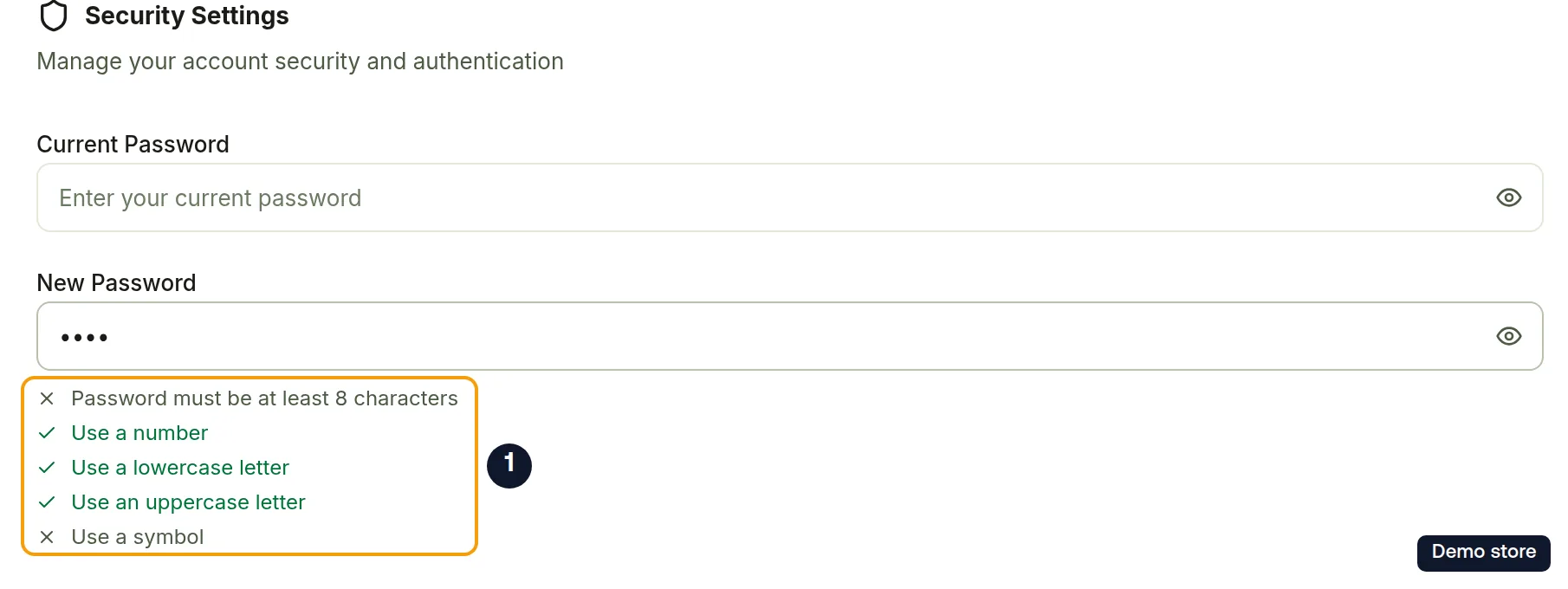
- In New Password, type the new one. A checklist updates as you type: "Password must be at least 8 characters", "Use a number", "Use a lowercase letter", "Use an uppercase letter", "Use a symbol".
- In Confirm New Password, type the new password again.
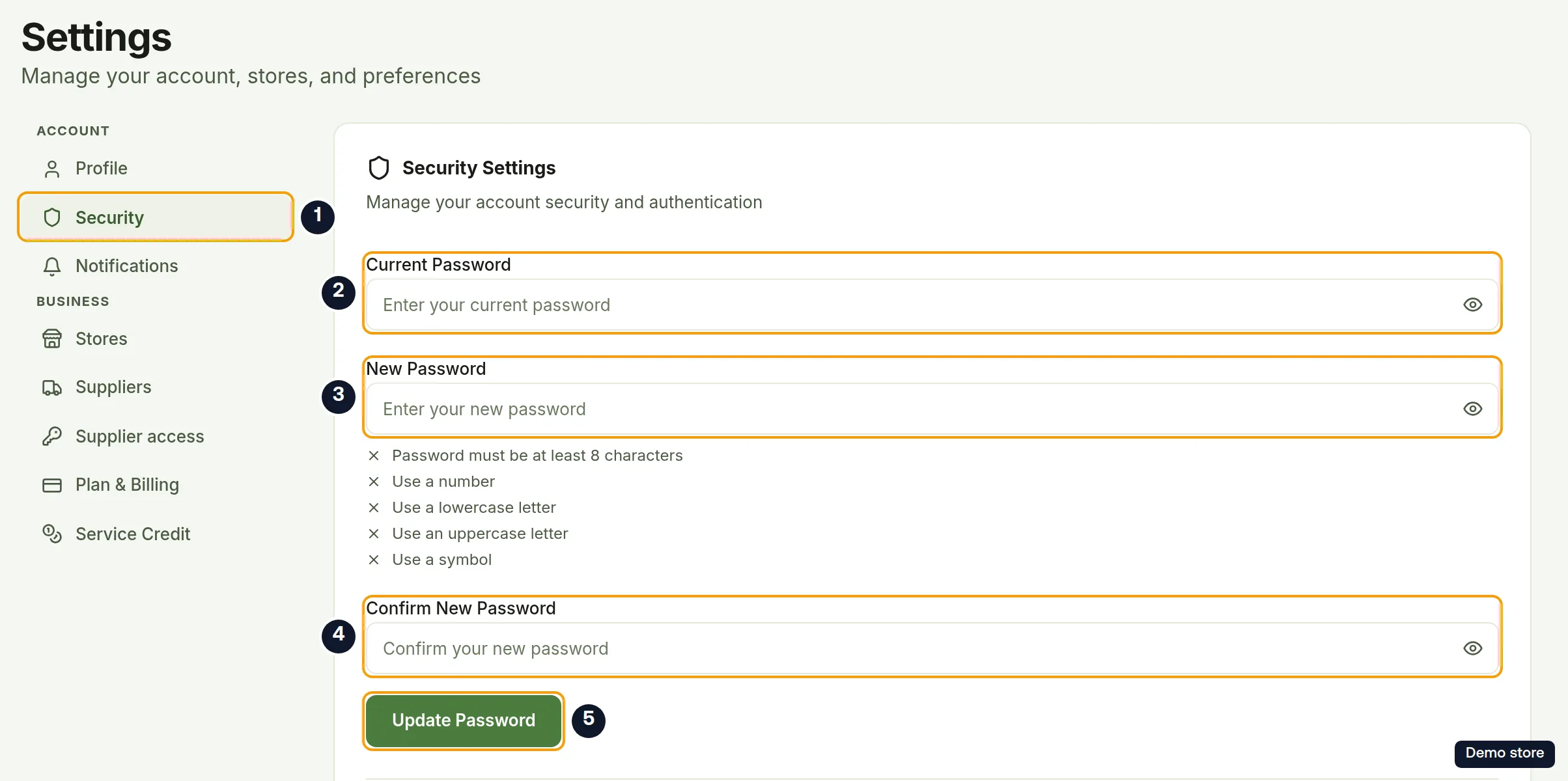
- Click Update Password. The button reads Updating Password... while it works.
- You see the message "Password updated. Signing you out for security…". About a second later you are signed out and taken to the DS-Mate home page.
- Sign in again with the new password.
Good to know
- The change signs you out everywhere, on every device, not just the one you used. You land on the public home page, not the sign-in page, so head to sign-in from there.
- The new password must be different from the current one. If it is the same you see "New password must be different from current password".
- If the current password is wrong you see "Current password is incorrect. Please try again." If the two new entries differ you see "Passwords do not match".
On the Shopify app
The Shopify app has no password screen. Change your password on the web dashboard.
Still have questions?
Our support team is ready to help. Reach out and we'll get back to you as soon as possible.