Back to Help Center
Help CenterTeam & Guests
How do I invite a VA or guest to my store?
3 min readSettings > Stores (web dashboard)
Invite them from Settings > Stores on the web dashboard. You must own the store, your plan must have a free guest seat (Free has 0, Starter has 1, Growth has 5), and the person must already have a DS-Mate account under the exact email you type. DS-Mate does not email them: the invitation shows up in their own Settings > Stores, and they have 7 days to accept it.
Steps
- Open Settings, then the Stores tab under Business.
- In Connected Stores, click Invite Guest.

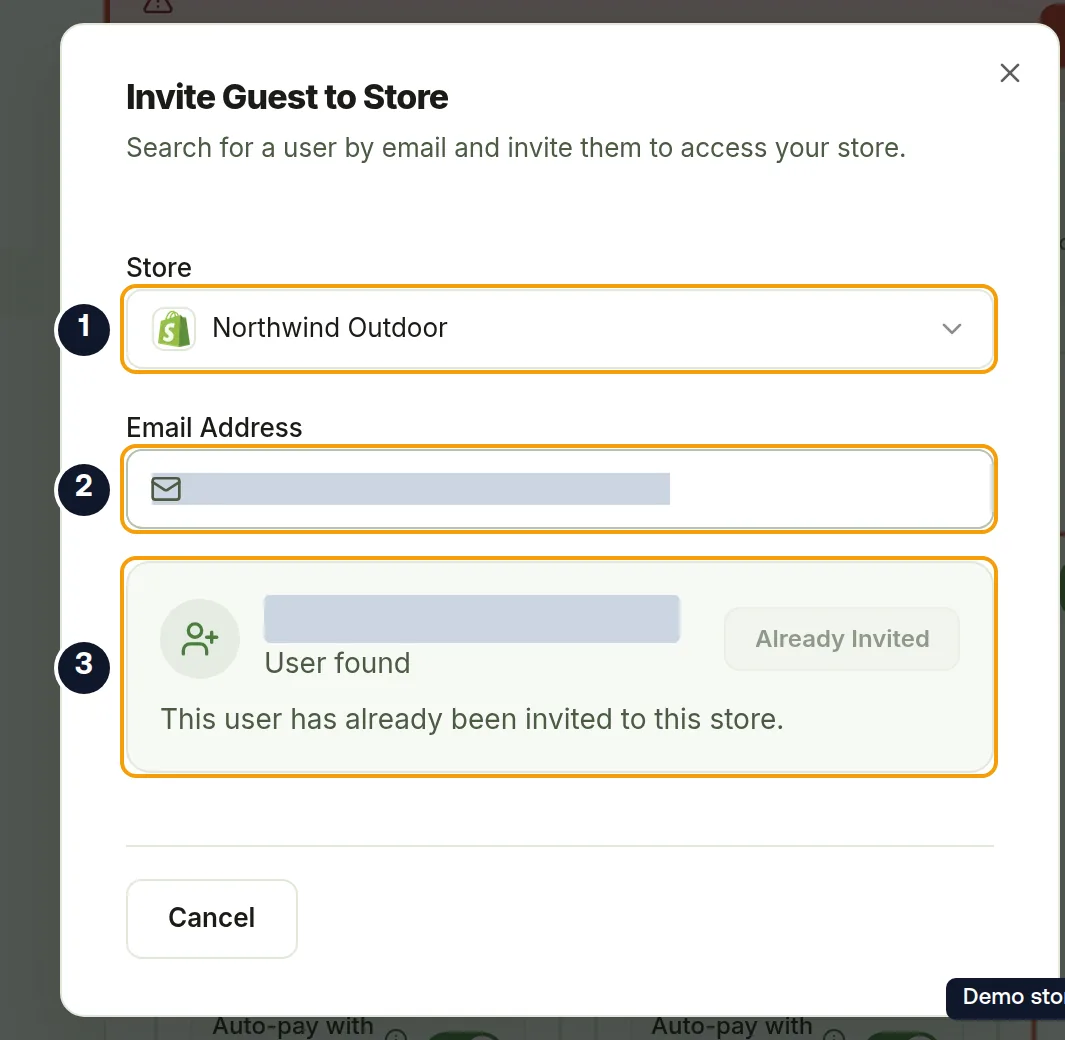
- The dialog Invite Guest to Store opens: "Search for a user by email and invite them to access your store."
- Under Store, open Select a store and pick the store to share. Only stores you own are listed.
- Under Email Address, type the person's email. The field stays disabled until you pick a store, and shows Searching... while DS-Mate looks the account up.
- A card shows the email with User found.
- Click Invite. The button reads Sending... while it works.
- You see "Invitation sent successfully" and the dialog closes. Cancel closes it without inviting.
- The invitation now appears under Store Invitations > Invitations Sent, grouped by store, with the email, a Pending badge, the Sent date and a Cancel action.
Good to know
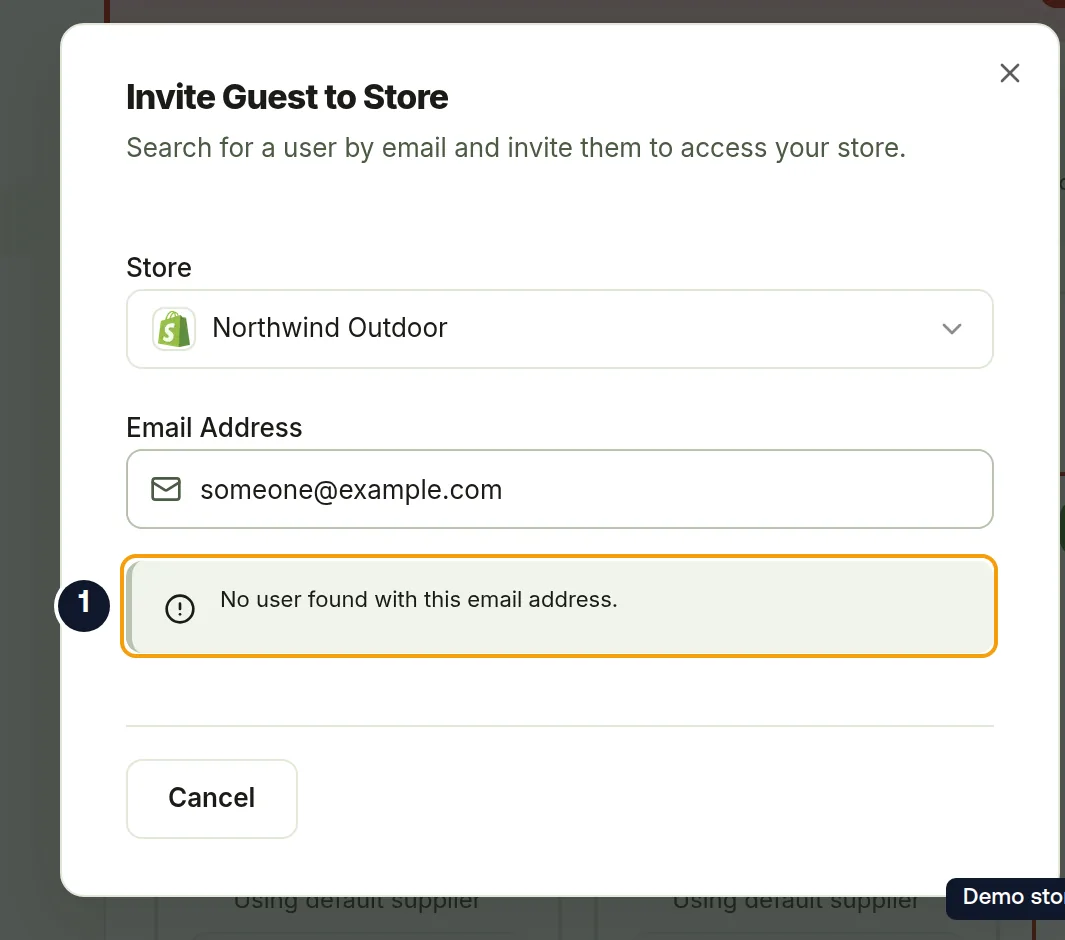
- If the email has no DS-Mate account you see "No user found with this email address." Ask the person to create an account with that email first, then invite them.
- One invitation covers one store and takes one seat the moment you send it. A VA on two stores uses two seats. Pending and rejected invitations keep their seat; cancelling an invitation or removing a guest frees it.
- On the Free plan, on Starter with its seat already used, or on Growth with all seats used when your plan is billed through Shopify or you are on a trial without a card, Invite Guest is disabled with the tooltip "You need to upgrade your plan to invite guests to your stores". If DS-Mate still refuses, you see "You have reached the maximum number of guests you can invite. Please upgrade your plan."
- On Growth, paid by card on the web dashboard, with all your seats used, clicking Invite Guest opens an Extra seat dialog, "You have reached your plan's limit.", with Cancel and Confirm. Confirming adds a paid seat, shows "Extra seat added" and opens Invite Guest to Store so you can send the invitation.
- During a trial you can invite guests up to the seat limit of the plan you are trying. On a Growth trial paid by card with all 5 seats used, the Extra seat dialog explains that buying an extra seat ends your trial today and starts your plan's own charge; Confirm does both.
- If the person is already invited to that store, the button reads Already Invited and the dialog says "This user has already been invited to this store."
On the Shopify app
You cannot invite from the Shopify app. A person opening the Shopify app on a store you connected, with no invitation waiting for them, is told "Ask the store owner to invite you from their DS-Mate store settings." Once you have invited them, they can accept there as well as on the web dashboard; see How do I accept an invitation to a store?.
Related Articles
Still have questions?
Our support team is ready to help. Reach out and we'll get back to you as soon as possible.