Back to Help Center
Help CenterProducts & Import
How do I save an import as a draft and finish it later?
4 min readthe import page to save; Products, Import Drafts view, to find, continue or delete
Click Save as Draft on the import page, and DS-Mate keeps your title, description, prices, images, variants and some channel fields until you come back. Your drafts are listed on Products under the Import Drafts view, for the store selected in the top bar, and a draft is removed on its own once you import it. A few choices are not kept in a draft, so check the list under "Good to know" before you rely on one.
Steps
Save a draft
- On the import page (heading Import Product), fill in at least the product title. It needs 3 characters or more.
- Click Save as Draft. It reads Saving... while working. The button is available at any time except while an import or a save is running.
- The toast "Draft saved successfully" confirms it, and you are taken to Products with the Import Drafts view open.
- If the title is too short, the toast "Enter a product title (at least 3 characters) to save a draft" appears instead. Any other failure shows its reason, or "Failed to save draft".
Find, continue or delete a draft
- Click Products in the sidebar. The heading reads Products ("Manage your connected stores and product inventory").
- Pick the store in the top-bar store picker. Without a store the page shows "No Store Selected" ("Please select a store from the header to view and manage your products.").
- Open the view selector at the right of the header. It reads Store Products.
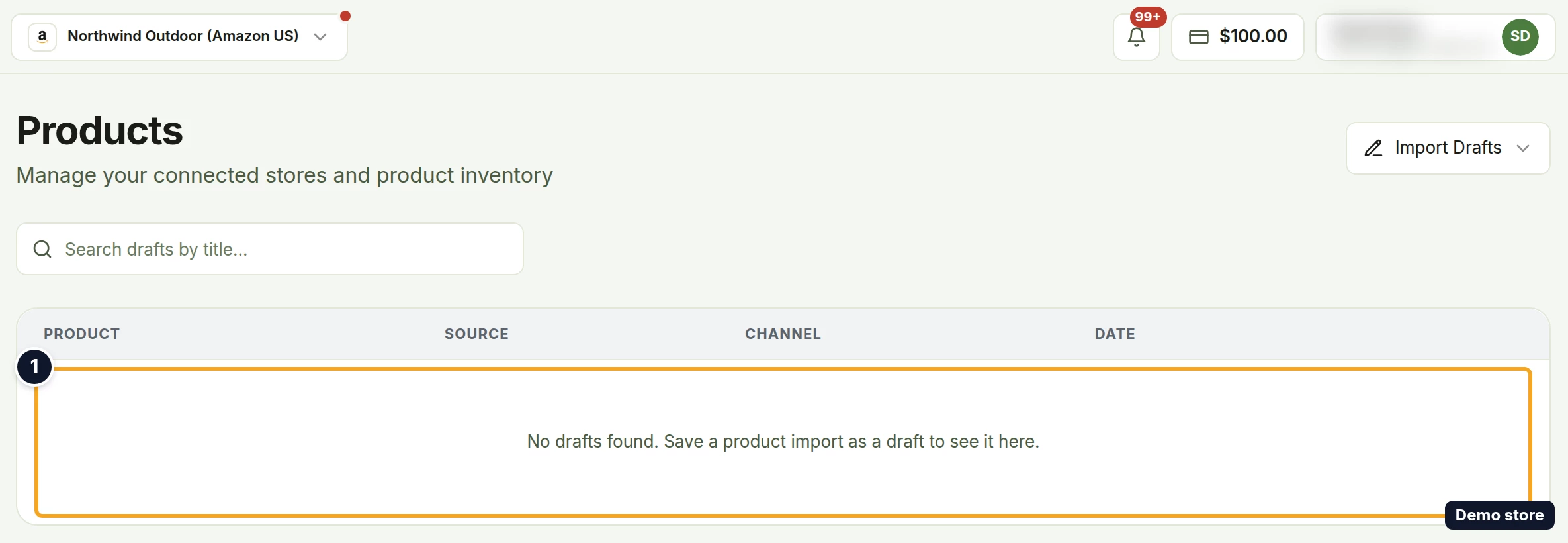
- Pick Import Drafts. The drafts that target this store are listed, one per row. If no draft targets this store, the view reads "No drafts found. Save a product import as a draft to see it here."
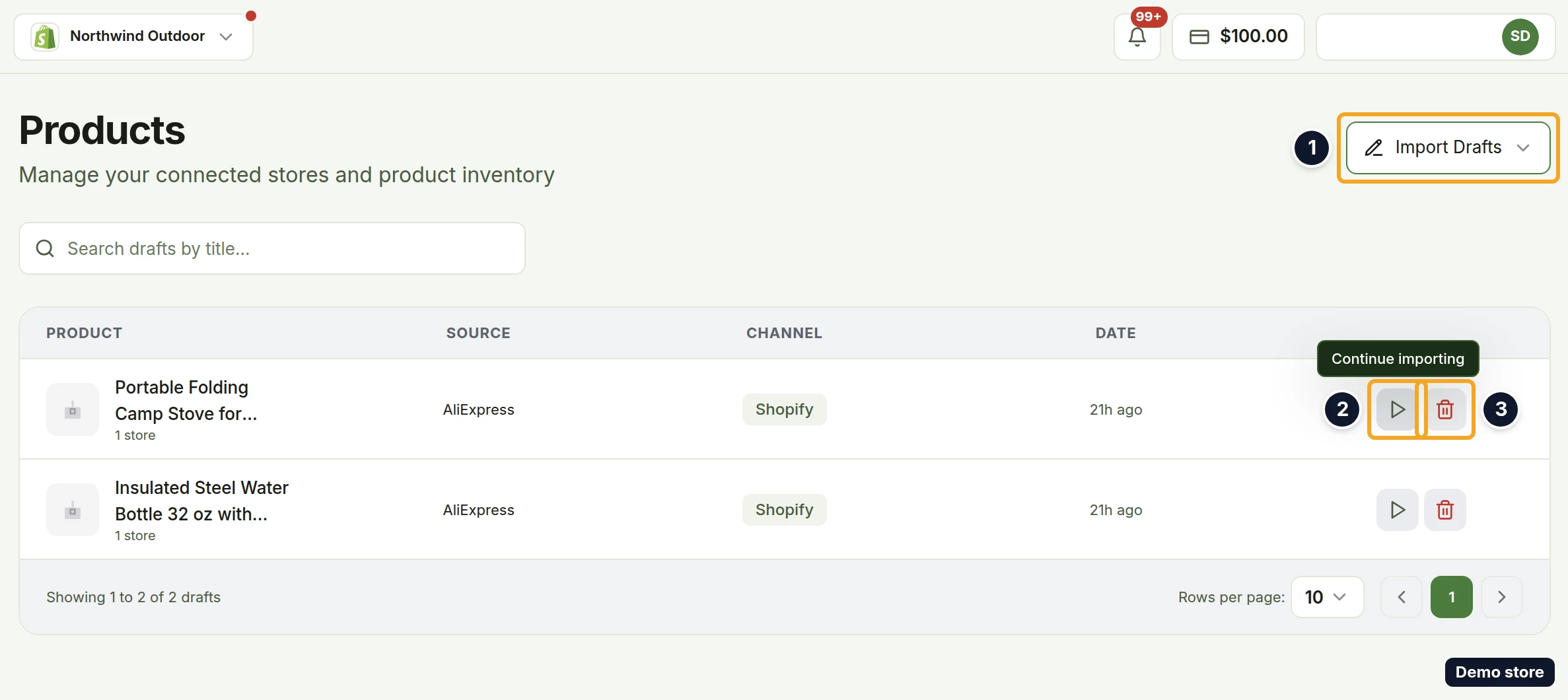
- To narrow the list, type in Search drafts by title.... This view has no Filters button.
- To continue a draft, click the row's play icon. Its tooltip reads Continue importing. The import page opens with your saved values applied. If the supplier's listing has since been removed, a warning tells you that this supplier product is no longer available; the draft still loads.
- Check that the store shown in the page header is the store you want to import to.
- Make again the choices a draft does not keep: the auto-link variants choice, the shipping origin, and where your channel has them, the eBay postage policy, the AliExpress freight template and required attributes, and the TikTok certificates.
- Click Import Product. On success the draft is removed on its own.
- To delete a draft instead, click the row's red bin icon. Its tooltip reads Delete draft.
- The Delete draft? dialog opens ("This will permanently delete the draft" followed by the draft's title in quotes, then "This action cannot be undone.").
- Click Delete. It reads Deleting... while working; Cancel keeps the draft.
- The toast "Draft deleted successfully" confirms it. On failure the toast shows the reason, or "Failed to delete draft".
Good to know
- A draft keeps: title, description, price, markup, publish status, images, variants (price, sale and compare-at price, markup, stock, SKU, image and options), vendor, product type, tags, category, collections, metafields, the Amazon product type and attributes, eBay free shipping and per-buyer limit, and handling time.
- A draft does not keep: the auto-link variants choice, the shipping origin, the eBay postage policy, the AliExpress freight template and required attributes, TikTok certificates, and any other channel field not in the list above. Make those choices again when you continue.
- Each draft row shows Product (thumbnail, title and how many stores the draft targets), Source (the supplier, for example AliExpress), Channel and Date (when the draft was first created, as a relative time; hover it for the full date).
- Drafts are per store. If a draft is missing, check the store in the top bar first.
- One draft per product and channel: saving the same product again for the same channel updates the one draft. If you pick a different store the second time, the draft moves to that store. The Date column keeps the date the draft was first created.
- Drafts are yours: a guest and the store's owner never see each other's drafts.
- A draft is not on your store, and it does not count toward your plan's imported-products limit. Only a completed import counts.
- Drafts are available on every plan.
- If the list cannot load, the view shows the same "No drafts found" text, so an empty list does not always mean your drafts are gone.
- Delete cannot be undone.
On the Shopify app
The Shopify app has the same Save as Draft button and the same Import Drafts view, for the app's shop only. The toast "Draft deleted successfully" is the same.
Related Articles
Still have questions?
Our support team is ready to help. Reach out and we'll get back to you as soon as possible.