Back to Help Center
Help CenterProducts & Import
How do I check whether Amazon accepted my product, and fix a failed import?
7 min readProducts, Import Requests view (web dashboard), with an Amazon store selected in the top bar
Open Products, pick your Amazon store, and switch the view to Import Requests: every import you started to that store is a row whose status tells you where Amazon stands. Check status asks Amazon for its latest answer, View details shows Amazon's errors with a recommendation for each, and Retry import starts a fresh import so you can fix the fields. This view exists for Amazon stores only.
Steps
Check the status
- Click Products in the sidebar.
- Pick your Amazon store in the top-bar store picker. With any other store selected, the view selector does not offer Import Requests, and opening the view by its address sends you back to Store Products.
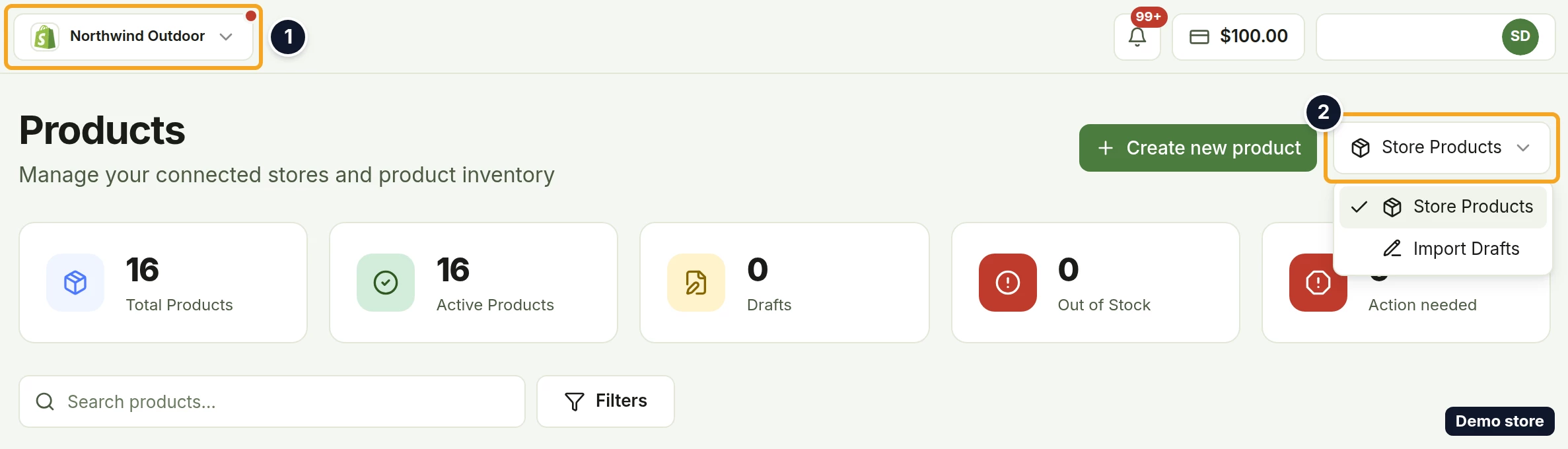
- Open the view selector at the right of the header. It reads Store Products.
- Pick Import Requests.
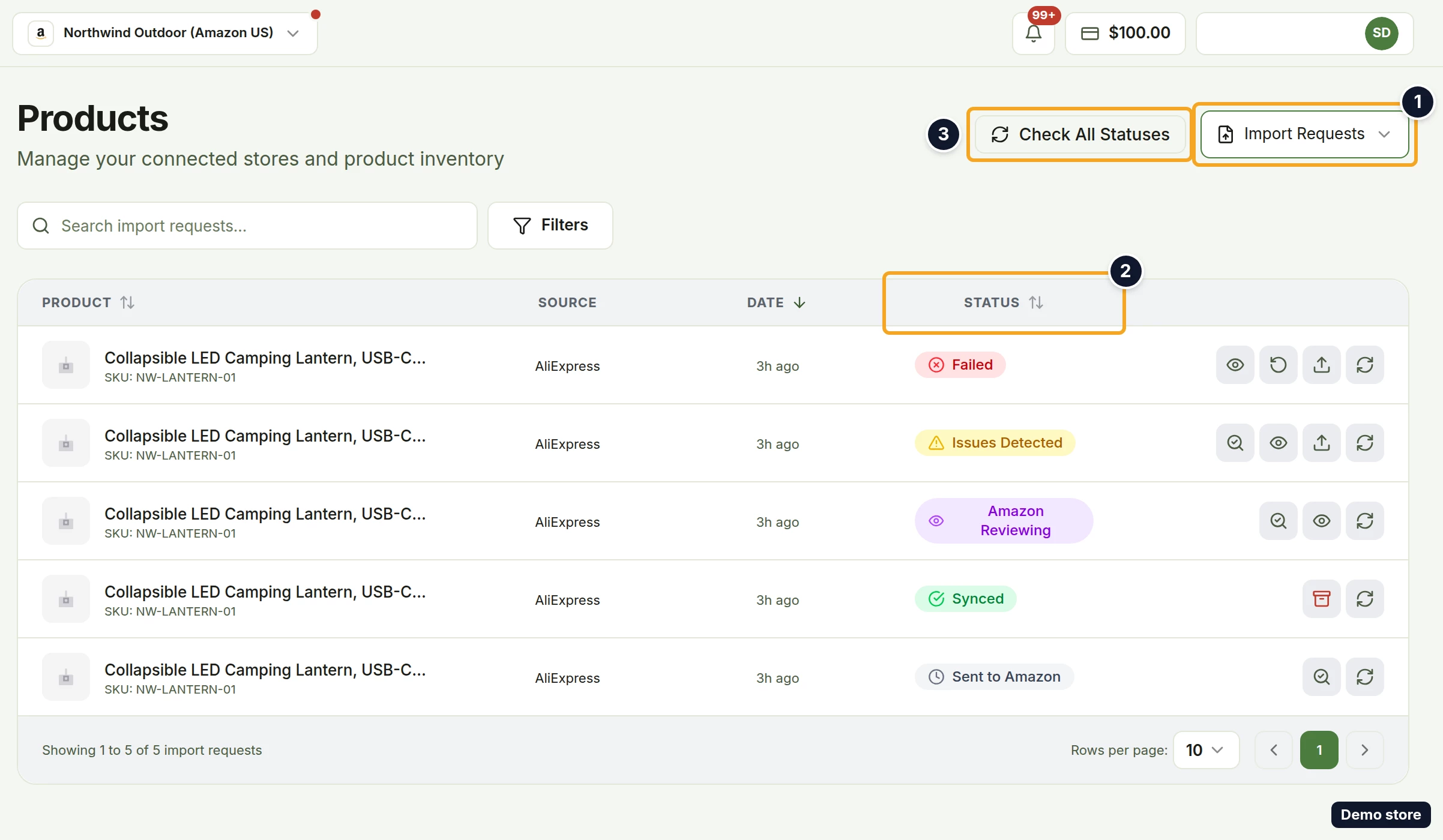
- Each row is one import to this store, newest first. The columns are Product (the title, or "Untitled Product", with "SKU:" and the SKU under it), Source, Date and Status. Product, Date and Status sort when you click them. The list refreshes on its own every 30 seconds while the tab is visible.
- The Status column tells you where the import stands:
- Sent to Amazon (filter Pending, grey clock): DS-Mate has sent the listing to Amazon.
- Amazon Processing (filter Processing, blue spinner): Amazon has no listing for it yet.
- Amazon Reviewing (filter Under Review, purple eye): Amazon is reviewing the listing. Its tooltip describes Amazon's usual approval time as 1 to 24 hours.
- Synced (green check): the listing is live on Amazon. A small yellow triangle next to it means Amazon reported issues with it.
- Issues Detected (yellow triangle): the listing is live, but Amazon reported warnings.
- Failed (red x): Amazon returned an error. Read it with View details.
- Archived (grey x, no filter option): tooltip "Listing has been archived on the channel."
- REJECTED (a plain outline badge): DS-Mate refused this import before sending it to Amazon, for example because your plan's product limit is reached, your plan does not include this supplier, or the product is one of your own listings. The row offers no details and no retry, only Re-sync from Amazon, so fix the cause and start the import again from Find Products.
- To ask Amazon about the Pending, Processing and Issues Detected rows on this page at once, click Check All Statuses. It reads Checking... while working. The toast reads "Checked" with the number of requests, how many were updated and how many failed, or "No pending or processing requests to check".
- To ask about one row, click its Check status icon. It shows on Pending, Processing, Issues Detected and Under Review rows. The toast reads "Status unchanged", or a status-updated toast that shows the old and the new status. If the check fails, the toast shows the reason, for example "Rate limit exceeded, please try again later".
- To narrow the list, click Filters.
- Under Import Status, pick All, Pending, Processing, Synced, Failed, Issues Detected or Under Review.
Read Amazon's errors
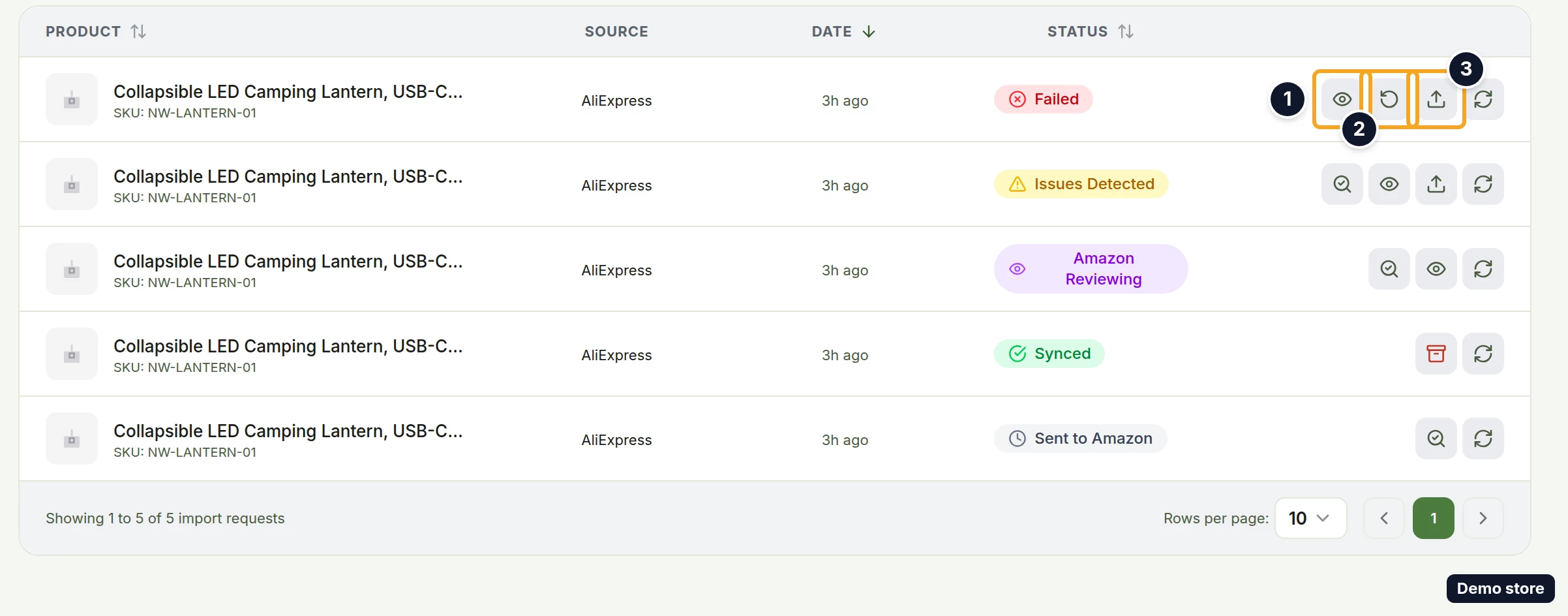
- On a Failed or Issues Detected row, click View details. It also shows on Under Review rows and on any row with issues.
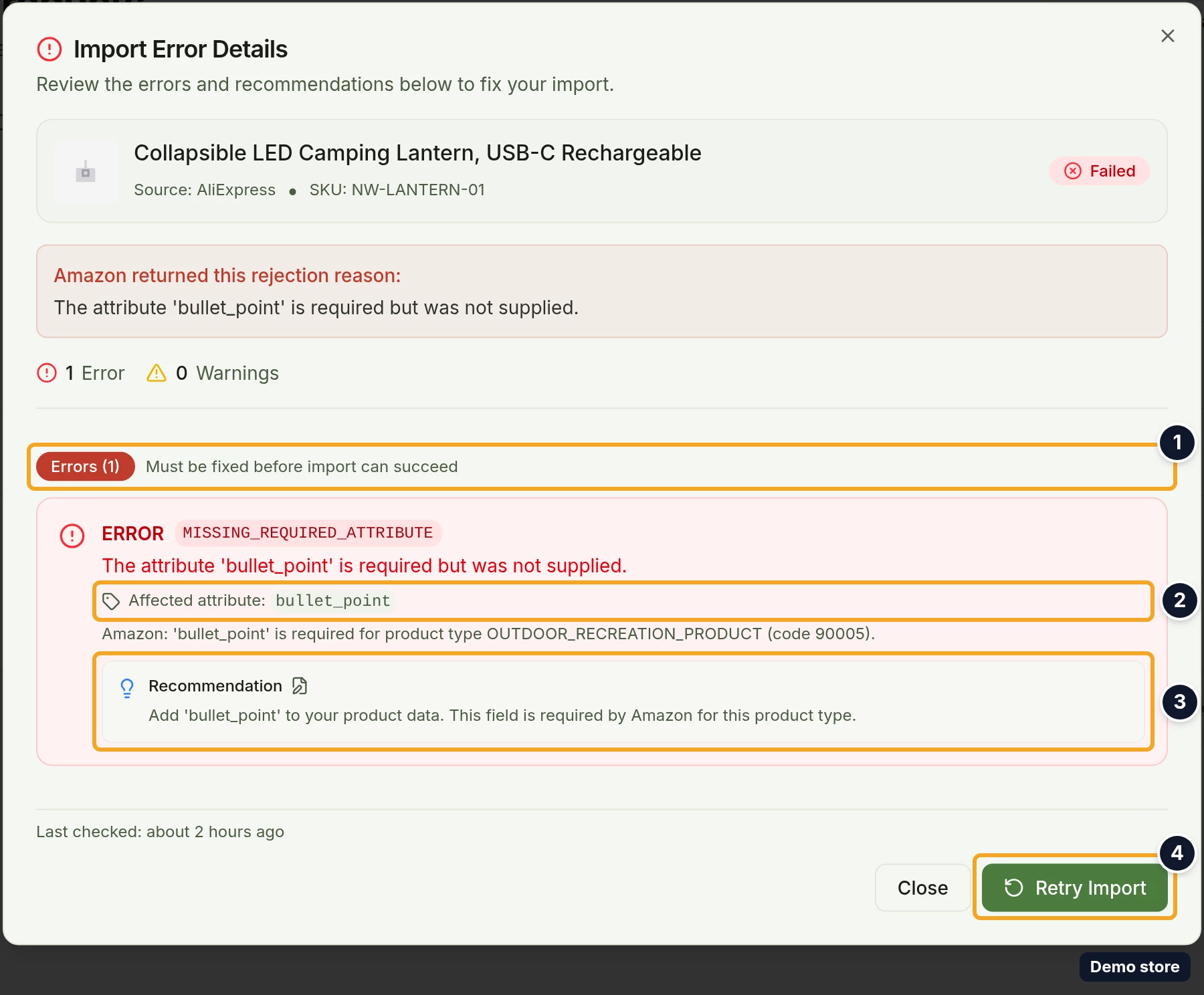
- The Import Error Details dialog opens ("Review the errors and recommendations below to fix your import."). It shows the product with "Source:" and "SKU:", the error and warning counts, then Errors with its count ("Must be fixed before import can succeed") and Warnings with its count ("May affect listing quality"). Each issue shows its severity ("ERROR" or "WARNING"), Amazon's code and message, "Affected attribute:" with the field's name, Amazon's details and a Recommendation box. At the bottom are the buttons Close and Retry Import. Some parts show only on some rows (see "Good to know").
- For an Under Review row the dialog is Listing Under Review instead ("Amazon is reviewing your listing. No action is required from you."), with a box that reads "Amazon is reviewing your listing" and "This process typically takes up to 48 hours." above "Review in progress". It has no retry button; there is nothing to do yet.
Fix a failed import
- Click Retry import on the row, or Retry Import in the dialog.
- The import page opens as a fresh import of the same supplier product. Your earlier edits are not carried over.
- Check that the store shown in the page header is your Amazon store.
- Make your edits again, including the fields named in Amazon's errors. Amazon's attributes are on the Amazon Attr tab.
- Click Check Listing. It reads Checking... while working. The check also runs on its own a moment after you pick a product type, but only once the title, the price and every variant's sale price are filled. Once a check has run the button reads Re-check Listing, except that a manual check that fails keeps the label Check Listing.
- The result shows in a toast: "Listing check passed, ready to import!" or "Listing check found" followed by the number of errors and "Fix them before importing." Errors are listed in the alert Amazon Validation Errors ("Fix these issues before importing:"), and Amazon's warnings as a count followed by "Amazon suggestions". If the check itself cannot run, the toast shows the reason, or "Listing check failed. Please try again."
- Once the check passes, click Import Product. Until then the button is disabled, and its tooltip reads "Check listing before importing", or "Select a product type first" while no product type is picked.
- A new row appears under Import Requests; the old row stays.
Remove a listing from Amazon
- On a Synced row, click Archive on Amazon.
- The Archive on Amazon? dialog opens ("This will remove the listing from Amazon. Buyers will no longer see it. You can re-import the product later if you change your mind.").
- Click Archive listing. It reads Archiving… while working; Cancel keeps the listing.
- The toast "Archive enqueued on Amazon" confirms it.
Good to know
Amazon's codes and what to change:
- MISSING_REQUIRED_ATTRIBUTE: add the attribute named.
- INVALID_ATTRIBUTE_VALUE and INVALID_ENUMERATED_VALUE: pick one of the allowed values.
- INVALID_LISTING_PRICE: adjust the price.
- DUPLICATE_SKU: the SKU already exists in your Amazon catalogue.
- INVALID_IMAGE: use a JPEG, PNG or GIF of at least 1000 pixels on the longest side.
- Any other code gets general advice to check Amazon's requirements for the product type.
- In the Import Error Details dialog, "Amazon returned this rejection reason:" shows only when the row carries Amazon's message, "Last checked:" only after a status check, and the link View in Amazon Seller Center only once Amazon accepted the import, so usually not on a Failed row.
- The dialog also offers Retry Import on an Issues Detected row, where the listing is already live. Retrying there creates a second listing.
- Re-import on Amazon (Failed or Issues Detected rows, toast "Re-import enqueued for Amazon") sends the same saved listing again, unchanged. Use it after a temporary Amazon error. To change any field, use Retry import.
- A retry or a re-import adds a new row. The original row stays in the list.
- Under Review needs nothing from you. If a row stays under review for more than 7 days, it can be turned to Failed with a message saying the review timed out.
- Check All Statuses skips Under Review rows. Use the row's Check status for those.
- Check status needs working Amazon credentials. If they are missing, the toast reads "Store credentials are missing or invalid".
- Import Requests exists for Amazon stores only. Follow a Shopify, eBay, TikTok Shop or Temu import in the bell notifications and on Store Products.
- You see the requests you started yourself. A guest's requests are not in your list, and yours are not in theirs.
- The search box Search import requests... does not narrow this list today. Use the Import Status filter and the column sort instead.
- Re-sync from Amazon shows on any row except Processing, with the toast "Re-sync enqueued for Amazon". An Archived row offers only this action, even though the archive dialog mentions a re-import.
- While the view is open, status changes also raise toasts: the product's title followed by "imported successfully", "import failed" or "has issues that need attention", or a count such as several products imported successfully. The bell gets "Product synced", "Product import failed", "Product imported with issues" or "Product submitted for review".
On the Shopify app
The Shopify app has no Import Requests view, because its store is always Shopify.
Related Articles
Still have questions?
Our support team is ready to help. Reach out and we'll get back to you as soon as possible.