Help CenterOrders & Fulfillment
Why did auto-fulfillment stop on this order, and how do I pay it or get it moving again?
6 min readOrders > an order's page > Manual Fulfillment Required card (web dashboard); top-up on Settings > Service Credit
This hold has no status badge: in Orders the row shows Pay with card and an info icon whose tooltip reads "Auto-fulfillment failed because your service credits could not cover it. Open the order to pay by card or top up.", and on the order page the header badge reads Ready to Fulfill, the tracker step Supplier Payment reads "Ready to pay", and the Manual Fulfillment Required card carries the notice Not enough service credits with a Top up credits button. The other holds look different: an address hold reads Awaiting address, Address needed or Invalid Address; an item with no supplier link reads Needs attention; a moved supplier price reads Price Changed. It happens when the store's Auto-pay with credits switch is on and the store owner's balance could not cover the order when DS-Mate checked it or tried to pay it: pay the order now by card or by service credits, or top up and let DS-Mate retry it within about an hour.
Steps
Find the order
- Click Orders in the sidebar. The quick filter Awaiting your action lists this hold.
- Find the row with Pay with card and an info icon, and no badge in the Status column. The tooltip reads "Auto-fulfillment failed because your service credits could not cover it. Open the order to pay by card or top up." A store member reads instead "Auto-fulfillment failed because the store owner's service credits could not cover it. Open the order to pay by card, or ask the store owner to top up." The row's Pay with card goes straight to card checkout: DS-Mate places the supplier order and opens the checkout page.
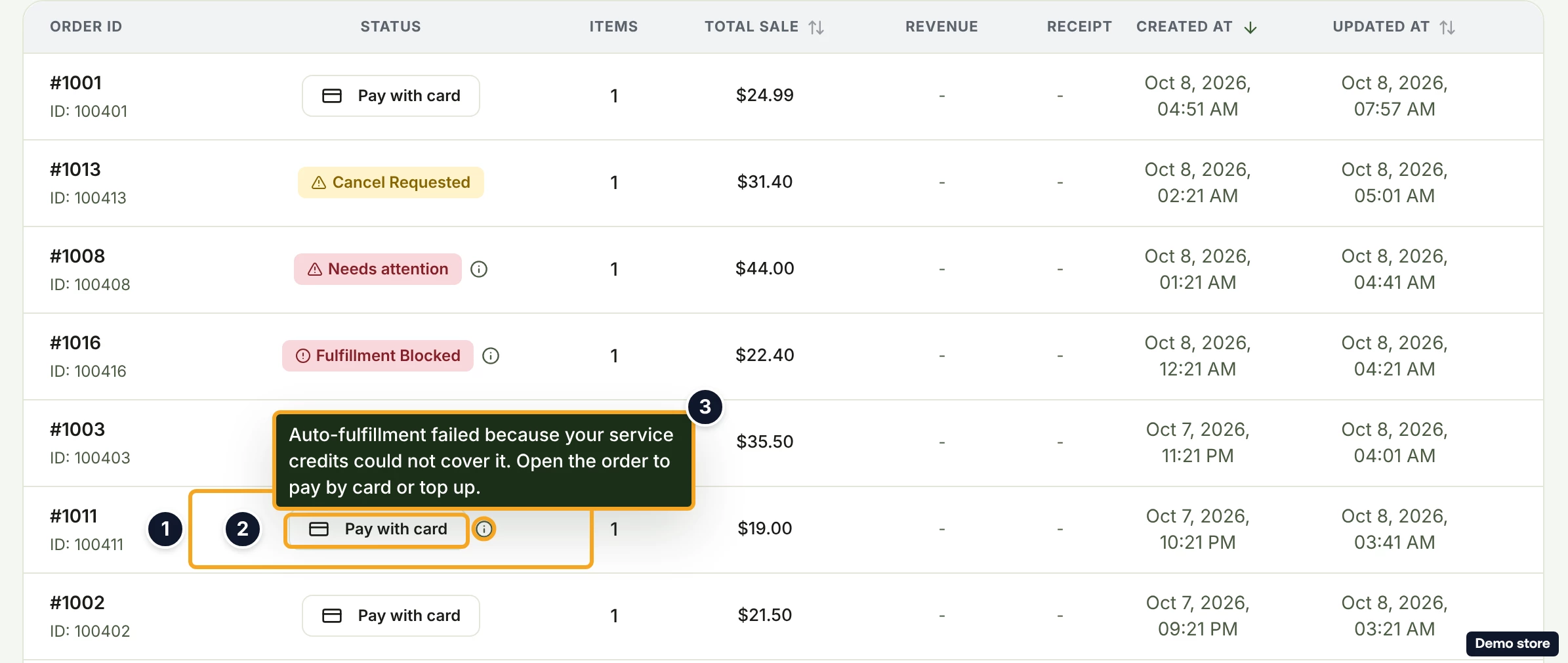
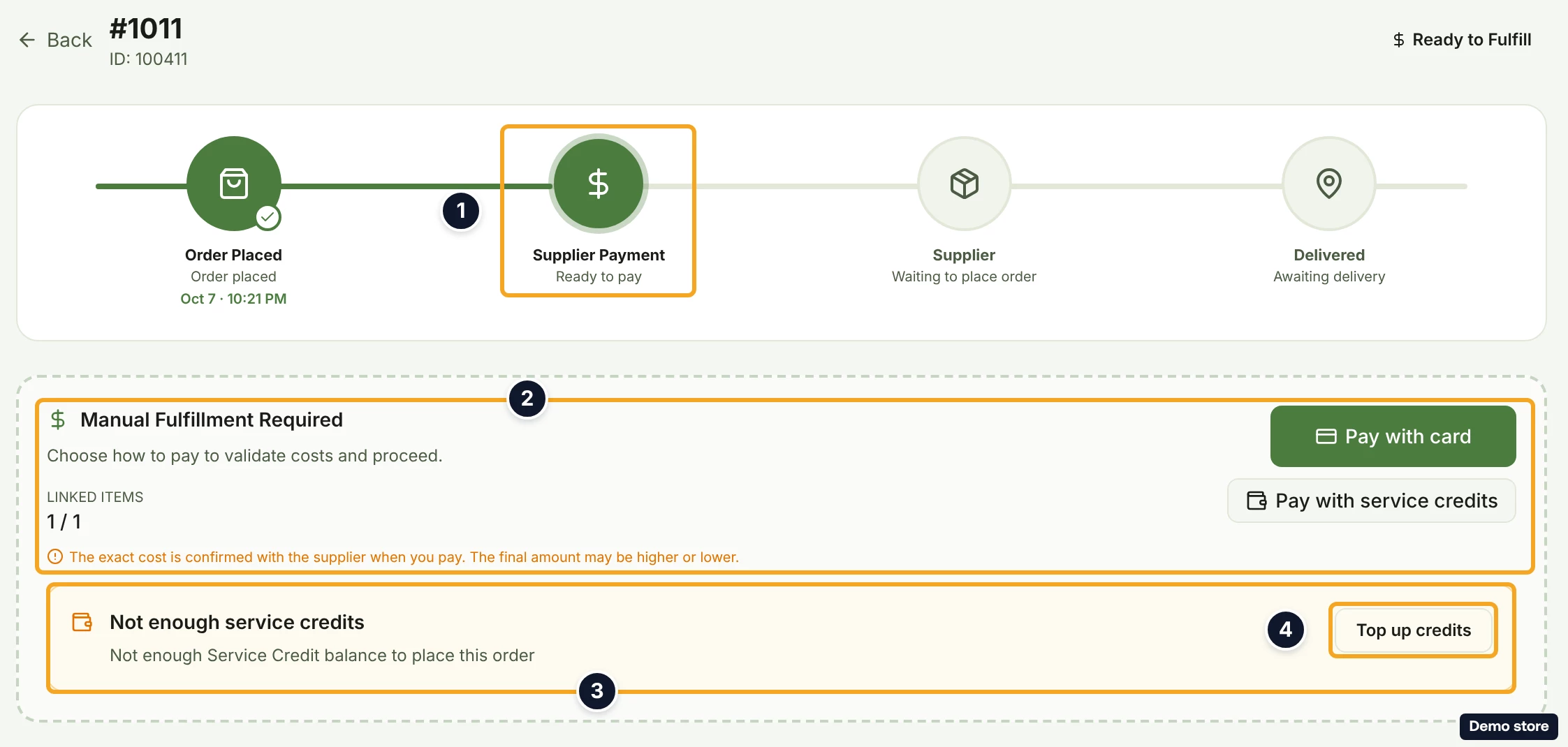
- Click the eye icon View details. The header badge reads Ready to Fulfill, and in the tracker the step Supplier Payment reads "Ready to pay".
- Read the card Manual Fulfillment Required. It has Pay with card and Pay with service credits, and under them the notice Not enough service credits with the sentence "Not enough service credits for this order. Top up your balance, or pay for this order by card." and a Top up credits button. The lines "Your balance" and "Still needed" are not shown on a parked order; they appear only after a live refusal when you try to pay from credits. A store member sees instead The store owner is out of service credits with "This order is paid from the store owner's service credits, and their balance will not cover it. Ask the store owner to top up, or pay for this order by card." and no top-up button.
Pay by card now
- Click Pay with card. DS-Mate places or reuses the supplier order to price it. If paying would cost more than your customer paid, the Pay anyway dialog opens first (see the Price Changed question).
- In the dialog Confirm card payment, check the total and click Continue to checkout.
- Pay on the checkout page. The return and Resume Payment are covered in the question on fulfilling an order and paying the supplier.
Pay with service credits now
- Click Pay with service credits once the balance covers the order. DS-Mate places or reuses the supplier order to price it. If paying would cost more than your customer paid, the Pay anyway dialog opens first.
- In the dialog Confirm payment from service credits, check the amount under "Deducted now", then click Confirm and pay (Cancel closes it). The order moves to placement.
Top up and let DS-Mate retry
- Click Top up credits. It opens Settings on the Service Credit tab.
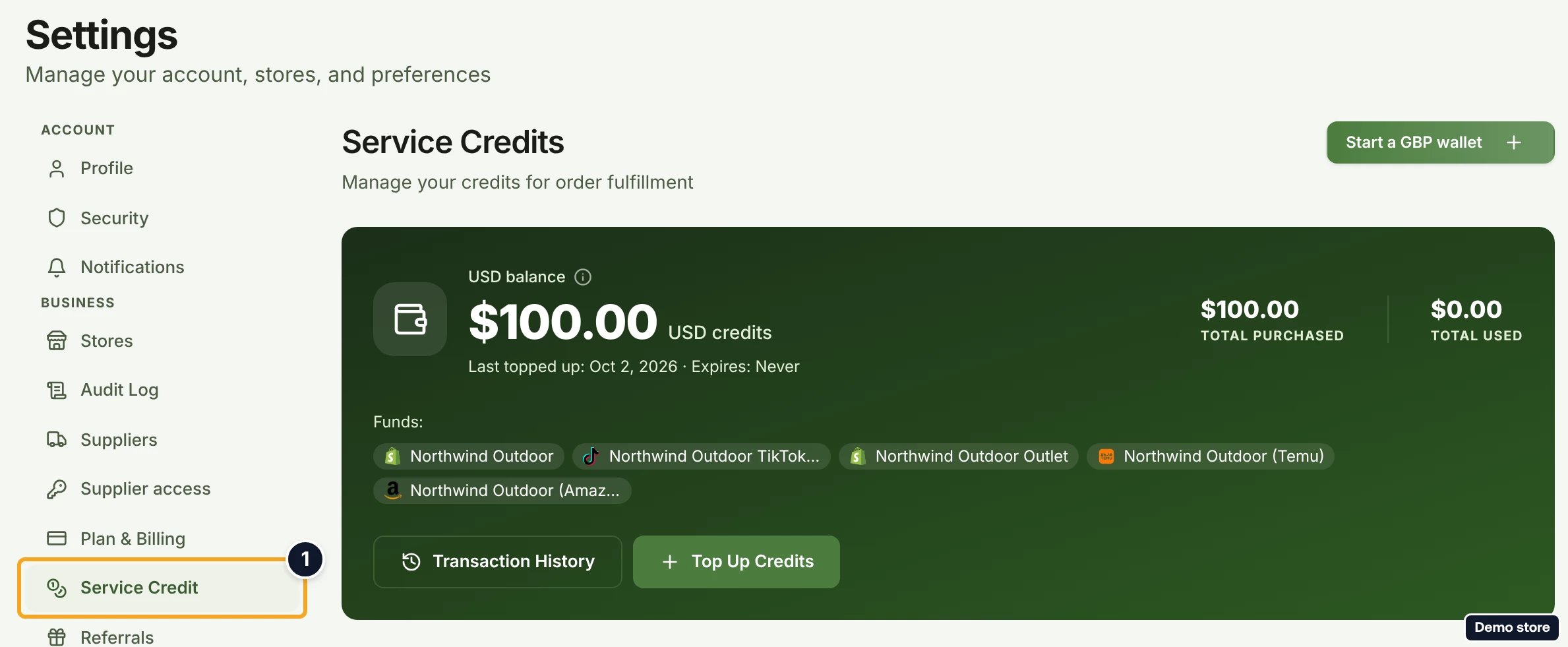
- Add credits there (see "What are service credits and how do I top them up?").
- Wait. DS-Mate's hourly sweep retries the order after the top-up; expect up to an hour. With Auto-pay with credits on, the order then shows Placing your order; with it off, the order stays Ready to Fulfill and the notice disappears.
Good to know
- Nothing is lost. The order waits as Ready to Fulfill, and you can pay it right away by card or by service credits. With a card checkout already open, both the row button and the page button read Resume Payment.
- A top-up is not picked up at once. Expect up to an hour.
- Service credits belong to the store owner. A store member can pay by card but cannot top up.
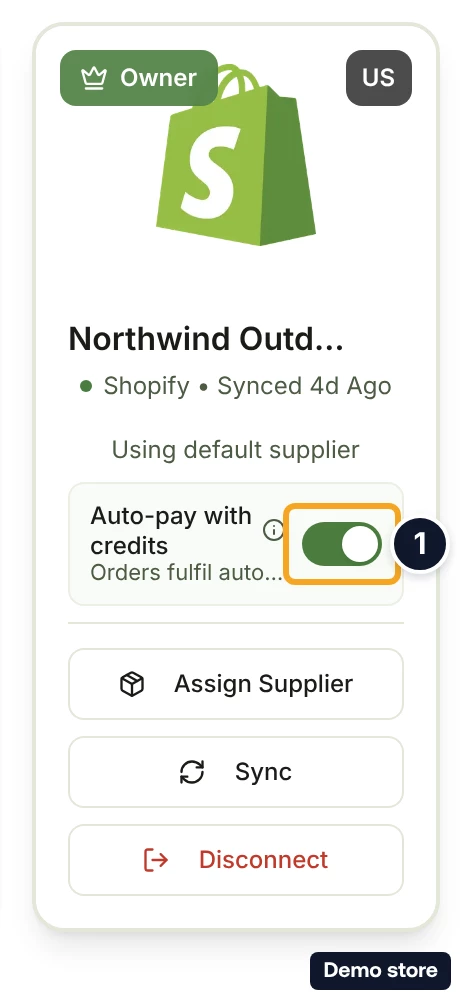
- The Auto-pay with credits switch is on the store's card under Settings > Stores (the store owner sees it). Its tooltip begins "When on, paid orders for this store are fulfilled automatically using your service credits."
- Free cannot pay orders from service credits; on Free, pay the order by card. An older Pay-As-You-Go account is treated as Growth.
- If service credits are not part of your plan, the row's tooltip reads "Credit-based auto-fulfillment is not available on your current plan." instead.
- The store owner gets a notification bell entry and one email when an order waits for service credits. The entry is titled "Order <id> is waiting for credits" (or "<n> orders are waiting for credits") and reads "Your <currency> service credits are <amount> short for order <id>, so it was not paid. Add at least <amount> and it will be paid automatically." When DS-Mate could not price the order, it names no amount: "Your <currency> service credits are not enough for order <id>, so it was not paid. Add credits and it will be paid automatically." The email has an Add credits button, and the bell entry opens Settings on the Service Credit tab. One entry covers every order waiting in that currency, is updated as more orders wait, with no second email, and leaves the bell once no order is waiting. A store member gets no entry.
- Auto-fulfillment also stops, without touching your service credits, when the supplier now charges more than your customer paid. That order reads Fulfillment Blocked, its page shows Paused: this order would lose money, and you get a bell entry titled "Order <id> is paused: it would lose money". Pay it yourself with Pay anyway, or change the product's supplier link or price.
- Telling the four holds apart: an order parked for service credits has no badge, only Pay with card and an info icon; address holds read Awaiting address, Address needed or Invalid Address; an item with no supplier link reads Needs attention; a moved supplier price reads Price Changed with a Pay with card button.
On the Shopify app
The pay card and the notice are the same. Top up credits opens the app's service credits page, and so does the bell entry for this hold. The Shopify app always shows the store owner's wording, even to a store member.
Related Articles
Still have questions?
Our support team is ready to help. Reach out and we'll get back to you as soon as possible.