Help CenterOrders & Fulfillment
Where is the tracking number for my order, and when does it reach my store?
8 min readOrders > the order's page > the item card, Shipment progress and Order tracking on <channel> (web dashboard)
Open the order: the supplier's tracking shows on the item card and in the "Shipment progress" card, and the card "Order tracking on <channel>" shows the number your buyer sees. Tracking comes from AliExpress automatically, and on every marketplace except an AliExpress seller store (this includes Shopify) it is pushed to your store only once a carrier in the buyer's country has the parcel, so your store can show the order as unfulfilled for days while DS-Mate shows "In transit". Setting or changing the number yourself needs Starter or higher.
Steps
Read the tracking
- Click Orders in the sidebar.
- Open the order.
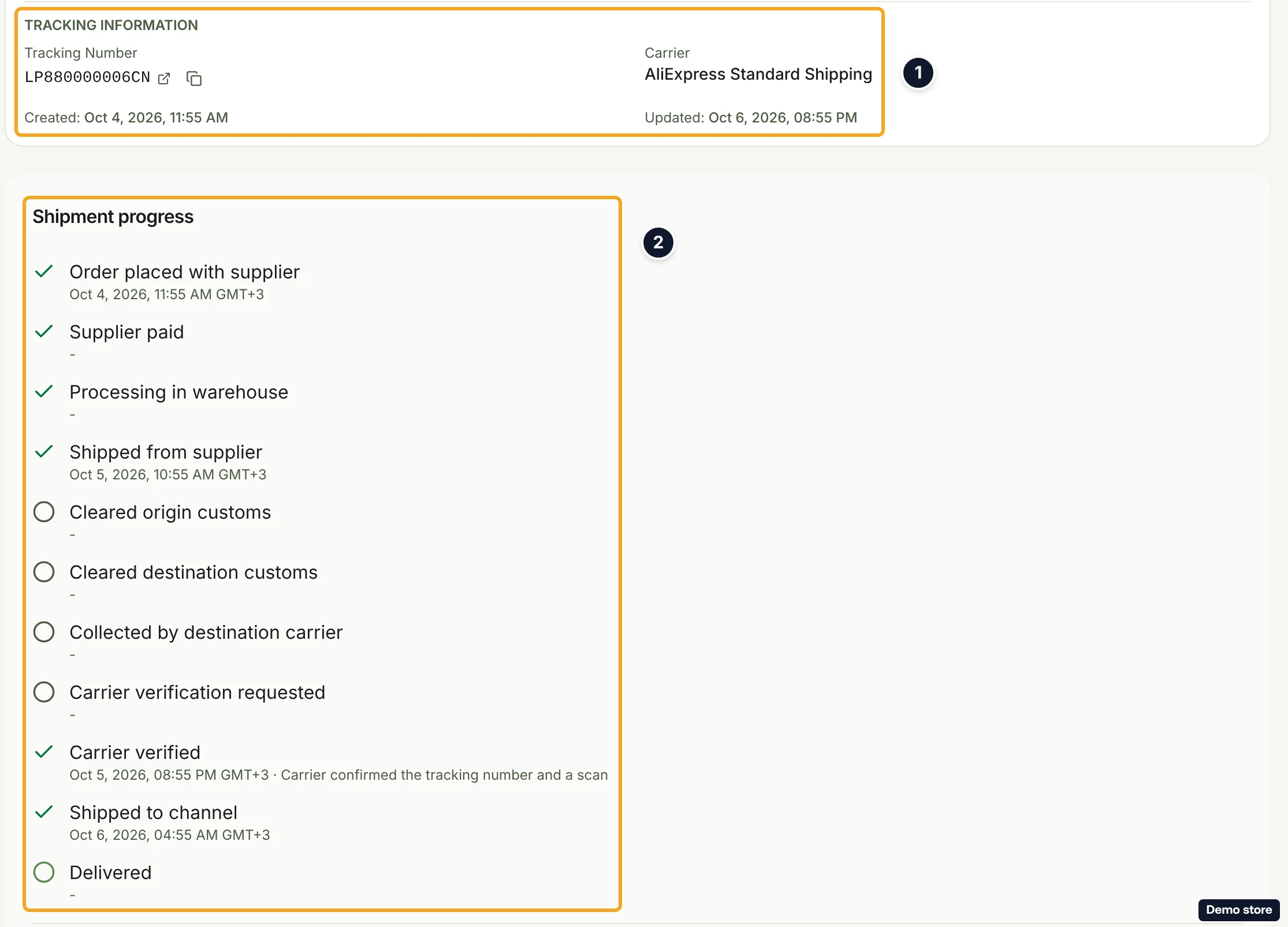
- On the item card, before the supplier ships, the block "Supplier Tracking Information" shows "Tracking Number" with "Pending until the supplier ships". After shipping, the block "Tracking Information" shows "Tracking Number" (a link when the carrier has a known tracking page), "Carrier", "Shipping service", "Created:" and "Updated:".
- Below the items, the card "Shipment progress" lists the steps "Order placed with supplier", "Supplier paid", "Processing in warehouse", "Shipped from supplier", "Cleared origin customs", "Cleared destination customs", "Collected by destination carrier", "Carrier verification requested", "Carrier verified", "Shipped to channel" and "Delivered". Each step shows its time, "Estimated <time>", or "-". On an AliExpress seller store, which takes the tracking at ship time, the card shows only the carrier events, without these steps. The card appears only for AliExpress supplier orders.
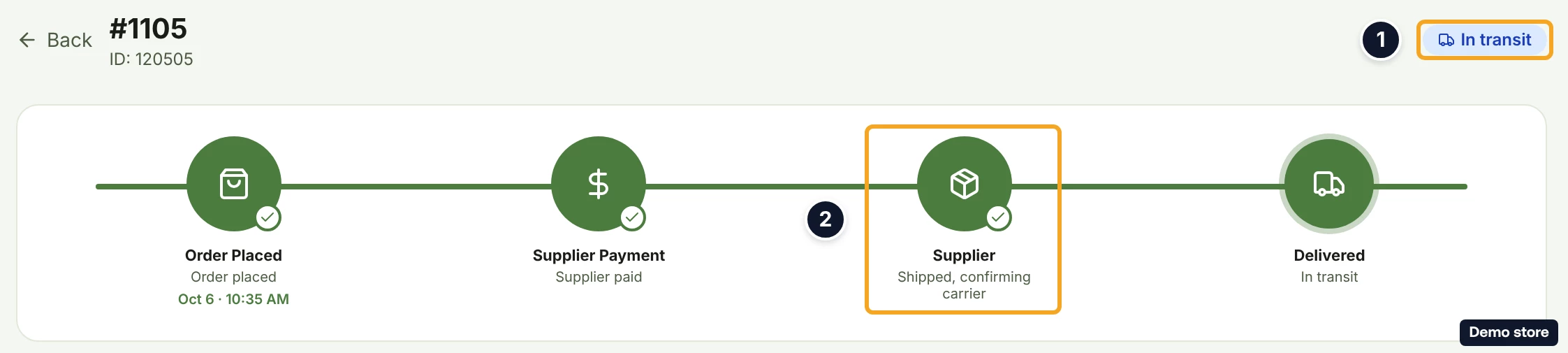
- While DS-Mate waits for the carrier in the buyer's country, the order's badge reads "In transit" and the tracker reads "Supplier" with "Shipped, confirming carrier". On the orders list, the "In transit" badge has the tooltip "Supplier shipped. Waiting for carrier tracking confirmation."; the badge on the order's page has none. Your store still shows the order as unfulfilled at this point. Tracking is held until AliExpress reports "Collected by destination carrier" or a carrier name; this usually takes up to about 5 days. After 5 days without a handoff, our team is alerted.

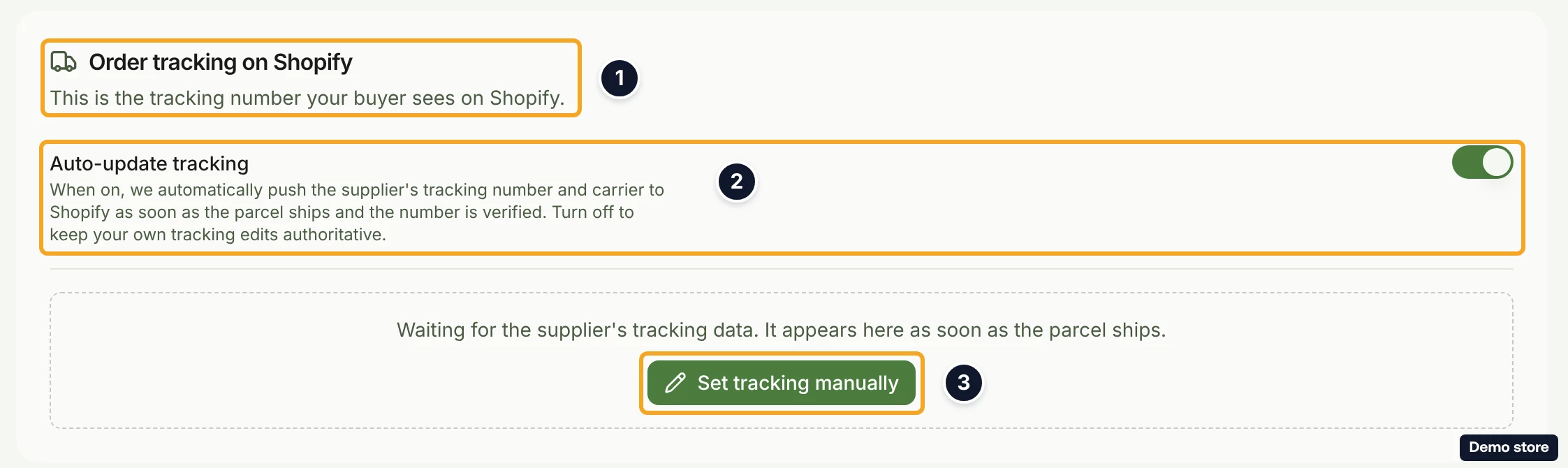
- Lower on the page, the card "Order tracking on <channel>" reads "This is the tracking number your buyer sees on <channel>." Its toggle Auto-update tracking reads "When on, we automatically push the supplier's tracking number and carrier to <channel> as soon as the parcel ships and the number is verified. Turn off to keep your own tracking edits authoritative." Switching it shows "Auto-update tracking is on for this order." or "Auto-update tracking is off. Your tracking edits stay authoritative." (or "Couldn't update auto-tracking for this order. Try again.").
- The card's body tells you where the number is. With nothing yet: "Enter the tracking number to push it to <channel> and mark this order shipped." With a supplier order in progress: "Waiting for the supplier's tracking data. It appears here as soon as the parcel ships." While verifying: "Your customer hasn't been notified yet." and "Supplier shipped under <n> (<carrier>), verifying the number before it's pushed to <channel>…". When the check failed, the body ends with "we couldn't verify the number. Resolve it in Shipment progress above, or set tracking manually below." When a third party fulfils the order: "Tracking can't be pushed to <channel>. This order is managed by a third-party fulfillment service." Once live: "Tracking number shown to customer" and "Carrier shown to customer".
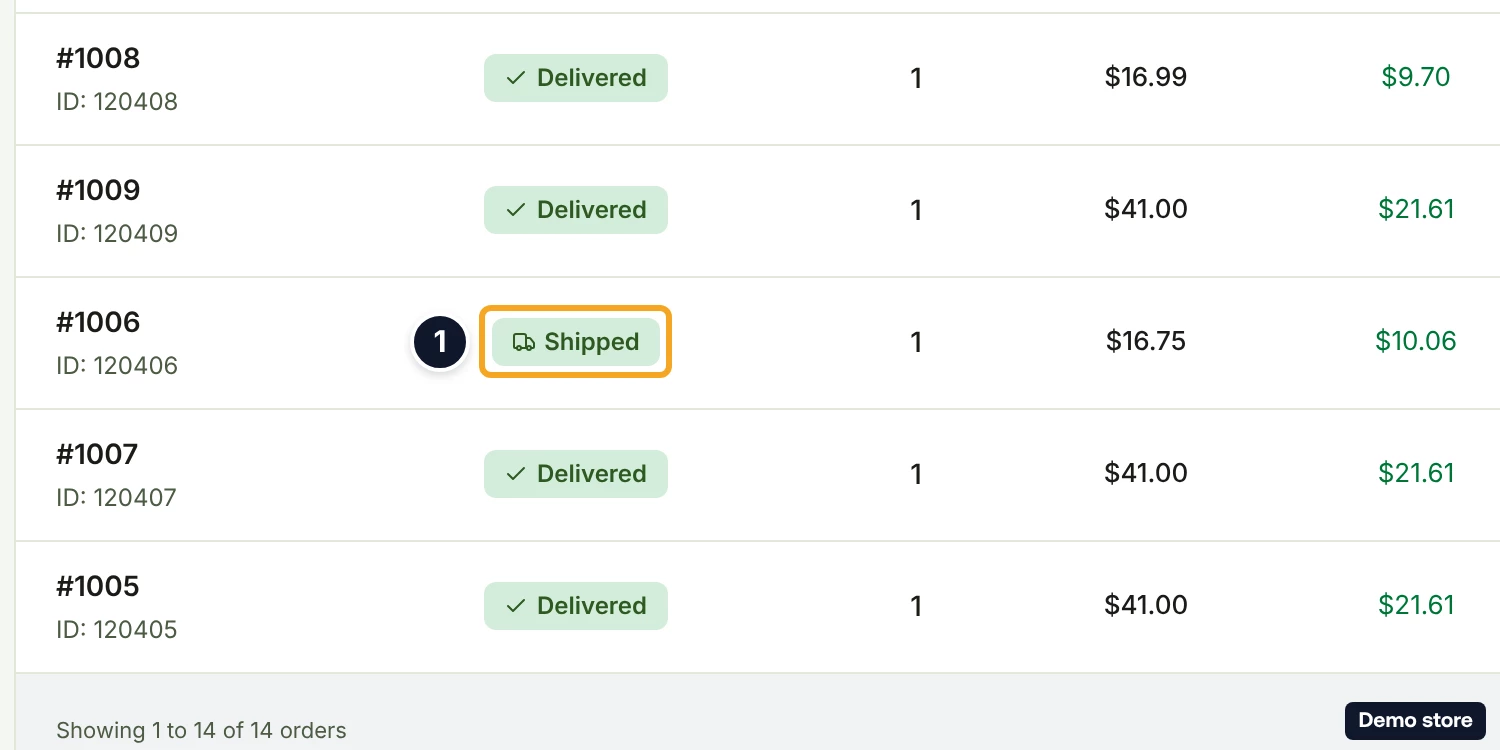
- Once the number has reached your store, the store shows the tracking number and carrier and the order as fulfilled or shipped there, and DS-Mate's badge reads "Shipped". On the web dashboard the "Order tracking on <channel>" card then disappears; the tracking stays visible on the item card and in "Shipment progress". No notification is sent for a push.
Set or change the number your buyer sees
- In the card "Order tracking on <channel>", click Set tracking manually (when there is no number yet) or Edit tracking (when a number is live). On Free, the card shows "Set tracking yourself" with "Correct a wrong number or rescue a held order, Starter and above." instead of the button.
- Type the Tracking number.
- Fill in Carrier. On eBay it is a list, where Other opens the field "Carrier name (e.g. PostNL)". On TikTok Shop, type the carrier (placeholder "e.g. USPS, UPS, FedEx"). Only a carrier from the list under the field is accepted.
- Read the note "Saving will mark this tracking as a manual override. AliExpress updates won't change what your customer sees until you clear it." It names AliExpress whatever your supplier is.
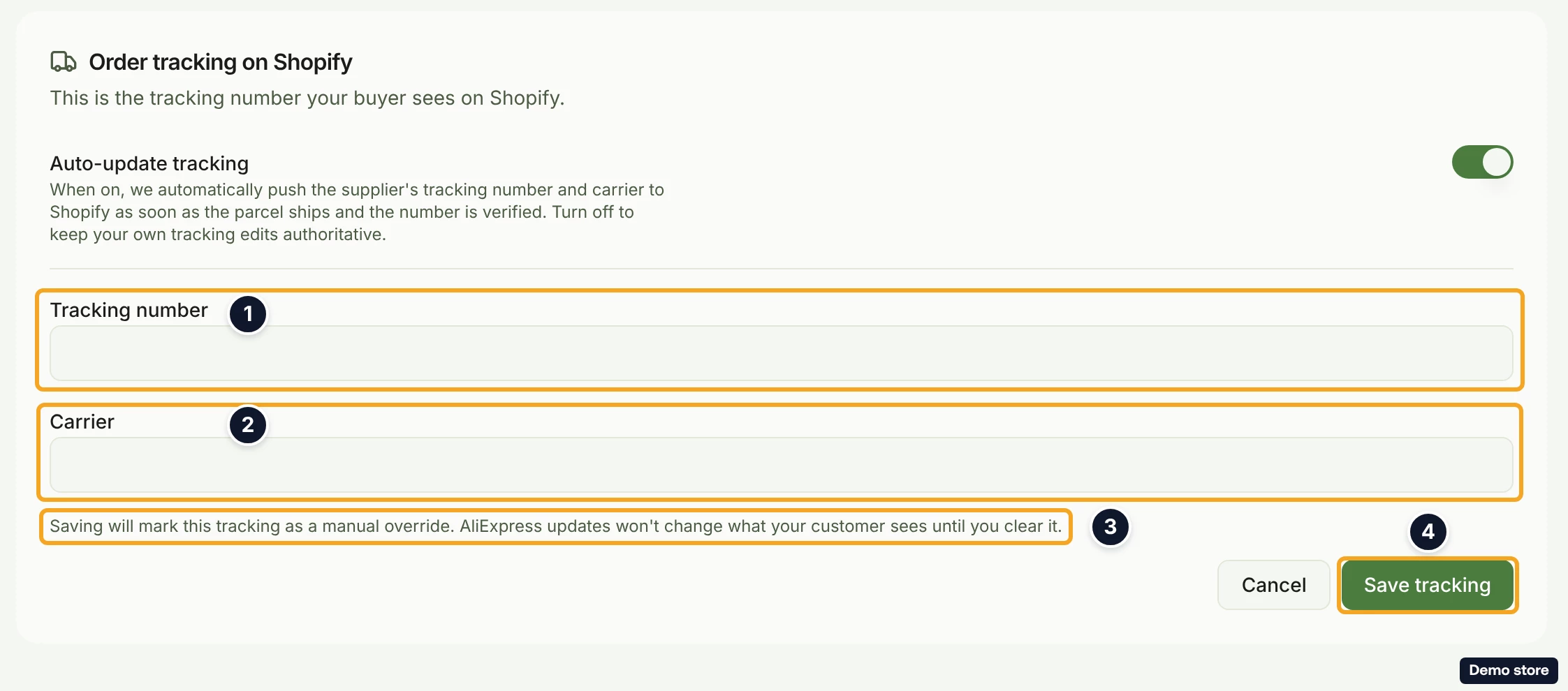
- Click Save tracking. Cancel closes the form.
- On an order DS-Mate did not fulfil, while you are within your monthly total, the dialog "This order counts toward your monthly total" opens, as for a buyer cancellation. Click Confirm.
- The toast "Tracking number sent to the sales channel." or "Tracking number updated on the sales channel." confirms it. Other outcomes: "This tracking number is already on the sales channel. Nothing needed changing.", "Tracking saved, but this order is managed by a third-party fulfillment service. The channel won't accept tracking updates." (the number is not stored in that case), "Carrier not recognized by the sales channel. Please check the carrier name and try again." or "Couldn't update the sales channel. Please try again or update it manually." A refused save shows the server's own message; "Couldn't update tracking number. Try again." appears only on a server error.
- A successful save stores your number and marks the tracking "Manual override". When the push sent or updated the number on your store, the order is also marked shipped, so the badge reads "Shipped"; on eBay, a save answered "This tracking number is already on the sales channel. Nothing needed changing." still marks the order shipped and, on an order DS-Mate did not fulfill, still uses one order of your monthly total. On other channels the same number is answered "Tracking number unchanged." and the badge does not change. "Manual override" means supplier updates stop changing what the buyer sees until you clear it.
Fix an order whose carrier could not be verified
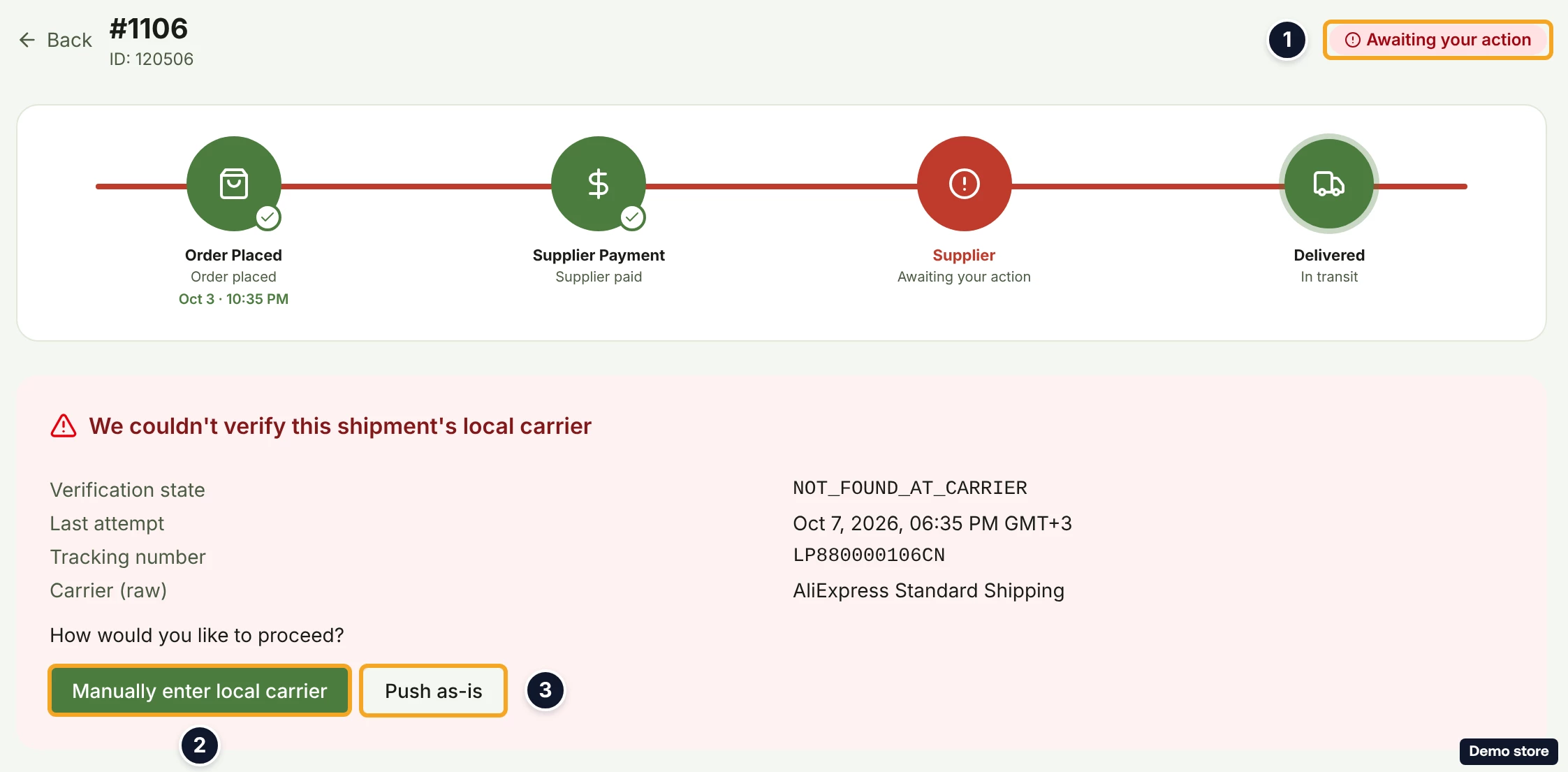
- The badge reads "Awaiting your action", and the bell "Action needed: couldn't verify a shipment's carrier" tells you which order.
- Open the order. The card "We couldn't verify this shipment's local carrier" shows "Verification state", "Last attempt", "Tracking number" and "Carrier (raw)", then asks "How would you like to proceed?".
- To give the local carrier yourself, click Manually enter local carrier. The dialog "Enter local carrier details" opens.
- Type the Carrier name (placeholder "USPS, FedEx, …").
- Type the Local tracking number.
- Click Submit to channel (Cancel closes the dialog). The toast reads "Tracking submitted to channel." (or "Couldn't submit tracking. Try again.").
- To send the supplier's number as it is, click Push as-is instead. The dialog "Push original supplier tracking?" warns "The channel may reject this tracking number because it isn't a recognised local carrier. Continue anyway?".
- Click Push anyway (Cancel closes the dialog). The toast reads "Original tracking pushed to channel." (or "Couldn't push the original tracking. Try again.").
Good to know
- A store that still shows the order as unfulfilled for days after the supplier shipped is the wait for the local carrier, not a fault. DS-Mate shows "In transit" meanwhile.
- How tracking arrives: from the AliExpress webhook, with a fallback poll every 4 hours before shipping, every 24 hours once the parcel has shipped, and every 4 hours again once the parcel has cleared import customs and DS-Mate is waiting for the local carrier.
- After a manual save, if the supplier later reports a different number, the card shows the banner "Supplier reported a new number" with "AliExpress now shows <n> (<carrier>). Your manual value is what the customer sees, supplier updates won't change it." Clearing the override re-pushes the supplier's number to your store, and is open to every plan. On the web dashboard today the card "Order tracking on <channel>" is hidden once the order is shipped, so after a save that sent or updated the number (which marks the order shipped) the "Manual override" badge, that banner, Show supplier value to customer and Edit tracking are not reachable there. The Shopify app keeps the card visible (see below).
- The card "Order tracking on <channel>" shows on Shopify, TikTok Shop, eBay, Temu and WooCommerce stores. Editing the number is possible on Shopify, TikTok Shop, eBay and WooCommerce; Temu shows the card but cannot be edited. SHEIN uses its own section on each item instead.
- Amazon has no tracking card. Supplier tracking is still sent automatically through the Amazon confirmation queue, and a manual Amazon tracking number is refused.
- Turning Auto-update tracking off stops supplier numbers replacing yours.
- A manual push on an order DS-Mate did not fulfil uses one order of your monthly total.
- Two different ways to fix a held order: Set tracking manually sets what the buyer sees, while the actions on the "We couldn't verify this shipment's local carrier" card resolve the carrier check.
On the Shopify app
The same card "Order tracking on <channel>" is always shown, including after the order ships. So the "Manual override" badge, the banner "Supplier reported a new number" and Edit tracking can be reached there after a manual save. To go back to the supplier's number, click Show supplier value to customer. No toast confirms it: the card refreshes with the supplier's number.
Related Articles
Still have questions?
Our support team is ready to help. Reach out and we'll get back to you as soon as possible.