Help CenterOrders & Fulfillment
Where can I find the receipt for an order I paid?
4 min readOrders > the Receipt column, or the order's page > Financial Summary (web dashboard)
An order paid through DS-Mate, by card or with Service Credit, has a receipt link in two places: the "Receipt" column of the orders list, and "Receipt" with View in the order's "Financial Summary". A Service Credit payment opens DS-Mate's own "Payment Receipt" page; a card payment opens Stripe's receipt. What your credits were spent on is a different page, the "Service Credit" tab in Settings, and your subscription invoices are a third, the "Invoices" card under "Plan & Billing" (see "Where do I find my invoices and update my payment method?").
Steps
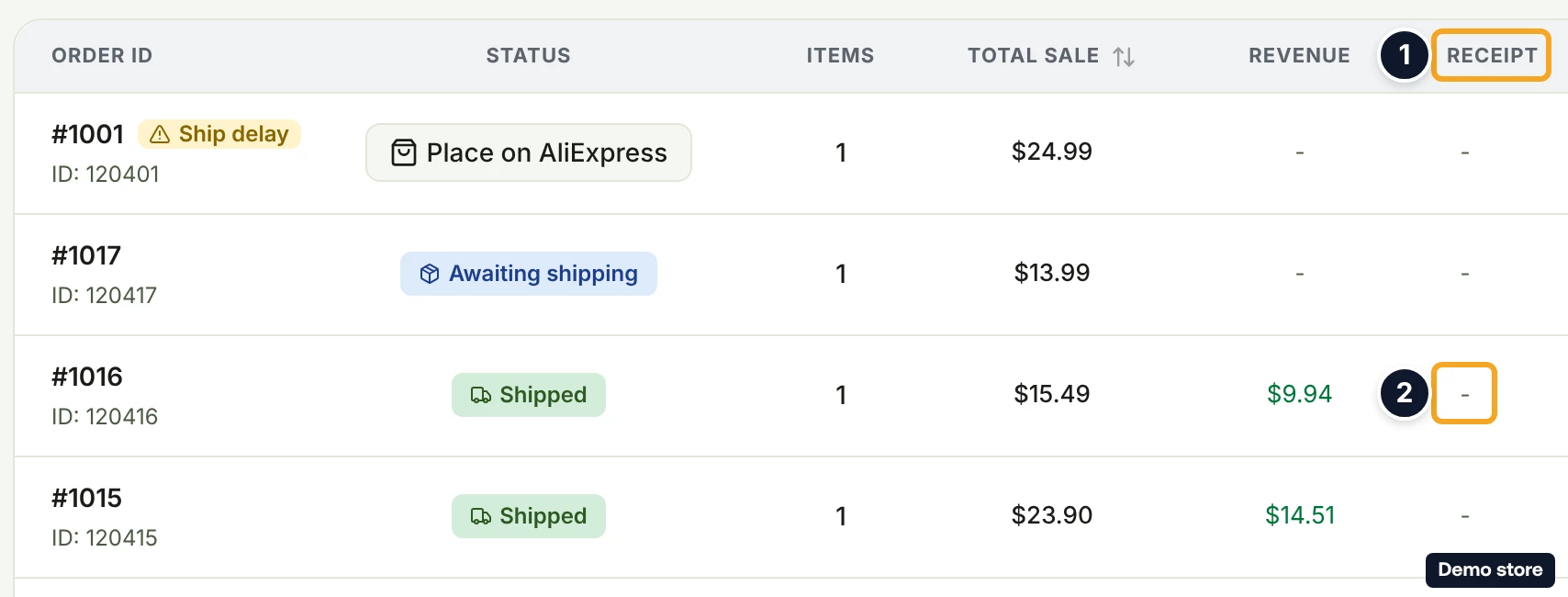
Open the receipt from the orders list
- Click Orders in the sidebar.
- Find the column Receipt. A paid order shows an external-link icon; an order without a receipt shows "-". The icon has no tooltip.
- Click the icon. The receipt opens in a new tab.
Open the receipt from the order's page
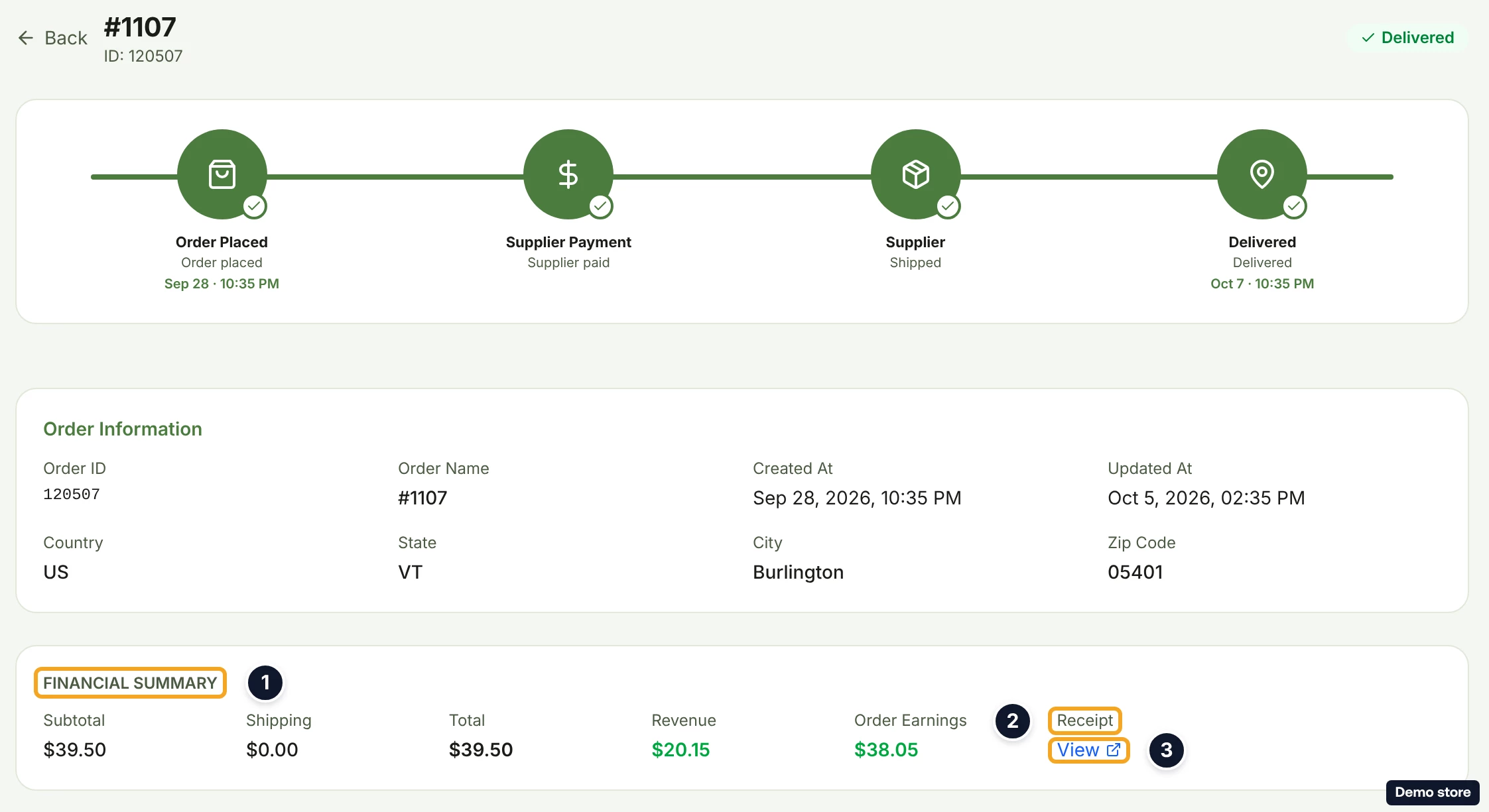
- Open the order.
- In the card "Financial Summary", find the row "Receipt". It is shown only when the order has a receipt.
- Click View (with an external-link icon). The receipt opens in a new tab.
Read a Service Credit receipt
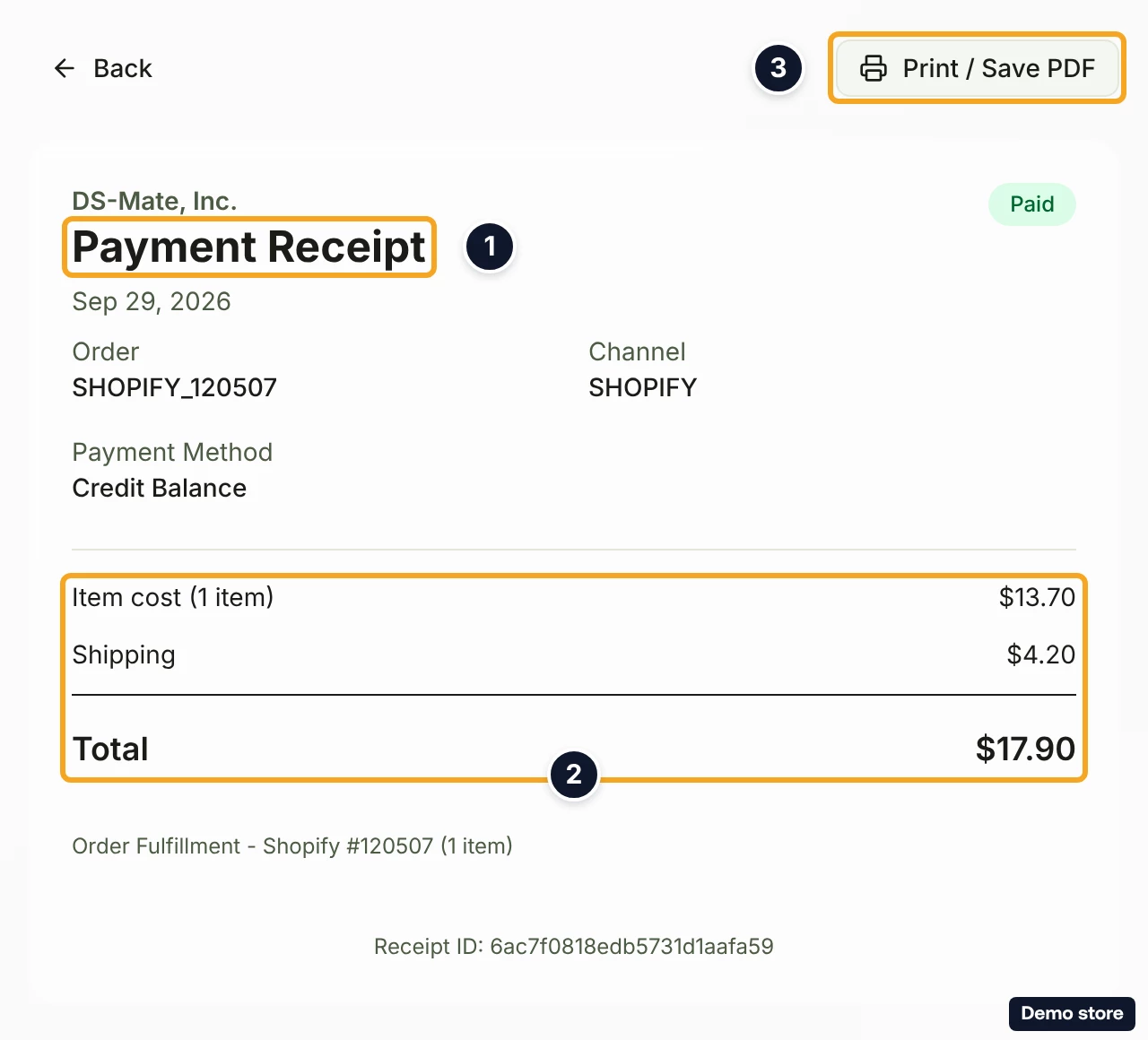
- The page opens with Back and Print / Save PDF at the top, then "DS-Mate, Inc.", the title "Payment Receipt", the date and the pill "Paid".
- The rows read "Order" (the order's ID as DS-Mate stores it, with its channel prefix), "Channel" (the channel's code) and "Payment Method" ("Credit Balance" for Service Credit, "Stripe Checkout" for any other payment).
- The money lines read "Item cost" (with " (<n> item)" or " (<n> items)"), "Shipping", "Taxes & fees", "Subtotal" (with a tooltip), "Payment processing fees", "DS-Mate processing fees" and "Total" (with a tooltip). "Total" is what you were charged. Older orders show two or four lines instead.
- The footer shows the payment's description and "Receipt ID: <id>".
- To keep a copy, click Print / Save PDF. It opens your browser's print dialog; nothing is written on the order.
- If the page reads "Payment not found", "You don't have permission to view this receipt" or "Receipt not found", click Go back. Only the person who paid, or a member of the store, can open a receipt.
Open a card receipt
- For an order paid by card, View and the list icon open Stripe's receipt or invoice page, not a DS-Mate page. The link appears once Stripe has reported the payment to DS-Mate, and not at all if Stripe returned no receipt for it.
See what your Service Credit was spent on
- Click Settings at the bottom of the sidebar (or Settings in your account menu at the top right).
- Click the tab Service Credit. The heading reads "Service Credits" with "Manage your credits for order fulfillment".
- The card "Transaction History" ("Every movement in your <CUR> wallet") lists the columns Transaction, Date, Amount, Status and Invoice. The types are "Purchase", "Auto-Reload", "Order Fulfillment", "Refund" and "Adjustment"; a deduction for an order paid with Service Credit is described in the next step, and a deduction with no order details, such as a per-order fee, shows "Order Fulfillment".
- A deduction for an order paid with Service Credit shows the channel and "Order: <id>" (with the store's name when the order was fulfilled automatically). A per-order fee deduction shows no description today. Other rows show their type and description, for example "Refund" with "Item cost refund: supplier closed order <id>". Status shows the row's state, usually "COMPLETED".
- Invoice is a link only on rows paid through Stripe. Order rows show "-".
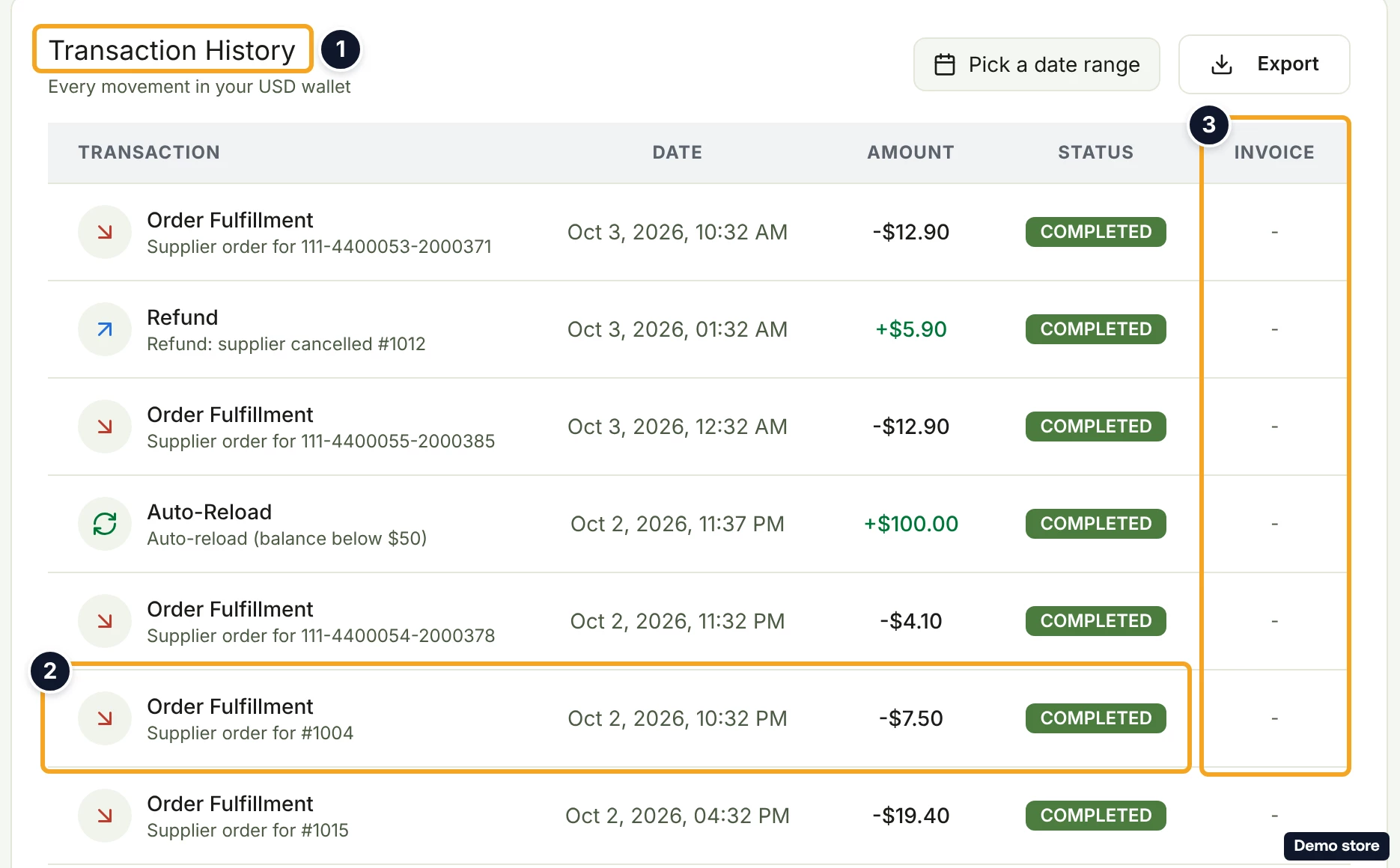
- Export downloads the list as an Excel file. The toast reads "Exported <n> <CUR> transactions", or "No transactions to export".
Good to know
- No receipt link on: an order placed on your own AliExpress account (you paid the goods on AliExpress), an order not yet paid, and a card payment whose Stripe receipt has not been linked yet.
- A card receipt is Stripe's page, not DS-Mate's. A Service Credit receipt is DS-Mate's "Payment Receipt" page.
- The order receipt shows what DS-Mate charged you, not what your buyer paid you.
- On a Service Credit receipt, "Total" includes the "Payment processing fees" and "DS-Mate processing fees" lines.
- "Transaction History" lists one currency at a time. Each wallet has its own view.
- Your subscription invoices are not here: they are the "Invoices" card on the "Plan & Billing" tab in Settings (see "Where do I find my invoices and update my payment method?").
On the Shopify app
The app has the same "Receipt" with View on the order and the same list column. A card receipt opens Stripe's page from there; to open a Service Credit receipt, use the web dashboard.
Related Articles
Still have questions?
Our support team is ready to help. Reach out and we'll get back to you as soon as possible.