Back to Help Center
Help CenterTeam & Guests
How do I cancel an invitation or remove a guest?
2 min readSettings > Stores (web dashboard)
Both happen in the Store Invitations section of Settings > Stores on the web dashboard, and you need to own the store. Removing a guest ends their access immediately. A Pending invitation can be cancelled, and an Expired or Rejected one can be resent.
Steps
Remove a guest
- Open Settings, then Stores.
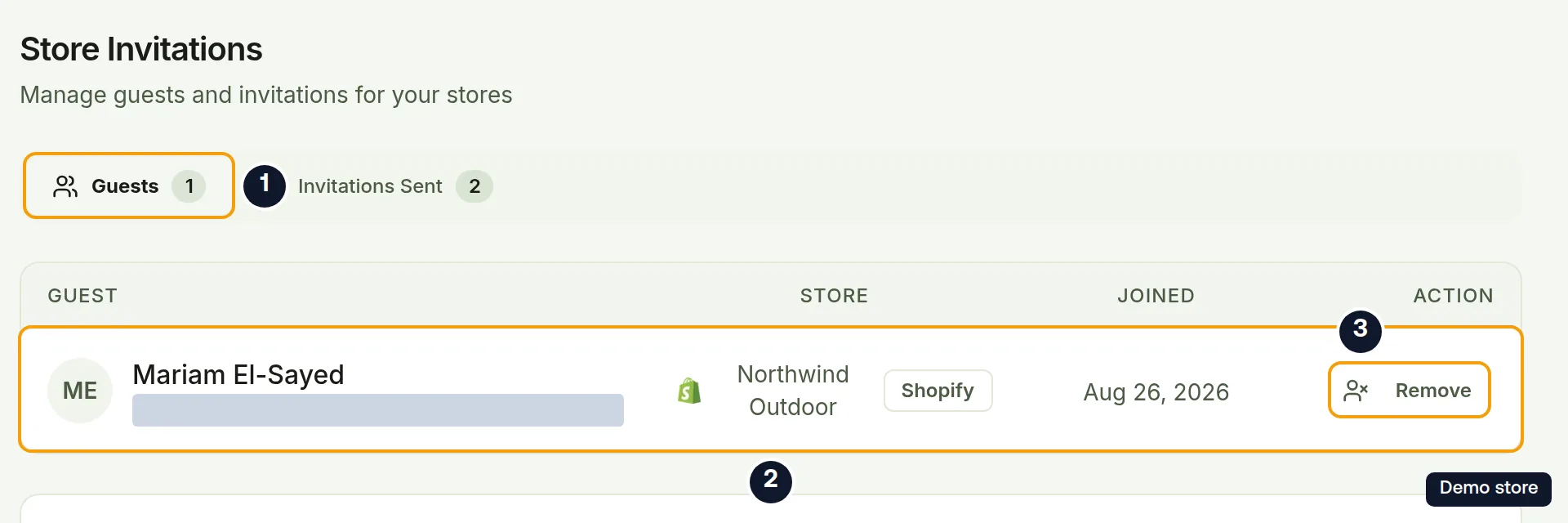
- Scroll to Store Invitations, "Manage guests and invitations for your stores".
- Open the Guests tab. It shows a count and the columns Guest, Store, Joined and Action.
- On the guest's row, click Remove.
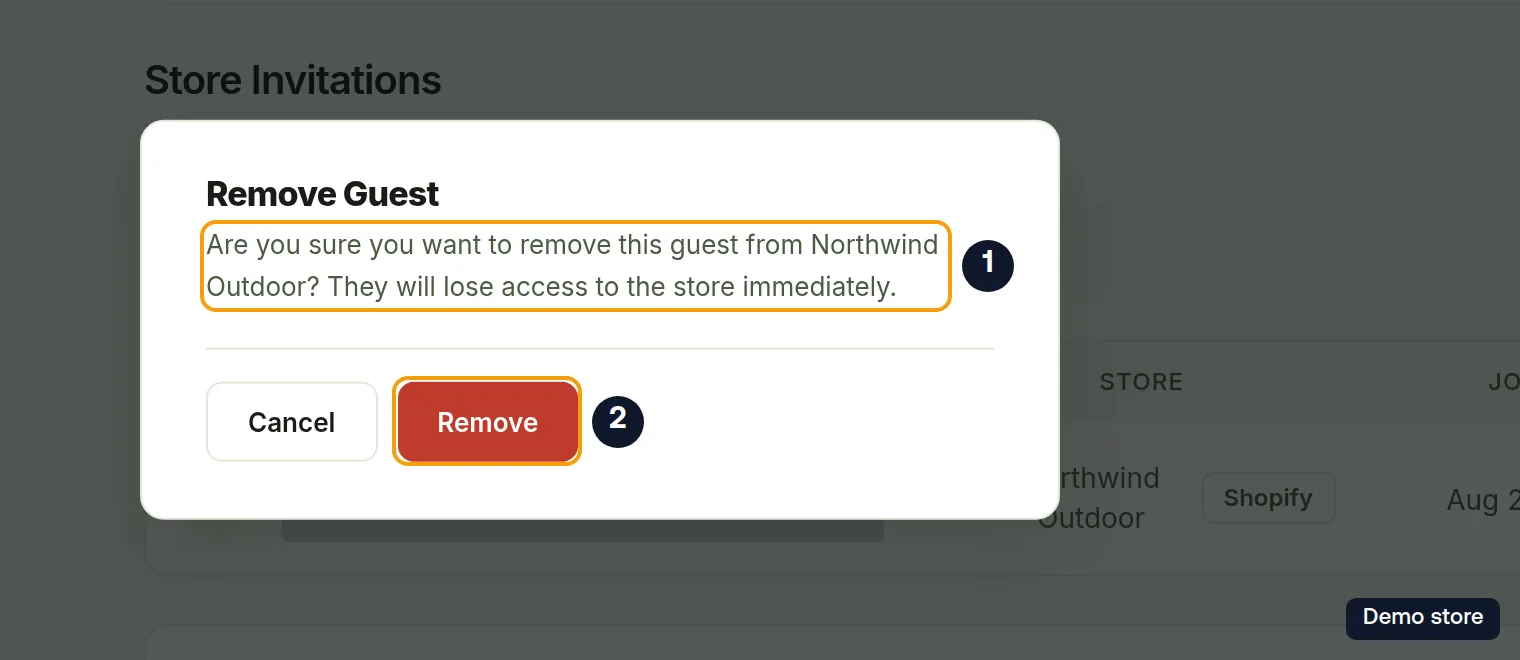
- The dialog Remove Guest names the store and asks whether you are sure, then warns "They will lose access to the store immediately."
- Click Remove. The button reads Removing... while it works. Cancel keeps the guest.
- You see "Guest removed successfully". The row disappears and the Guests count drops.
Cancel a pending invitation
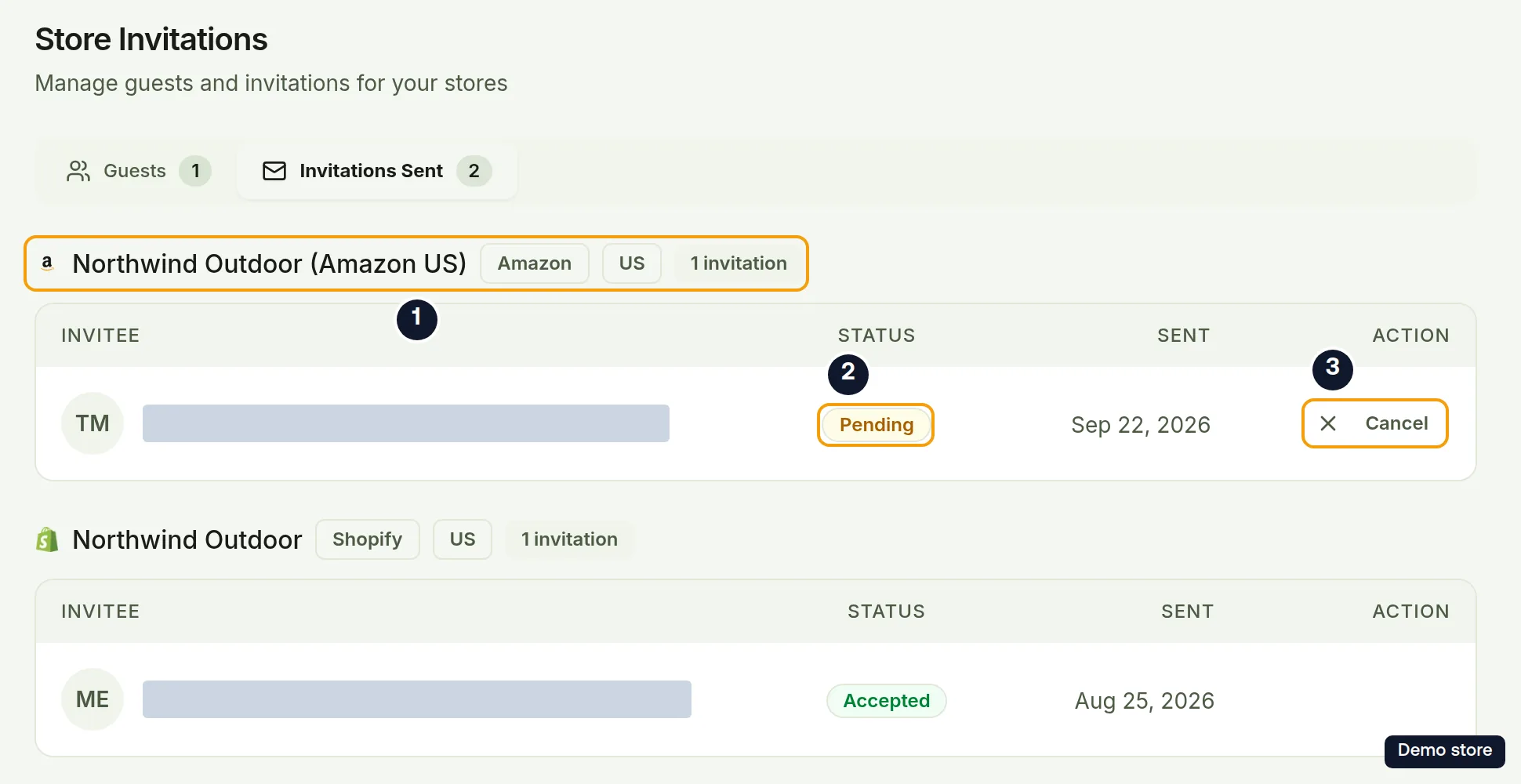
- Under Store Invitations, open the Invitations Sent tab. Invitations are grouped by store with the columns Invitee, Status, Sent and Action.
- On a row with the Pending badge, click Cancel.
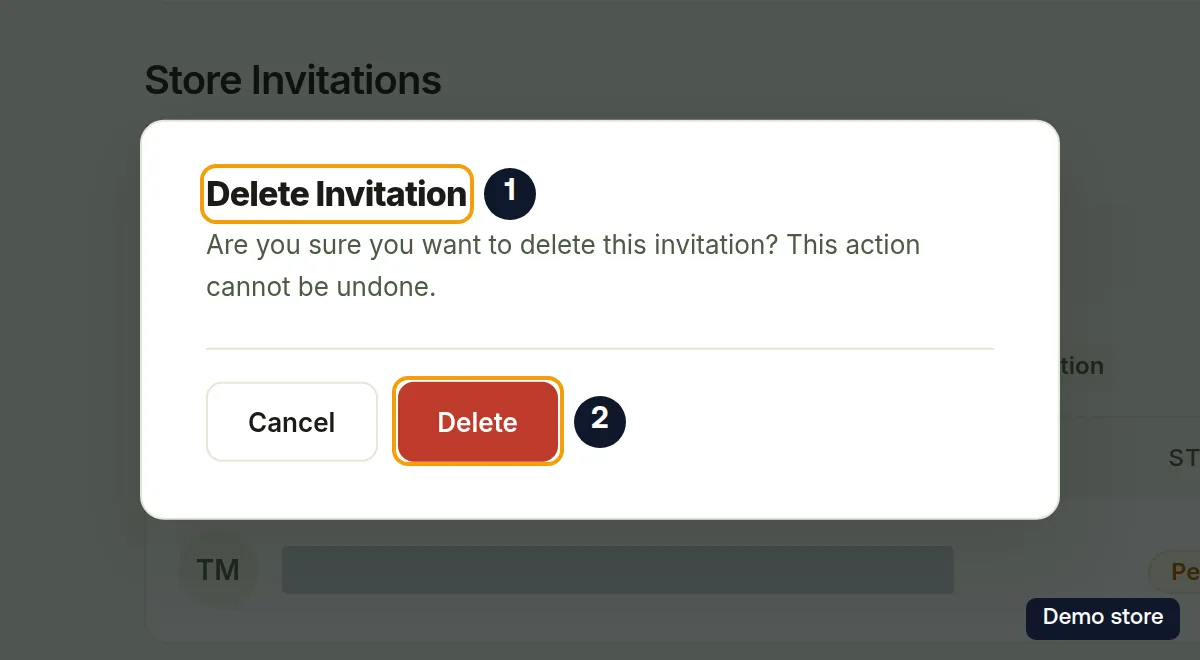
- The dialog Delete Invitation asks "Are you sure you want to delete this invitation? This action cannot be undone."
- Click Delete. The button reads Deleting... while it works. Cancel keeps the invitation.
- You see "Invitation deleted successfully" and the row disappears.
Resend an expired or rejected invitation
- On the Invitations Sent tab, on a row with the Expired or Rejected badge, click Resend.
- The dialog Resend Invitation explains "This will reactivate the invitation and send it again. The invitee will have 7 days to accept." Sending it again means the invitation reappears in the invitee's own Settings > Stores list; no email goes out.
- Click Resend. The button reads Resending... while it works.
- You see "Invitation resent successfully". The row goes back to Pending with a new 7-day expiry.
Good to know
- Pending rows show Cancel only. Resend appears only on Expired or Rejected rows, and those rows have no Cancel.
- A rejected invitation keeps its guest seat, and there is no way to delete it from the dashboard. Resending it is the only action on that row.
- Accepted invitations have no action on Invitations Sent. To take access away from someone who already joined, use Remove on the Guests tab.
- Removing a guest or deleting an invitation frees the seat for a new invitation. With nobody left, the tabs read "No guests yet" and "No invitations sent".
- Resending does not email the invitee. They see the invitation again under Settings > Stores in their own account.
On the Shopify app
None of this exists in the Shopify app. Manage guests and invitations on the web dashboard.
Still have questions?
Our support team is ready to help. Reach out and we'll get back to you as soon as possible.