Help CenterOrders & Fulfillment
My order says Needs attention because an item is not linked to a supplier. How do I fix it?
6 min readOrders > an order's page > the card "This order isn't linked to a supplier product yet" > Link product (web dashboard)
In Orders, an order with an item that has no supplier link shows the badge Needs attention with an info icon; on the order page the tracker step Supplier Payment reads "Link a supplier product", and a card titled This order isn't linked to a supplier product yet lists each unlinked item with a Link product button. The other holds look different: an address hold reads Awaiting address, Address needed or Invalid Address; a moved supplier price reads Price Changed with a Pay with card button; an order parked for service credits has no badge, only Pay with card and an info icon. The link you save is stored on the product, so future orders of that variant link on their own and this order re-checks itself; linking counts against the store owner's linked-variants allowance (Free 200, Starter 2,000, Growth 10,000).
Steps
Find the order
- Click Orders in the sidebar. The quick filter Awaiting your action lists this hold.
- Find the row with the badge Needs attention. Its info icon's tooltip reads today "We couldn't process this order with the supplier. Please try again later or contact support."
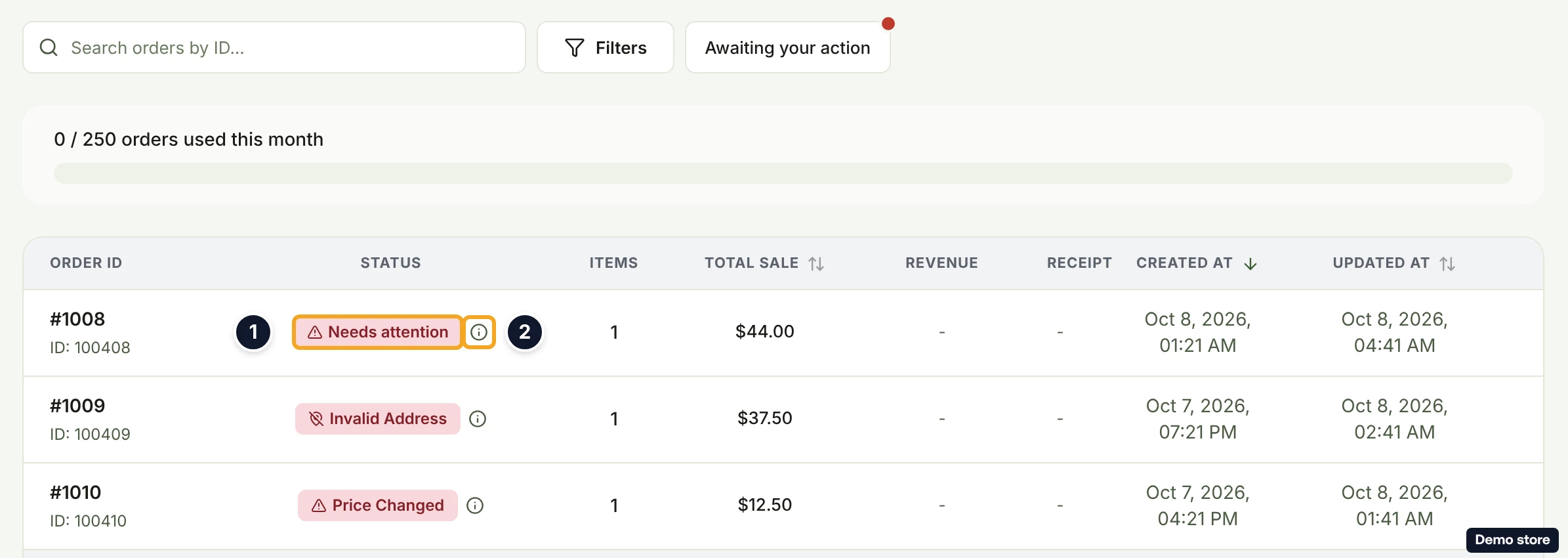
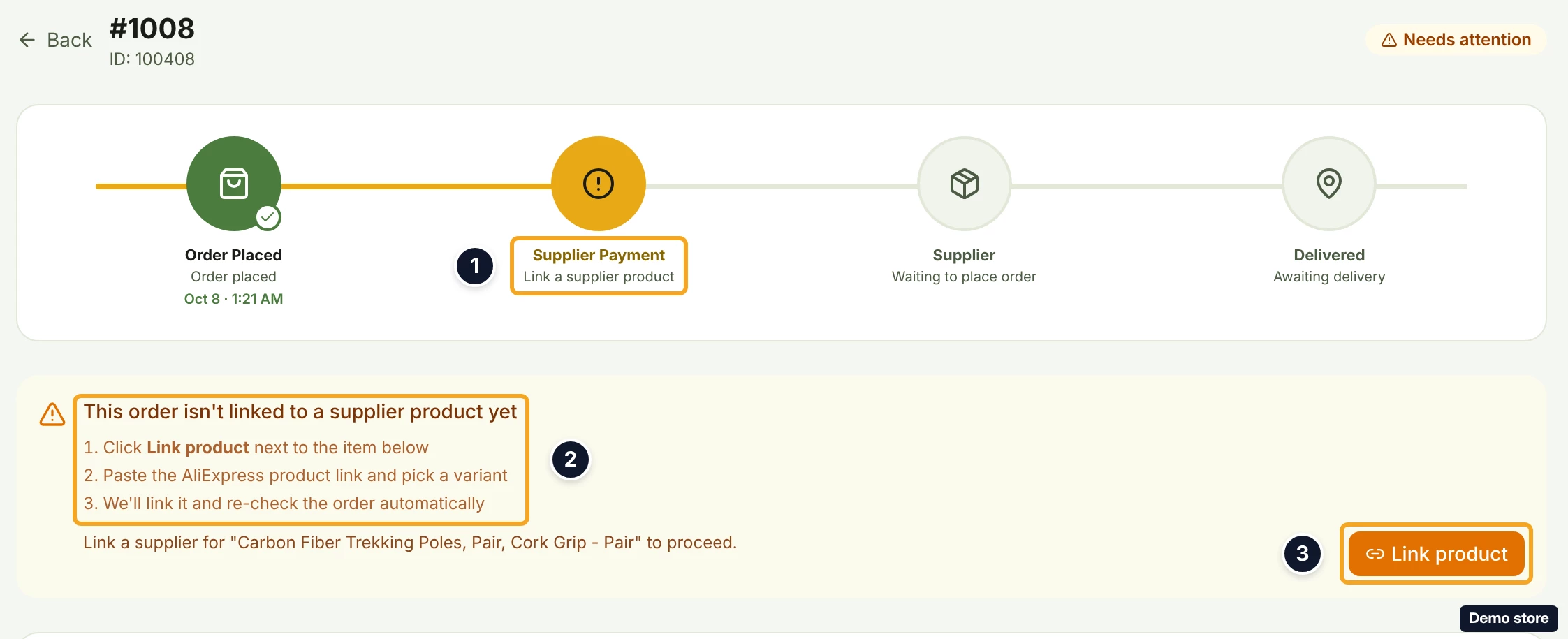
- Click the eye icon View details. In the tracker, the step Supplier Payment reads "Link a supplier product".
- Read the card This order isn't linked to a supplier product yet. Its numbered steps read "Click Link product next to the item below", "Paste the AliExpress product link and pick a variant" and "We'll link it and re-check the order automatically". Under them, each unlinked item has its own line, with a Link product button at the end of the line. The line reads one of three things: ""<item>" isn't linked to a supplier product. Click "Link product" to choose one.", which goes on to say the link is saved on the product; ""<item>" needs a supplier variant selected. Click "Link product" to pick one."; or "Link a supplier for "<item>" to proceed." This card has no Retry button.
Link the item
- Click Link product at the end of the item's line. The dialog Link Variant to Supplier opens with "Loading product…", then shows "<product title>: Follow the steps to link a variant" and the stepper Supplier Info, Link. When DS-Mate could not tell which variant this order bought, the stepper starts with Select Variant and the notice "We could not tell which variant this order bought" shows: pick the variant first.
- On Supplier Info, paste the supplier's product link or product ID in Primary Supplier Link * (placeholder "https://www.supplier.com/item/12345 or product ID"). Secondary Supplier Link and Max Supplier Price (optional) are optional (see the backup supplier and max price question).
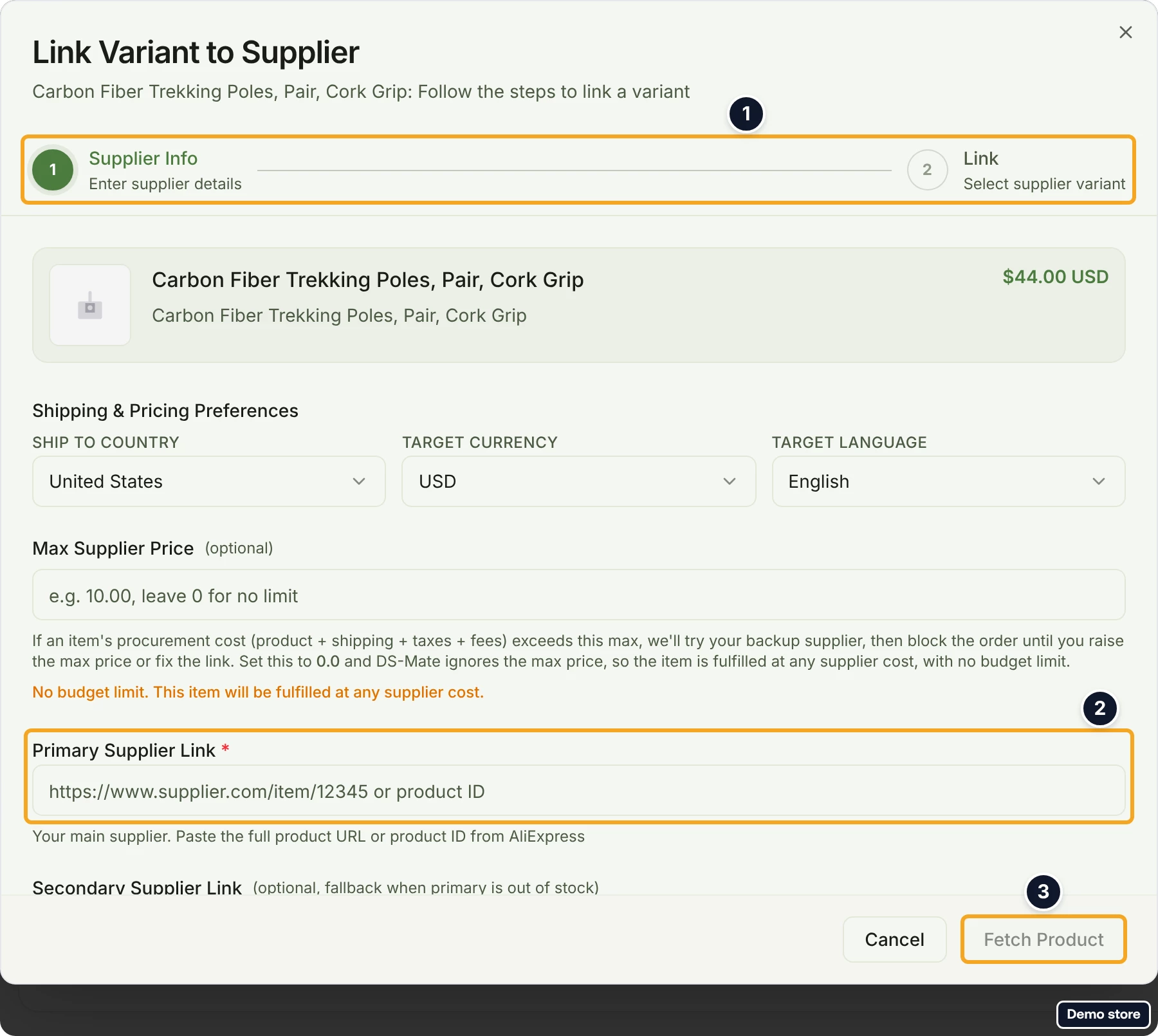
- Click Fetch Product (Fetch Products when you also filled in Secondary Supplier Link). It stays greyed until a link is in Primary Supplier Link *. It reads Fetching... while it works, and a toast confirms the product was fetched.
- On Link, click the supplier variant that matches the item.
- Click a shipping option. The hint "Please select a shipping option" shows until you do.
- Click Link Variant. It reads Linking... while it saves. Back and Cancel are also offered. The toast reads "Variant linked successfully!", or "Primary and secondary links created!" when you also saved a secondary link. When the save was refused, the toast gives the reason the server sent, or "Failed to link variant" when it sent none.
After the link
- The dialog closes and DS-Mate re-checks the order on its own: the toast "Re-checking your order…" appears, the badge becomes Re-checking and the panel reads Finalizing your order… with "We're re-checking this order and will move it to fulfillment in a moment. This page updates automatically, no need to refresh." The panel has no button, so there is nothing else to click.
- The order then lands on Ready to Fulfill with a pay card, Placing your order on a store with auto-pay, or on a new hold, for example not enough service credits.
Good to know
- The link is saved on the product, not on the order, so it fixes every future order of that variant too.
- When every issue on the card is a link issue there is no Retry button: linking re-checks the order by itself. When the order has other issues as well, the card is titled This order needs your attention, reads "We can't fulfill this order until the issues below are resolved. Once they're fixed, click Retry." and has a Retry button.
- Needs attention also covers other blockers (minimum order quantity, mixed suppliers, a product to re-import, a variant the product no longer has), each with its own card title. If the item's product is not imported in DS-Mate, the card asks you to re-import it. If the order names a variant the product no longer has, the card offers View product instead.
- If the product is no longer in your store when you click Link product, the dialog closes with the toast "Couldn't find this product in your store. Import it, then link it to a supplier from the product page."
- A supplier cost above the item's max price is a different hold, Fulfillment Blocked (see the backup supplier and max price question).
- You get a notification bell entry for this hold only when a supplier cleared a dead link while DS-Mate was placing an auto-paid order. It is titled "Order <id> needs your attention", reads "We couldn't place this order with the supplier. 1 item needs a fix. Nothing has been charged. Open the order to see what to do." (with the number of items that need a fix), and opens the order page. An order that was unlinked from the start raises no bell entry.
- Telling the four holds apart: an item with no supplier link reads Needs attention; address holds read Awaiting address, Address needed or Invalid Address; a moved supplier price reads Price Changed with a Pay with card button; an order parked for service credits has no badge, only Pay with card and an info icon.
On the Shopify app
The card is titled This order needs your attention and reads "These items aren't linked to a supplier yet. Link each one to a supplier from its product page, then click Retry.", but it has no Retry button. The per-item button reads Change linked product.
Related Articles
Still have questions?
Our support team is ready to help. Reach out and we'll get back to you as soon as possible.