Back to Help Center
Help CenterGetting Started
How do I find my way around the DS-Mate dashboard?
4 min readDashboard (web dashboard)
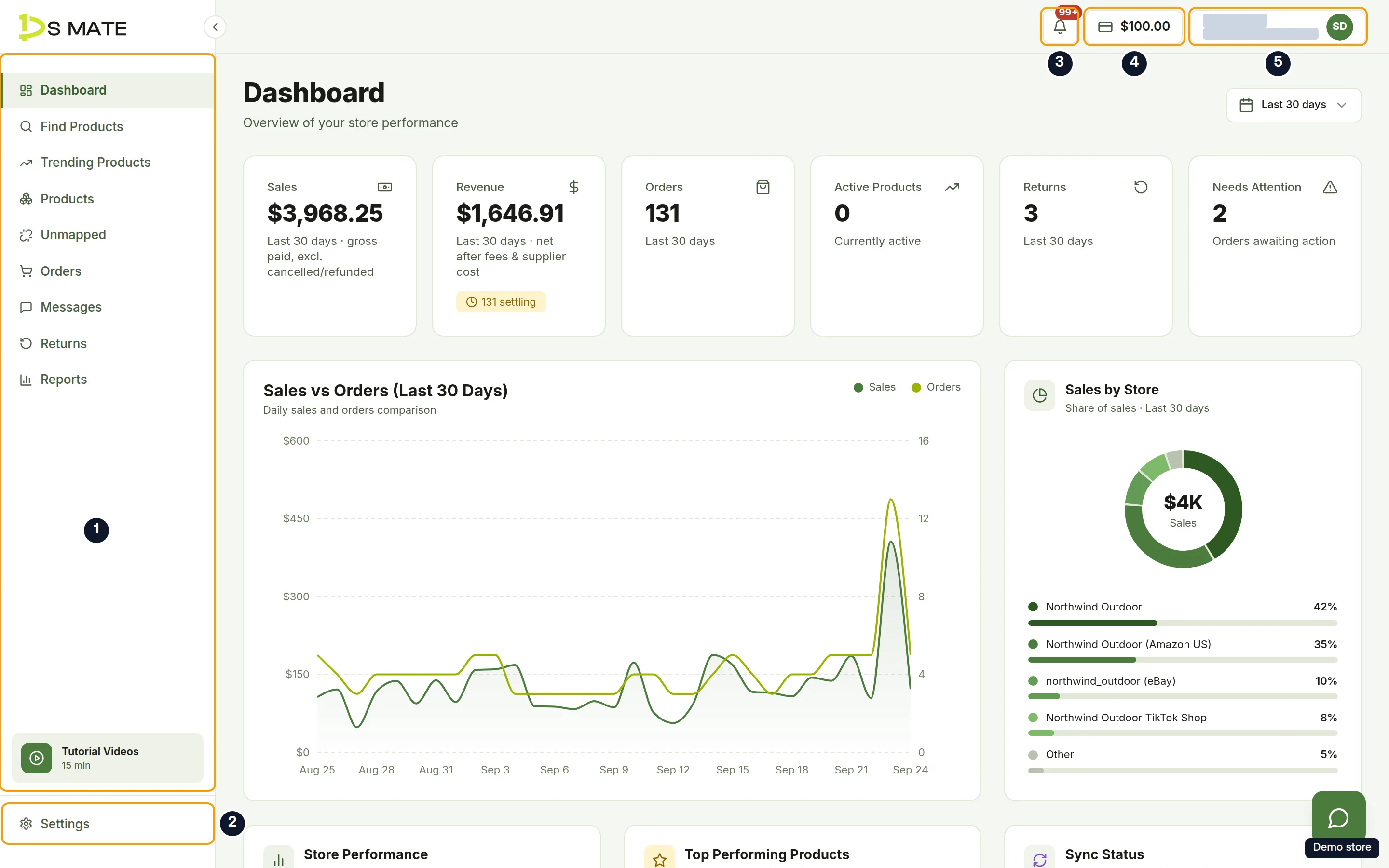
The web dashboard has three parts: a left sidebar with the main pages, a top bar for switching stores and reaching notifications, credits and your account, and Settings at the bottom of the sidebar. You need a verified email to open it. Messages, Returns and Trending Products need the Starter plan or higher. On plans below Starter, Messages and Returns show a lock in the sidebar, and Trending Products opens an upgrade card.
Steps
The left sidebar
- Dashboard: an overview of your store performance, totalled across every store.
- Find Products: discover trending products to add to your stores.
- Trending Products: the best-selling, best-rated products across every connected supplier, ranked by proven demand and sourcing confidence. Needs Starter or higher. On a plan below Starter the page opens an Unlock Trending Products upgrade card instead; there is no lock in the sidebar.
- Products: manage your connected stores and product inventory.
- Unmapped: opens the Unmapped Variants page, where you see every product variant that is not linked to a supplier product.
- Orders: view and manage your store orders.
- Messages: eBay buyer messages. A red badge shows unread messages. Needs Starter or higher.
- Returns: view and manage your return requests. Needs Starter or higher.
- Reports: your store performance and insights, with the tabs Sales, Products, Returns and Shipping.
- On a plan below Starter, Messages and Returns show a lock and the tooltip "Messages (upgrade required)" or "Returns (upgrade required)". Clicking opens the pricing page. Trending Products carries no lock; it opens the upgrade card described above.
- Use Collapse sidebar and Expand sidebar to change the sidebar's width. On a small screen, use Open navigation in the top bar.
Settings
- Click Settings at the bottom of the sidebar. The page is titled Settings with the subtitle "Manage your account, stores, and preferences".
- The tabs are grouped. Account: Profile, Security, Notifications. Business: Stores, Suppliers, Supplier access, Plan & Billing, Service Credit, Referrals.
The top bar
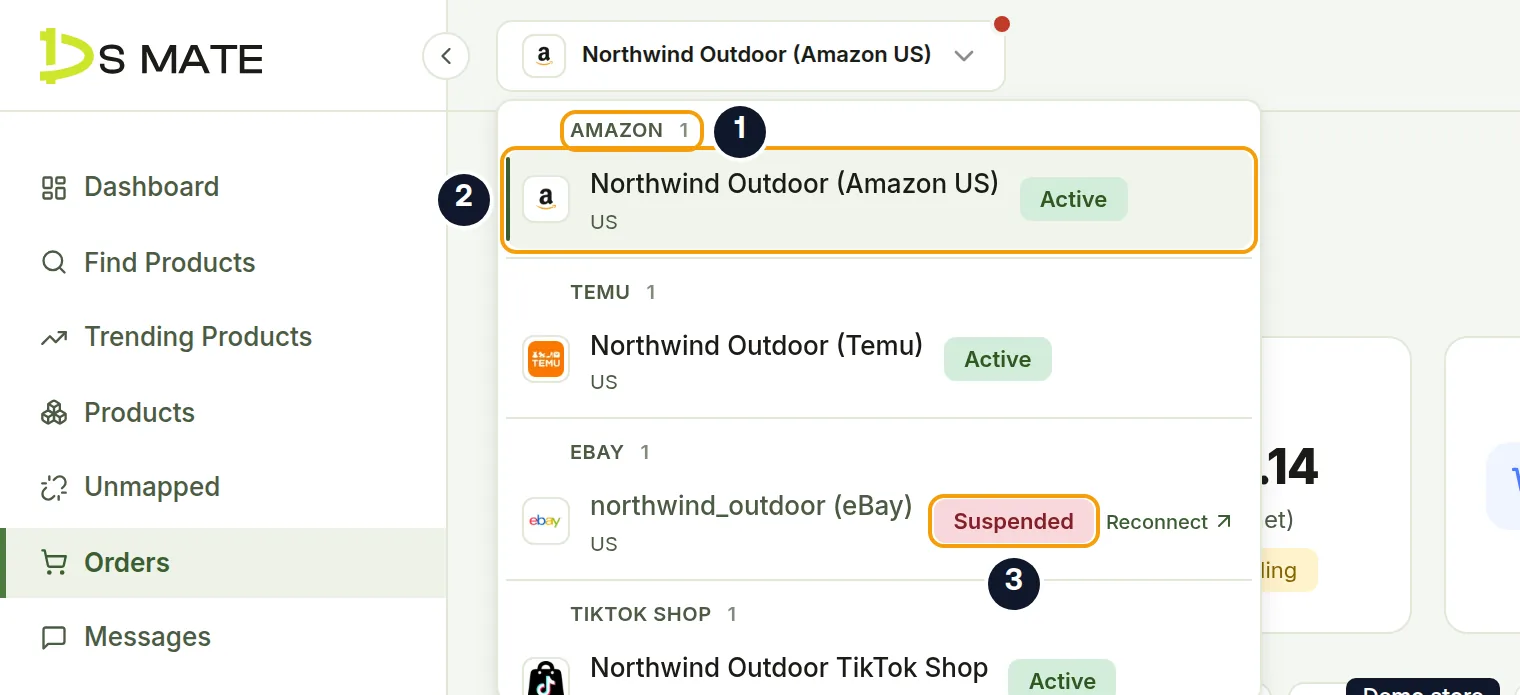
- On the left is the store picker. Until you choose a store it reads Select a store; once you have chosen, it shows that store's name. Stores are grouped by channel, and each row carries a status badge: Active, Suspended, Removed, Paused, Setup or Removing.
- A store that is not active shows Reconnect, which opens Settings > Stores.
- The store picker is hidden on Dashboard, Find Products, Trending Products, Settings and on import and product detail pages. On Find Products, that spot holds the supplier picker, which reads Select a supplier until you choose one and then shows the supplier's name.
- With no stores connected, the picker is replaced by a Connect Store button.
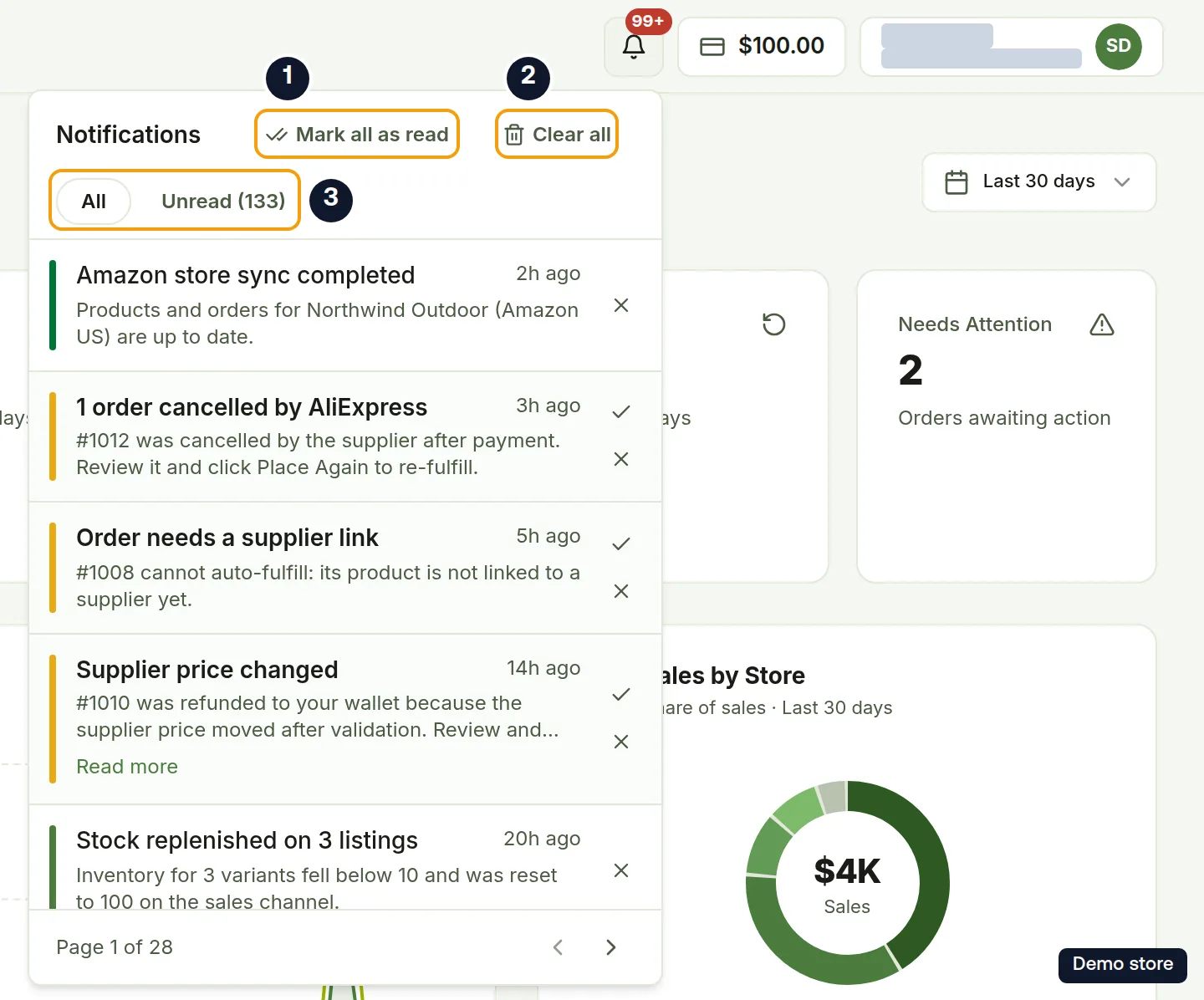
- On the right is the Notifications bell. The count shows 99+ above 99. Open it to see Notifications, with Clear all and the All and Unread filters, plus Mark all as read when you have unread notifications. The Unread filter shows how many are unread. Unread rows have Mark as read, and every row has Remove notification.
- Clear all asks "Clear all notifications?" with the text "This removes every notification from your bell. This can't be undone." Choose Cancel or Clear all.
- Next is the service credits chip with your wallet balance. Its tooltip reads Service credits balance, and it opens the Service Credit tab in Settings. If you hold more than one wallet, you see a Service credits list by currency. The chip is hidden on narrow screens.
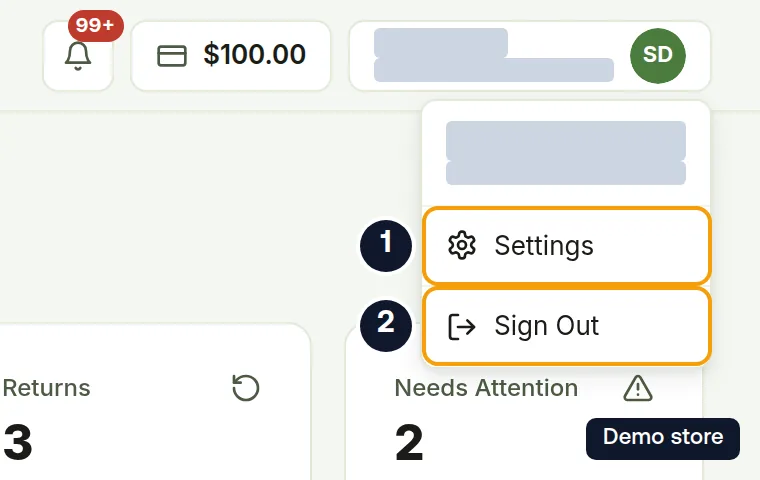
- Last is the account chip with your name and email. Its menu has Settings and Sign Out.
- The help button at the bottom right on every dashboard page opens the support widget.
The Dashboard page
- The period picker offers Last 7 days, Last 30 days (the default) and Last 90 days.
- Six cards follow: Sales, Revenue, Orders, Active Products, Returns and Needs Attention.
- Below them: Sales vs Orders (Last N Days), Sales by Store, Store Performance, Top Performing Products, Sync Status and Recent Orders.
- With no stores connected, the page shows No Stores Connected and a Connect Store button.
Good to know
- The Dashboard page always totals every store and has no store picker. To look at one store on its own, use Reports.
- Messages works for eBay stores only. On any other store the page shows "Messaging isn't available for this store" and "Customer messages are currently supported for eBay stores only. Switch to an eBay store from the selector above."
- If auto-renew is off, a banner tells you how many days are left on your plan and offers "Click here to renew".
On the Shopify app
The Shopify app menu has Dashboard, Search Products, Products, Unmapped, Orders, Returns, Billing, Service Credits and Referrals. There is no Trending Products, Messages, Reports or Settings, and the notification bell sits at the top right of the page content.
Related Articles
Still have questions?
Our support team is ready to help. Reach out and we'll get back to you as soon as possible.