Back to Help Center
Help CenterProducts & Import
How do I find, filter and update the products in my store?
9 min readProducts (web dashboard)
You find and change your products on Products, one store at a time: pick the store in the top-bar store picker, then search, filter by status or by ID, and tick rows to change stock or prices for several products in one update. Every change is queued and sent to your store, and the row updates once the store confirms it. DS-Mate sends the changes you make here; it does not change your store's stock or prices on its own when your supplier's stock or price changes (see "Good to know").
Steps
Find and filter
- Click Products in the sidebar. The heading reads Products ("Manage your connected stores and product inventory"). Without a store the page shows "No Store Selected" ("Please select a store from the header to view and manage your products.").
- Pick the store in the top-bar store picker (it reads Select a store while none is chosen). Picking a store that is not active opens Settings > Stores instead.
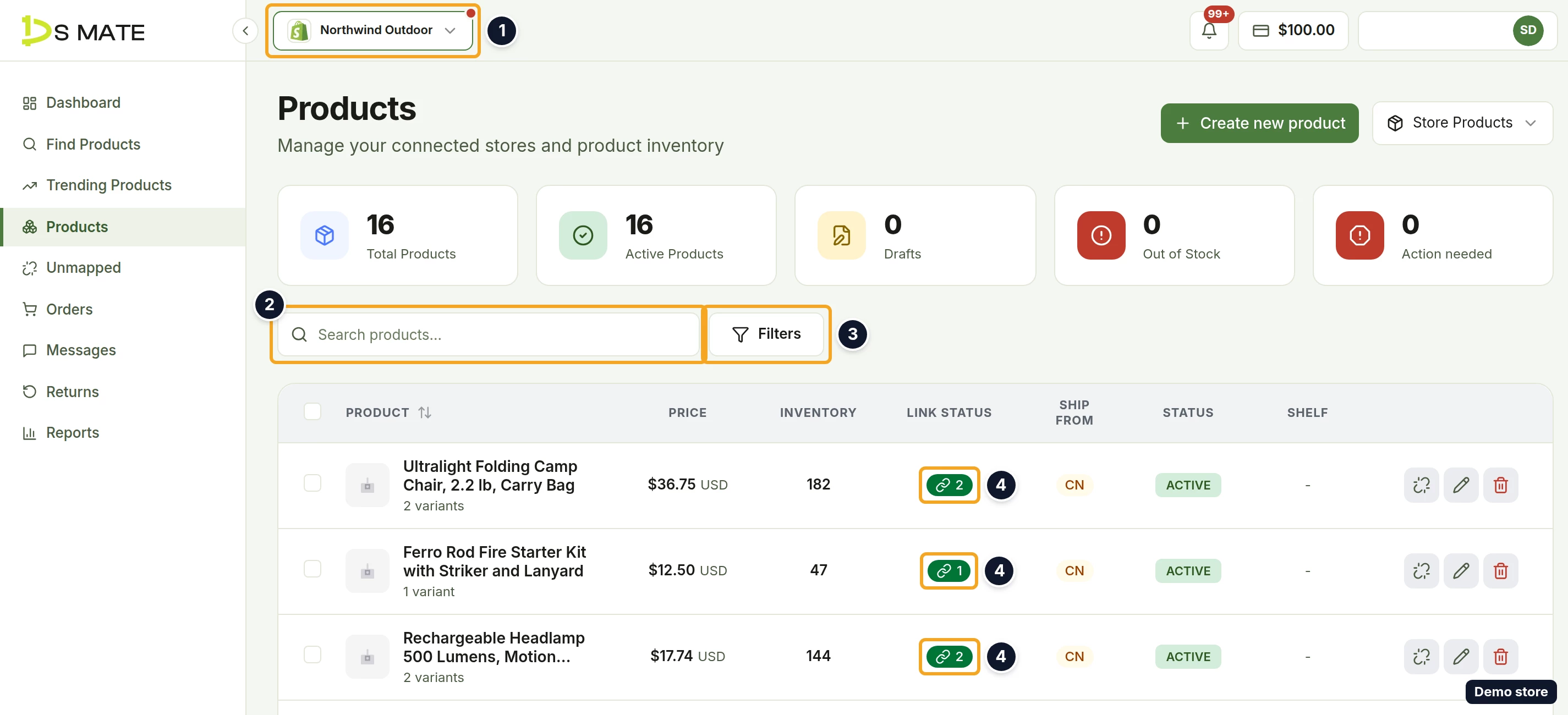
- The summary cards Total Products, Active Products, Drafts, Out of Stock and Action needed count this store's products. They are not clickable.
- To find one product, type in Search products.... It matches part of the title, in any case, or an exact product ID, variant SKU or variant ID.
- To narrow the list, click Filters. The panel has Find by ID, Product Status and Clear all filters.
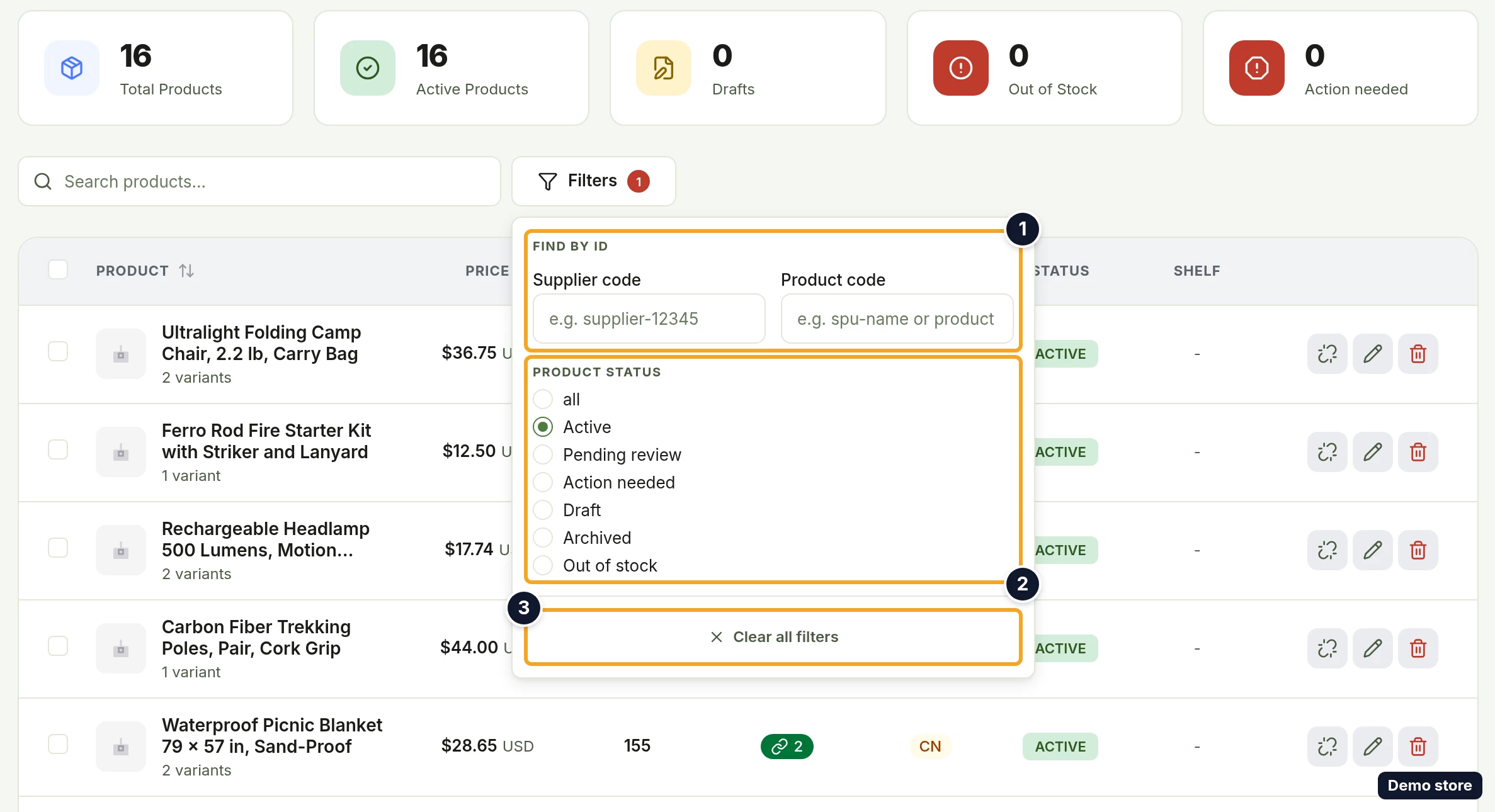
- Pick a Product Status: all, Active, Pending review, Action needed, Draft, Archived or Out of stock. The Active Products card also counts products pending review; the Active filter does not, so pick Pending review for those.
- To look up one product by its code instead, type it under Find by ID: Supplier code ("e.g. supplier-12345") or Product code ("e.g. spu-name or product ID"). A SHEIN store adds SHEIN SPU, SHEIN SKC and SHEIN SKU.
- To sort, click the Product column header. It sorts by product name, Z to A first, then A to Z on the next click, then back to no sort. No other column sorts. The list is always grouped by status first, and without a sort the newest products come first.
- At the bottom, Rows per page: offers 10, 25 or 50, and a summary line tells you which rows of the total you are looking at. Your search, filters and page are kept in the page's address.
- Read the row:
- Product: image, the title as a link to the product's page, and the variant count.
- Price: the average price, always followed by "USD".
- Inventory: the stock, in red when out of stock (tooltip "Out of stock. This listing is live but cannot be bought"), or a plain hyphen with the tooltip "Not listed, stock does not apply" or "This product does not track inventory".
- Link Status: a green pill counts the linked variants (tooltip View linked variants), a grey pill the unlinked ones (View unlinked variants). Each opens the product's page on that tab.
- Ship From.
- Status: ACTIVE, Pending review, Action needed, DRAFT or ARCHIVED, or, while a listing is in flight, Sent, Processing, Under Review (its tooltip says the channel is reviewing the listing and how long that usually takes, where the channel gives one, and that it is not selling yet), Issues (opens the Listing Issues popover), Failed (opens the Import Failed popover), Action needed or Removing….
- Shelf: On shelf, Not on shelf, Not listed yet, or a plain hyphen.
Update stock or prices for several products
- Tick the rows you want, or tick the header box (Select all products on this page).
- A bar appears counting the selected products, with Inventory, Prices, List and Take off shelf, and an X that clears the selection. Each button shows only where your store's channel supports it. On a Shopify, Amazon, eBay, TikTok Shop, Etsy or WooCommerce store, do not use Take off shelf here: see "Good to know".
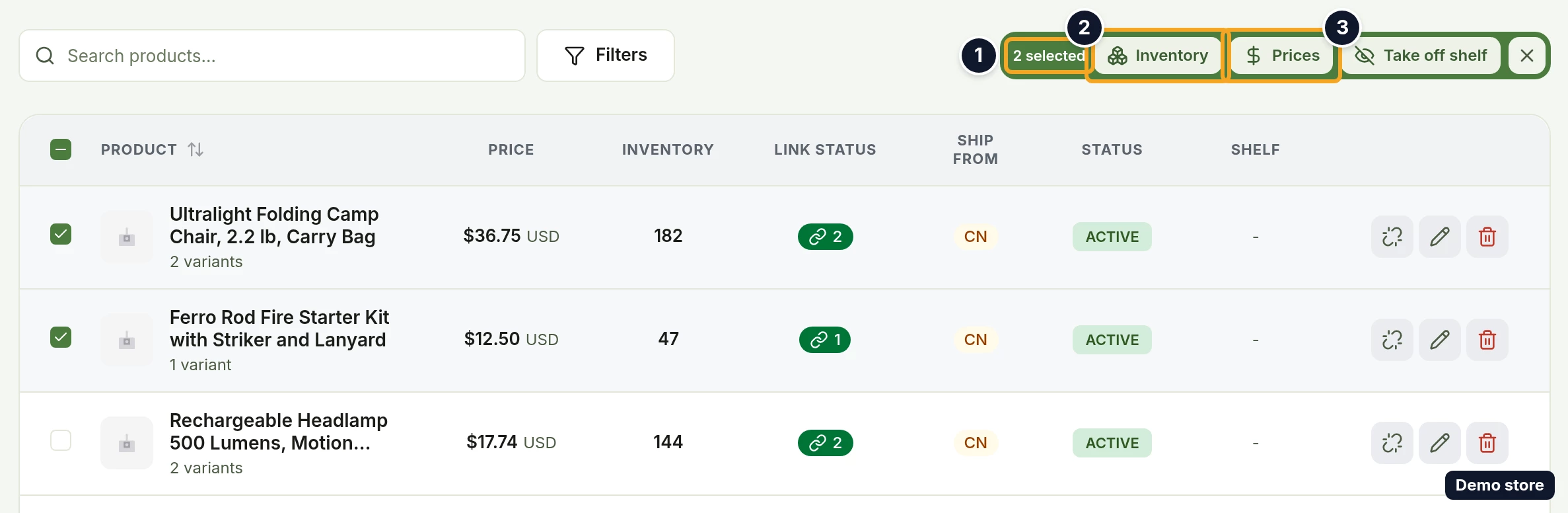
- Click Inventory. The Edit inventory dialog opens ("Apply an inventory change to" followed by the number of selected products).
- Choose Set quantity ("Overwrite each variant's inventory with this number.") or Adjust by.
- Type the number in New quantity ("e.g. 100") or Adjustment ("e.g. -5 or +20"). A wrong entry reads "Enter a valid number" or "Quantity must be 0 or greater".
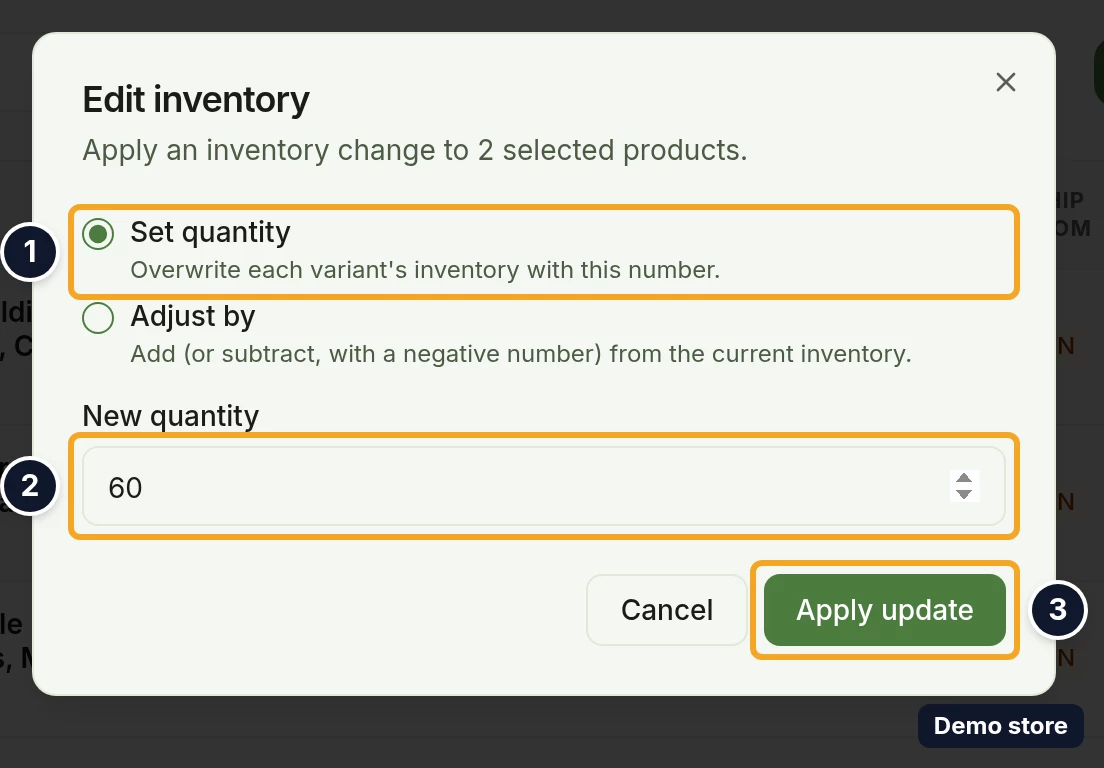
- Click Apply update. It reads Queuing… while working; Cancel closes the dialog.
- The toast "Update pending, updating" followed by the item count and "We'll notify you when it's done." confirms it. The rows update once your store confirms, and a notification follows.
- For prices, click Prices instead. The Edit prices dialog opens and says which currency the values are in.
- Choose Set price, Adjust by or Change by percentage.
- Type the value in New price ("e.g. 24.99"), Adjustment ("e.g. -2.50 or +5") or Percentage change (%) ("e.g. -10 or +15"). The first two show the currency in brackets. With Set price, a price of zero or less reads "Price must be greater than 0".
- Click Apply update. It reads Queuing… while working.
- The same toast as for inventory confirms it: "Update pending, updating" followed by the item count and "We'll notify you when it's done." The rows update once your store confirms.
Edit or remove one product
- Hover a row to see its icon actions. Their tooltips read:
- Link variant, or Unlink variants when every variant is linked. Both open the product's page.
- List on channel, on an AliExpress Seller or SHEIN store when the product is archived or off shelf. Toast "List request queued" or "Listing is going back on shelf".
- Take off shelf, on an AliExpress Seller or SHEIN store when the Shelf column reads On shelf. Toast "Listing is coming off shelf".
- Edit product, on an ACTIVE product. It opens Edit Product.
- Delete product, on a store where DS-Mate can remove the product.
- To remove a product from your store, click Delete product. A dialog titled Delete with the product's title and a question mark opens, with a channel badge and a text and button that depend on the channel:
- Shopify, Amazon, Etsy, WooCommerce: "This permanently removes the listing and can't be undone." and a red Delete.
- eBay: "This will end the listing. Items with sales can't be deleted, only ended." and End listing.
- TikTok Shop: "This removes the product from your shop. You can recover it from deleted products if you need it back." and Delete.
- AliExpress, SHEIN, Temu: "This takes the product off-shelf so it's no longer available for sale." and Delete.
- Click Delete, or End listing on an eBay store.
- The toast reads "Product deleted", "Listing ended, product archived" or "Deletion submitted, completing shortly". If the store refuses, the toast says why (for example that the connection needs attention), or reads "Failed to delete product".
- To see everything about one product, click its title.
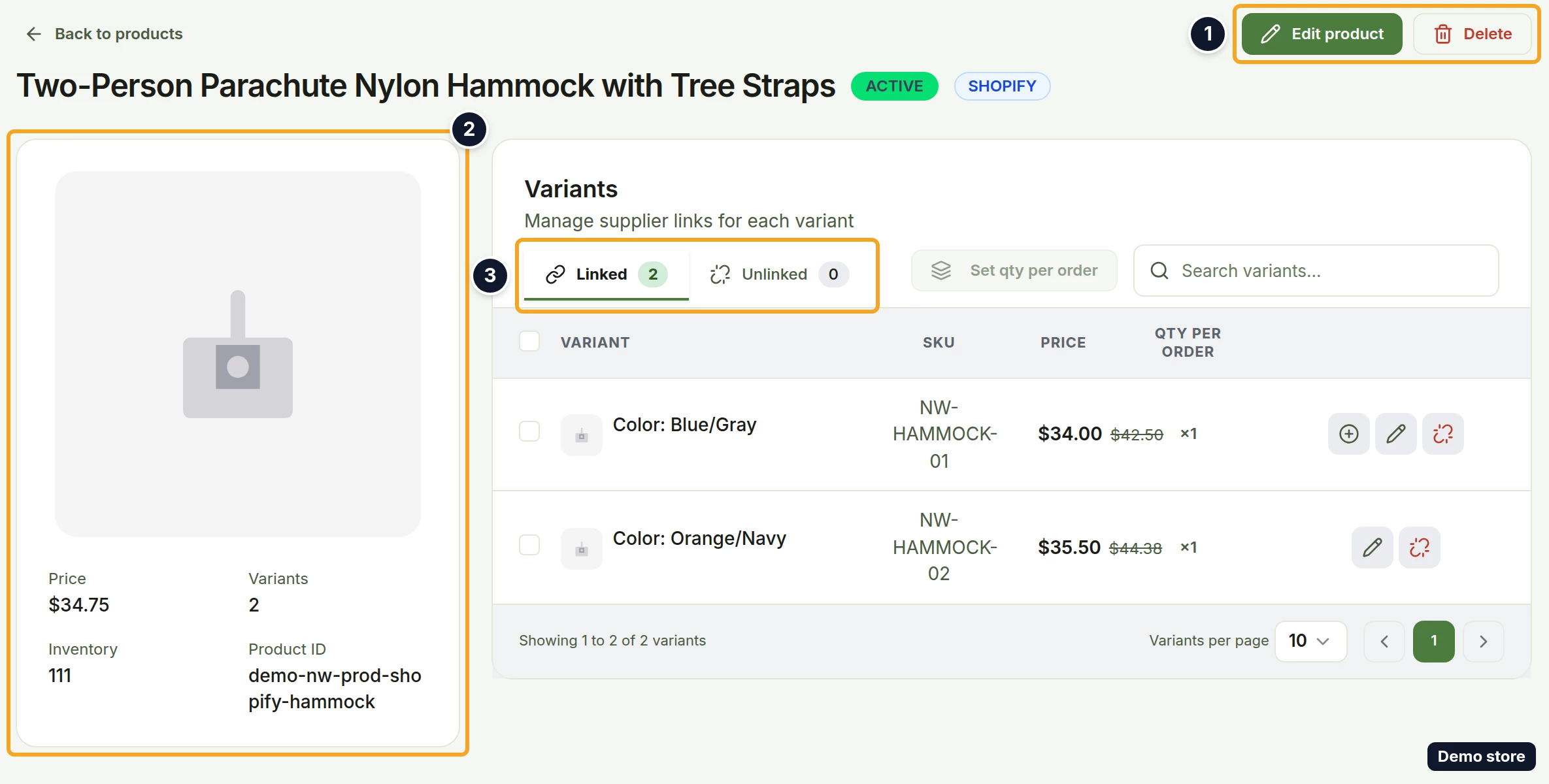
- The product's page shows Back to products, the title, a status badge and a channel badge, then the actions List on channel (archived products), Edit product (active products) and Delete. The left panel lists Price, Variants, Inventory, SKU, Category, Product ID, Description, Import status (Amazon) or Channel listing status, Tags and Images with their counts. Below, Variants ("Manage supplier links for each variant") has the Linked and Unlinked tabs with their counts, Link variants, Set qty per order and Search variants....
Good to know
- DS-Mate does not change your store's stock or prices when your supplier's stock or price changes. Stock and price updates you make on Products are sent to your store; the Sync button on the store card in Settings > Stores pulls your store's own listings into DS-Mate. There is no per-product sync action. The one exception is automatic stock replenishment for Amazon stores on Starter and Growth: where it is turned on for a store, DS-Mate tops up a linked variant's Amazon stock when it runs low and the supplier has stock.
- On a Shopify, Amazon, eBay, TikTok Shop, Etsy or WooCommerce store, Take off shelf in the bulk bar removes the selected listings from your store the way a delete does (on eBay it ends them), and it asks for no confirmation. Its toast reads that the listings are coming off shelf.
- On Shopify, that bulk Take off shelf permanently deletes the products from your Shopify store, which cannot be undone, and the products then disappear from Products as well. On the other stores in the list above the products stay in DS-Mate, marked off shelf. To remove a product from one of those stores, use the row's Delete product, which asks first.
- Only SHEIN reports a shelf reading to DS-Mate. On other stores the Shelf column reads On shelf only after the product was listed from DS-Mate, so the row's Take off shelf often does not show. Temu rows show a plain hyphen in Shelf and do not offer it.
- There is no channel filter, because one store is one channel, and no linked or unlinked filter: use the Link Status pills in the table, or the Unmapped page in the sidebar (see the related question below). Clear all filters is in the Filters panel.
- Products are per store. If a product is missing, switch stores in the top bar.
- Your plan's "active monitoring" number is how many variants can be linked across all of the store owner's stores: Free 200, Starter 2,000, Growth 10,000. When it is full, linking is refused with "This store has reached the maximum number of linked variants for the owner's plan". The Linked Variants meter in the Plan Usage card on Settings > Plan & Billing shows your own account's count against your plan.
- One bulk update carries at most 50 variants (200 on an AliExpress store). Above that you see "This bulk update covers" with the variant and product counts, "and one update can carry" with the limit, and "Select fewer products, then run the rest as a second update." Shelf changes take at most 50 products: "Select at most 50 products at a time."
- The Price column shows "USD" after every price, whatever currency your store uses. The Edit prices dialog uses your store's currency.
- On an Amazon store, products that Amazon has not finished processing appear under a Products being processed banner that says "This usually takes 15 minutes to 6 hours."
- Owners and guests both see the store's products.
On the Shopify app
The Shopify app has the same Products page for the app's shop. Its Product Status filter has no Out of stock option. Its bulk bar is fixed at the bottom of the page, reads the number of products followed by "products selected", and has Edit inventory, Edit prices and Clear, but no Take off shelf.
Related Articles
Still have questions?
Our support team is ready to help. Reach out and we'll get back to you as soon as possible.