Help CenterOrders & Fulfillment
My order is on hold for its shipping address (Awaiting address, Address needed or Invalid Address). How do I fix it?
6 min readOrders > an order's page > the address card (web dashboard); the address itself is edited in your store's own admin
An order waiting on its shipping address shows one of three labels in the Status column of Orders: Awaiting address (DS-Mate is still pulling the address from your store), Address needed (your store confirmed it has no address) or Invalid Address (a supplier refused the address), and the order page repeats the label in its header above a card titled Waiting for the shipping address, Add the shipping address or The shipping address needs fixing. The other holds look different: an item with no supplier link reads Needs attention, a moved supplier price reads Price Changed, and an order parked for service credits has no badge at all, only a Pay with card button. Fix the address in your store, then click Check now or Retry on the order page.
Steps
Find the order
- Click Orders in the sidebar.
- Find the row. Its Status column reads Awaiting address, Address needed or Invalid Address. The quick filter Awaiting your action lists the last two, not Awaiting address.
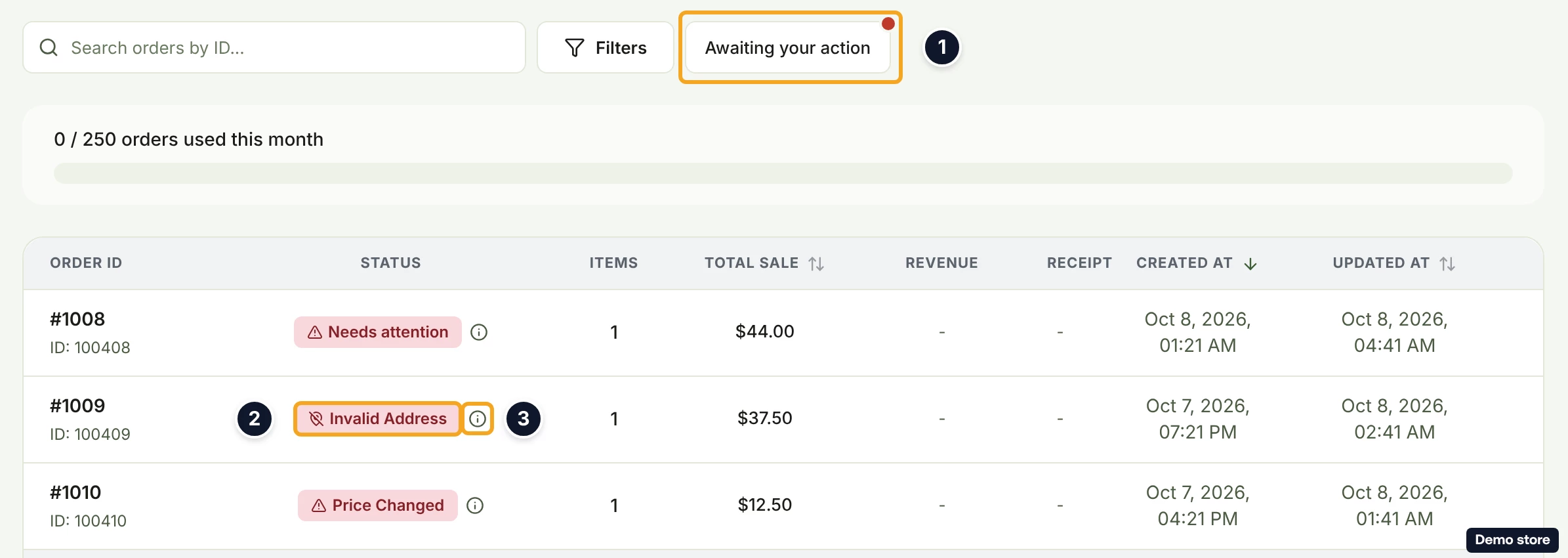
- Hover the info icon next to Address needed or Invalid Address to read its tooltip. On Address needed it reads today "We couldn't process this order with the supplier. Please try again later or contact support." On Invalid Address it gives the supplier's refusal in plain words, for example "There's an issue with the shipping address." On Awaiting address, hover the badge itself: "We're waiting for the shipping address from the sales channel. We'll start fulfillment automatically as soon as it arrives."
- Click the eye icon View details. The header badge repeats the list label, and in the tracker the step Supplier Payment reads "Waiting for shipping address", "Add shipping address on the channel" or "Address needs fixing".
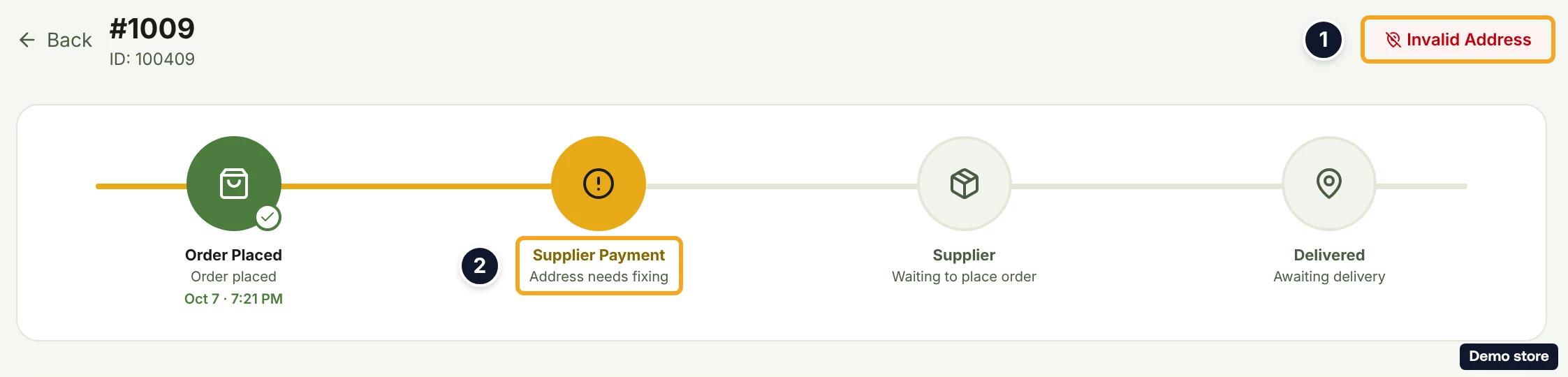
Awaiting address: nothing to do yet
- The card Waiting for the shipping address reads "We're getting the shipping address from <Channel> automatically, nothing you need to do. Once it arrives, we'll begin fulfillment shortly after." DS-Mate asks your store for the address every hour, for 24 hours after the order was placed. If the address is there, the order moves on. If your store answers that it has no address, the order switches to Address needed.
- If you want it sooner, add the address to the order in your store.
- Click Check now on the card. If the card reads "We'll keep checking automatically, no need to retry.", DS-Mate checked in the last 5 minutes and the button comes back on its own. On a store DS-Mate cannot ask again (a Custom store), the card reads "We don't have a shipping address for this order yet. Add it in your store and we'll pick it up automatically." and has no button.
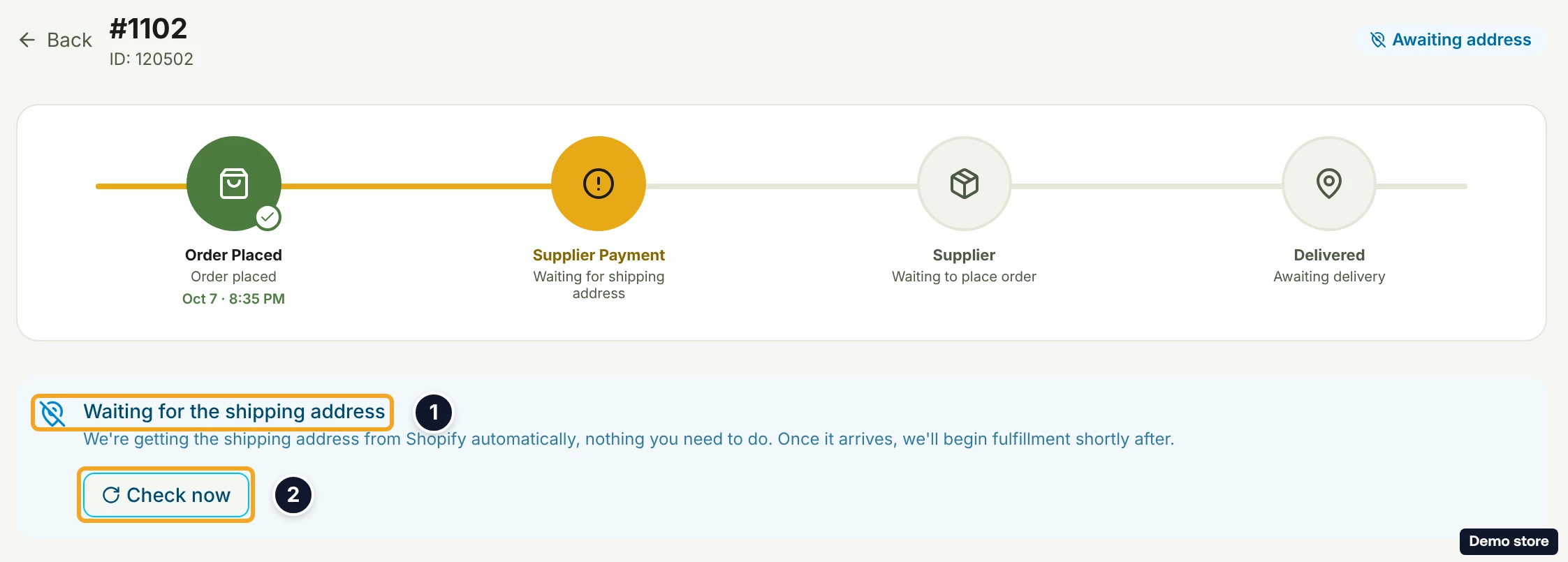
Address needed: add the address in your store
- The card Add the shipping address reads "We checked <Channel> and there's no shipping address on this order. Please add it on <Channel> and we'll pick it up automatically once it's there."
- Add the shipping address to the order in your store's own admin.
- Back on the order page, click Check now. It reads Checking… while it runs. After a check the button is replaced for 5 minutes by "We'll keep checking automatically, no need to retry. Last checked <time>." If your store still had no address, it then comes back as Check again. A failed check shows the toast "Couldn't check for the shipping address. Try again."
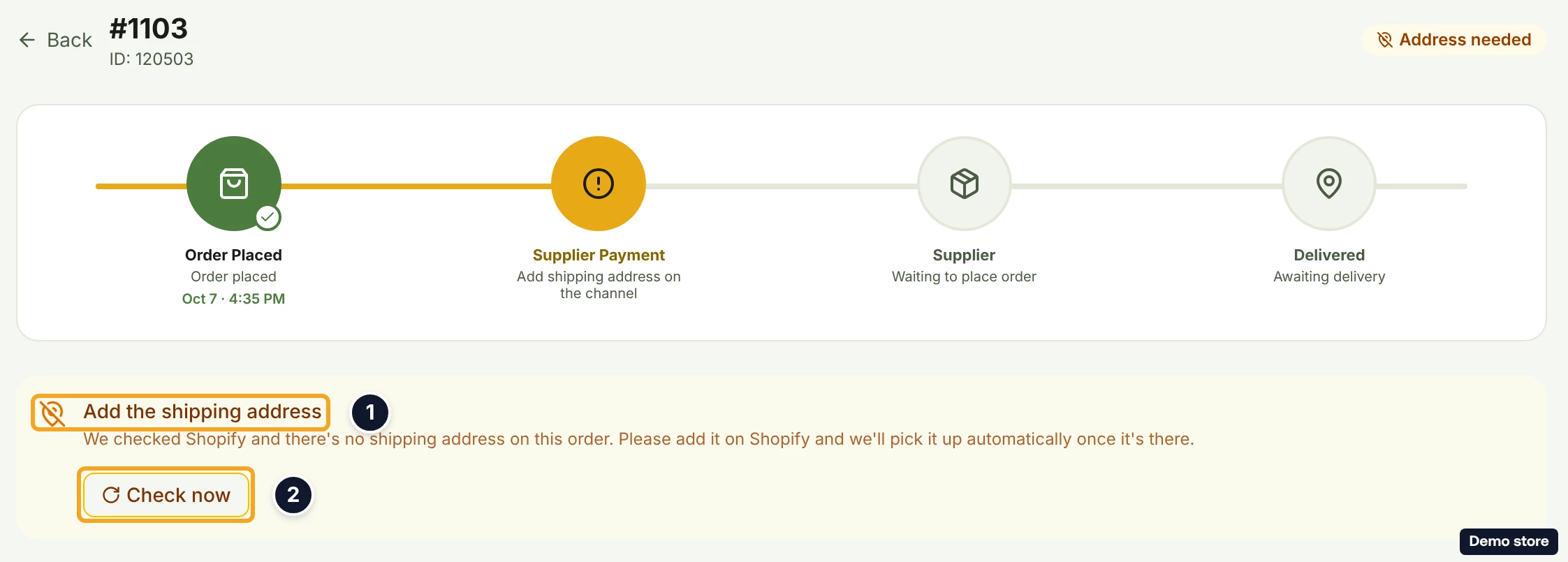
Invalid Address: fix the address in your store
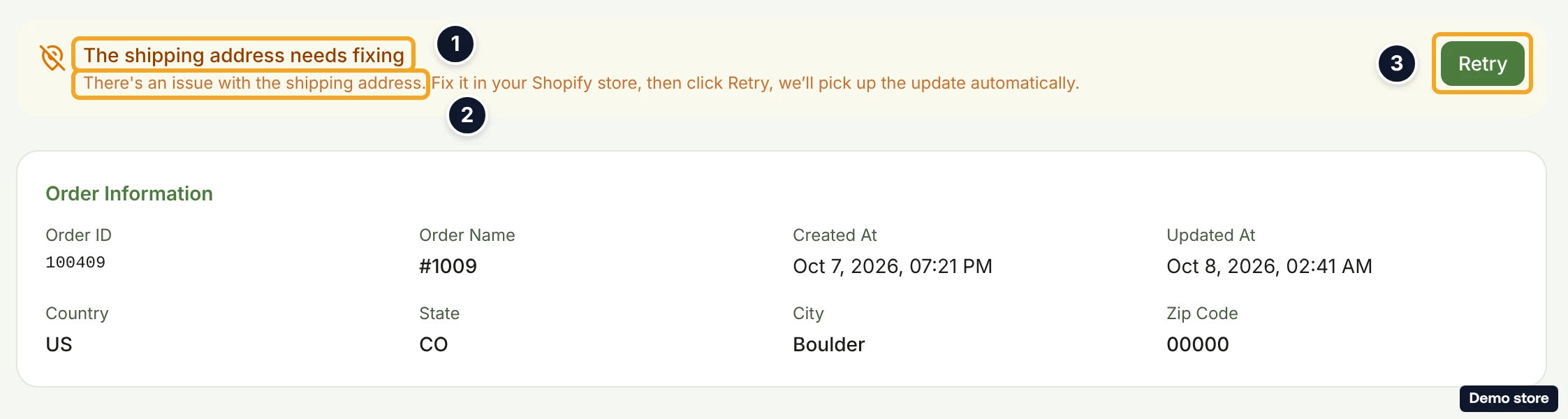
- The card The shipping address needs fixing reads "<reason> Fix it in your <Channel> store, then click Retry, we’ll pick up the update automatically." The reason is the supplier's refusal in plain words, for example "The shipping address has a missing or invalid country." or "There's an issue with the shipping address." (the second is what DS-Mate shows when it does not recognise the supplier's message). When there is no reason, the card reads "The customer’s shipping address failed validation. Fix it in your <Channel> store, then click Retry, we’ll pick up the update automatically."
- Fix the address on the order in your store's own admin.
- Click Retry. It reads Retrying... while it runs.
After the check
- The toast "Re-checking your order…" appears, the badge becomes Re-checking, and the panel reads Finalizing your order… with "We're re-checking this order and will move it to fulfillment in a moment. This page updates automatically, no need to refresh." The panel has no button, so there is nothing to click while it runs. After a minute the title changes to Still finalizing your order.
- The order then lands on its real next state: Ready to Fulfill with a pay card, Placing your order on a store with auto-pay, or back on hold.
Good to know
- There is no address form in DS-Mate. Edit the address in your store, then use Check now or Retry.
- Check now and Retry first pull the address from your store, then re-check the order: DS-Mate asks the store whether the order can still be fulfilled and checks the supplier's current price and shipping. On the Awaiting address and Address needed cards the re-check runs only when a fresh address came back; Retry on the Invalid Address card runs it either way. If you click Retry on the Invalid Address card again within 5 minutes, it skips the pull and goes straight to the re-check.
- Awaiting address needs nothing from you while DS-Mate asks your store for the address. The first hourly check that finds no address switches the order to Address needed. DS-Mate keeps asking every hour for 24 hours after the order was placed. After that, only your Check now or an update from your store moves it. Your own Check now does not make that switch; only the hourly check does.
- Invalid Address is usually a missing country, a recipient name or a postal code the supplier refused.
- A Retry asks for no payment. If the re-check passes and the store's Auto-pay with credits is on, the order moves to Placing your order and is paid from your service credits when your balance covers it, like any auto-fulfilled order. Retry payment, on the card AliExpress couldn't accept the delivery details (tracker "Delivery details rejected, fix and retry"), is a different hold and does pay.
- No plan gate applies to any of this.
- No notification bell entry is raised for an address hold. Watch the Orders list or the order page.
- Telling the four holds apart: address holds read Awaiting address, Address needed or Invalid Address; an item with no supplier link reads Needs attention; a moved supplier price reads Price Changed with a Pay with card button; an order parked for service credits has no badge, only Pay with card and an info icon. Every one of them except Awaiting address is listed by the quick filter Awaiting your action.
On the Shopify app
The Waiting for the shipping address and Add the shipping address cards are the same as on the web dashboard. The invalid-address card differs: it is titled Shipping address needs a fix, its body is the reason in plain words or "The customer's shipping address couldn't be validated. Correct it on the channel, then retry.", and it has no Retry button.
Related Articles
Still have questions?
Our support team is ready to help. Reach out and we'll get back to you as soon as possible.