How do I buy an extra store slot or guest seat?
5 min readSettings > Plan & Billing, or Settings > Stores when you reach your limit (web dashboard)
Steps
Buy a slot on Plan & Billing
- Click Settings at the bottom of the sidebar.
- Click Plan & Billing. The page heading reads "Billing".
- Find Add-on slots below Available Plans: "Extra store connections and guest seats, billed alongside your subscription." It has two rows, Extra store and Extra seat, each with its price ("$5/mo each", or "$60/yr each" on yearly billing) and your current limit, for example "Your store limit is 5."
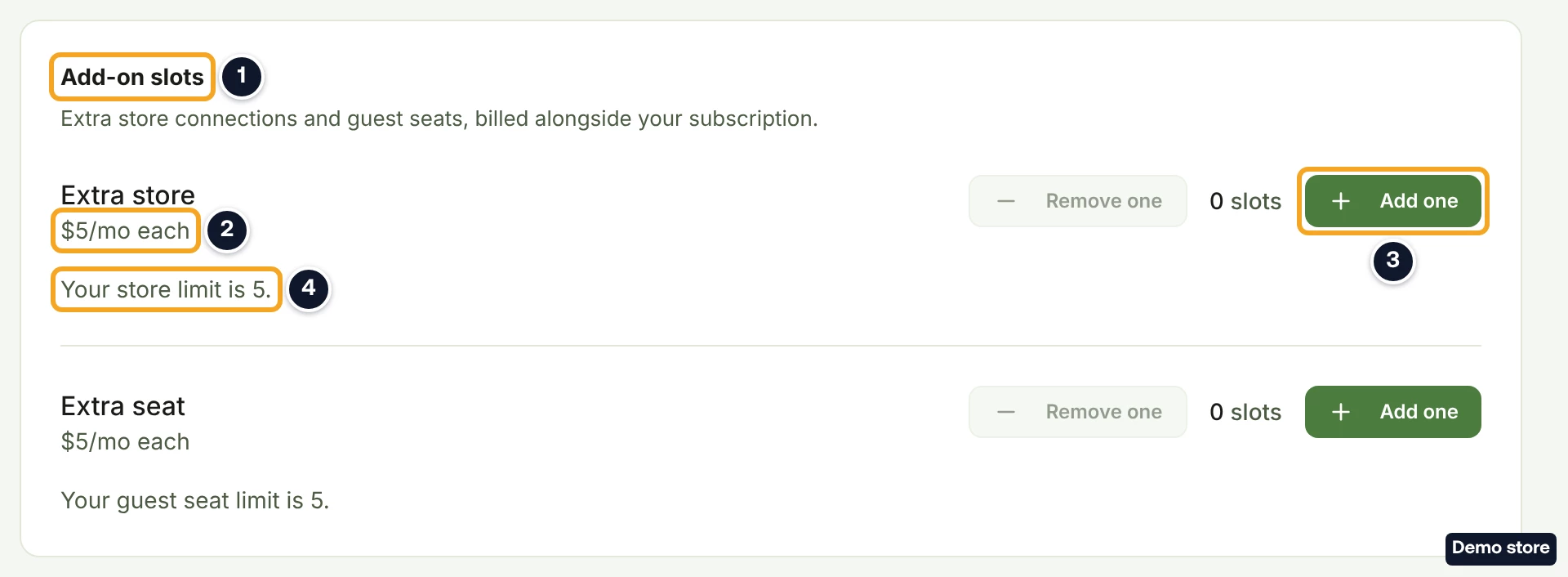
- Click Add one on the row you need. It shows a spinner while the price is worked out.
- The dialog Add an extra store slot? (or Add an extra guest seat?) opens and states the charge: "You will be charged <amount> today for the rest of this billing period. After that this slot is <price> a cycle, starting <date>." Stripe's figure usually prints as "$5.00 a cycle" on monthly billing, or "$60.00 a cycle" on yearly billing. If the amount cannot be worked out, it reads "It is $5 a month. The charge starts today, not on your next invoice." On yearly billing it reads "It is $60 a year. The charge starts today, not on your next invoice." If auto-renew is off, the dialog says instead that the slot ends on your plan's end date and is not charged again, and offers a switch to turn auto-renew on.
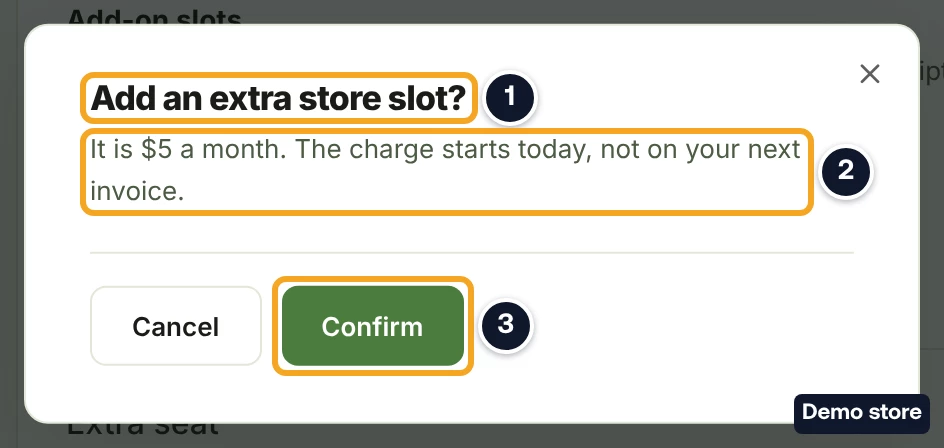
- Click Confirm. The toast reads "Extra store added" or "Extra seat added".
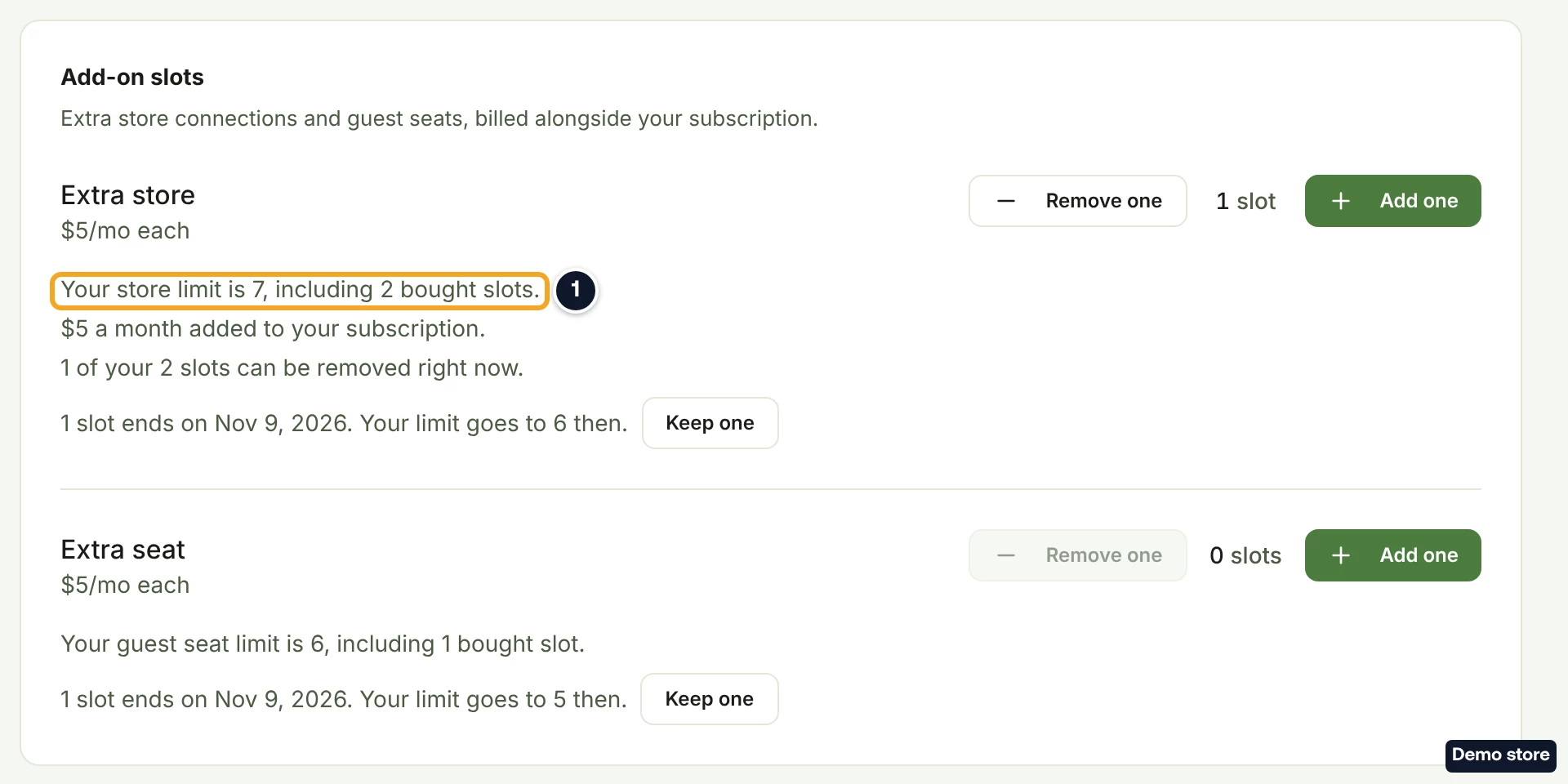
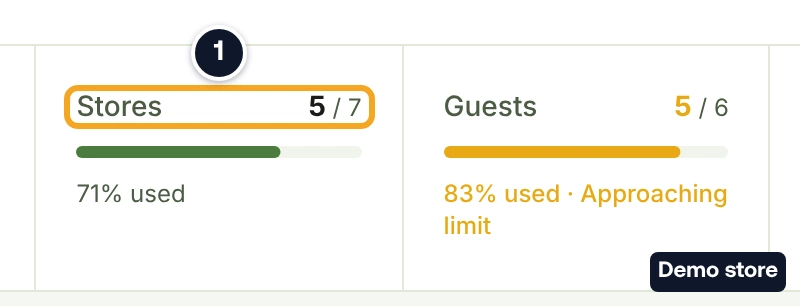
- The row's limit line now counts your bought slots, for example "Your store limit is 7, including 2 bought slots." Plan Usage shows the higher limit too.
Buy a slot when you reach your limit
- Click Connect Store (or Invite Guest) on Settings > Stores when every slot is in use. The Extra store (or Extra seat) dialog opens with a sentence such as "Your plan allows 5 stores, and all of them are in use." (or "Your plan allows 5 guests, and all of them are in use."), then the same price sentence.
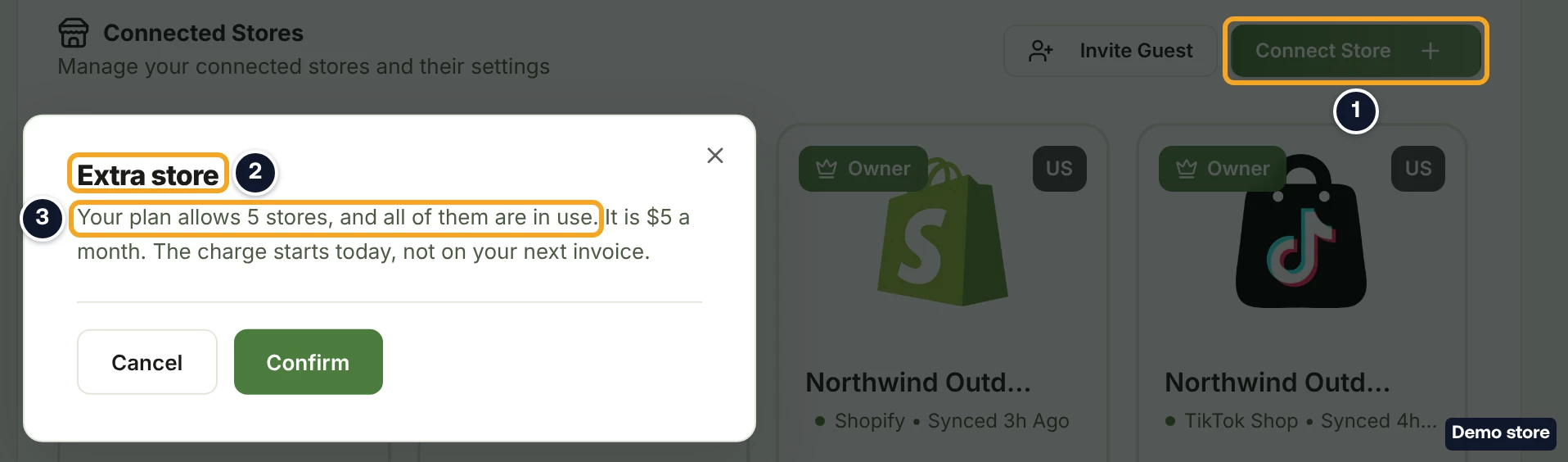
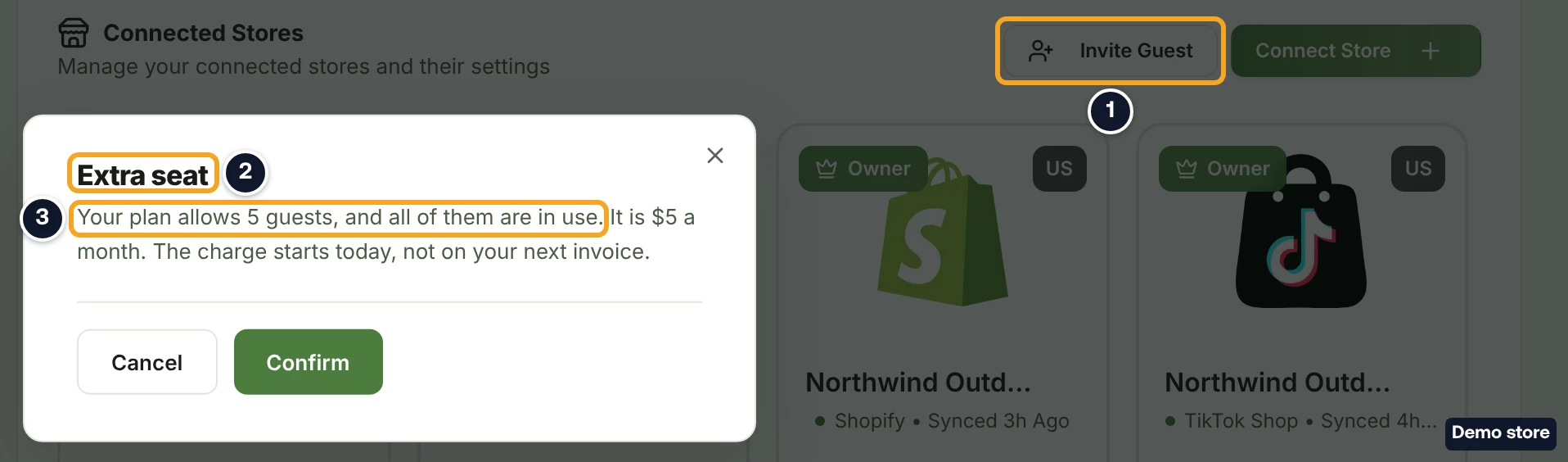
- Click Confirm. Confirm stays disabled while the price is worked out.
- After the purchase, the connect dialog (or Invite Guest to Store) opens again on its own, so you can carry on.
Resend on an expired or rejected invitation under Store Invitations > Invitations Sent opens the same Extra seat dialog when every seat is in use. After you confirm, the invitation is sent again with no second confirmation.
If you are over your limit when you open the dashboard, the blocking step that asks which stores or guests to keep offers "Or keep every store" with Buy a store slot (or "Or keep every guest" with Buy a guest seat). Once your slots cover everything, the toast reads "Your plan now covers all your stores and guests. Nothing was disconnected."
Good to know
- You are charged at once, for the rest of the billing period, and then each billing cycle. The charge is not added to your next invoice; each purchase gets its own invoice.
- Only Growth paid by card through DS-Mate can buy slots. On Free or Starter, at the limit you see "Store limit reached" or "Guest limit reached" with See plans. A Growth plan billed through Shopify cannot buy slots. At the limit, Connect Store and Invite Guest are disabled.
- During a trial, buying a slot ends your trial today, and your plan's own price starts being charged now. The dialog says so before you confirm. If you started the trial with no card, Add one opens the same dialog, and Confirm takes you to checkout to pay for your plan first. Checkout does not add the slot: after you have paid, click Add one again to buy it. Connect Store and Invite Guest stay disabled at the limit until then.
- If your card is declined, the message reads "Your card was declined, so the slot was not added and nothing was charged."
- Slots you buy end when you leave Growth.
On the Shopify app
If your Growth plan is paid by card through DS-Mate, the app's Billing page shows the same Add-on slots card. The app cannot connect other channels or invite guests, so Connect Store and Invite Guest have no limit dialogs there. If you are over your limit, the app's limits screen offers the same slots. A plan billed through Shopify shows no slot card at all.
Related Articles
Still have questions?
Our support team is ready to help. Reach out and we'll get back to you as soon as possible.