Where do I find my invoices and update my payment method?
3 min readSettings > Plan & Billing (web dashboard)
Steps
Find and download an invoice
- Click Settings at the bottom of the sidebar.
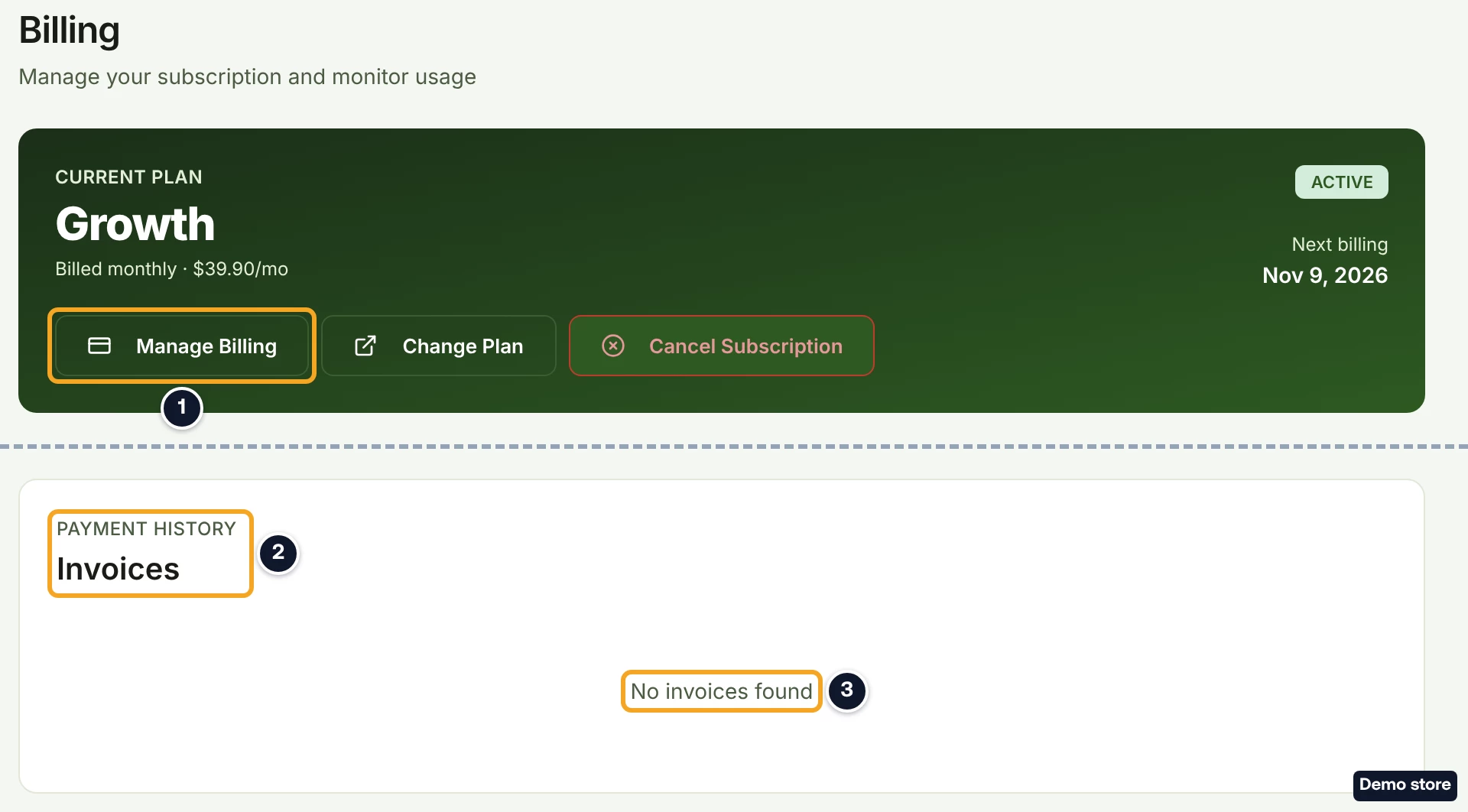
- Click Plan & Billing. The page heading reads "Billing".
- Scroll to Invoices ("Payment History"), below Add-on slots (on Starter, below Available Plans). The columns are Invoice, Date, Amount, Status and Actions.
- Read the status badge on the row: "Draft", "Due", "Paid", "Uncollectible" or "Void".
- Click Download on the row to open the invoice as a PDF. The link icon beside it opens the invoice on Stripe's page in a new tab.
- If you have more invoices than fit on one page, click Next. Previous goes back.
Refunds show as their own "Refund" rows, with the date, the amount with a minus sign, the status as Stripe gives it (for example "Succeeded"), and a link icon that opens the receipt.
Update your card
- On your plan card, click Manage Billing. The button reads "Opening..." and a banner reads "Opening billing portal, please wait...".
- Update your card on Stripe's billing page, which opens in the same tab.
Stripe's own link back to DS-Mate returns you to Plan & Billing. If the page does not open, a toast says so, for example "Failed to create billing portal session". Try again later.
When a payment did not go through
- If the alert "Your last payment did not go through" shows ("Update your payment method and we will charge it right away, so your plan stays active."), click Update payment method and pay.
- Enter your card on Stripe's page. When you come back, DS-Mate charges the open invoice to that card.
If the page does not open, the message reads "We could not open the payment page. Please try again."
Tell invoices apart from order payments
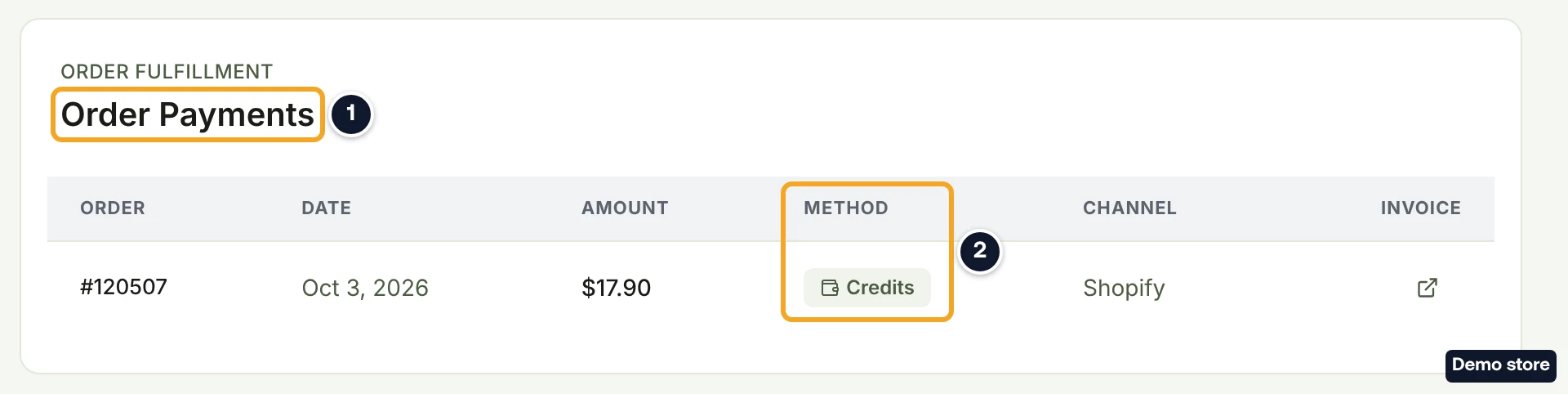
- Below Invoices, the Order Payments card lists what you paid for orders, with the columns Order, Date, Amount, Method ("Credits" or "Card"), Channel and Invoice. When a payment has a Stripe invoice, the link icon under Invoice opens it; other rows show a dash. The receipt for each order payment is on its order (see the receipt question).
Good to know
- Invoices exist only for plans paid by card through DS-Mate. The Free plan has no Invoices card, and a plan from the Shopify App Store is billed on your Shopify invoice.
- An empty list reads "No invoices found". The card reads the same if the list could not be loaded, so reload the page later if you expected invoices.
- Each extra store slot or guest seat you buy has its own invoice, charged at once. A slot purchase that was declined leaves a "Void" invoice for a slot you do not have.
- Use Manage Billing to update your card. To change or cancel your plan, use the buttons on Plan & Billing (see the related questions).
- Manage Billing is not shown while your account is scheduled for deletion.
On the Shopify app
If your plan is paid by card through DS-Mate, the app's Billing page shows the same Invoices card, without refund rows. There is no Manage Billing in the app; the only way to Stripe's page is Update payment method and pay.
Related Articles
Still have questions?
Our support team is ready to help. Reach out and we'll get back to you as soon as possible.