Help CenterBilling & Credits
How do I pick a plan and subscribe?
4 min readSettings > Plan & Billing (web dashboard), then the pricing page
You pick a plan on the pricing page, and every upgrade button in the dashboard takes you there. Your account can use one 14-day free trial, on Starter or Growth, with or without a card, and a paid plan starts as soon as your checkout is confirmed. The app shows the list price (Starter $19.90 a month or $190 a year, Growth $39.90 a month or $380 a year); what you are charged comes from your checkout and your invoice.
Steps
Open the plans
- Click Settings at the bottom of the sidebar.
- Click Plan & Billing. The page heading reads "Billing".
- On the Free plan, click Upgrade to Starter or Upgrade to Growth under Available Plans. The pricing page opens. Upgrade Plan on your plan card and View Plans on the Unlock more features card open the same page.
If your account is new and has no plan yet, DS-Mate opens a page of plans for you instead. You pick a plan there in the same way.
Choose monthly or yearly
- At the top of the plans, click Monthly or Yearly (2 months free). Each card shows its price "per month" or "per year", and a paid card on the yearly tab adds the chip "2 months free".
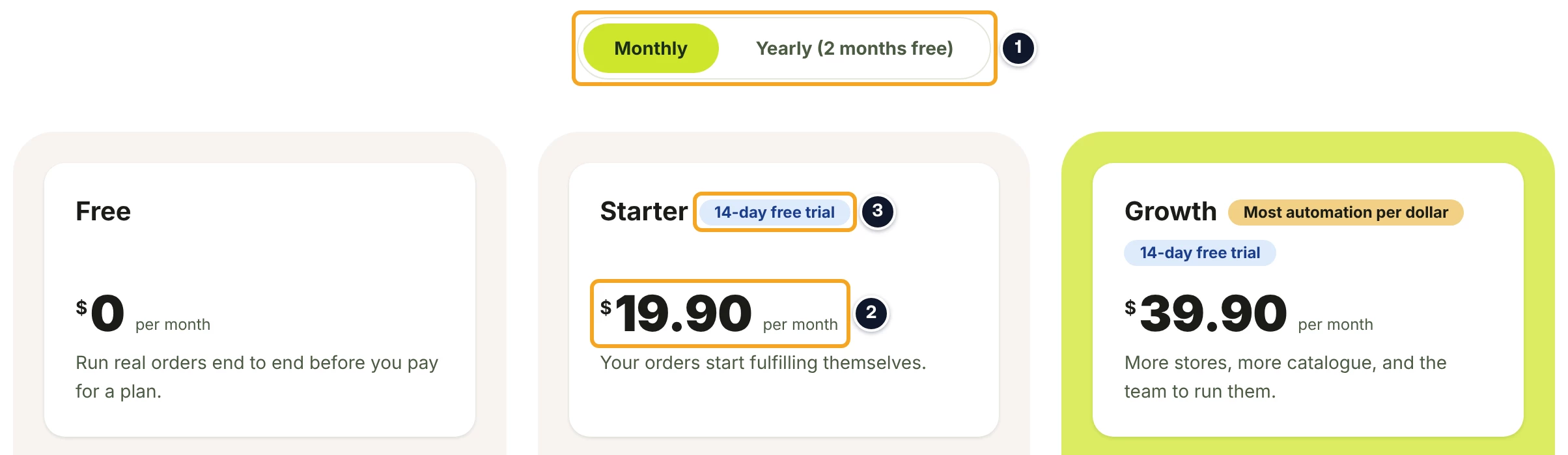
Pick your plan
- For Free, click Get Started on the Free card. This is for an account with no plan yet; if you are already on Free, the card reads "Current Plan". The toast "Free plan activated successfully!" shows and you land on your dashboard.
- For Starter or Growth, read the button on its card. It reads Start 14-day trial if your account has not used its trial, and Subscribe if it has. If you hover a button and see a message such as "You have 2 guests, but this plan allows 1.", that message explains what does not fit the plan.
Start a free trial
- Click Start 14-day trial. The Start your Growth trial dialog opens, named after the plan you picked.
- Set the switch Continue automatically when the trial ends. On (the default), the dialog reads "Free for 14 days. On <date> we'll charge <price> and your plan continues. Cancel any time before then and you pay nothing." Off, it reads "Free for 14 days, with no card required. Your plan ends on <date> unless you subscribe before then."
- Click Start trial and add card (switch on) to add your card on Stripe's checkout page, or Start trial (switch off) to start at once with no card. Back closes the dialog.
With no card, you go straight back to Plan & Billing and your trial has started.
Subscribe and pay
- Click Subscribe. To skip the trial, click Subscribe now beside the trial button instead. Its note reads "Subscribe now to pay today with no free trial. The free trial cannot be started afterwards." Subscribe now is not shown on a card that carries a does-not-fit message.
- If you have a promotion code, enter it in the code field on Stripe's checkout page. The field is not shown when a referral code is already applied.
- Pay on Stripe's checkout page.
- Back on DS-Mate, the page reads "Payment Successful" and "Your subscription is now active". After starting a trial with a card, it reads "Your free trial has started" and "Your <Plan> trial runs until <date>. You have not been charged." Under "Subscription Details", check Plan, Billing, Status and Next Billing (First Payment on a trial).
- Click Go to Settings to see your plan, or Back to Dashboard.
If you leave Stripe's page without paying, DS-Mate shows "Checkout Canceled" and "No charges were made to your account". Click View Plans Again to start over.
Check your plan
- On Plan & Billing, the "Current Plan" card lists your plan, a line such as "Billed monthly · $39.90/mo", a status badge, and "Next billing" with the date. On a trial it shows "Free Trial · <n> days left" and Start paying now.
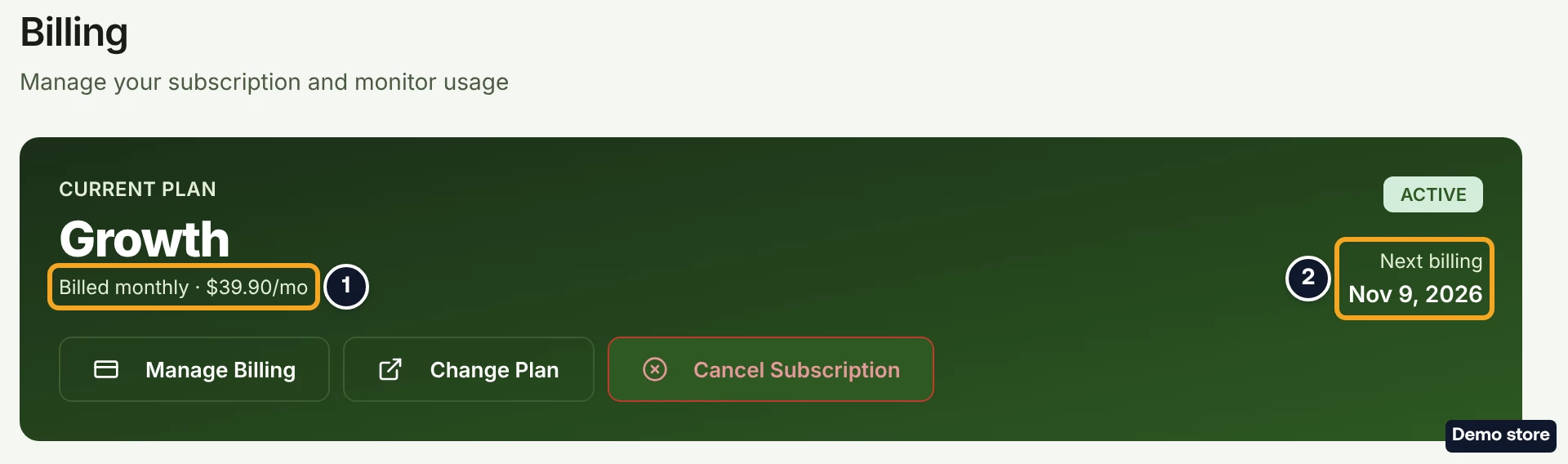
- If a banner reads "Finalizing Payment" with "Your subscription is active. Payment confirmation is being processed.", your plan is already active. The banner goes once the payment is confirmed.
Good to know
- Your account gets one free trial. If you trial Starter and later move to Growth, Growth is billed at once.
- Subscribe now uses up your trial for good.
- With Continue automatically when the trial ends on, your card is charged on the date shown unless you turn Auto-Renew off on Plan & Billing before then. Turning it off cancels the plan (see the cancel question below).
- Checkout is refused if you have more imported products or linked variants than the plan allows, and a message says why. More stores or guests than the plan allows do not stop the checkout: after you pay or start a trial, DS-Mate asks you to choose which to keep before you can use the dashboard. On Growth paid by card, that step also offers to buy extra slots.
On the Shopify app
Billing is on the app's Billing page, where Change Plan opens the plan dialog. Paid plans are approved on Shopify's own charge screen, not on Stripe's checkout page.
Related Articles
Still have questions?
Our support team is ready to help. Reach out and we'll get back to you as soon as possible.