Help CenterAnalytics & Reporting
Where do I see how much my stores sold and made in the last 7, 30 or 90 days?
5 min readDashboard and Reports in the sidebar (web dashboard). Both are on every plan.
The Dashboard adds up every store you can access for the last 7, 30 or 90 days. To see one store on its own, compare it with the period before, or download its numbers as a CSV file, open Reports and pick the store at the top of the page. "Sales" is what your buyers paid, minus any part already refunded, on orders that were not cancelled or fully refunded, and "Revenue" is what is left after marketplace fees and supplier cost, so it can be lower than you expect, or negative.
Steps
Read the Dashboard
- Click Dashboard in the sidebar. The page reads "Overview of your store performance". It always adds up all your stores, so the store picker is hidden here.
- Click the period pill at the top right.
- Choose Last 7 days, Last 30 days or Last 90 days. Last 30 days is the default.
- Read the six cards: "Sales", "Revenue", "Orders", "Active Products", "Returns" and "Needs Attention". Under "Sales" the line reads "<period> · gross paid, excl. cancelled/refunded", and under "Revenue" it reads "<period> · net after fees & supplier cost". "Active Products" ("Currently active") does not change with the period. "Needs Attention" counts "Orders awaiting action".
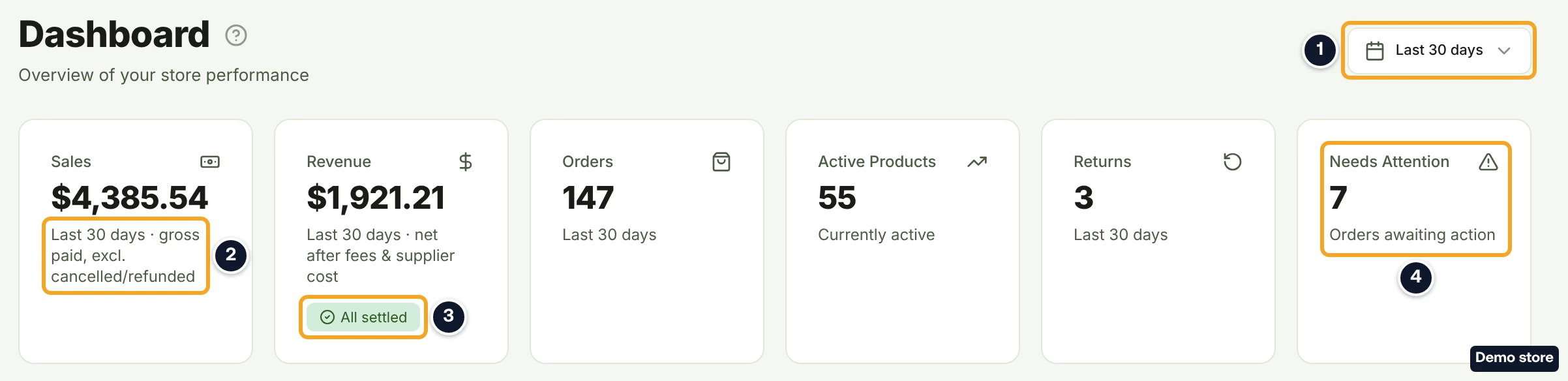
- Hover the pill on the "Revenue" card. "All settled" has the tooltip "All marketplace fees for this period have settled, so this revenue figure is final." "<n> settling" has the tooltip "Marketplace fees (Amazon, TikTok, eBay) post a few weeks after each sale. <n> orders are still settling, so about <amount> of this total may change as fees finalize."
- Scroll to the chart "Sales vs Orders (Last 30 Days)", whose title follows the period you picked, and to "Sales by Store", which shows each store's share of sales. The chart adds up the full sale price of up to 500 orders per store, cancelled and refunded ones included, so it can differ from the "Sales" card.
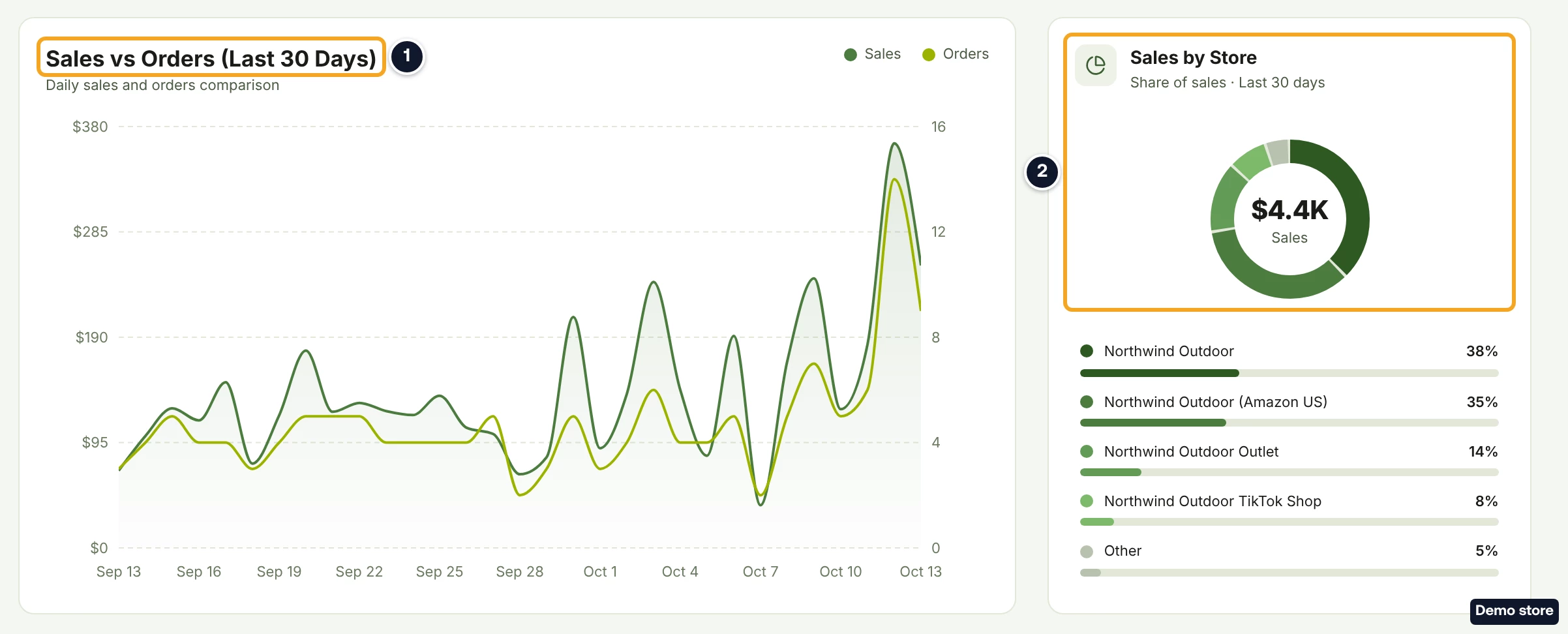
- Scroll further for "Store Performance", "Top Performing Products", "Sync Status" and "Recent Orders". "Recent Orders" always shows the latest orders of the last 7 days, whatever the period.
See one store in Reports
- Click Reports in the sidebar.
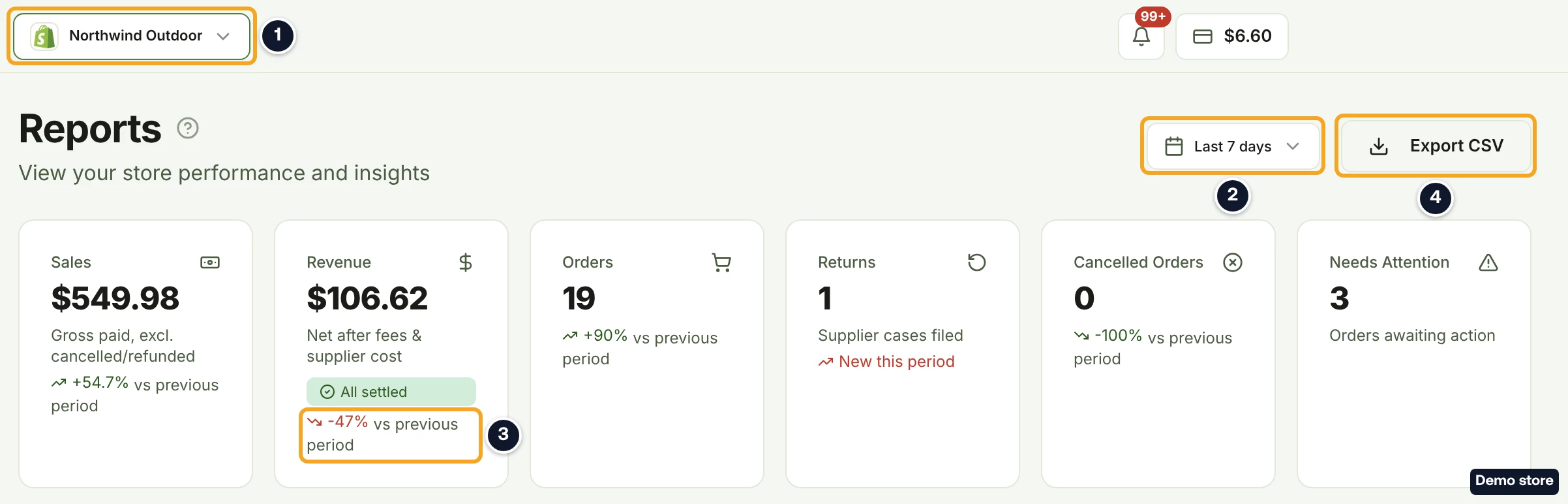
- The store picker at the top of the page shows the store Reports is reading (the one you last picked, or your first Active store). To see another store, pick it there. A Disconnected store cannot be picked: choosing it opens Settings > Stores instead.
- Click the period pill.
- Choose a period. Reports adds All time to the three periods.
- Read the cards: "Sales", "Revenue", "Orders", "Returns" ("Supplier cases filed"), "Cancelled Orders" and "Needs Attention". Every card except "Needs Attention" compares the period with the one before it: "+<n>% vs previous period", "-<n>% vs previous period", "No change vs previous period" or "New this period". All time shows no comparison.
- Click a tab for the detail. Sales shows the daily "Revenue & Orders" chart with "Best day", "Daily average" and "Busiest weekday", all based on revenue. Products lists "Best Selling Products", ranked by sales; you can sort by Orders, Sales or Revenue. Returns counts the return requests you filed in DS-Mate in the period, not refunds you handled on the channel. Shipping shows "Tracking coverage", "Awaiting tracking" and the "Fulfillment funnel". On the Products tab, amounts show "$" whatever your store's currency. In the "Revenue & Orders" chart's hover box, the revenue figure shows as a plain number with no currency sign. The cards use the store's currency.
Download one store's numbers
- Click Export CSV. It downloads one file for the selected store and period, with columns such as "Sale Store Total", "Marketplace Fee", "Item Procurement" (your supplier cost) and "Revenue". Fee cells read "Pending", or carry "(est.)", until the marketplace fees settle. If the period has no orders, the toast reads "No orders in the selected period."
Good to know
- Dashboard or Reports? The Dashboard adds up every store you can access, including stores you are a guest on and Disconnected stores. Paused stores are not included. If your stores use different currencies, it adds the amounts without converting them and shows them in USD. For one store, in its own currency, with a comparison and a CSV, use Reports.
- Sales and Revenue are different numbers. "Sales" leaves out cancelled and refunded orders, and takes off partial refunds. "Revenue" keeps them, and an order whose supplier cost DS-Mate has not recorded adds nothing to it, so Revenue can be lower than you expect, or negative.
- Your channel admin may show different numbers. The periods are rolling: Last 30 days means the 30 days up to now. Orders are counted by the date DS-Mate recorded them, not by the order date on your sales channel.
On the Shopify app
The app's home page shows the same cards, chart, Top Performing Products and Recent Orders for the one store you opened the app from. It leaves out Sales by Store, Store Performance and Sync Status. The app has no Reports page: to see a store over All time, compare periods or download a CSV, use Reports on the web dashboard.
Still have questions?
Our support team is ready to help. Reach out and we'll get back to you as soon as possible.