Help CenterBilling & Credits
How do I turn on auto-reload, and when does it charge my card?
4 min readSettings > Service Credit > the "Auto-Reload Settings" card (web dashboard). Starter and above.
Auto-reload charges your saved card a fixed amount and adds it to your service credits when your balance is at or below the amount you set. Each wallet has its own auto-reload: set it in the USD wallet, the GBP wallet, or both, in that wallet's currency. One saved card is used for every wallet. DS-Mate checks your balance at two moments only: right after a payment from your credits goes through, and when you save the settings; nothing checks it in between. Your card is charged exactly the reload amount with no processing fee, and an order that costs more than your current balance is not covered by a reload.
Steps
Save a card
- Click your avatar at the top right.
- Click Settings.
- Click Service Credit.
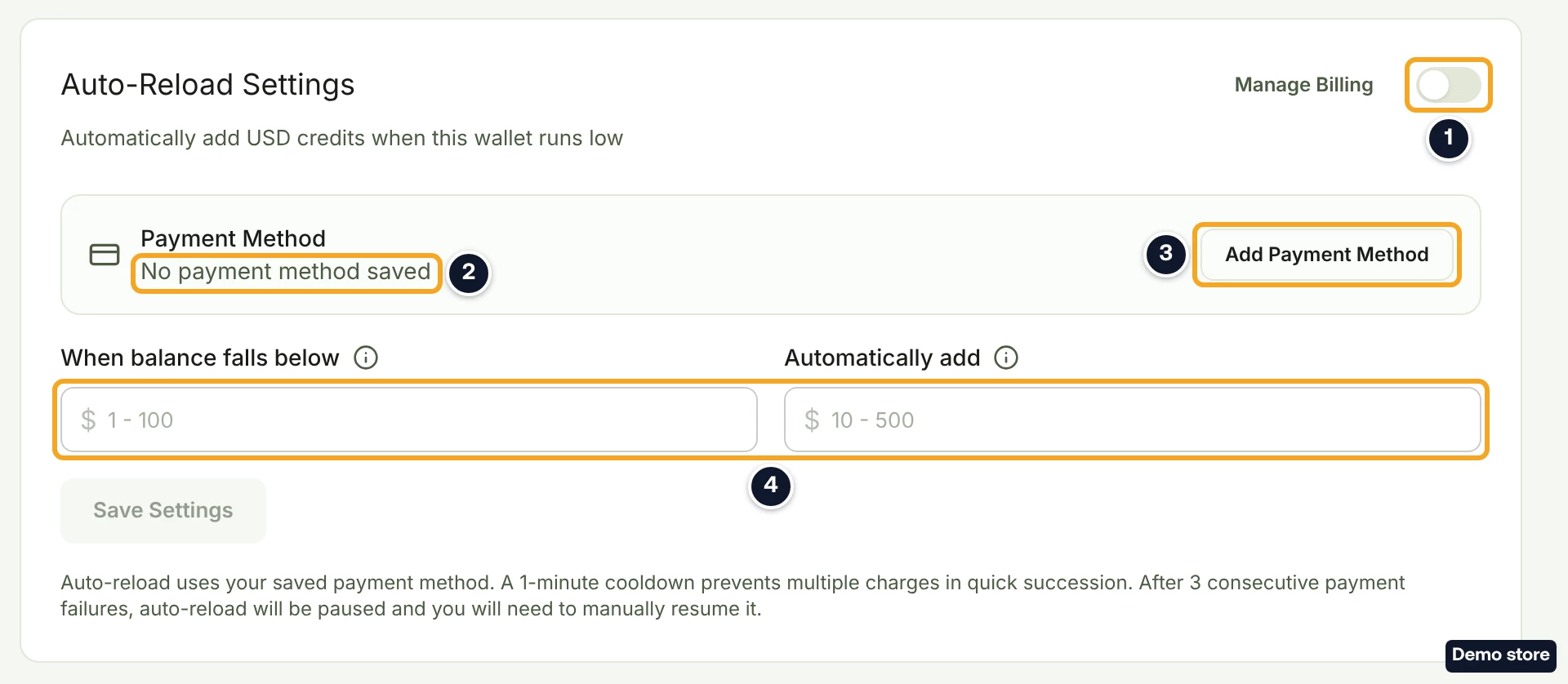
- If you hold both a USD and a GBP wallet, click Open wallet on the one you want. Find the card "Auto-Reload Settings", between the four usage figures and the top-up packages. The Manage Billing link beside the switch opens Plan & Billing; it does not change this card.
- In the "Payment Method" row, which reads "No payment method saved", click Add Payment Method (it reads Change once a card is saved). A Stripe page opens to save your card.
- Save your card on the Stripe page. You come back to Settings, on the Profile tab, with the toast "Payment method saved successfully!".
- Click Service Credit.
- Check that the "Payment Method" row reads "Card ending in" and your card's last four digits. The toast alone does not confirm that the card was saved.
Set your two amounts
- Turn on the switch at the top right of the card. It has no label of its own. The two fields stay greyed out while it is off.
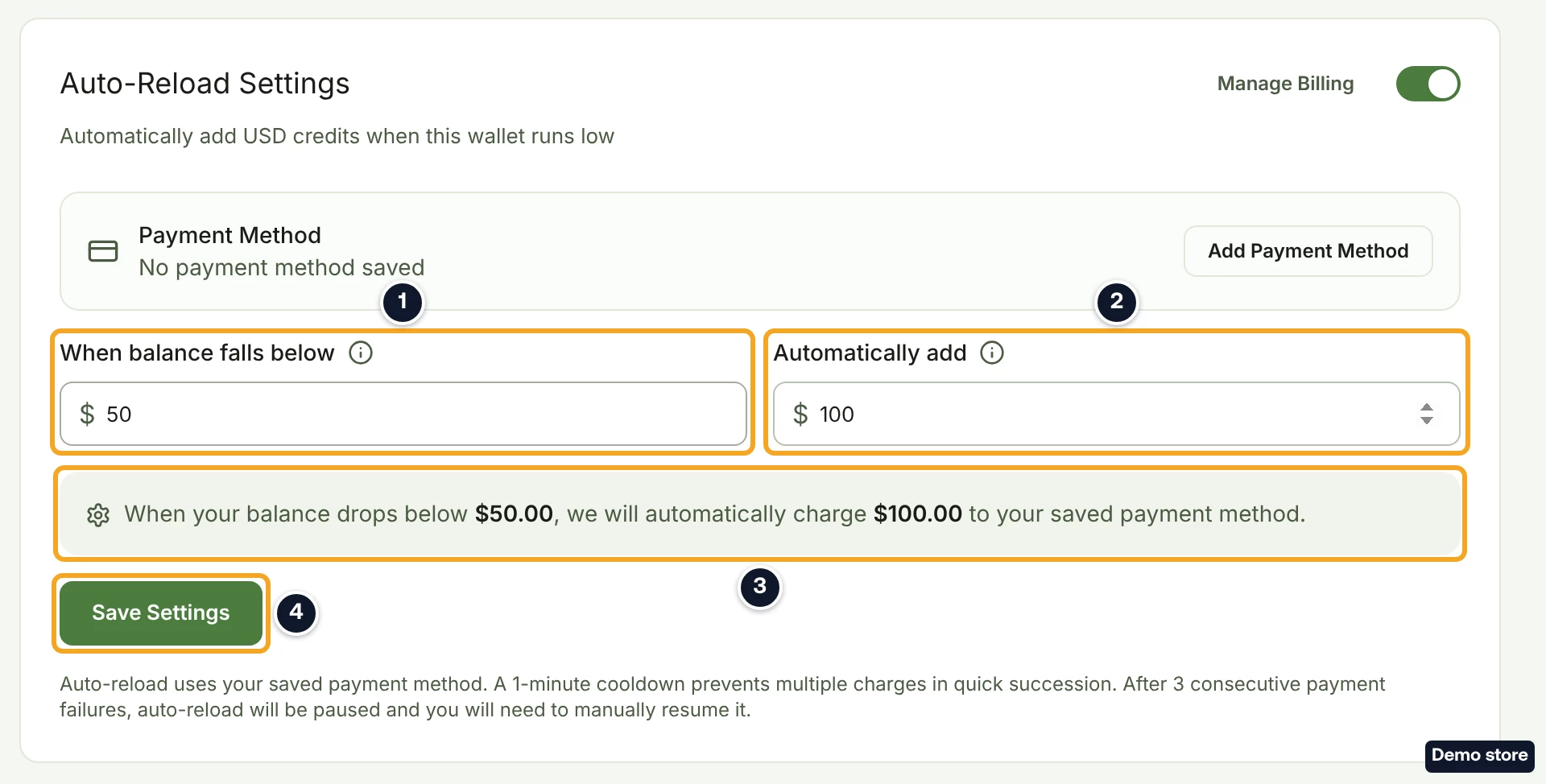
- In When balance falls below, enter your threshold, from $1.00 to $100.00 (£1.00 to £100.00 in the GBP wallet). At each check, a reload happens if your balance is at or below this amount.
- In Automatically add, enter the amount to charge your card and add to your credits, from $10.00 to $500.00 (£10.00 to £500.00 in the GBP wallet).
- Read the line under the fields: it repeats your two amounts.
Save
- Click Save Settings. The toast "Auto-reload settings saved" confirms it.
- If your balance is already at or below your threshold, saving starts a reload at once. Within about 20 seconds a message appears: "Auto-reload added <amount> to your service credits." or "Auto-reload is processing. Your balance will update shortly."
- If no card is saved, nothing is saved and the card shows "Add a payment method first, then turn on auto-reload." Click Add payment method in that message; the rest is the same as from step 6.
Turn it off, or restart it after a pause
- To stop auto-reload, turn the switch off.
- Click Save Settings. The toast reads "Auto-reload disabled".
- If the card shows "Auto-reload is paused" with a reason, click Change.
- Save a working card on the Stripe page. You come back to Settings on the Profile tab.
- Click Service Credit.
- Click Resume Auto-Reload.
Good to know
- Set the threshold above your largest order. When an order costs more than your balance, the payment from your credits is refused, a refused payment starts no reload, and the order waits until you top up or pay it by card.
- One reload per check. Each check adds the reload amount once. If that does not bring your balance above the threshold, the next payment from your credits, at least a minute later, reloads again.
- Pauses. A declined card, or a payment your bank asks you to approve ("Auto-reload needs your bank's approval"), counts as a failed charge. The first declined charge sends a notification and an email "Auto-reload payment failed", and each approval request sends "Auto-reload needs your bank's approval". After 3 failed charges in a row auto-reload pauses, and you get a notification and an email "Auto-reload is paused". Fix the card with Change, then click Resume Auto-Reload.
- Free plan. The card reads "Auto-reload is available on Starter and above." with Upgrade to Starter.
Related Articles
Still have questions?
Our support team is ready to help. Reach out and we'll get back to you as soon as possible.