How do I upgrade or downgrade my plan?
6 min readSettings > Plan & Billing (web dashboard), then the pricing page
Steps
Open the plans
- Click Settings at the bottom of the sidebar.
- Click Plan & Billing. The page heading reads "Billing".
- Click Change Plan on your plan card. The pricing page opens. Under Available Plans, Upgrade to Starter, Upgrade to Growth and Downgrade open the same page.
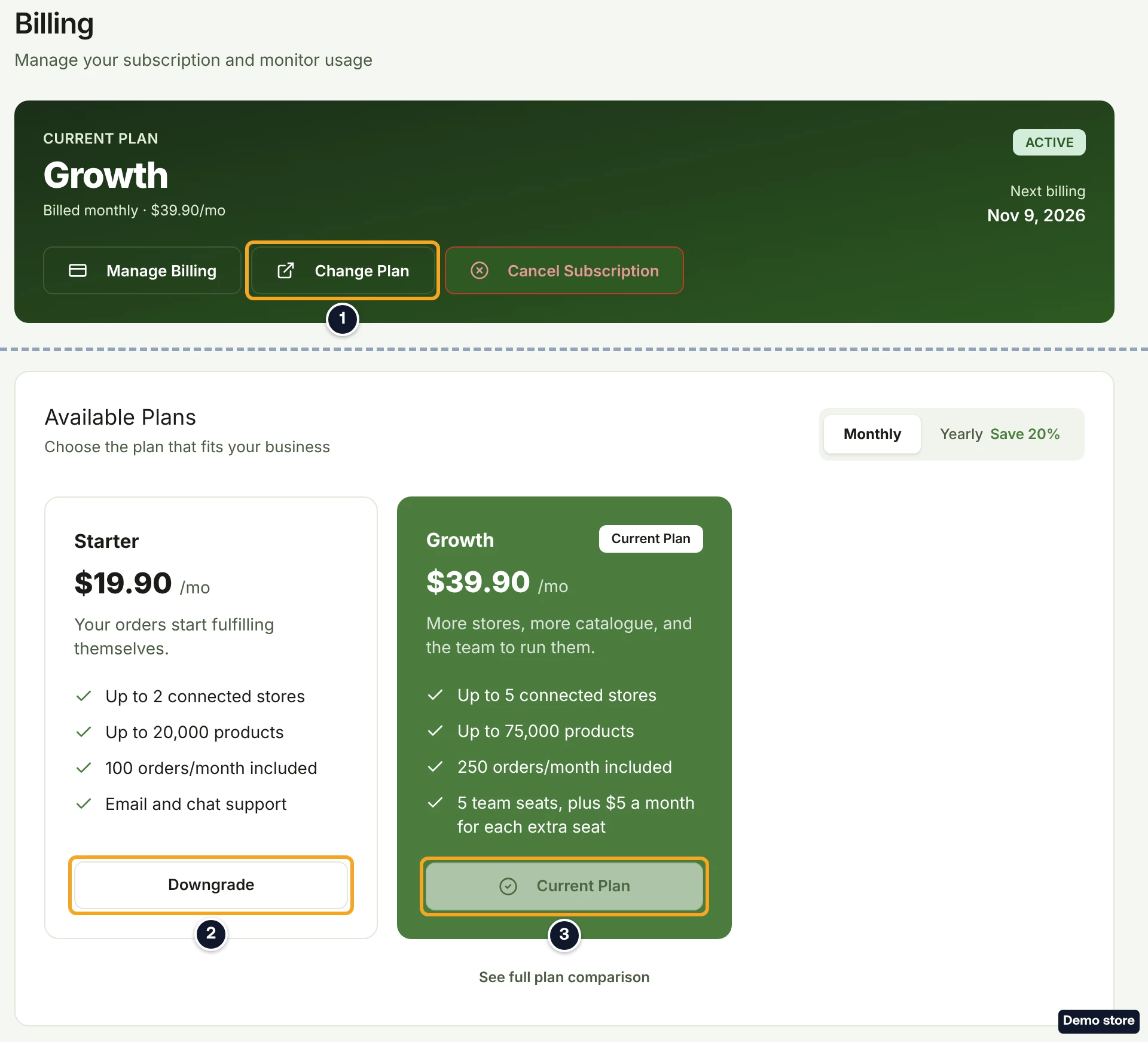
- Read the button on each card of the pricing page. On the tab that matches how you are billed, your own plan reads "Current Plan" and cannot be clicked. On the other tab it reads Switch to yearly or Switch to monthly (see the last section). A lower plan reads Downgrade, the Free card reads Downgrade to Free, and a higher plan reads Upgrade.
Upgrade
- Click Upgrade on the higher plan's card. The Confirm Plan Change dialog opens: "Review the changes and charges before confirming your plan change."
- If you have a promotion code, type it in Promotion code and click Apply.
- Read "Amount Due Now:" at the bottom of the dialog. The dialog explains it: "Charged now: the new plan's price minus the unused part of your current plan." and "Your new billing period starts today. Your next payment is on <date>."
- Click Confirm Change. The card on file is charged. The toast reads "Your plan has changed and your payment went through. Your receipt is in your billing history."
If your bank asks you to confirm the payment, the dialog "Confirm your payment" opens; if the card is declined, you are offered "Pay with another card". Until the payment goes through, you stay on your current plan.
Downgrade
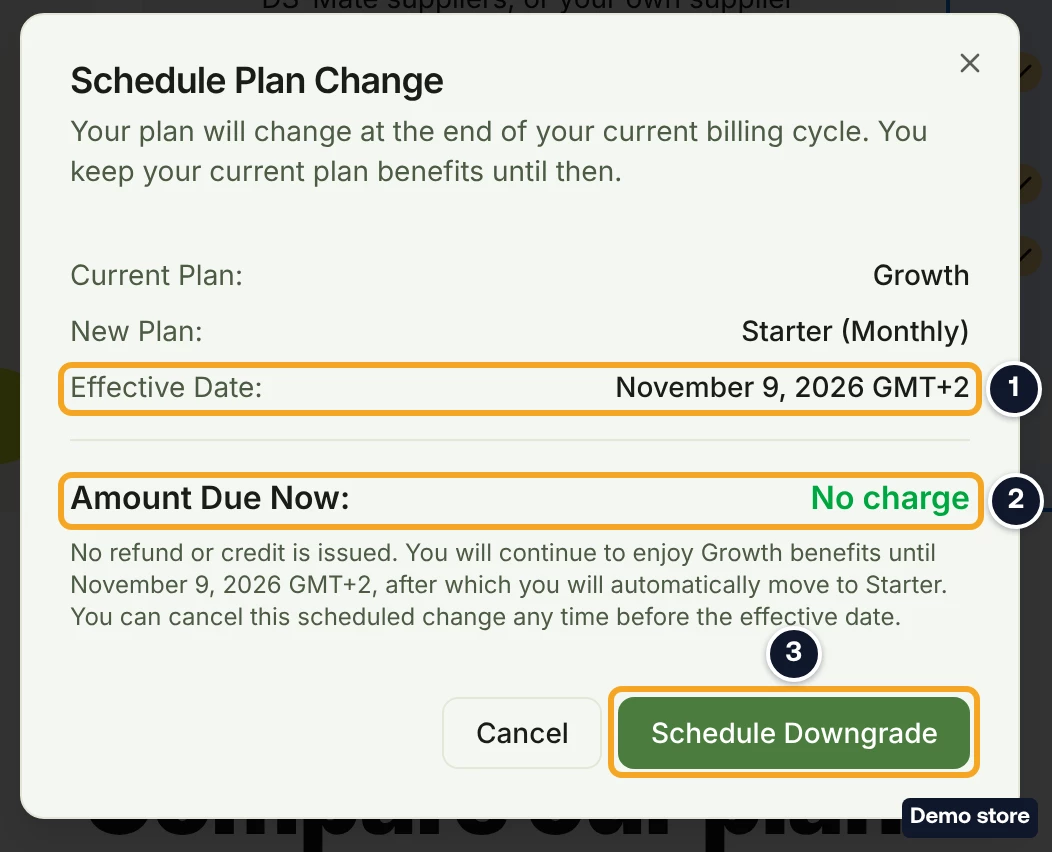
- Click Downgrade on the lower plan's card. The Schedule Plan Change dialog opens: "Your plan will change at the end of your current billing cycle. You keep your current plan benefits until then." It shows "Effective Date:" with the date, "Amount Due Now:" "No charge", and "No refund or credit is issued." On a yearly plan moving to a smaller monthly plan, the dialog reads instead "Your plan changes on the next monthly date of your yearly plan. You keep your current plan benefits until then.", and the unused part of the year goes to your USD service credit wallet, never to your card.
- Click Schedule Downgrade. The toast reads "Your plan change is scheduled. Your current plan stays active until the end of this billing period."
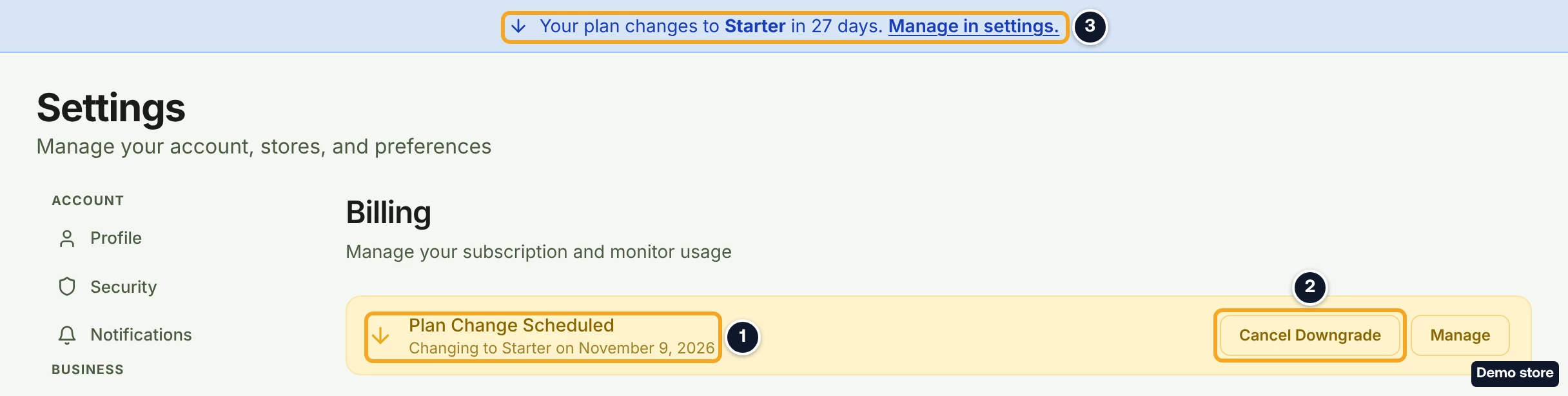
- Plan & Billing now shows "Plan Change Scheduled" with "Changing to <Plan> on <date>", and under "Next billing" your plan card shows the new plan's price, for example "$19.90/mo on Starter". A banner at the top of every page reads "Your plan changes to <Plan> in <n> days. Manage in settings." On the pricing page, the lower card reads "Downgrade Scheduled".
Moving to Free with Downgrade to Free ends your paid plan. See the cancel question below.
Undo a scheduled downgrade
- On Plan & Billing, click the "Keep my" button in the "Plan Change Scheduled" box, such as "Keep my Growth plan". The toast reads "Your Growth plan will renew as usual." The same button sits in the "Downgrade Scheduled" box on the pricing page. It undoes Downgrade to Free too, and so does turning Auto-Renew back on (see the cancel question).
Choose what to keep when the lower plan starts
- The next time you open a dashboard page after the lower plan starts, if you have more stores or guests than it allows, a step you cannot close opens on every page. With too many stores it starts at Select Stores to Keep: "The Starter plan allows 2 store(s). You have <n>. Select which to keep." With only too many guests it starts at Remove Excess Guests.
- Tick the stores to keep. The note reads "Stores you do not keep are disconnected. Their orders and products are kept for 60 days, and come back if you reconnect the store or ask support in that time."
- Click Next.
- On Remove Excess Guests ("Select at least <n> to remove."), tick the guests to remove.
- Click Next. If your linked variants are over the limit too, Unlink Excess Variants follows.
- On Confirm Changes, type DISCONNECT in the box ("Type DISCONNECT to confirm").
- Click Confirm & Continue. Choose Another Plan takes you back to the plans instead.
Switch between monthly and yearly billing
- Monthly to yearly: on the pricing page, click Yearly (2 months free).
- Click Switch to yearly on your plan's card. The Switch to yearly billing? dialog says "This amount will be charged immediately for the prorated upgrade."
- Click Confirm Change.
- Yearly to monthly: on the pricing page, click Monthly.
- Click Switch to monthly on your plan's card. The Switch to monthly billing? dialog reads "Your yearly <Plan> plan stays active until <date>. Monthly billing at <price> a month starts on that day." and "The unused part, <amount>, goes to your service credits on <date>. It is not refunded to your card." If you hold extra slots, each figure is stated apart: "The unused part of your plan, <amount>, plus <amount> for your store slot, goes to your service credits on <date>. It is not refunded to your card."
- Click Switch to monthly, or Keep yearly billing to leave it as it is.
- Your plan card then reads "Switches to monthly billing on <date>." To undo it, click Cancel the switch. The toast reads "Your plan stays on yearly billing."
Good to know
- Nothing asks which stores to keep when you click Downgrade. The choice comes the next time you open the dashboard after the lower plan starts, and the dashboard stays blocked until you finish it.
- An upgrade starts a new billing period today and charges the new plan's price minus the unused part of your current plan. It is not a small top-up for the rest of the month.
- Yearly to monthly happens at the next monthly date of your yearly plan, not at the end of the year. The unused part goes to your USD service credit wallet, never to your card.
- Extra store slots and guest seats end when you leave Growth.
- While a change is scheduled, an upgrade is refused with "You have a plan change scheduled. Cancel it first, then try again.", and Switch to yearly cannot be clicked. Picking another lower plan replaces the scheduled change.
On the Shopify app
Plan changes go through the app's Change plan dialog and are approved on Shopify's own charge screen. Switching from yearly to monthly billing is not available there. A plan billed through Shopify has no "Keep my" button: the Shopify charge stays cancelled, the plan ends on the date shown, and after that you can subscribe to it again from your plans.
Related Articles
Still have questions?
Our support team is ready to help. Reach out and we'll get back to you as soon as possible.