Help CenterBilling & Credits
How do I top up my service credits, and what will my card be charged?
4 min readAccount menu > Settings > Service Credit (web dashboard). Starter and above.
Service credits sit in a wallet for each currency: a USD wallet, and a GBP wallet if you start one, each with its own balance. Open Settings > Service Credit, open the wallet you want to top up, and pick a package or click Top Up Credits to enter your own amount: $5.00 to $500.00 in the USD wallet, or £5.00 to £500.00 in the GBP wallet. Your card is charged that amount plus a flat processing fee ($0.30 in the USD wallet, £0.24 in the GBP wallet), and the full amount you chose is added to that wallet. Buying credits is available on Starter and above, and credits never expire and are not refundable.
Steps
Open your wallet
- Click your avatar at the top right.
- Click Settings.
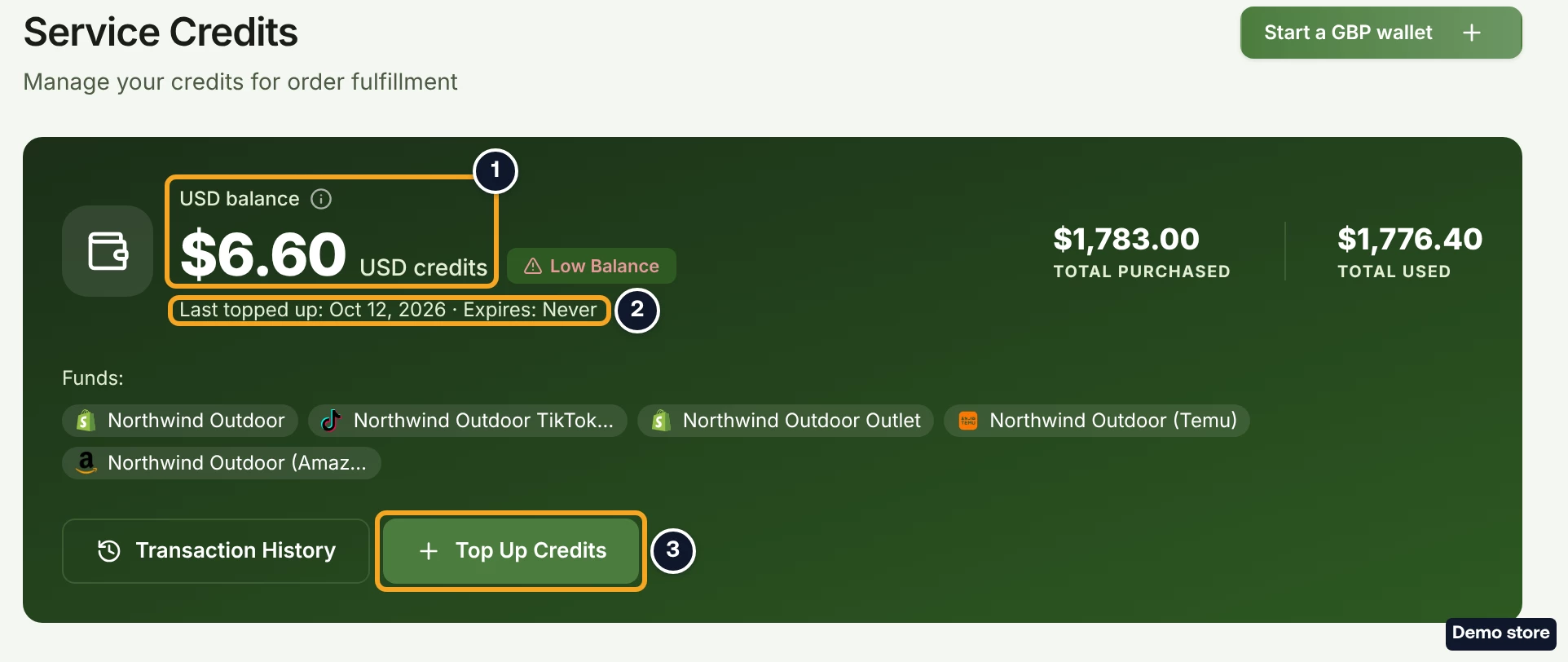
- In the left menu, under "Business", click Service Credit. The page reads "Service Credits" and "Manage your credits for order fulfillment". On a wider screen, the credit balance in the top bar (its tooltip reads "Service credits balance") also takes you there. If you hold both a USD and a GBP wallet, it opens a list of your wallets first, and on this page you click Open wallet on the one you want to top up.
- Read the balance card. The steps below show the USD wallet; the GBP wallet reads the same, with GBP and £ amounts. The card shows "USD balance", your balance in "USD credits", "Last topped up: <date> · Expires: Never", "Total Purchased" and "Total Used". A red "Low Balance" badge shows when the balance is under 10.00 in that wallet's currency.
Buy a package
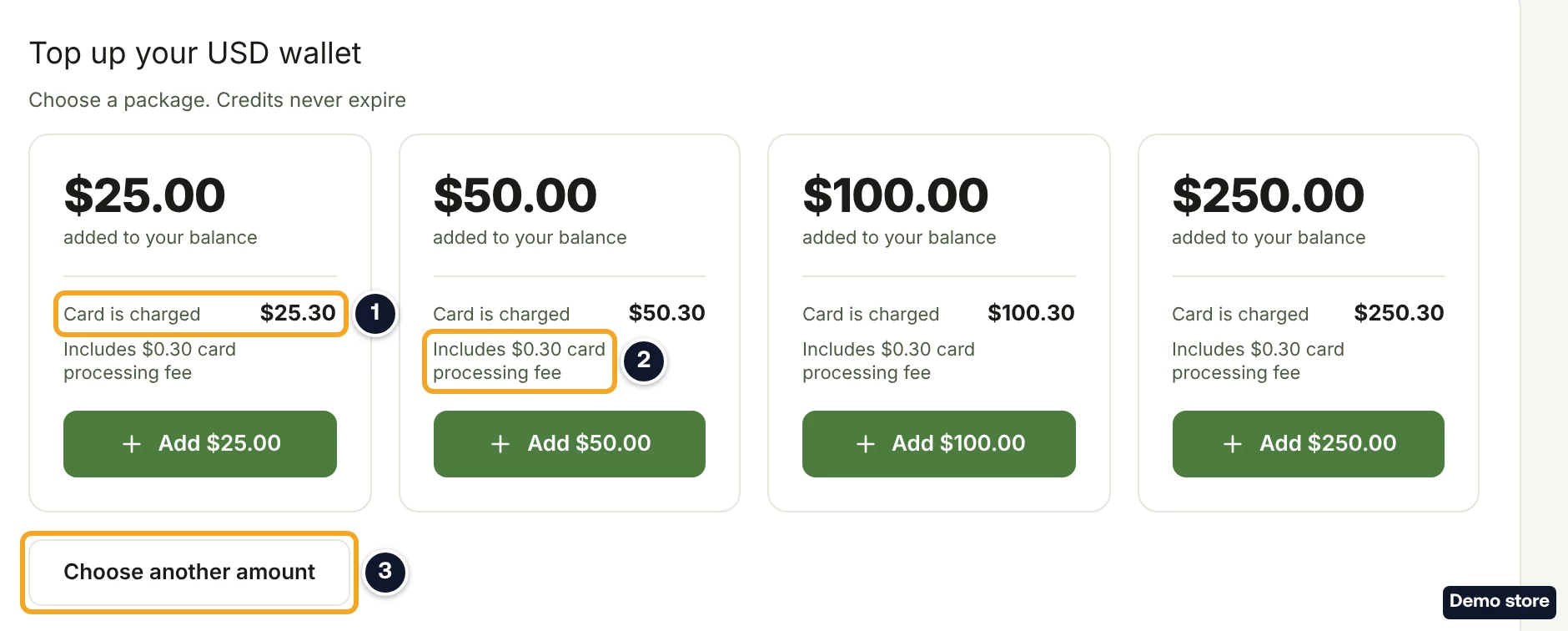
- Find the card "Top up your USD wallet". Each package shows the credits you get ("added to your balance"), what your card is charged (for example "Card is charged $25.30") and "Includes $0.30 card processing fee".
- Click Add $25.00, Add $50.00, Add $100.00 or Add $250.00. This takes you straight to the Stripe payment page, with no confirmation step in between.
Or choose your own amount
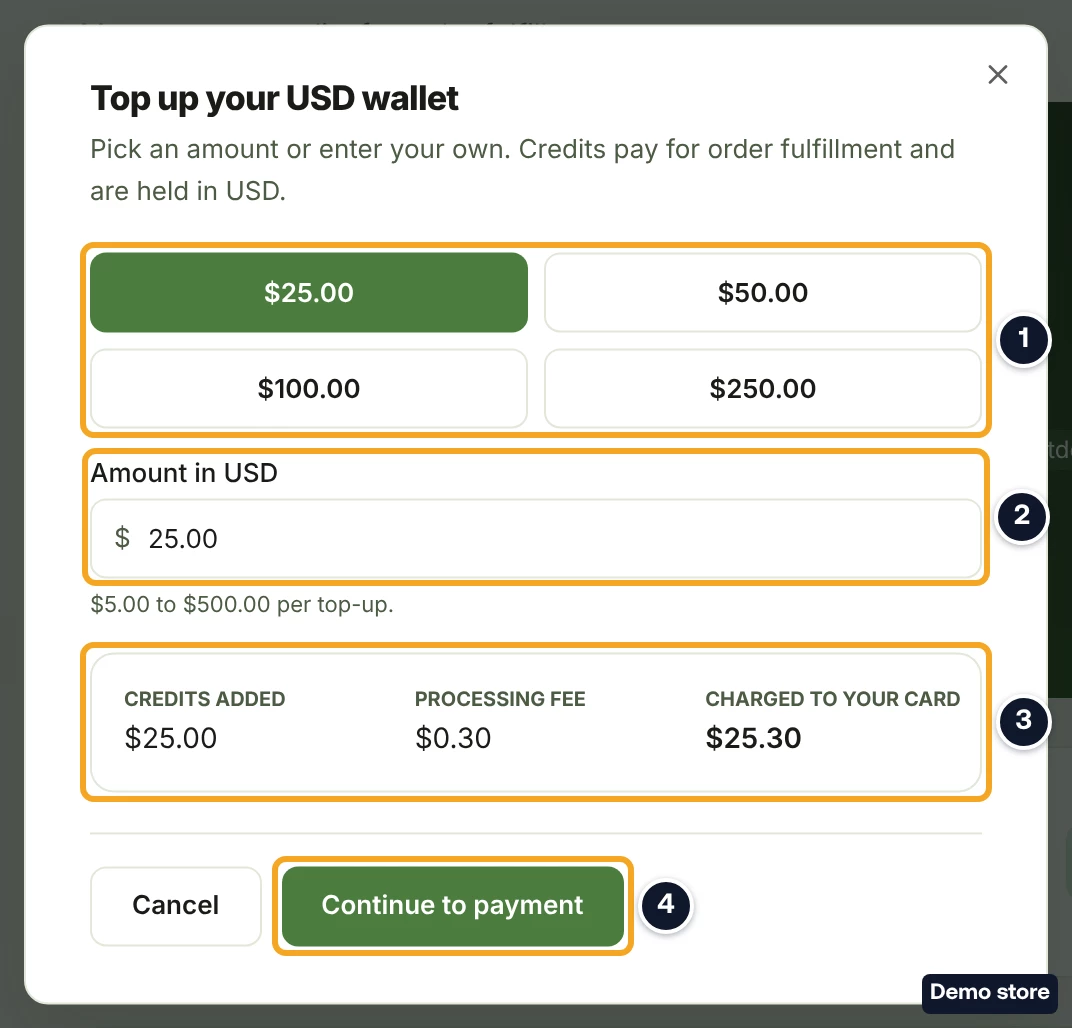
- Click Top Up Credits in the balance card, or Choose another amount under the packages. The dialog "Top up your USD wallet" opens.
- Click a preset ("$25.00", "$50.00", "$100.00" or "$250.00"), or type an amount in Amount in USD: "$5.00 to $500.00 per top-up."
- Check the summary: "Credits added", "Processing fee" and "Charged to your card".
- Click Continue to payment. Cancel closes the dialog and charges nothing.
Pay and check your balance
- Pay on the Stripe page.
- You come back to a page that reads "<amount> added to your balance" and "Your credits are ready to spend on order fulfillment." Click Go to credits to see your balance. The top-up shows in "Transaction History" as a "Purchase" row, for example "Credit purchase: 25.00 USD (charged 25.30 USD incl. fees)".
- If the page reads "Your credits are taking longer than usual", click Check again.
- If you cancel on the Stripe page instead, the toast "Purchase cancelled" appears and Settings opens on the Profile tab. Click Service Credit to go back to your wallet.
A store that sells in GBP
- Click Start a GBP wallet at the top of the tab. The dialog "Start your GBP wallet" reads "This opens a separate GBP balance. It is not converted from any wallet you already hold." Each currency is its own wallet, and the processing fee on a GBP top-up is £0.24.
Good to know
- A package button buys in one click. Add $25.00 and the other package buttons go straight to payment. To see the fee summary first, use Choose another amount.
- No expiry, no refunds. Credits never expire. Under DS-Mate's Terms, credits you bought are not refundable.
- Free plan. Buying credits is available on Starter and above. On Free the balance card shows Upgrade to Starter to add credits, the packages read "Buying credits is available on Starter and above.", and your balance and history stay visible.
- Whose credits pay for orders. Orders are paid from the store owner's credits. A guest's Service Credit tab shows the guest's own wallet, so a guest cannot top up the owner's balance.
On the Shopify app
The Shopify app has its own service credits page inside the app. This answer covers the web dashboard.
Related Articles
Still have questions?
Our support team is ready to help. Reach out and we'll get back to you as soon as possible.