How do I give back an extra store slot or guest seat I no longer need?
5 min readSettings > Plan & Billing (web dashboard)
Steps
Give back a slot
- Click Settings at the bottom of the sidebar.
- Click Plan & Billing. The page heading reads "Billing".
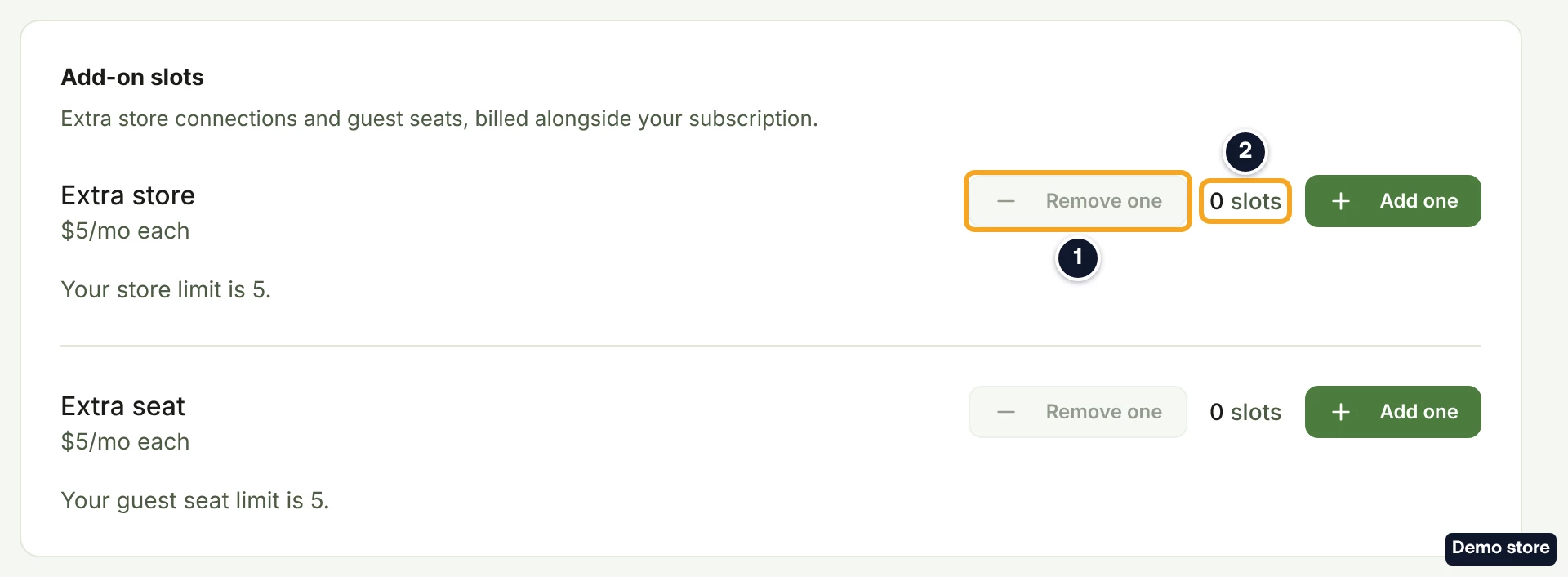
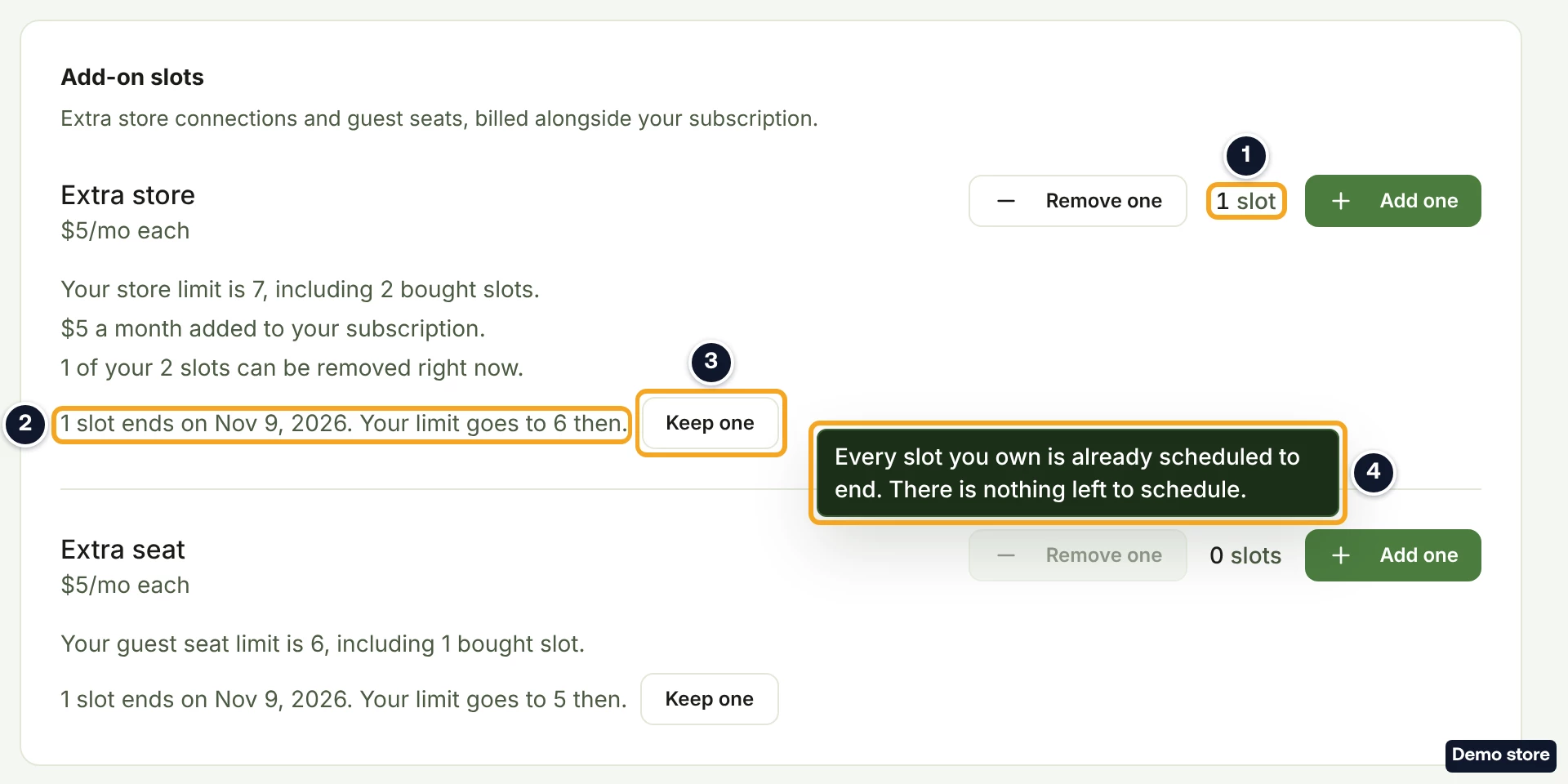
- In Add-on slots, click Remove one on the Extra store or Extra seat row. It cannot be clicked until you have bought a slot on that row. Once every slot you own is scheduled to end, hovering it shows "Every slot you own is already scheduled to end. There is nothing left to schedule."
- The dialog Remove an extra store slot? (or Remove an extra guest seat?) reads, for a store slot, "Your store slot ends on <date>. You keep it until then, and you will not be charged for it again." On yearly billing it adds a line such as "The unused part, <amount>, goes to your service credits on <date>. It is not refunded to your card. Each month you held the slot in counts as a full month, including the month you bought it." If a yearly to monthly plan change is already scheduled for that date, it reads instead "Your scheduled plan change already lists <amount> for this store slot. Removing it does not add to that: <amount> goes to your service credits once, on <date>. It is not refunded to your card.", followed by the same full-month line.
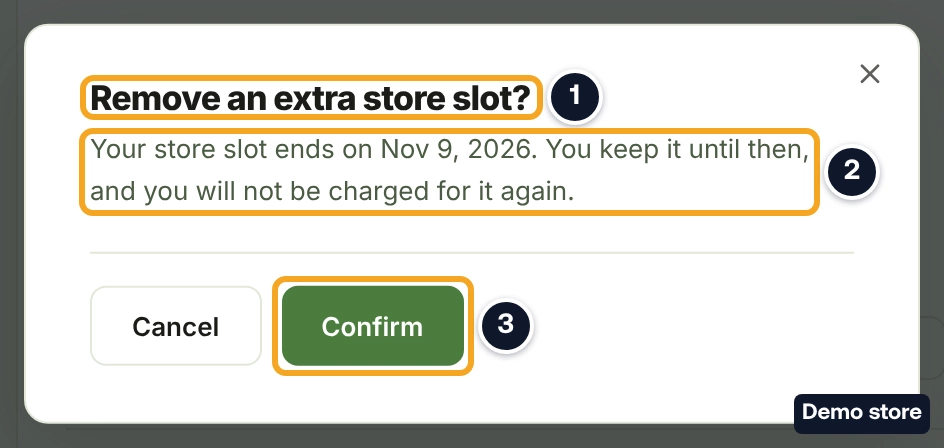
- Click Confirm. The toast reads, for example, "1 store slot ends on <date>. You keep it until then."
- The card now shows a line such as "1 slot ends on <date>. Your limit goes to <n> then." with the button Keep one. Your limit stays the same until that date.
If the slot is in use
The card warns you before you start: "This store slot is in use. Choose a store to disconnect, and you keep the slot until the end of this billing period."
- If the slot is in use, clicking Confirm in step 5 opens Choose a store to disconnect ("Pick 1 store to disconnect. You keep the store slot until the end of this billing period.") or Choose a guest to remove ("Pick 1 guest to remove. You keep the guest seat until the end of this billing period.").
- Pick the store, or the guest. For a store, the note reads "Disconnecting stops syncing the store and frees the slot. Its orders and products are kept for 60 days, and support can restore them. On TikTok and Shein it does not yet revoke our access at the channel, so remove DS-Mate in that shop's own app settings as well."
- Click Continue. It can be clicked only once you have picked the number asked for.
- Read the last check: "<Store> will be disconnected now. Orders and products are kept for 60 days. Your store slot still runs to <date>, and you will not be charged for it again." For a guest: "<Name> will be removed now. Your guest seat still runs to <date>, and you will not be charged for it again."
- Click Confirm. The store is disconnected, or the guest removed, straight away.
Keep a slot you scheduled to end
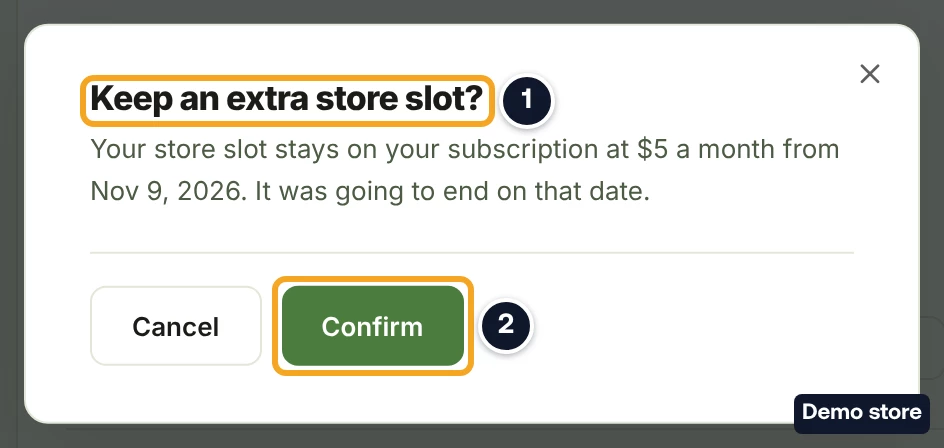
- Click Keep one on the card. The dialog Keep an extra store slot? reads "Your store slot stays on your subscription at $5 a month from <date>. It was going to end on that date." On yearly billing it reads $60 a year. This is the list price; your invoice shows what you pay. If auto-renew is off, the dialog says instead that the slot still ends on that date and is not charged again.
- Click Confirm. The toast reads "Extra store kept". This keeps every slot on that row that was scheduled to end, not just one.
To keep only one of several slots scheduled to end, click Add one instead. While a slot is scheduled to end, Add one opens Keep an extra store slot?, and Confirm keeps one of them rather than buying a new one.
When you connect a store that needs a slot scheduled to end, DS-Mate asks Keep an extra store slot?: "Connecting this store keeps your extra store slot. It stays on your subscription at $5 a month from <date>." On yearly billing it reads $60 a year. This is the list price; your invoice shows what you pay. If auto-renew is off, it says instead that the slot ends on that date whether you keep it or not. Click Keep the slot and connect to go ahead. Like Keep one, this keeps every store slot scheduled to end, not just one.
Good to know
- Nothing is refunded on monthly billing. Removing a slot does not lower your limit or refund anything today, and you keep the slot until the date shown. On yearly billing the slot ends on the next monthly date of your plan, and the unused part goes to your USD service credit wallet, never to your card.
- The store or guest you pick is disconnected, or removed, as soon as you confirm. Only the slot itself runs to the date.
- Keep one, and connecting a store with Keep the slot and connect, keep every slot on that row that is scheduled to end, not one.
- Inviting a guest after you schedule a guest seat to end gives no warning. On the date you can end up over your limit, and the dashboard is then blocked until you choose which guests to remove or, on Growth paid by card, click Buy a guest seat.
On the Shopify app
There is no picker in the app. If the slot is in use, it reads "This extra store slot is in use. Disconnect a store from your DS-Mate dashboard, then remove the slot here. You keep the slot until the end of this billing period."
Related Articles
Still have questions?
Our support team is ready to help. Reach out and we'll get back to you as soon as possible.