Help CenterBilling & Credits
Where do I see what my service credits were spent on?
4 min readAccount menu > Settings > Service Credit > Transaction History (web dashboard). Every plan.
Open Settings > Service Credit and scroll to "Transaction History": it lists every movement in one wallet, with a date filter and an Export button. The four figures above it cover this calendar month, and "Orders Fulfilled" counts the payments taken from your credits, fees included, so it is not your plan's monthly order total. Only top-ups and auto-reloads have an invoice link.
Steps
Open the history
- Click your avatar at the top right.
- Click Settings.
- Click Service Credit. If you hold more than one wallet, click Open wallet on the one you want.
- Click Transaction History in the balance card to jump to the list, or scroll down. The card reads "Transaction History" and "Every movement in your USD wallet" (or "GBP wallet").
Read this month's figures
- Find the row of four figures between the balance card and the "Auto-Reload Settings" card:
- "Credits This Month": the credits taken from this wallet since the 1st of the month.
- "Avg. Cost Per Order": "Credits This Month" divided by "Orders Fulfilled".
- "Orders Fulfilled": the number of those payments, fees included.
- "Estimated Runway": your balance divided by your average daily spend this month, shown as "<n> days", or "-".

Read the rows
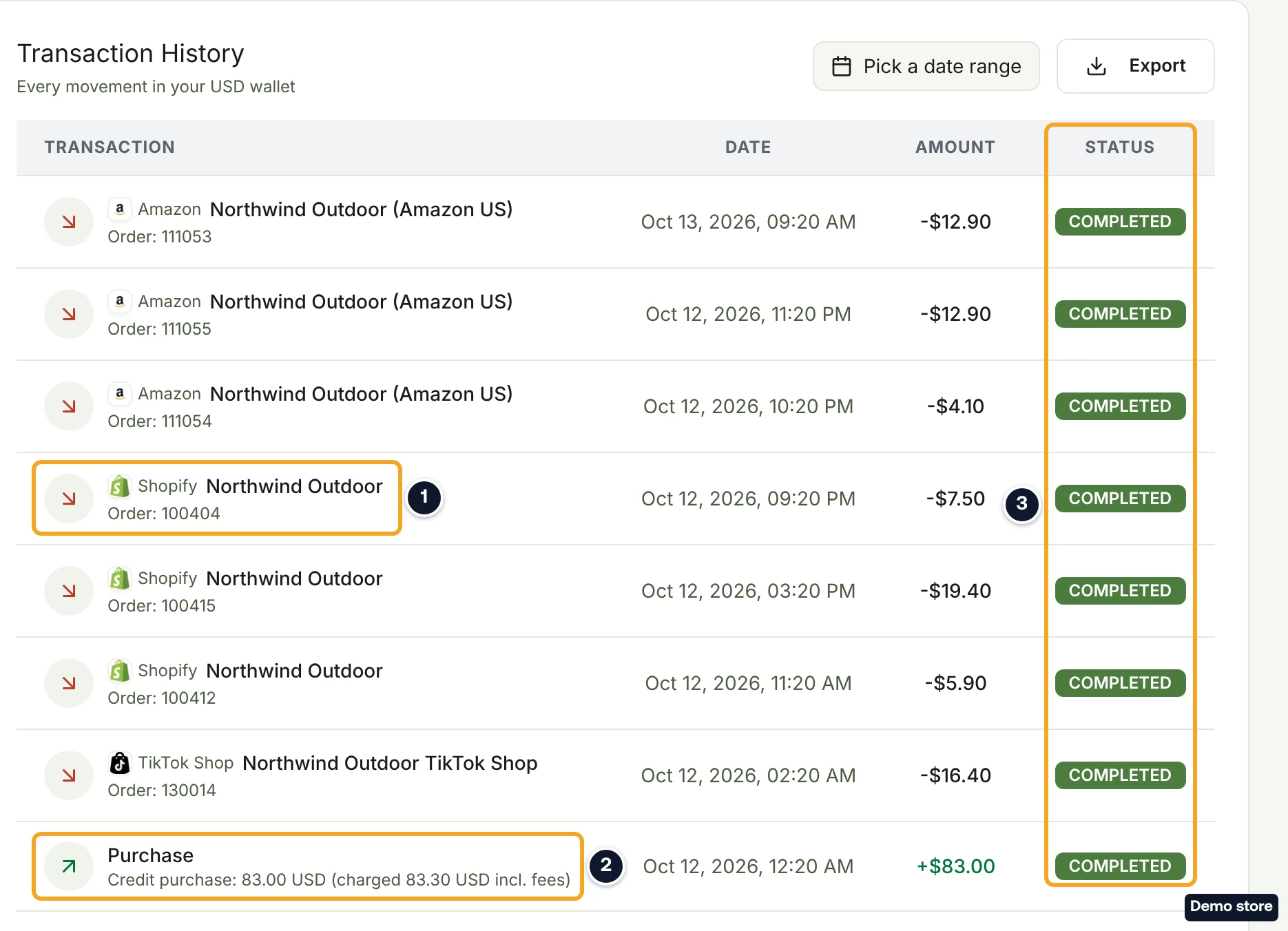
- Each row shows "Transaction", "Date", "Amount", "Status" and "Invoice".
- Read the type in the "Transaction" column, with its description under it:
- "Purchase": a top-up you paid by card.
- "Auto-Reload": a top-up charged by auto-reload.
- "Refund": credits given back, for example "Item cost refund: supplier closed order <id>", "Refund of order overage fee: <reason>" or "Refund for shipping label: <carrier> <service>".
- "Adjustment": a correction made by DS-Mate support, with their reason.
- "Deduction": an amount taken off by DS-Mate support, with their reason.
A payment for an order shows the channel, "Order: <id>" and, when DS-Mate paid it automatically, the store name, instead of a title. A fee or a shipping label taken from your credits shows no title and no description, only the red arrow and the amount.
- Read "Amount" and "Status". Credits coming in show in green with a plus sign, for example "+$25.00"; credits going out show with a minus sign in the normal text colour. "Status" reads "COMPLETED", "PENDING", "FAILED" or "REVERSED". An "Auto-Reload" row reads "PENDING" while the card charge is being confirmed, and "FAILED" when the card was declined or your bank asked you to approve the payment. A "FAILED" row still shows the amount with a plus sign, but nothing was added to your balance.
- In "Invoice", click the link icon to open the Stripe receipt. If "Invoice" is not in view, scroll the list sideways. Only "Purchase" and "Auto-Reload" rows have one; every other row shows "-".
- With more than 20 rows, use Previous and Next under the list. Beside them, on the left, the line reads "Page <n> of <pages> (<count> total)".
Filter and download
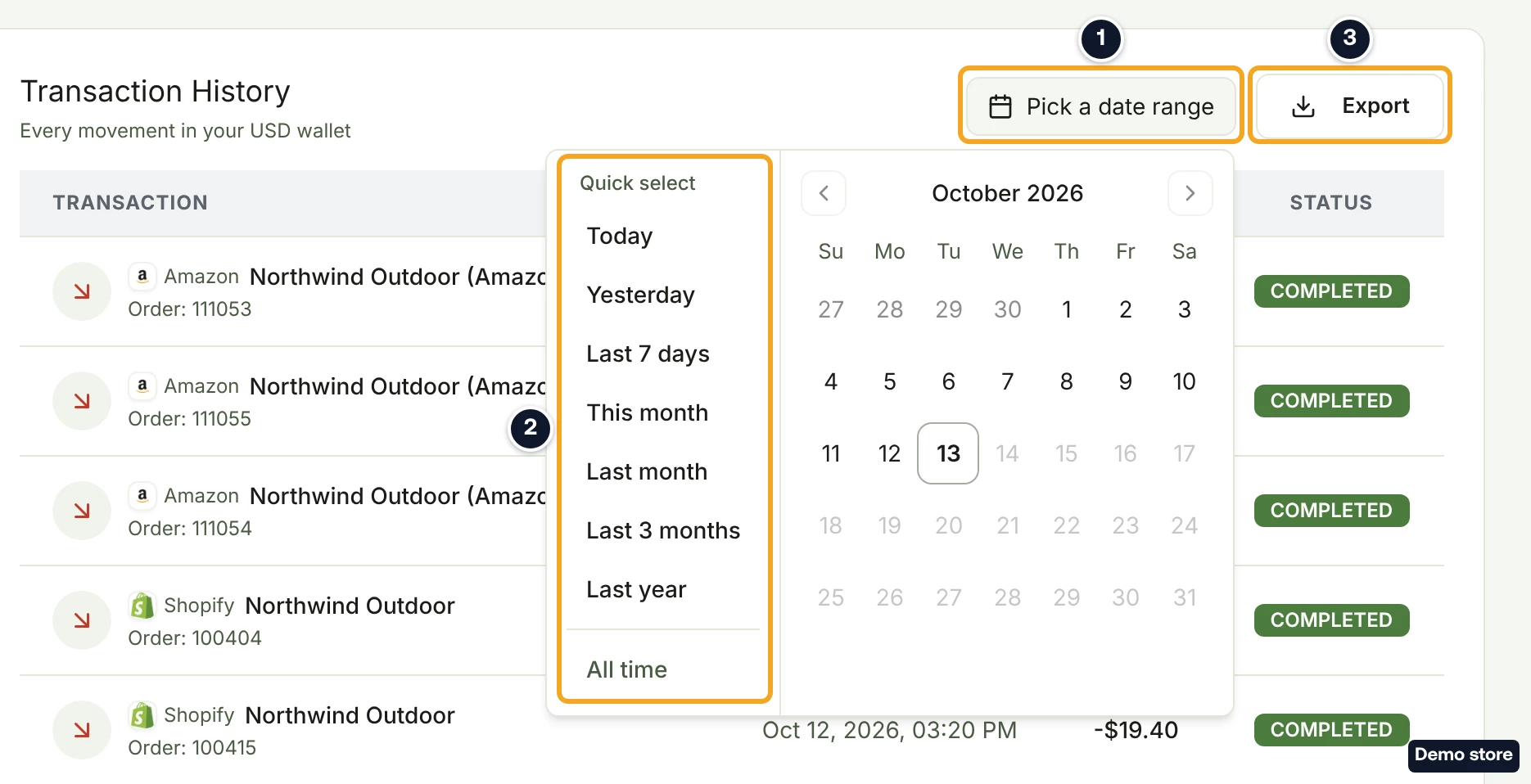
- Click Pick a date range.
- Choose a range under "Quick select" ("Today", "Yesterday", "Last 7 days", "This month", "Last month", "Last 3 months", "Last year" or "All time"), or pick the dates on the calendar. The x icon clears it.
- Click Export. It downloads every row in the date range, from all pages, as an Excel file with the columns "Date", "Description", "Type", "Status", "Amount (USD $)", "Balance Before (USD $)", "Balance After (USD $)" and "Reference" (in the GBP wallet, "GBP £" instead of "USD $"). The toast reads "Exported <n> USD transactions" (or GBP), or "No transactions to export". Export is greyed out when the list on screen is empty.
Good to know
- "Orders Fulfilled" is not your plan's order count. It counts the payments taken from your credits this calendar month, fees included, and leaves out orders you paid by card. Your plan's monthly order total is the meter above your orders list. The figures start again on the 1st of the month by DS-Mate's server clock, which can differ from your timezone.
- Invoice links. Only top-ups and auto-reloads have one. The receipt for an order you paid is on the order's page (see "Where can I find the receipt for an order I paid?").
- One wallet at a time. A USD wallet and a GBP wallet each have their own history and figures. A guest sees only their own wallet, not the store owner's.
Related Articles
Still have questions?
Our support team is ready to help. Reach out and we'll get back to you as soon as possible.