Help CenterTeam & Guests
I opened DS-Mate in Shopify and it says Store already connected. How do I accept my invitation?
4 min readIn the DS-Mate app inside Shopify Admin, on a store that another DS-Mate account owns. You join as a guest. The owner needs an unused guest seat to invite you: Free has none, Starter has 1 and Growth 5.
"Store already connected" usually means another DS-Mate account owns this store, so you can use it only as that owner's guest. Choose a plan of your own first (Get Started on Free is enough), reload the page or open DS-Mate again from Shopify Admin > Apps, then click Accept on the owner's invitation under "Pending invitations". The invitation shows only when your Shopify login uses the same email as the DS-Mate account the owner invited.
Steps
Choose a plan first
- Open DS-Mate from Shopify Admin > Apps.
- If "Choose your plan" opens, click Get Started in the Free column, or pick a paid plan (see I installed DS-Mate from the Shopify App Store. What do I do first?). This page does not mention your invitation.
- After Get Started, or a trial started with Start trial, you stay on your own Billing page, with no sign of the invitation. Reload the page, or open DS-Mate again from Shopify Admin > Apps, to see it. After Shopify's charge page, the app loads again by itself.
Find your invitation
- The app shows the card "Store already connected" with "This store is already connected to DS-Mate. Ask the person who installed DS-Mate on this store to sign in to DS-Mate and invite your email from the store settings."
- Below it, the card "Pending invitations" reads "If the store owner has invited you, accept below to get access."
- Find the invitation for this store. It shows the store name (or "Store"), "From: <owner email>", and the buttons Accept and Reject. The app does not show when the invitation expires.
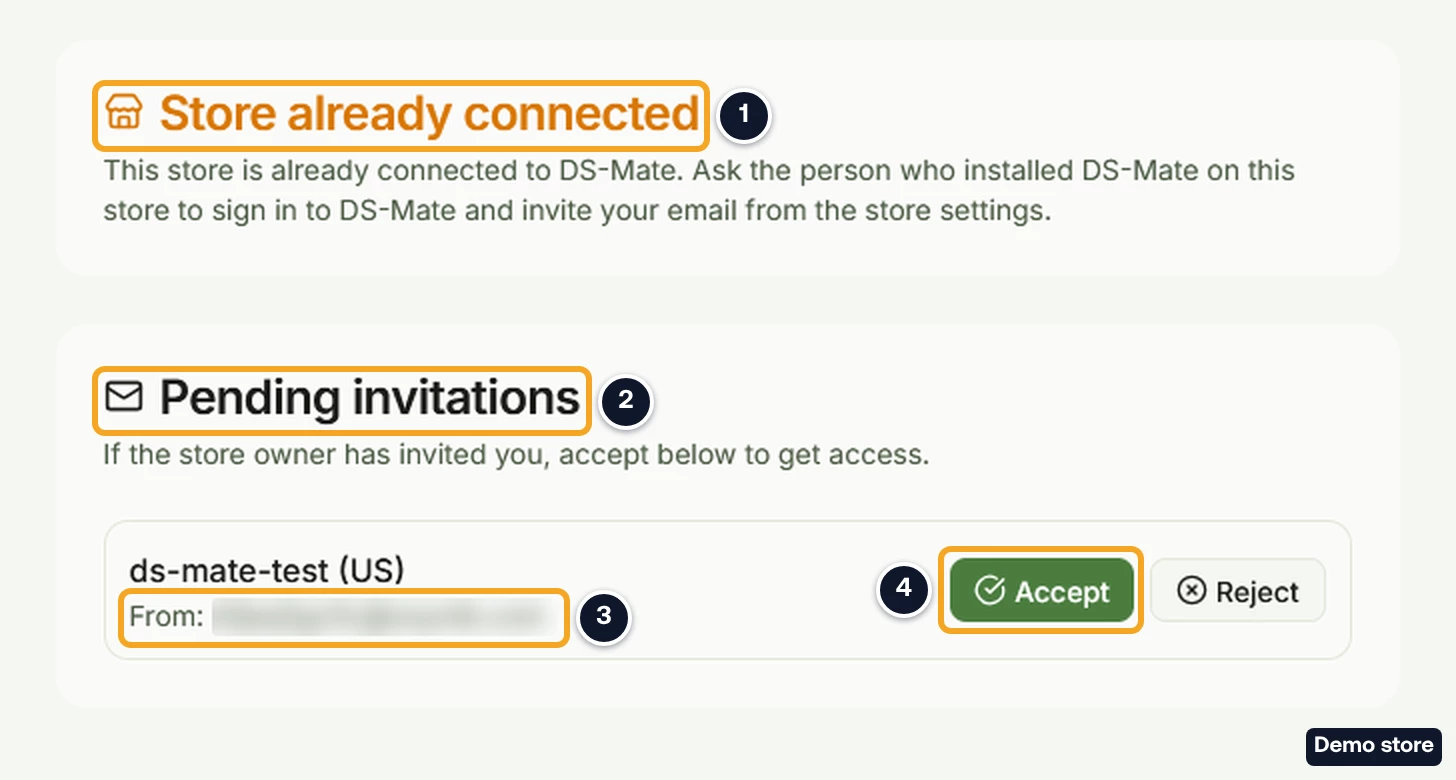
Accept
- Click Accept. There is no confirm dialog: one click accepts.
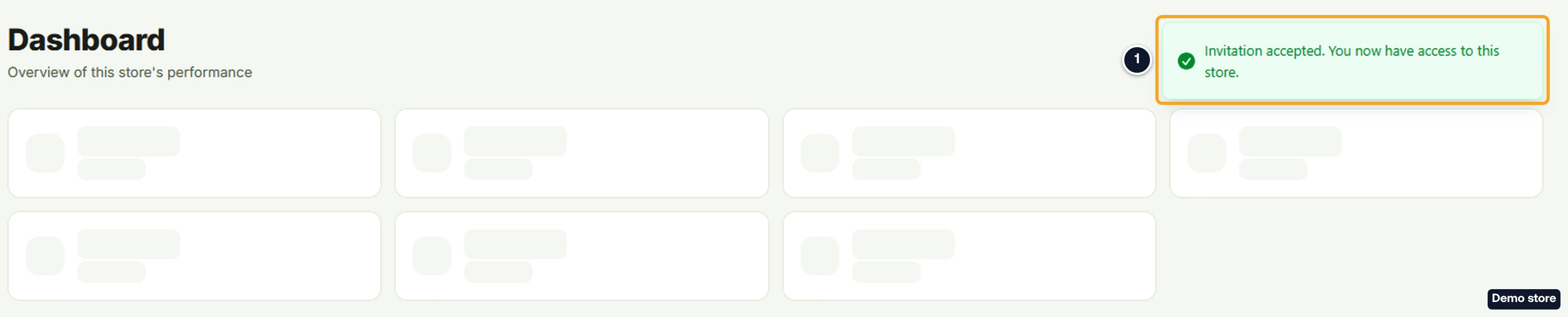
- The toast reads "Invitation accepted. You now have access to this store." and the app opens on this store.
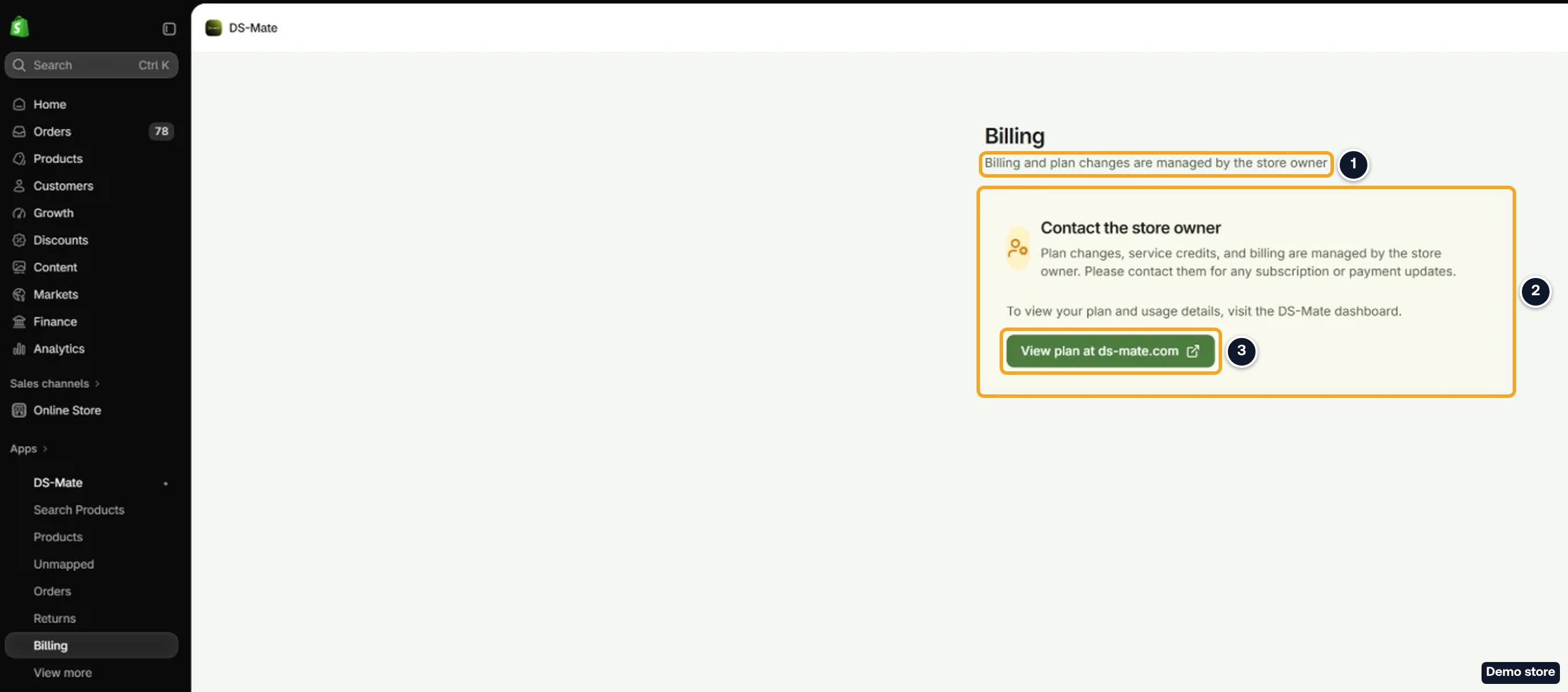
- On the Billing page you now see "Billing and plan changes are managed by the store owner" and the card "Contact the store owner". Its link "View plan at ds-mate.com" opens the DS-Mate home page.
Reject
- Click Reject. There is no confirm dialog. The toast reads "Invitation declined." and the invitation leaves the list. "Store already connected" stays, so you still cannot use the app on this store.
If no invitation shows
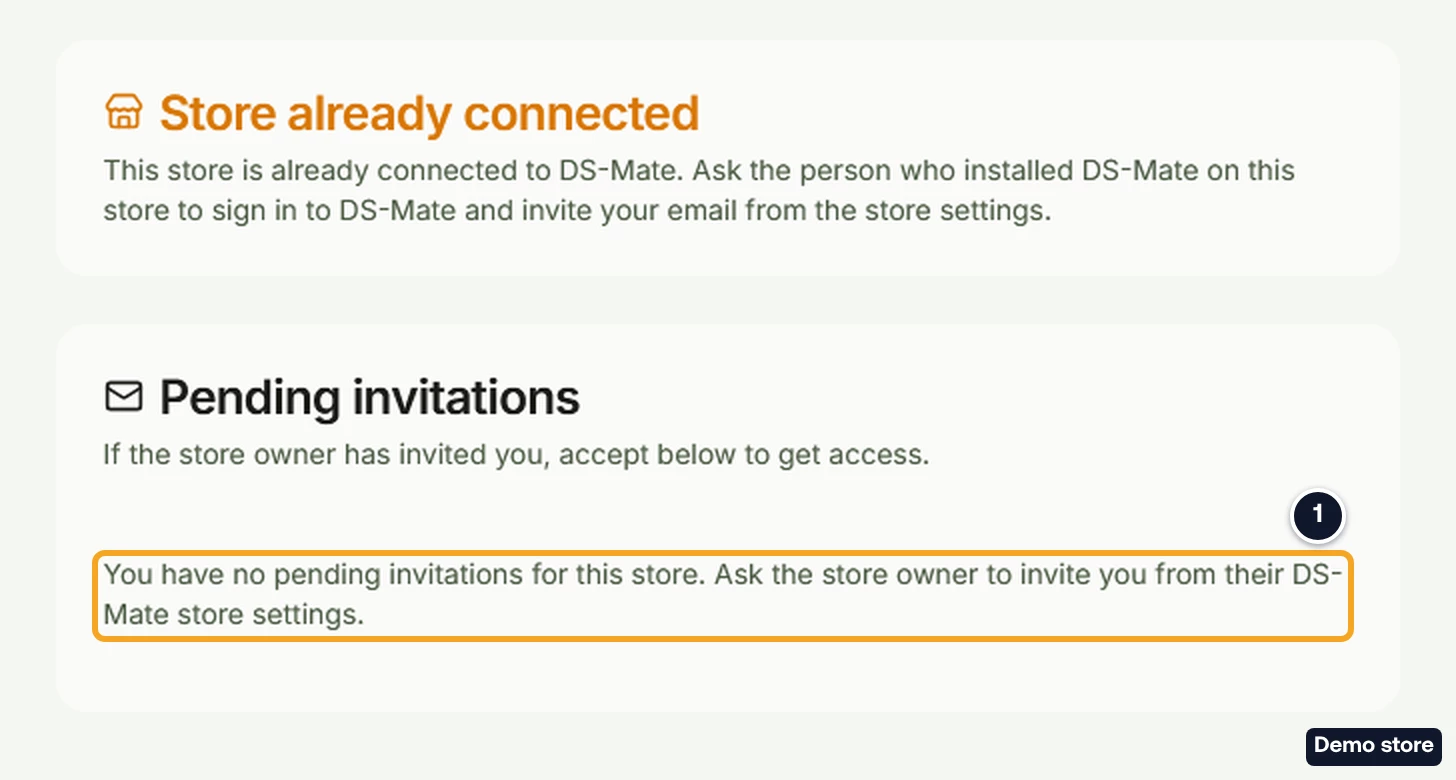
- The card reads "You have no pending invitations for this store. Ask the store owner to invite you from their DS-Mate store settings."
- Before you ask again, check the email of your Shopify login. If it is not the email the owner invited, the invitation does not show here, even if the owner has sent it. The owner can invite the email of your Shopify login instead, because opening the app made a DS-Mate account with that email. If you also have a DS-Mate account under another email, the two stay separate accounts, each with its own plan.
If accepting fails
- A toast gives the reason, or "Failed to accept invitation" (or "Failed to reject invitation"). The reasons include:
- "You can only accept invitations sent to you": the invitation belongs to another DS-Mate account.
- "Invitation is accepted, cannot accept": it was accepted already.
- "This invitation has expired": it passed its 14 days while the page was open. Ask the owner to invite you again.
If you own this store
If you disconnected this store from your own account earlier and DS-Mate cannot bring it back, the app opens "Something went wrong", and Try again may not help. Contact support.
Good to know
- Use the same email. Your Shopify login must use the email the owner invited, and Shopify must show that email as verified, or the invitation does not show. The owner can invite an email that has no DS-Mate account yet. If you change your Shopify email later, DS-Mate can join the two accounts on your next visit, but not when both have a plan or credit. Then contact support.
- Invitations last 14 days. The app shows no expiry date. An invitation you do not accept in time leaves the list, and the app reads "You have no pending invitations for this store." Ask the owner to invite you again.
Related Articles
Still have questions?
Our support team is ready to help. Reach out and we'll get back to you as soon as possible.