I installed DS-Mate from the Shopify App Store. What do I do first?
7 min readIn the DS-Mate app inside Shopify Admin (Shopify Admin > Apps > DS-Mate), on its **Billing** page. Before you have a plan, the app shows only this page. The person who installs the app becomes the owner of the store in DS-Mate, unless another DS-Mate account already owns it (see [I opened DS-Mate in Shopify and it says Store already connected](/resources/help/accept-an-invitation-in-the-shopify-app/)).
Steps
Install the app
- On the DS-Mate listing in the Shopify App Store, start the install.
- Shopify shows its own screen with the permissions DS-Mate asks for. Approve it.
- DS-Mate opens inside Shopify Admin. A loading screen shows while your plan is checked.
Choose your plan
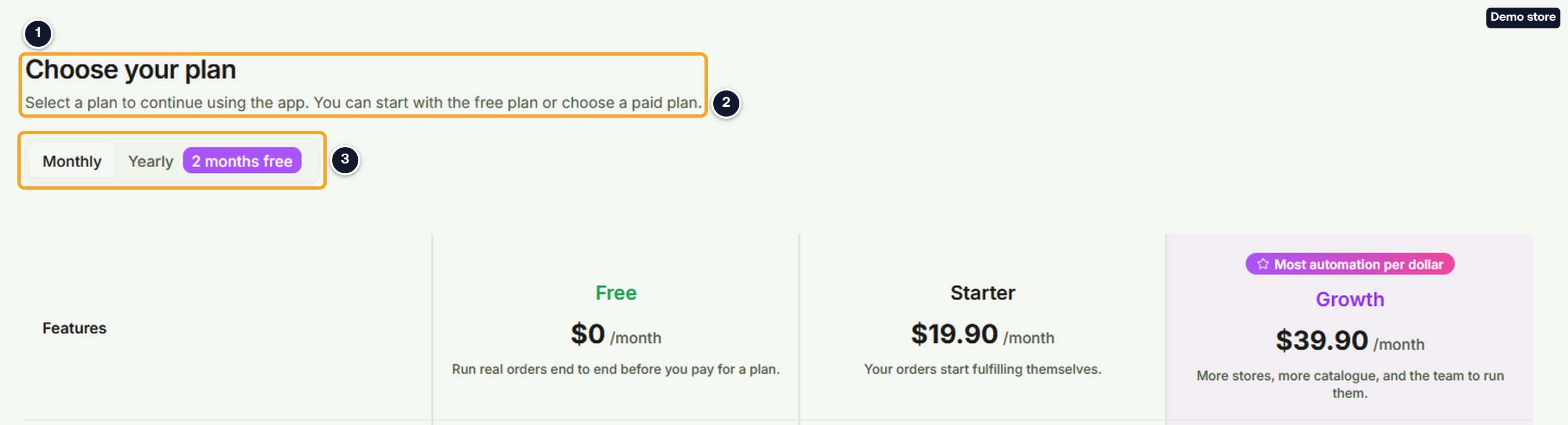
- The page "Choose your plan" opens across the whole app: "Select a plan to continue using the app. You can start with the free plan or choose a paid plan."
- Click Monthly or Yearly. The Yearly tab carries the badge "2 months free". Each plan column shows its name and its price with "/month" or "/year", and a paid plan on the yearly tab adds "2 months free".
- If a plan does not fit your account, hover its button. A message such as "You have <n> connected stores, but this plan allows <m>." tells you what does not fit. The button stays clickable.
Start on Free
- Click Get Started in the Free column. It reads Activating... while it works.
- The toast reads "Free plan activated. You can use the app with Free limits." You stay on the same page, which now shows "Billing" and "Manage your subscription and monitor usage". The app menu does not show at this point. If it fails, the toast gives the reason, or "Failed to activate free plan."
- Reload the page, or open DS-Mate again from Shopify Admin > Apps. The app then loads with your plan and its menu.
Start a free trial of Starter or Growth
- Click Start 14-day trial on Starter or Growth. It shows only if you have not had a DS-Mate trial before; otherwise the paid plans read Subscribe or a similar button (see "Pay through Shopify" below).
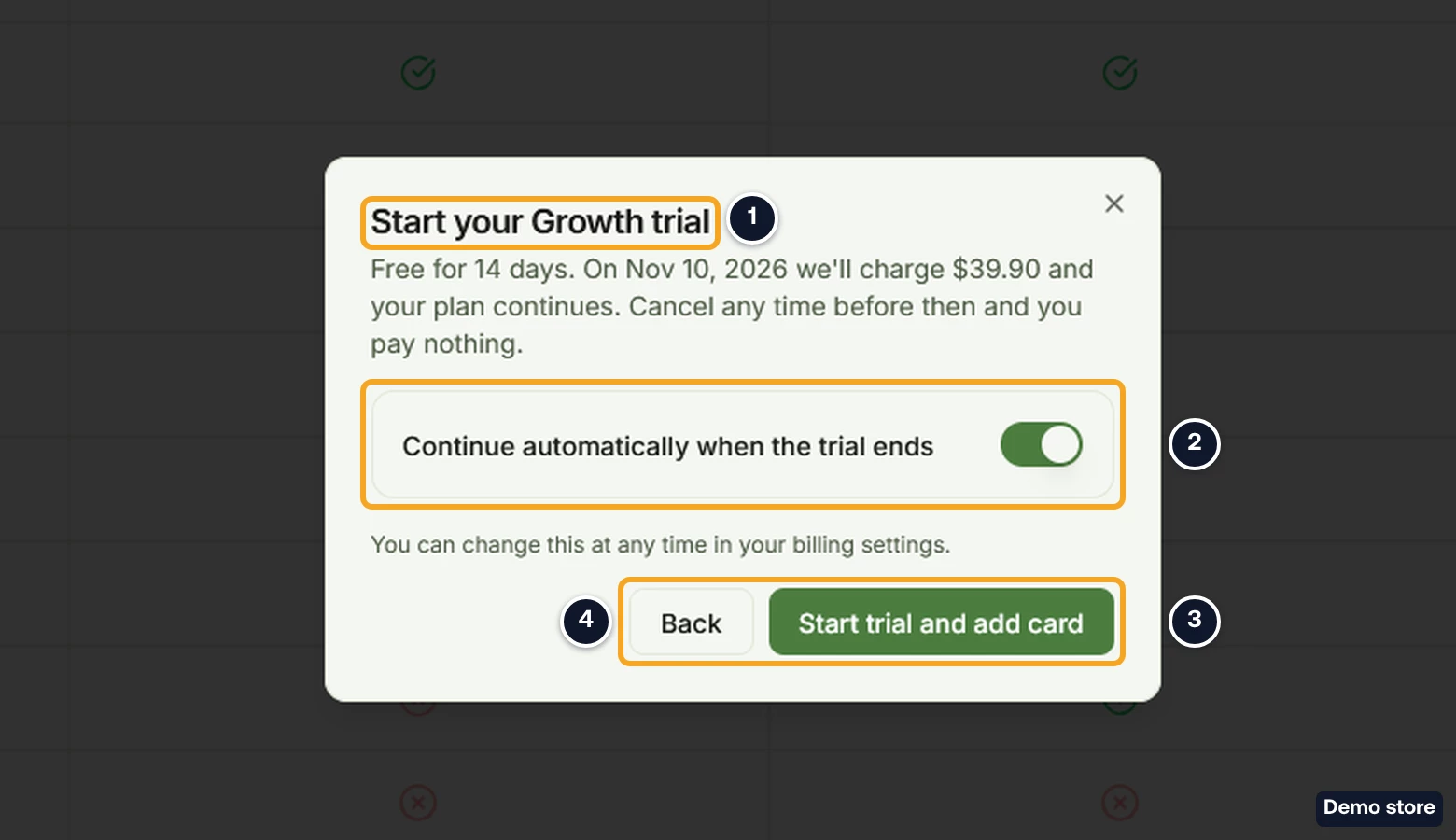
- The dialog "Start your <Plan> trial" opens. Set the switch Continue automatically when the trial ends. It is on by default.
- On: "Free for 14 days. On <date> we'll charge $<price> and your plan continues. Cancel any time before then and you pay nothing."
- Off: "Free for 14 days, with no card required. Your plan ends on <date> unless you subscribe before then."
- Click Start trial and add card (switch on) or Start trial (switch off). Back closes the dialog.
- With the switch on, Shopify's charge approval page opens; DS-Mate does not ask for a card. Before you approve, check that Shopify's page shows a 14-day free trial. If it shows no trial, do not approve: go back and contact support. A trial Shopify runs cannot be ended early. Continue at step 17.
- With the switch off, no Shopify page opens. The trial starts and you are back on the Billing page, with no message to confirm it. If the trial cannot start, a toast gives the reason, or "We could not start your trial. Please try again."
- Reload the page, or open DS-Mate again from Shopify Admin > Apps. The app then loads with your plan and its menu.
Pay through Shopify
- If no trial is offered, click the paid plan's button (Subscribe, or Resubscribe, Upgrade or Downgrade after an earlier trial) on Starter or Growth. Shopify opens its own page to approve the charge.
- Approve the charge on Shopify's page. After Start trial and add card, step 13 brings you here.
- Back in DS-Mate, "Processing Payment" shows with "Please wait while we confirm your subscription". Then:
- With a trial: "Your free trial has started" and "Your <Plan> trial is active. You have not been charged." The Billing page then shows your plan as active, without an "On Trial" badge, even though Shopify does not charge you until the trial ends.
- Without a trial: "Payment Successful" and "Your subscription is now active". If you chose a trial and see this page, Shopify did not start a trial and has charged you. Contact support.
- Under "Subscription Details", check Plan and Billing ("Yearly" or "Monthly").
- Click Dashboard. The app loads with its menu by itself.
- If the page reads "Verification Failed" and "We couldn't verify your payment", a line under it gives the reason, for example "No active payment found". Your DS-Mate plan did not start. Contact support before you try again, in case Shopify approved the charge. Dashboard takes you back to "Choose your plan".
- If Shopify answers with an error, a toast shows Shopify's message, or "Shopify did not return a billing confirmation URL". If the app cannot connect to Shopify, the toast reads "We could not connect to Shopify to start your plan. Please try again." If you do not approve the charge on Shopify's page, no plan starts, and the app shows "Choose your plan" again the next time it opens.
What opens next
Your store is already connected, and you do not connect it again: DS-Mate queued the first sync of its products and orders when the app first opened. For what syncs and what each store status means, see How do I connect my Shopify store from the web dashboard?
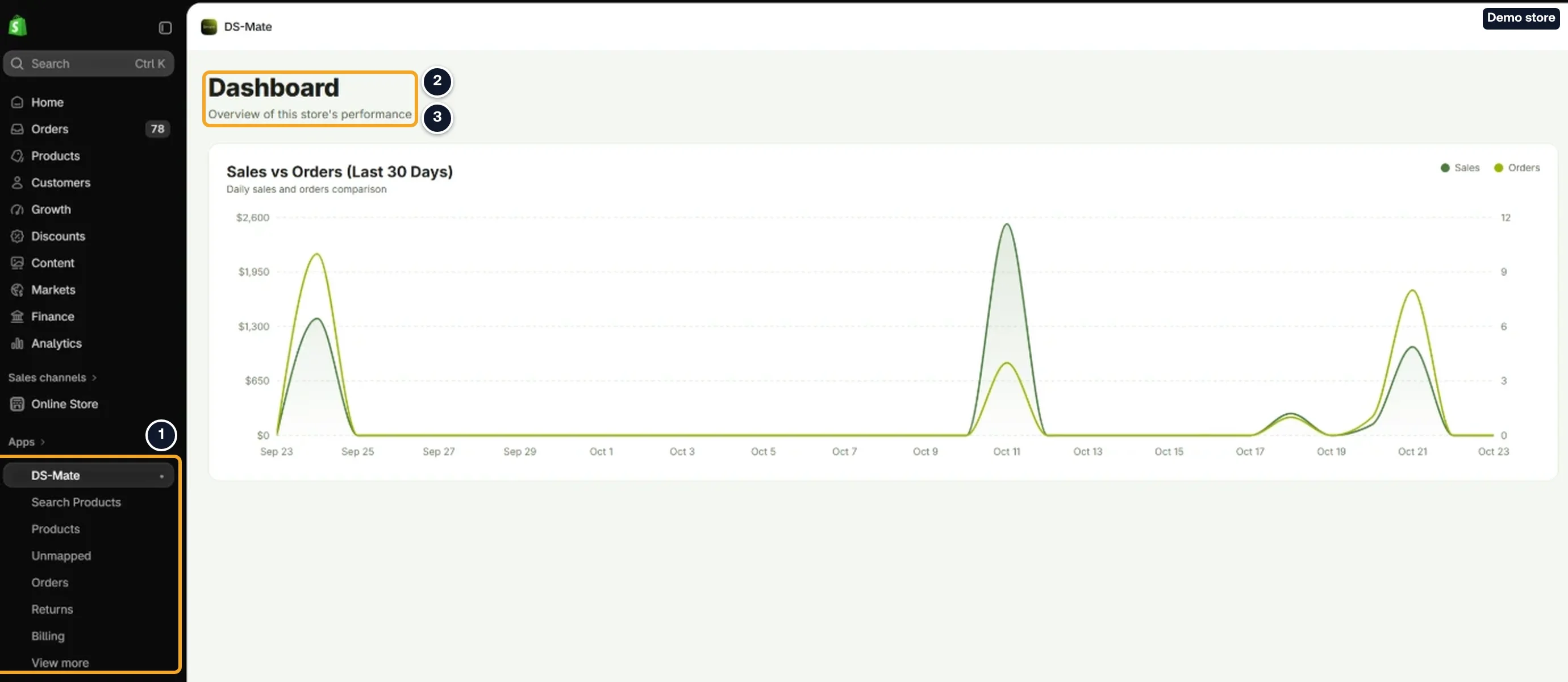
- Once you have a plan and the app has loaded again (after Shopify's charge page this happens by itself), the app menu appears in Shopify's left sidebar, under DS-Mate: Search Products, Products, Unmapped, Orders, Returns and Billing, then Service Credits, Referrals and Store settings, which Shopify may fold under View more. Connected apps can also show, before Store settings.
- Click DS-Mate in the sidebar. The Dashboard opens; its header reads "Dashboard" and "Overview of this store's performance". The chart stays empty until orders are processed.
If another screen opens instead
Once the app has loaded with your plan, one of these can open instead of the menu and the Dashboard:
- "Store already connected": another DS-Mate account owns this store. See I opened DS-Mate in Shopify and it says Store already connected.
"Store Limit Reached": your Shopify login is linked to a DS-Mate account that already has as many stores as its plan allows (Free 1, Starter 2, Growth 5). The screen reads "Your plan allows <n> store(s). Remove an existing store to connect <shop>, or upgrade your plan." and lists "Your connected stores:".
- To upgrade your plan, click Upgrade Plan. The plan dialog opens on the same screen.
- To make room, click the disconnect icon next to a store. The dialog "Disconnect Store" opens.
- Type DISCONNECT in "Type DISCONNECT to confirm:".
- Click Disconnect Store, or Cancel to stop. The toast "Store disconnected. Reconnecting..." shows and the page reloads.
- "Reconnect your Shopify store": DS-Mate has lost access to the shop. The screen reads "DS-Mate lost access to your Shopify store, so it cannot sync your products and orders for now. Your products and orders in DS-Mate are kept. Reconnect to continue." Click Reconnect; it reads Reconnecting... while it works, and the toast "Your Shopify store is connected again." confirms it.
- "Something went wrong": click Try again.
Good to know
- Your Shopify email decides your DS-Mate account. The first time you open the app, if Shopify has verified the email of your Shopify login and it matches a DS-Mate account with a verified email, the app uses that account and its plan, and with an active plan or trial it skips "Choose your plan". Otherwise the app makes a new DS-Mate account. Use the same verified email in Shopify and DS-Mate to keep one account.
- Uninstalling ends a plan you pay for through Shopify. When you install the app again, it asks you to choose a plan again. If you reinstall within 48 hours, the store comes back with its data. After that, Shopify asks us to erase the store's customer details. A trial without automatic continuation is not billed through Shopify, so uninstalling does not end it: it runs to its end date. After it, no new trial is offered: your trial plan reads Resubscribe and the other paid plan Upgrade or Downgrade.
Related Articles
Still have questions?
Our support team is ready to help. Reach out and we'll get back to you as soon as possible.