Help CenterSupport
How do I contact DS-Mate support, and when will they reply?
3 min readthe green button at the bottom right of every dashboard page while you are signed in (web dashboard)
Click the green support button at the bottom right of any dashboard page. You can submit a ticket on every plan, Free included, and Live Chat is on Starter and Growth. The support team works Monday to Friday, 7:00 AM to 3:00 PM EST, and a reply shows up in your notification bell.
Steps
Open the support widget
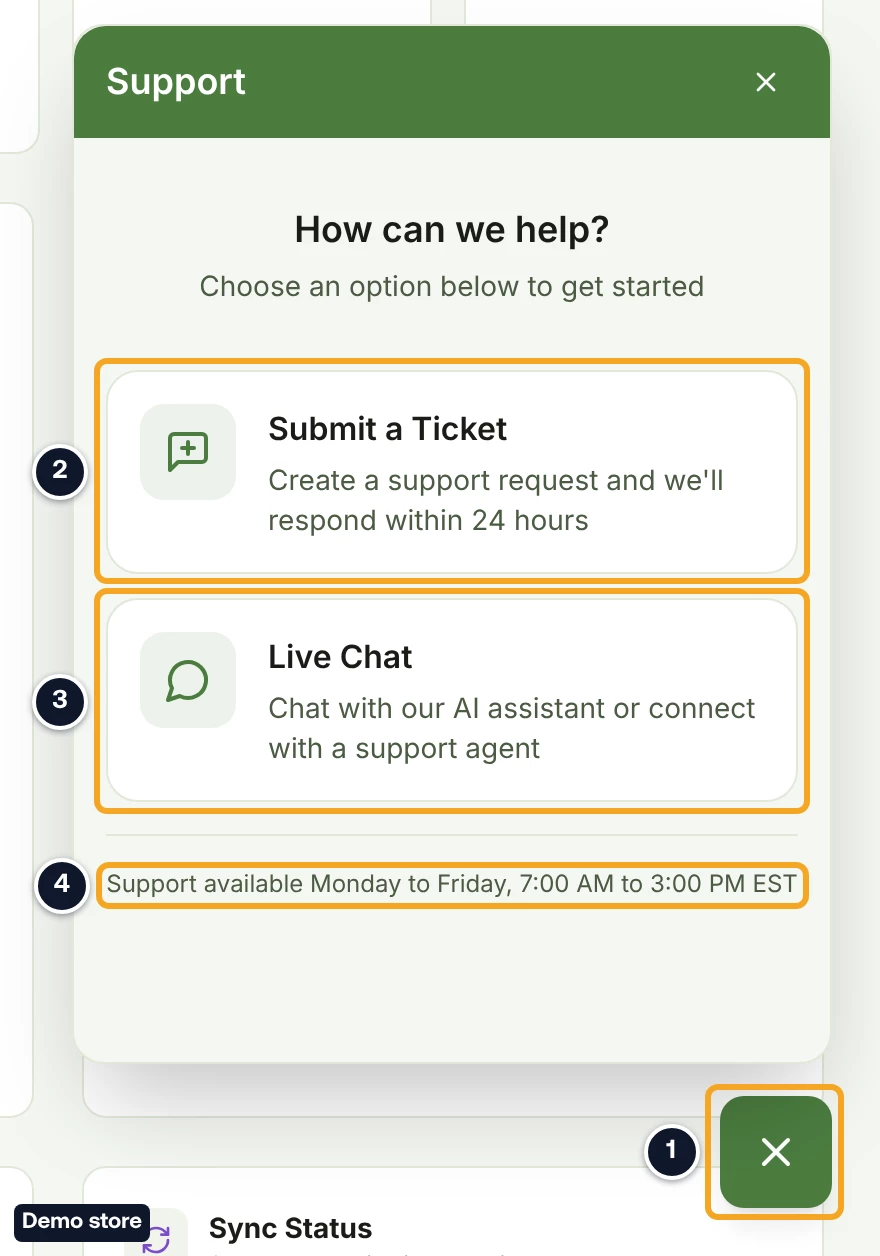
- Click the green button at the bottom right, Open support widget. The panel "Support" opens.
- Read the options under "How can we help?". The footer reads "Support available Monday to Friday, 7:00 AM to 3:00 PM EST".
Submit a ticket
- Click Submit a Ticket. The option reads "Create a support request and we'll respond within 24 hours".
- Pick a Category: "Billing & Subscription", "Technical Issue", "Store Integration", "Feature Request" or "Other". It starts on "Other".
- Type a Subject *, up to 150 characters.
- Type a Description *, from 10 to 5000 characters. The counter under it reads "<n>/5000 characters".
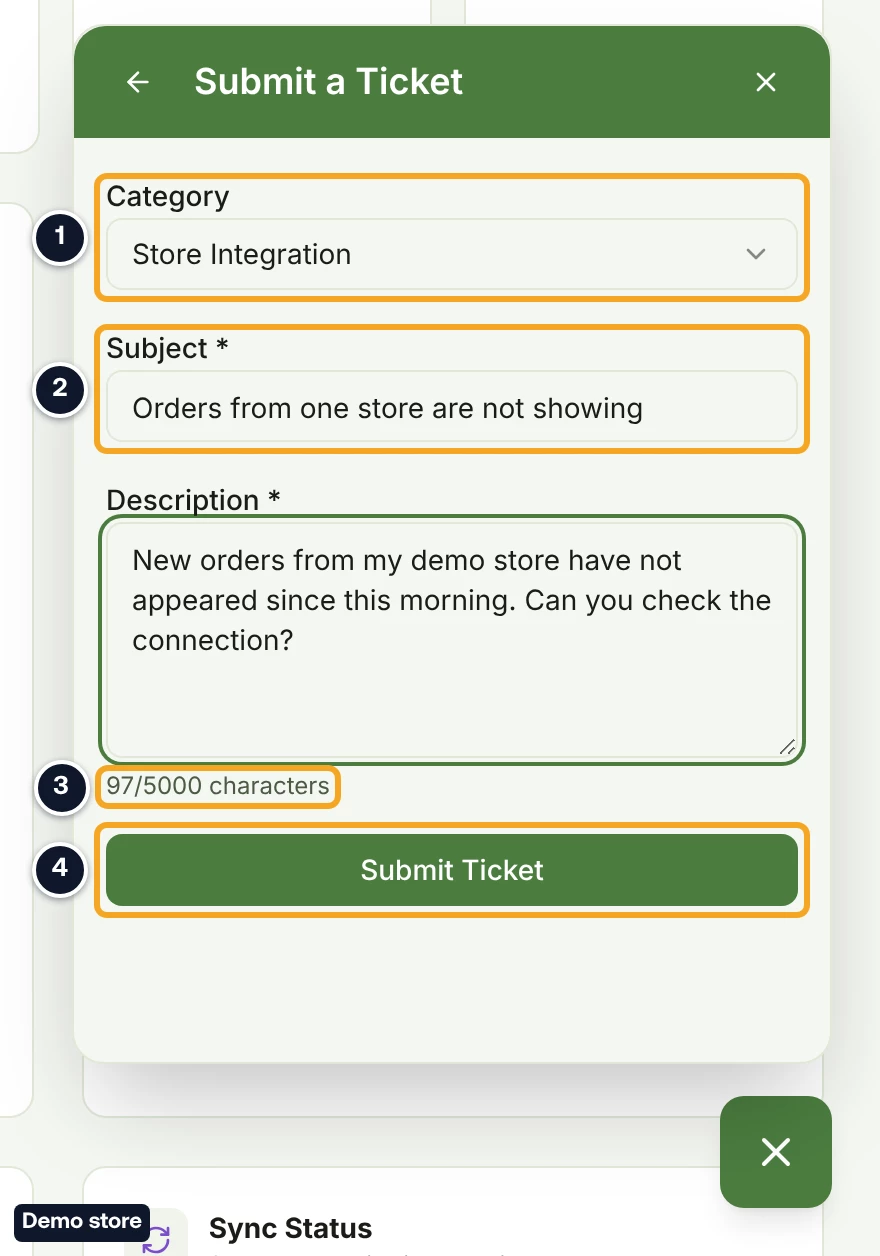
- Click Submit Ticket. It reads Submitting... while it works. If a field is empty or the description is shorter than 10 characters, your browser stops the send and points to the field. Any other problem shows in a red box at the top of the form.
- The panel reads "Ticket Created!" and "Your ticket #<id> has been submitted. We’ll respond within 24 hours." A receipt with the ticket number goes to your account email.
- Click Done to go back to "How can we help?", or Submit Another for a new ticket.
Read support's reply
- When support replies, your bell shows "Support replied to ticket #<id>". Click it to open that ticket in the support widget.
Use Live Chat (Starter and Growth)
- On the "How can we help?" view, click Live Chat, "Chat with our AI assistant or connect with a support agent". The panel "Conversations" opens. With no history it reads "No Conversations Yet".
- Click Start New Chat to start a conversation. If you already have history, it reads Creating... while it works.
- To read an earlier conversation, click its row. Each row shows "Ticket #<id>", a status such as "Open" or "Resolved", the subject and the date. The row opens that ticket's history, read-only. To write again, use Start New Chat.
If you are on Free
- On Free, or with no plan, Live Chat opens "Unlock Live Chat" instead, with an Upgrade to <plan> button that opens the pricing page. Click Submit a ticket instead to send a ticket.
Good to know
- The 24 hours are not counted in support hours. The team works Monday to Friday, 7:00 AM to 3:00 PM EST, so a ticket sent on a Friday afternoon or at the weekend may wait until the team is back on Monday.
- You do not type your name or email. Your ticket is sent with the name and email on your account.
- Replies come by email and show in the bell, not on the support button. The reply goes to your account email. The bell row disappears after about 6 hours, but the email stays.
- If Live Chat shows Chat Unavailable or Connection Error, use Submit a Ticket instead.
- Live Chat follows your own plan. A guest on Free sees "Unlock Live Chat" even on a Growth owner's store; use Submit a ticket instead.
- From an order, when an order has a problem, its notice on the order page shows Contact support (or Contact us). It opens the ticket form with the order details already filled in.
- A reply in Live Chat shows in the bell as "New reply from support".
On the Shopify app
The app has no support widget. On an order page, Contact support opens an email to support@ds-mate.com. Elsewhere in the app, Contact support opens the contact page on ds-mate.com.
Related Articles
Still have questions?
Our support team is ready to help. Reach out and we'll get back to you as soon as possible.