Help CenterAccount & Security
Where do I see DS-Mate's alerts, and how do I choose which emails I get?
6 min readthe bell at the top right of the dashboard, Settings > Stores > a store > Emails for this store, and Settings > Profile > Emails from DS-Mate (web dashboard)
Your alerts are in the bell at the top right of the dashboard, on every plan. Open it to read them, and click Mark all as read to clear the red number. Emails are set per store: open Settings > Stores, click a store, and under Emails for this store pick Instantly, Daily, Weekly or Off for each email. Product tips is set once for your account, on Settings > Profile.
Steps
Read your bell
- Click the bell at the top right of the dashboard, next to your credit balance. The red badge on it shows how many notifications you have not read, or "99+" above 99.
- The "Notifications" panel opens, newest first, 5 to a page.
- Click Unread to see only the ones you have not read. It reads "Unread (<n>)" while you have some.
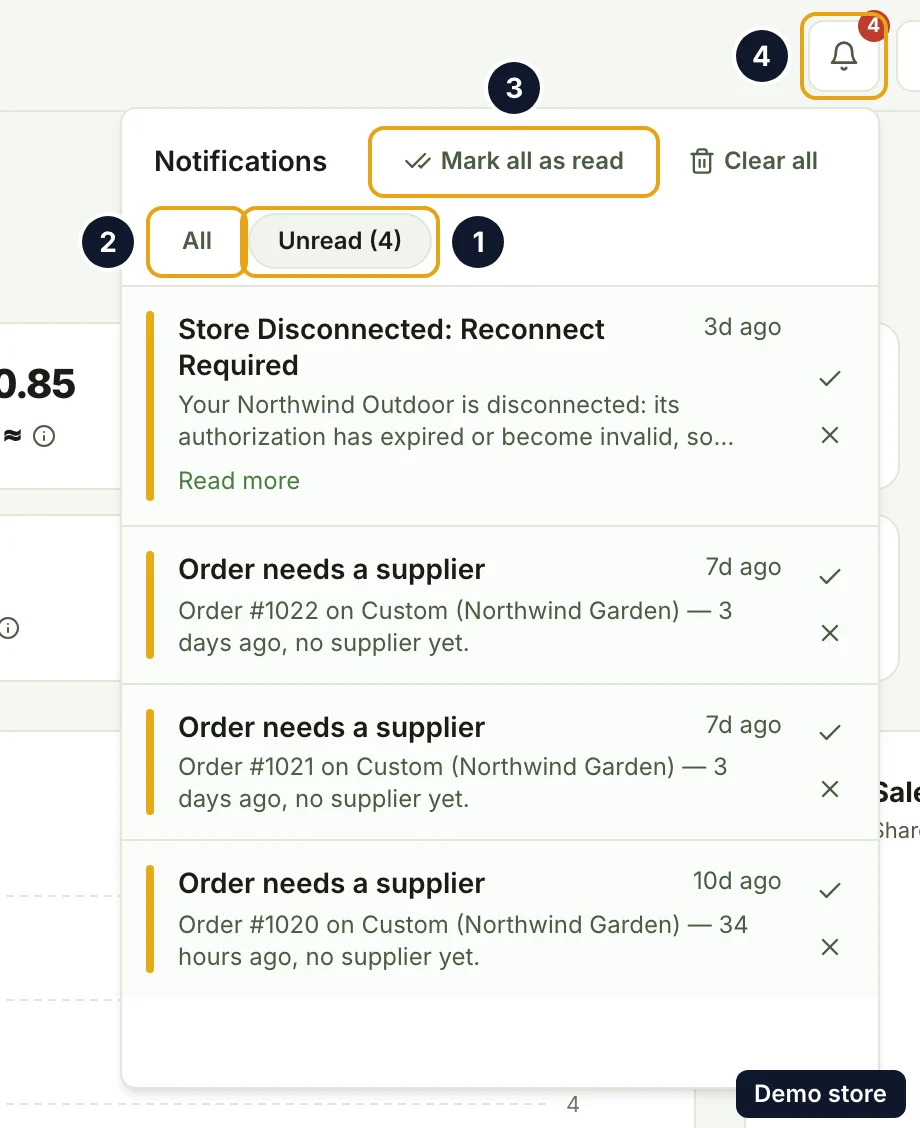
- Click All to see everything again.
- Read a row. The coloured bar on its left shows the kind: green for information or success, amber for a warning, red for an error. The title is bold while unread, the age reads like "5m ago" or "2d ago", and a long text has Read more.
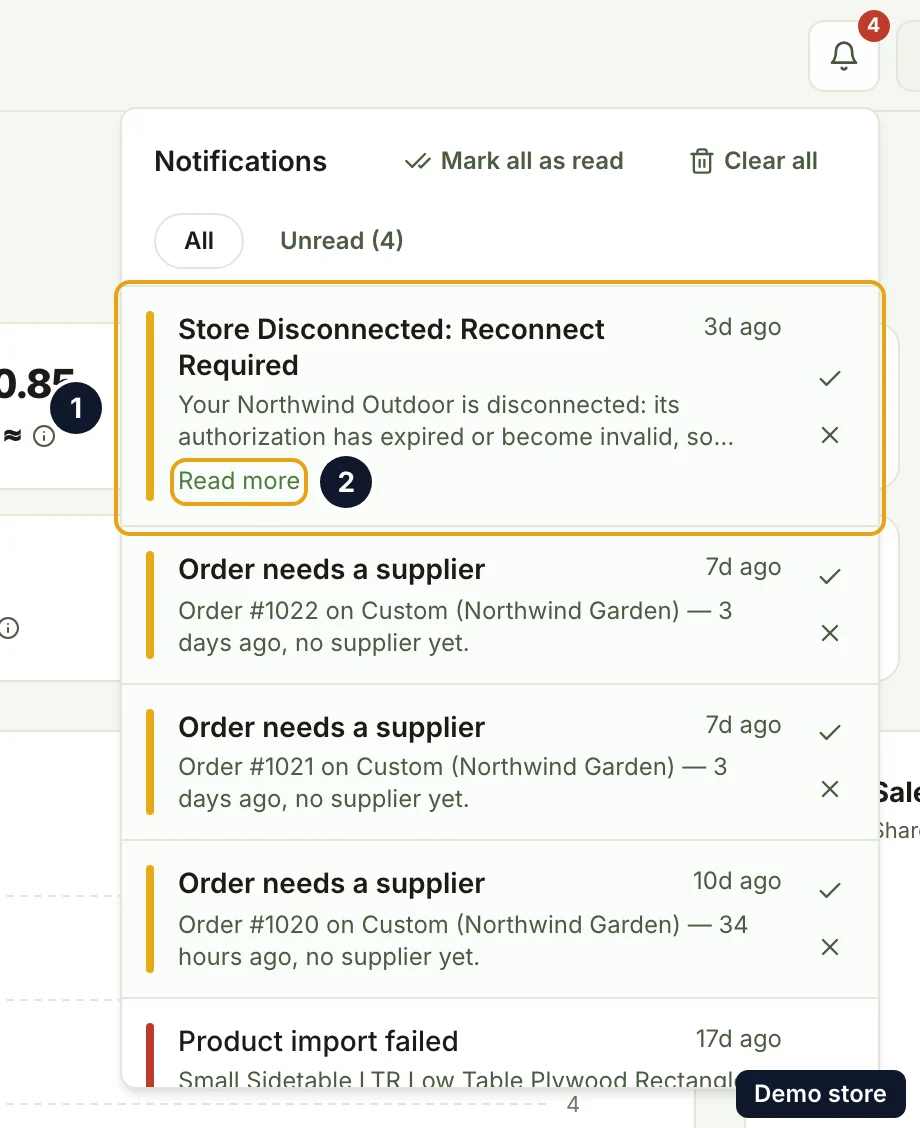
- Click a row to open what it points to. The row is marked read. A support reply opens the support widget on that ticket.
- To mark one row read without opening it, click its check icon, Mark as read. The check icon shows on unread rows only.
- To remove one row, click its X, Remove notification.
- If you have more than 5, the panel shows "Page 1 of 2" and so on. Click Next page or Previous page.
- To clear the red number, click Mark all as read. It shows only while you have unread notifications.
Clear the whole bell
- Click Clear all. The dialog "Clear all notifications?" opens: "This removes every notification from your bell. This can't be undone."
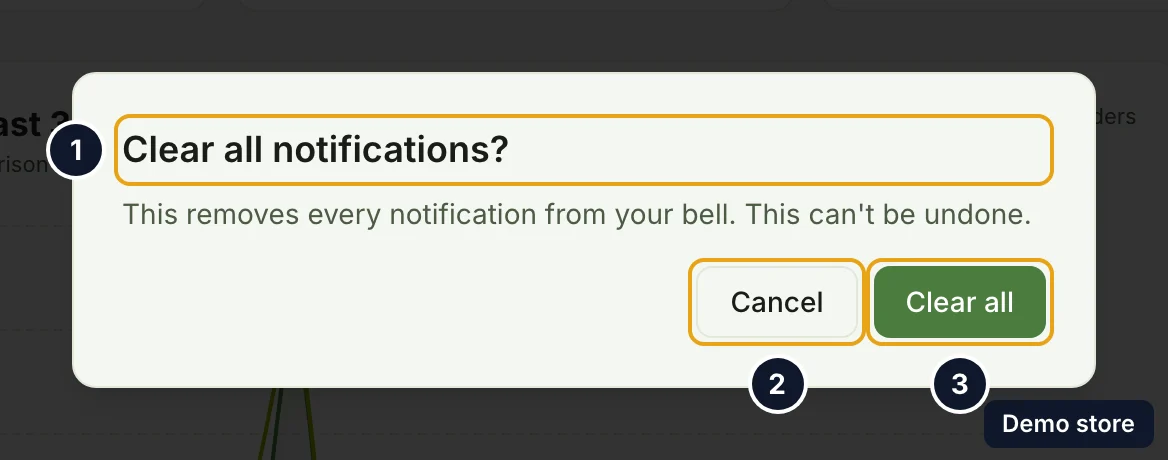
- Click Clear all in the dialog to confirm, or Cancel to keep everything. An empty bell reads "No notifications yet".
Choose your store emails
- Click your avatar at the top right.
- Click Settings.
- Click Stores, under "Business" in the left list.
- Click the store you want: its name, or anywhere on its card. The store's page opens.
- Scroll to Emails for this store. It has two rows:
- Order updates: "Shipped and delivered", an email when a supplier ships an order and when it is delivered.
- Stuck order alerts: an order with no supplier order, or no tracking number, for too long, and an order cancelled after its supplier order was paid or shipped. The row says "after 24 hours", but DS-Mate alerts after 30 hours.
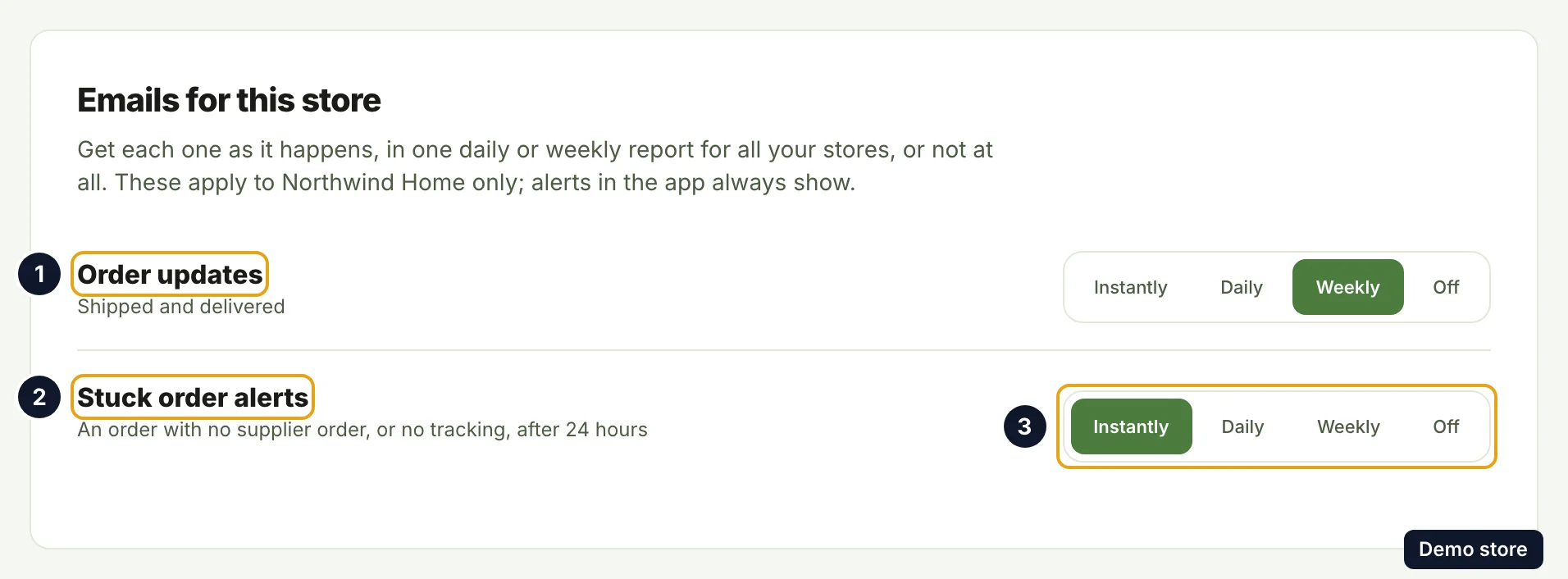
- On each row, pick Instantly, Daily, Weekly or Off. Each choice saves as soon as you pick it, and the toast reads "Email setting saved". If saving fails, it reads "Could not save the email setting. Try again."
- Instantly: one email each time it happens.
- Daily: one report a day, around 8 AM in the timezone of your profile, covering the last 24 hours. It has every store you set to Daily.
- Weekly: one report on Monday morning, covering the previous 7 days. It has every store you set to Weekly.
- Off: no email for that store.
- With Stuck order alerts on Daily or Weekly, the row warns "You may hear about a stuck order up to a day late." (or "a week late.").
Turn product tips on or off
- Click Settings. Profile opens first.
- Find the card Emails from DS-Mate.
- Turn Product tips on or off: "Tips and reminders about getting more out of DS-Mate". The switch saves as soon as you move it, and the toast reads "Email setting saved".
Unsubscribe from a tips email
- Click the unsubscribe link in a product tips email. The page "Unsubscribe from product tips" opens and does nothing until you click. A broken link shows "This link is not valid."
- Click Unsubscribe. The page reads "You are unsubscribed." This turns Product tips off; emails about your orders, stores and account keep coming. Open email settings takes you to Settings > Profile, where you can turn tips back on.
Good to know
- Most information and success notifications disappear about 6 hours after they arrive, read or not. Warnings, errors and a few information notices stay until you remove them.
- Email choices are per store and per person. They apply to that store only, and each person's choices apply to their own login. A guest's choices never change the owner's emails.
- If you never chose: as the store owner, Order updates is Weekly and Stuck order alerts is Instantly. As a guest, both are Off. If you turned an email off on the old Notifications page before it moved, it starts on Off. The store page always shows the real setting.
- Instant emails need Growth. Instantly order update and stuck order alert emails go out only when the store owner is on Growth. The daily and weekly reports go out on every plan, and a quiet period sends nothing. On Free or Starter, pick Daily or Weekly if you want stuck order alerts by email.
- The bell does not depend on these choices. The store owner always gets stuck order alerts in the bell. A guest gets them in the bell with Stuck order alerts on Instantly.
- When an alert fires. DS-Mate checks every 2 hours. It alerts when an order is still ready to fulfil more than 30 hours after it was placed, when a supplier order has had no tracking number for more than 30 hours, and when an order is cancelled after its supplier order was paid or shipped. The two 30 hour checks skip orders and supplier orders more than 7 days old; the cancellation check has no age limit.
- Your bell is your own. Marking read, removing or clearing changes only your bell. A guest's bell also shows the store-wide notifications of the stores they work on.
- Mark all as read covers every one of your stores on the web dashboard.
- Emails DS-Mate must send, such as password and account messages, are not controlled by these settings.
On the Shopify app
The app has its own bell. It lists that store's notifications plus the ones sent to you personally about that store, such as its stuck order alerts, and account-wide ones such as support replies. Its Mark all as read and Clear all act on that same list, so clearing there also clears those rows from your web dashboard bell. The app has no email settings screen; on the web dashboard use Settings > Stores > your store > Emails for this store, and Settings > Profile for Product tips.
Related Articles
Still have questions?
Our support team is ready to help. Reach out and we'll get back to you as soon as possible.