Help CenterAccount & Security
How do I change my name, photo or timezone, and can I change my email or language?
3 min readSettings > Profile, the "Personal Information" card (web dashboard). Every plan; owners and guests each edit their own profile.
Change your name, photo, country and timezone on Settings > Profile, in the "Personal Information" card, then click Save Changes. Your email address cannot be changed in Settings, and there is no language setting: DS-Mate is in English only. If the timezone you pick differs from your device's, DS-Mate sets it back to your device's zone each time you open DS-Mate in a new tab or window, unless your device is on UTC.
Steps
Open your profile
- Click your avatar at the top right.
- Click Settings. Profile opens first.
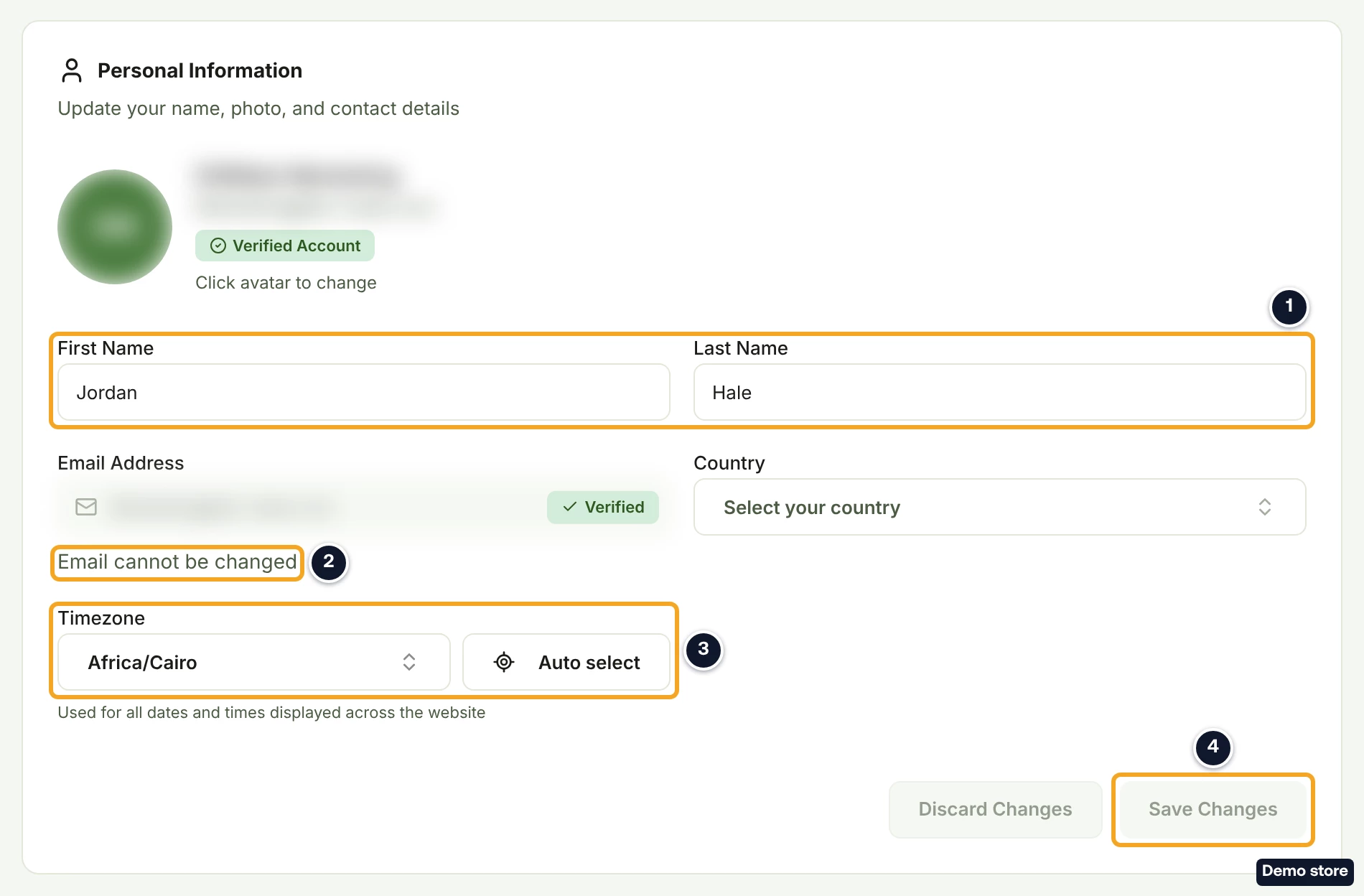
- Find the card "Personal Information", "Update your name, photo, and contact details".
Change your name or photo
- Edit First Name. It is required and can be up to 50 characters.
- Edit Last Name. It is required and can be up to 50 characters.
- To change your photo, click your avatar (a camera shows when you point at it), Change photo.
- Pick an image under 5 MB in the file picker. It is cropped to a 128 by 128 pixel square before it is saved. A file that is not an image shows "Please select an image file"; a larger one shows "Image must be less than 5MB".
- To remove your photo, if you have one, hover over your avatar and click the red X, Remove photo. The line under the avatar reads "Photo will be removed on save".
Set your timezone
- Click Timezone. It shows your saved zone, or UTC if none is saved.
- Type part of the zone's name in "Search timezone...", for example "New York". Zones are listed by region and city, such as "America/New York", with no UTC offset.
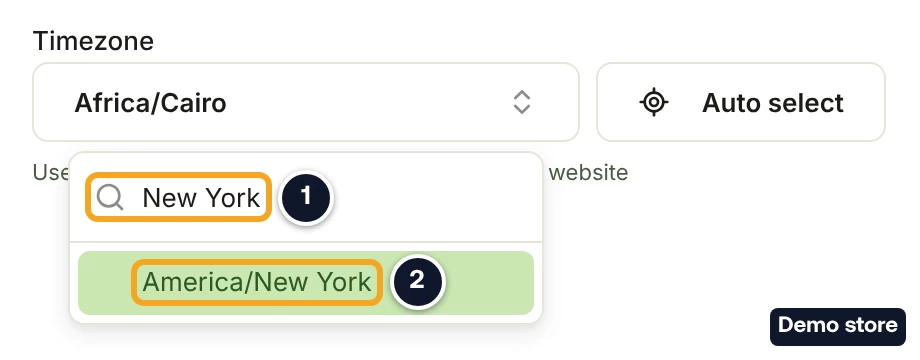
- Click your zone.
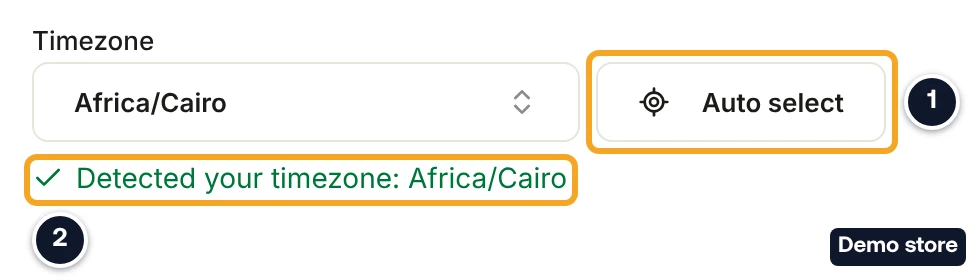
- Or click Auto select to use your device's zone. For 4 seconds the line under the field reads "Detected your timezone: <zone>".
Pick a country (optional)
- Click Country. It reads "Select your country" when none is set.
- Type part of your country's name in "Search country...".
- Click your country.
Save
- Click Save Changes. It reads Saving... while it works, and the toast reads "Account settings saved!". If saving fails, the toast shows the error, or "Failed to save account settings".
- To undo your edits instead, click Discard Changes. Both buttons stay dimmed until you change something.
Good to know
- Your timezone can switch back. Each time you open any DS-Mate page in a new tab or window while signed in, DS-Mate sets your timezone to your device's zone if they differ, unless the device is on UTC. If you want a zone different from your computer's, you will have to set it again after that happens.
- Where the timezone shows. Most dates on your orders, returns, Plan & Billing, Service Credit and in the support widget use it. The bell shows ages such as "2h ago" instead. It also sets when the daily store report arrives: around 8 AM in your timezone, if you set a store's emails to Daily. Other DS-Mate emails do not use it.
- Email and language. The email field reads "Email cannot be changed". There is no language setting, and DS-Mate is in English only.
- Country is saved with your profile. Once you save one you can change it, but not clear it.
- The name at the top of the card comes from your sign-in and does not change when you save new names; your saved First Name and Last Name are the ones in the fields.
- Your password and two-factor authentication are on Settings > Security. Store emails are on each store's page under Settings > Stores, and Product tips is in Emails from DS-Mate on this Profile page.
On the Shopify app
The app has no profile, timezone or language screen. Most of its dates use your DS-Mate account's timezone, or UTC if none is set.
Related Articles
Still have questions?
Our support team is ready to help. Reach out and we'll get back to you as soon as possible.